
Get on average 25 minutes more battery life with Microsoft Edge. Energy saver helps extend your PC’s battery life by reducing CPU and memory usage with smarter background tab behavior and performance optimizations. Customize when it turns on and how it works to balance smooth browsing with longer battery life across Windows, macOS, and Linux. Benefits may vary depending on your device, applications, and individual browser habits.
Energy saver
Get on average 25 minutes more battery life with Microsoft Edge. Energy saver helps extend your PC’s battery life by reducing CPU and memory usage with smarter background tab behavior and performance optimizations. Customize when it turns on and how it works to balance smooth browsing with longer battery life across Windows, macOS, and Linux. Benefits may vary depending on your device, applications, and individual browser habits.
Tips and Tricks
Frequently asked questions
When Energy saver is on:
- It puts background tabs to sleep after 30 minutes of inactivity when your device is taking moderate steps to save your battery (if Automatically put tabs to sleep is on) and five minutes of inactivity when additional steps are taken to maximize savings.
- It may cause videos to be less smooth, and you may experience some visible slowdowns when you browse.
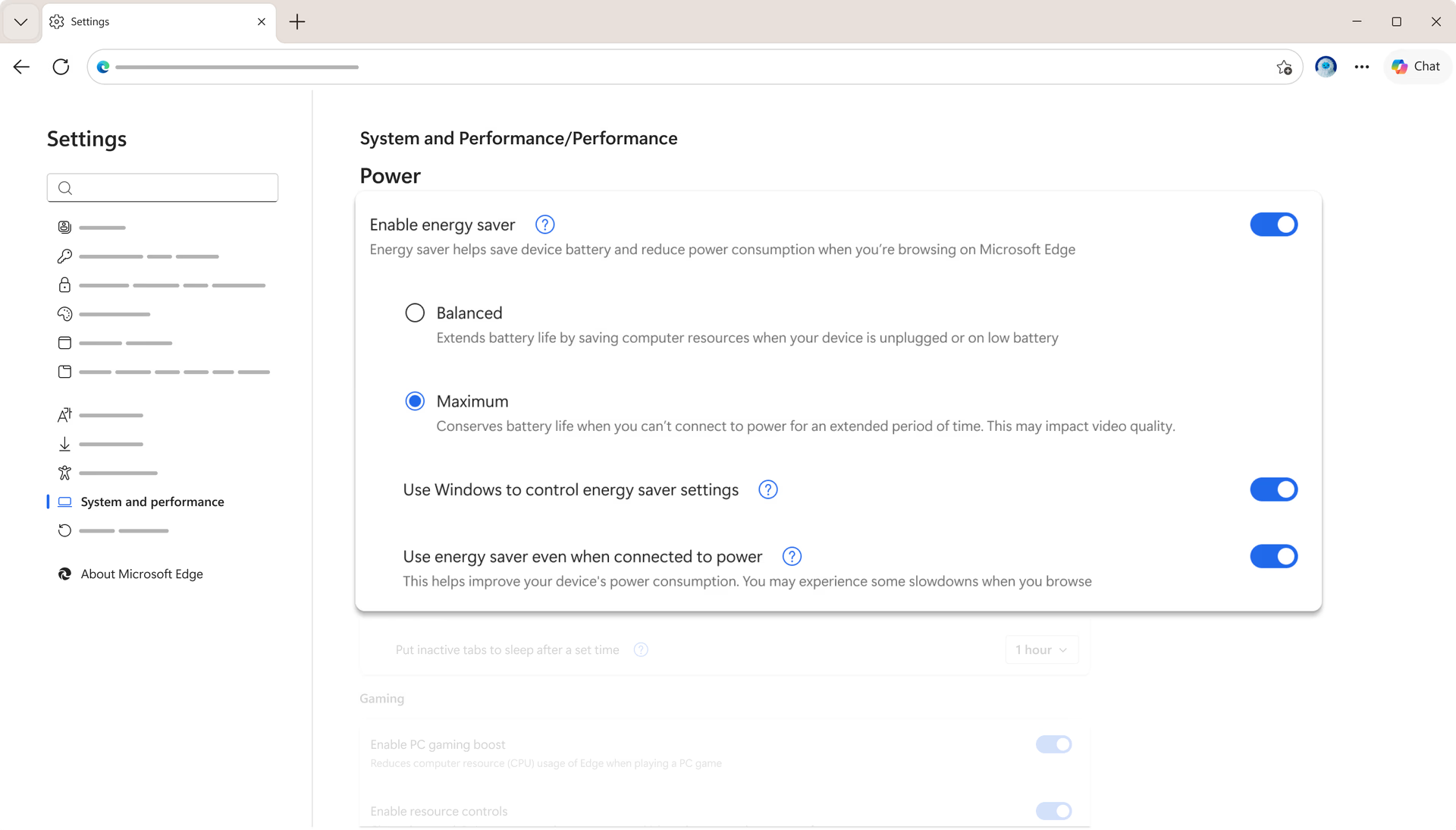
Balanced: This is the recommended option. It helps extend your battery life by saving computer resources. When your device is unplugged, moderate steps are taken to save your battery. You should experience no or minor slowdowns when you browse. When your device reaches low battery, additional steps are taken to save your battery. With these additional steps, you may experience some visible slowdowns when you browse. For example, it may cause videos to be less smooth.
Maximum: Choose this option when you can’t be connected to power for an extended period and need to conserve more battery life. With this setting, for the entire time that you're unplugged, additional steps are taken to save your battery. The changes being made to your browser will be the same as when additional steps are taken in Balanced while on low battery. You may experience some visible slowdowns when you browse.
Energy saver will become active when your device is unplugged and will remain active until your device is connected to power or your laptop runs out of battery.
If you want Energy saver to be active when connected to power, you can turn this on in Settings:
- In Microsoft Edge, go to icon Settings ▸ System and performance.
- Select Performance and enable Use energy saver even when connected to power.
Energy saver works on Windows, macOS, and Linux. The default for when it becomes active differs on each platform.
- For Windows, it follows Windows Battery Saver mode.
- For macOS, it turns on at 20%.
- For Linux, it’s off by default.
Energy saver in Microsoft Edge works on Windows, macOS, and Linux devices. The default for when the mode becomes active differs on each system:
- For Windows devices, it follows Windows Battery Saver mode
- For macOS devices, it turns on at 20%
- For Linux devices, it’s off by default
Although Energy saver has advantages for battery-powered devices, it can also benefit desktop computers. Energy saver minimizes browser resource usage so the operating system can focus its resources on other running apps. However, if you enable Energy saver, you may experience some visible slowdowns when you browse. You can turn this on for desktops from Settings:
- In Microsoft Edge, go to icon Settings ▸ System and performance.
- Select Performance and set the toggle next to Enable energy saver to On.
Microsoft Edge offers group policies to:
- Enable and disable the feature entirely
- Manage if Energy saver is set to Balanced or Maximum
- Manage if Energy saver will become active when a device is plugged in
These can be both mandatory or recommended group policies. If it’s a recommended group policy, IT admins will have the ability to set the default behavior that their users can change later, if they wish.
Microsoft Edge Energy saver (formerly known as Efficiency mode) is a web browser feature that reduces power usage while you're browsing and is a separate feature from Windows Energy saver. Turning off Microsoft Edge Energy saver doesn't turn off Windows Energy saver.
The Energy saver you see in the Windows Task Manager status column is a new Windows 11 feature that automatically limits resources used by a single process or process group when high CPU use is detected. This improves device responsiveness for active processes, prolongs battery life, lowers thermal noise, and reduces stress on the CPU by lowering background process priority. Turning off Windows Energy saver in Task Manager doesn't turn off the Microsoft Edge Energy saver.
- * Feature availability and functionality may vary by device type, market, and browser version.