
Stop deceptive popups and fake alerts before they trick you. Scareware blocker in Microsoft Edge helps protect you from scams that try to create panic, full screen warnings, alarm sounds, or locked pages that push you toward harmful downloads or fake support calls—so you can browse with confidence, knowing your data stays private and your experience stays secure.
Scareware blocker
Stop deceptive popups and fake alerts before they trick you. Scareware blocker in Microsoft Edge helps protect you from scams that try to create panic, full screen warnings, alarm sounds, or locked pages that push you toward harmful downloads or fake support calls—so you can browse with confidence, knowing your data stays private and your experience stays secure.
Tips and Tricks
Frequently asked questions
Scareware refers to deceptive websites that try to trick you into thinking your computer is infected or broken—often via fake alerts, full screen warnings, loud alarm sounds, locked keyboard/mouse, or fake tech support demands. These tactics aim to panic you into installing harmful software or giving scammers access.
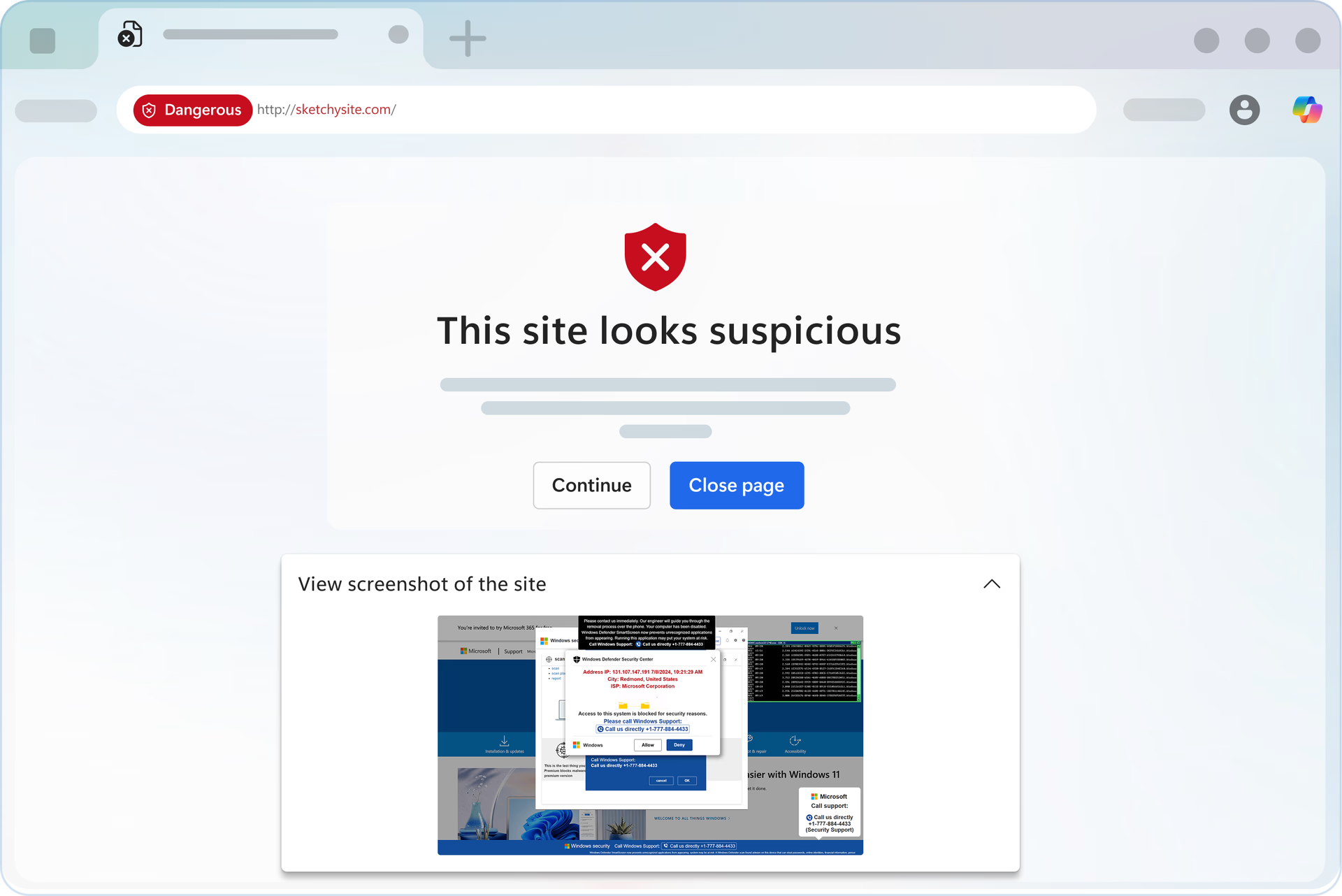
When enabled, Edge runs a local machine learning model that detects suspicious full screen behaviors or scams like page activity in real-time. If a page matches known scam patterns, Edge exits full screen, silences any audio, and shows a warning—giving you the option to close the page or continue.
Learn more about preventing online scams with Scareware Blocker in Microsoft Edge.
Yes. Scareware blocker checks pages locally on your device by default. If Scareware blocker detects a suspicious full-screen page, the new scareware sensor can notify Microsoft Defender SmartScreen about the potential scam immediately, without sharing screenshots or any extra data beyond what SmartScreen already receives. Scareware blocker does not capture or send screenshots unless you choose to include one when submitting feedback.
If you would like to turn off Scareware blocker sharing detected scam sites with SmartScreen, go to Settings > Privacy, search and services > Security > and then turning off "Share detected scam sites with Microsoft Defender SmartScreen".
Learn more about expanded Scareware Blocker availability and real-time protection in Microsoft Edge.
Whenever Scareware blocker is triggered, Edge will automatically prompt you to share feedback about what you experienced. Here’s what happens:
- Scareware blocker appears and alerts you to the suspicious page.
- When you choose to continue or close the page, Edge opens a feedback form.
- The form is pre-filled with relevant context to help you report the issue quickly, along with a screenshot of the page which caused Scareware blocker to appear.
- Review the information and submit your feedback.
This helps Microsoft continue improving Scareware blocker and ensures we can respond to new scareware tactics effectively.
For most Windows and macOS devices with sufficient resources (e.g., more than 2 GB RAM and at least 4–5 CPU cores), yes—it’s enabled by default. On lower spec devices, it may require manual enablement. On very low spec devices, the option may not appear.
To quickly and easily check if Scareware blocker is turned on, Open Edge ▸ Settings ▸ Privacy, Search, and Services ▸ Security ▸ Scareware blocker.
For users on Windows 11 devices, you can check how much RAM your device has by going to Settings from your Windows device, clicking on System, and then About. Your RAM will be shown on this screen, along with other useful information. You can check how many cores your device has by right clicking on the Start menu button (the Windows icon at the bottom of your screen) or by opening Task Manager (pressing Ctrl+Shift+Esc on your keyboard at the same time), then selecting the Performance icon tab on the left side of the window. Your number of cores will be shown on this screen, along with other information.
You can choose to continue to the page if you believe the page is safe by selecting Continue and mark as safe.
No—it’s an additional, complementary layer of defense. SmartScreen and other protections help block known malicious or phishing sites, while Scareware blocker detects behavior-based scams (like full-screen hijack attempts) that may not yet appear on blocklists. Scareware blocker provides a first line of defense in the critical time before scams are reported and SmartScreen can start blocking them, helping reduce the window of exposure for fast-moving threats.
Scareware blocker is supported on Windows and macOS laptop and desktop devices running the latest compatible Edge version. Very low spec devices (e.g. certain RAM/CPU thresholds) may not support it; in such cases, the setting may not be visible. Feature availability may vary by device type, OS version, and region.
- * Feature availability and functionality may vary by device type, market, and browser version.
Was this information helpful?

