
Edge for Game Bar

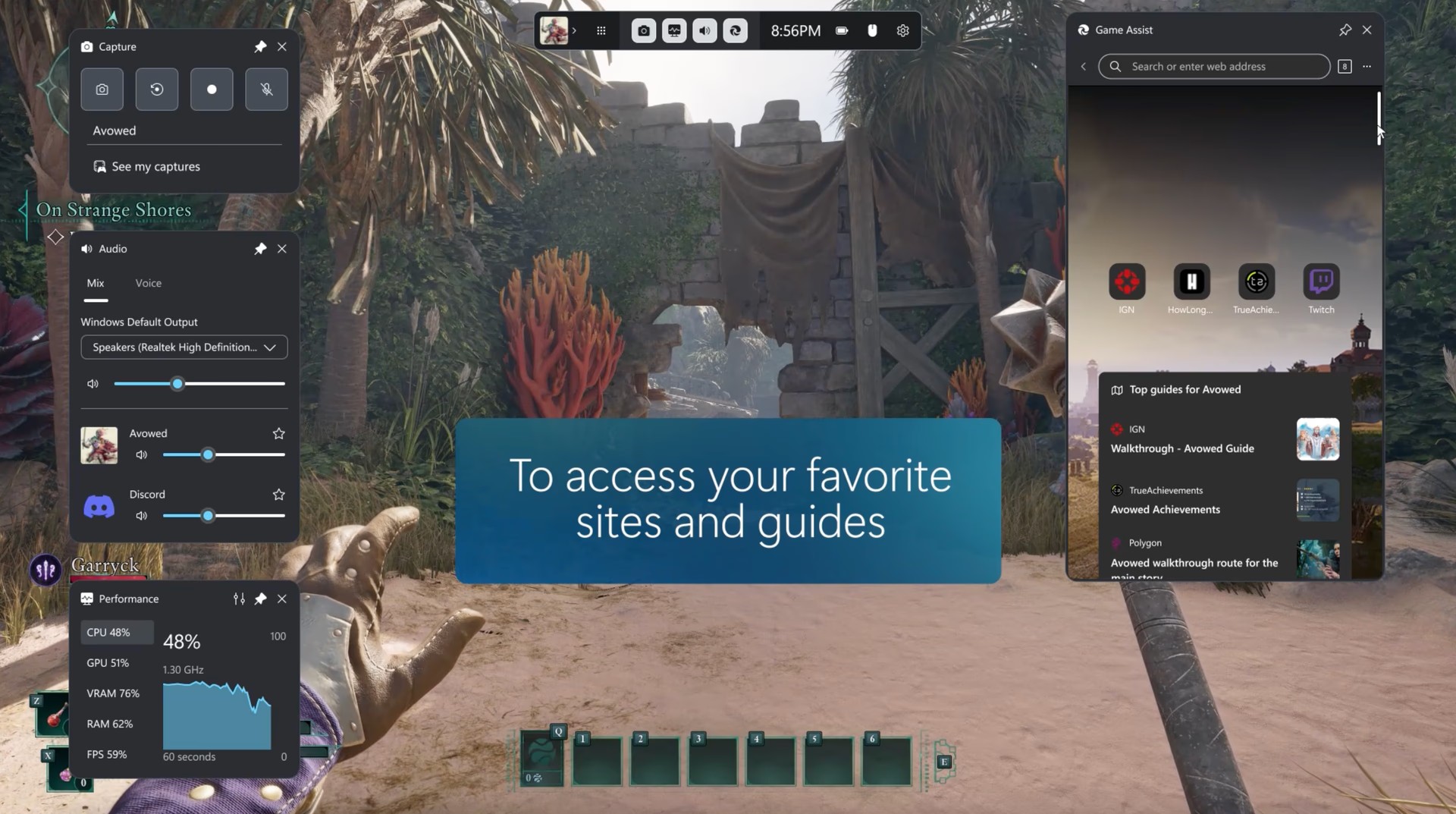
Leave Alt+Tab behind with Microsoft Edge for Game Bar (formerly Microsoft Edge Game Assist), the first in-game browser built for PC gaming that delivers an immersive browsing experience designed to keep you in the game. Browse the web, access guides, chat with friends, and more—seamlessly while you play.

Available on Windows 11 via Game Bar (Windows key) + G.

Discover a smarter way to game and browse

Everything you need in one place

Get the complete browsing experience along with gaming tips, walkthroughs and access to your favourite sites like Discord, Spotify or Twitch.

Navigate a challenging level

Seamlessly integrated and game-aware, Edge for Game Bar recognises what you’re playing and offers tips and guides to enhance your experience.

Multitask with ease

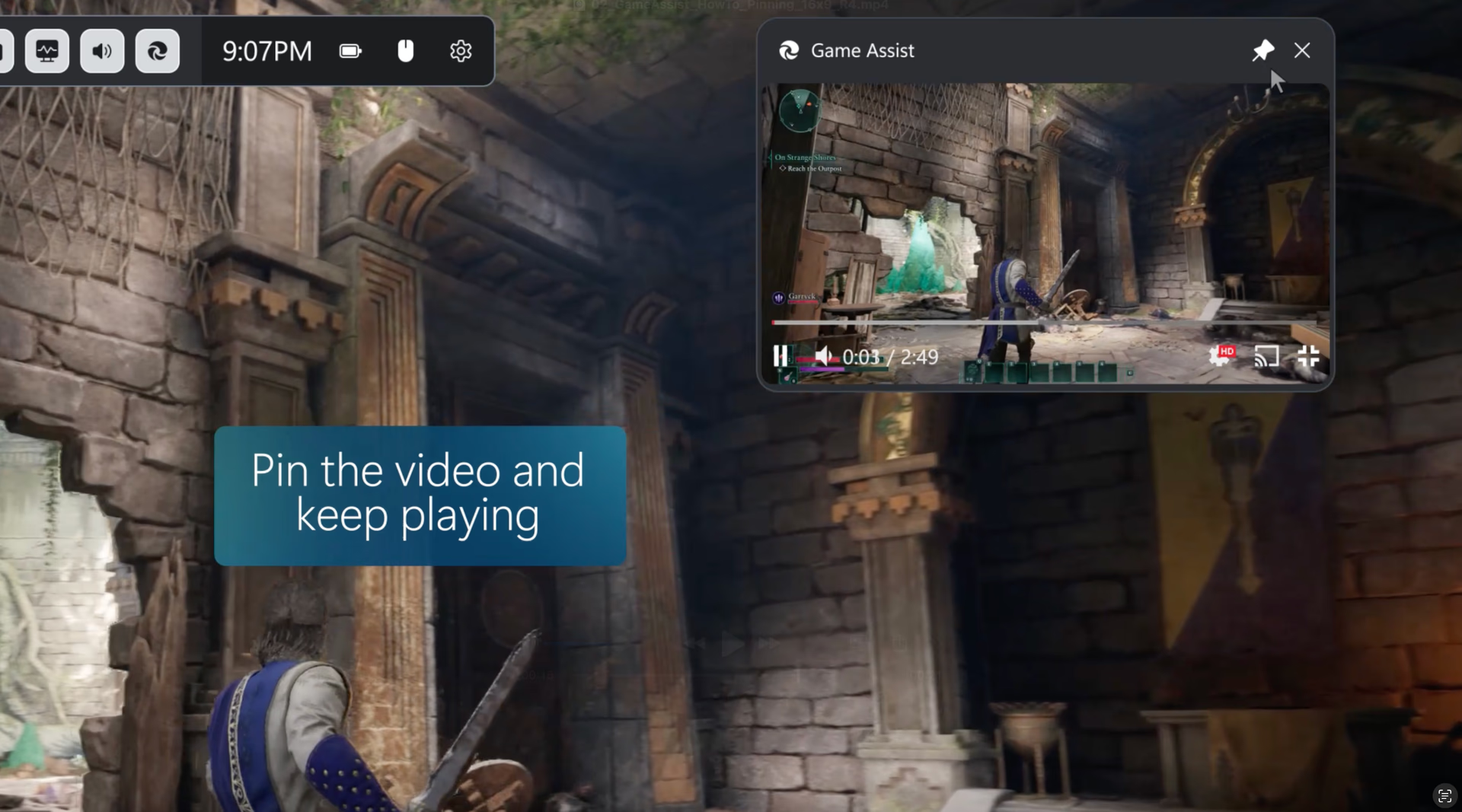
Keep video guides pinned as you play, navigate to your favourite sites, put on some background music or stay connected with friends while you stay in the action.

Tips and tricks

Quickly search for your game

Edge for Game Bar makes it easier to search the web (or a site) by automatically filling in the name of your game when you press Ctrl+G or select Paste game title in the right-click menu—this is especially useful for games with a long title.

Picture-in-picture

Click the full screen button when watching a video to automatically resize Edge for Game Bar so it fits the video. Then simply pin Edge for Game Bar above your game to keep following a guide or stream a show in picture-in-picture while you play. You can even use your keyboard’s media controls to pause or play the video.

Follow along while you play

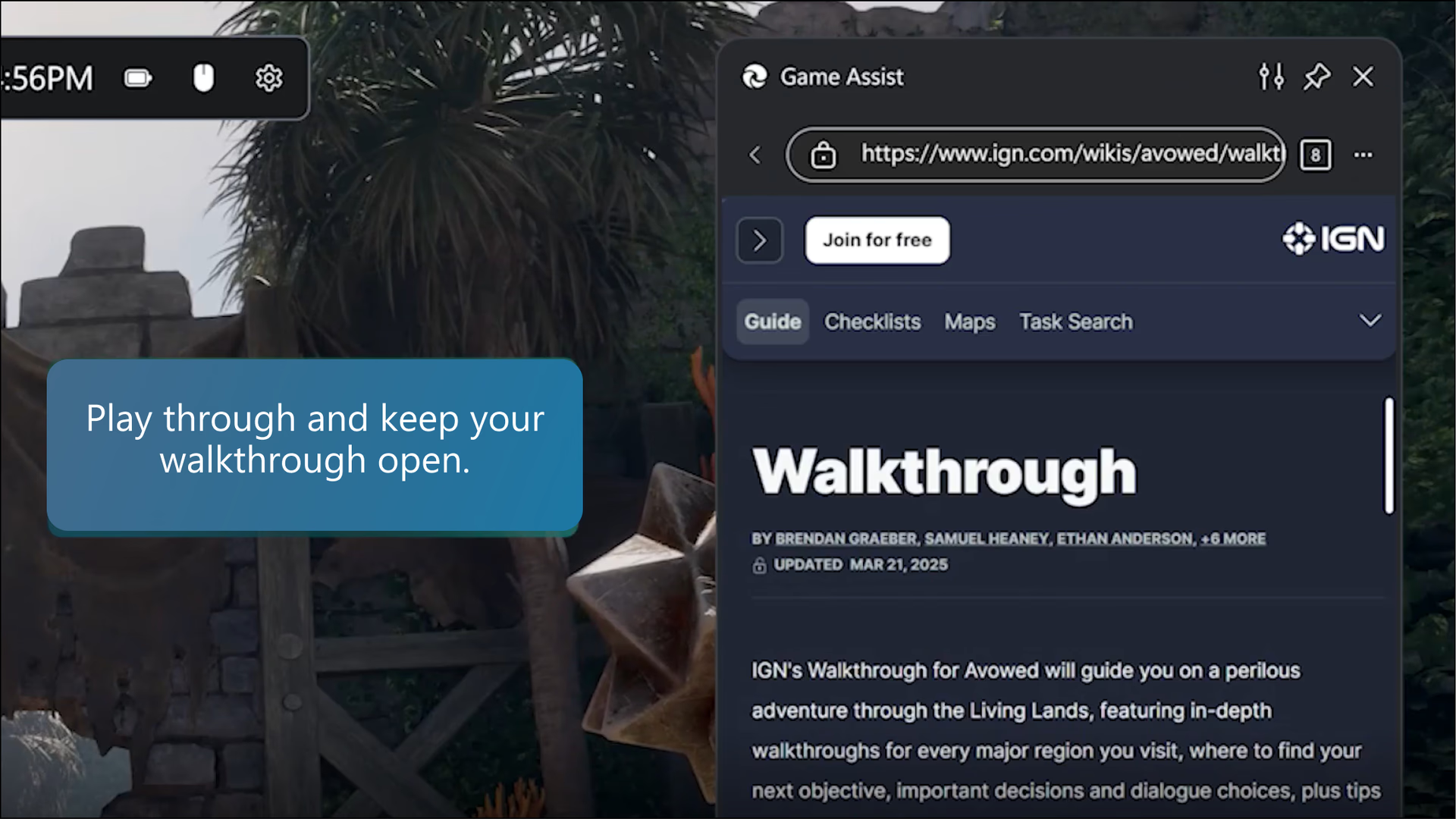
As you’re planning your next move, quickly check a guide in Edge for Game Bar and then close Game Bar to carry on with your game. You can even click the pin button to keep the webpage above your game so you can follow the guide while you play.

Access your favourites and history

Edge for Game Bar shares the same browser data with Microsoft Edge on the desktop. Quickly search your favourites and history in the address bar, or you can access your full favourites and history from the More options (icon) menu.

Get more done with extensions

Many of your favourite extensions, such as ad blockers and password managers, work in Edge for Game Bar. Simply install the extension in Microsoft Edge on your desktop and it will be ready for you to use while gaming. Edge for Game Bar supports most extensions that automatically run on webpages (like ad blockers) or provide UI via form fills or the right-click menu (like password managers), but some extension features may not be available.

Full transparency

Adjust the transparency of the Edge for Game Bar widget while it’s pinned by using the widget transparency option in Game Bar’s settings, making it easy to see the game behind your widget. You can even choose whether clicking on Edge for Game Bar while it’s pinned should open the widget or be "passed through" to the game.

The perfect size for your game

Resize Edge for Game Bar or move it around the screen to make sure it always suits your needs while playing. The default size is optimised to avoid obscuring the game.

Frequently asked questions

  • * Feature availability and functionality may vary by device type, market and browser version.
  • * Microsoft Edge for Game Bar was previously known as Microsoft Edge Game Assist.