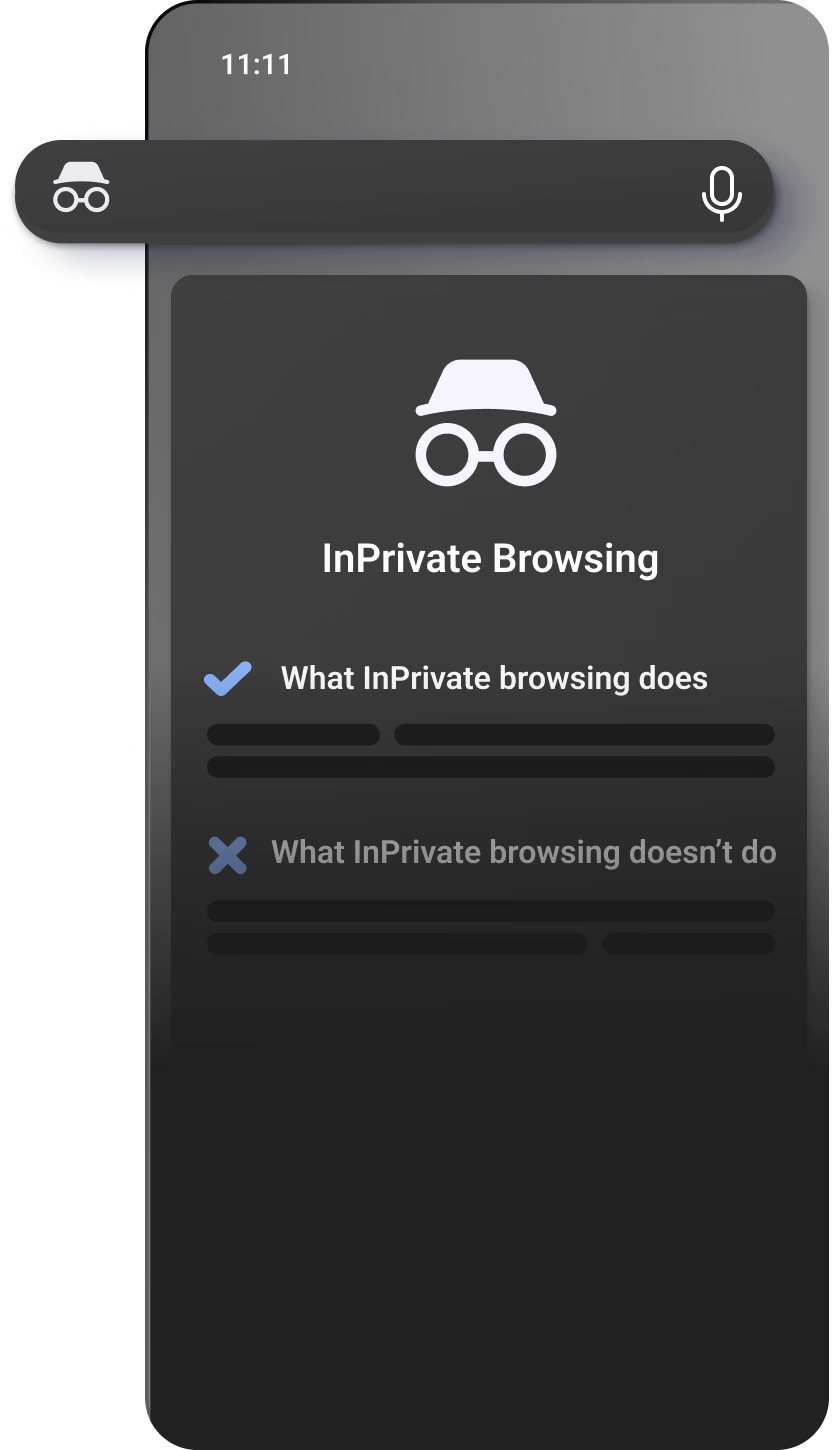
InPrivate
Browse privately with InPrivate mode. Your browsing history, cookies, and other data are deleted when you close all InPrivate tabs, ensuring your online activity remains confidential.
How to find
Go to Tab Center > Switch to InPrivate
Tips & Tricks
Use FaceID recognition to browse privately
Add an extra layer of privacy to your InPrivate browsing with FaceID recognition:
More ways to access InPrivate
To start a new InPrivate session in Edge Mobile, go to "Open Menu" and select "New InPrivate Tab".
Frequently Asked Questions
When you close InPrivate windows, Microsoft Edge deletes your browsing history, cookies, passwords, and more. Although other device users can't view your browsing activity, your school, workplace, and internet service provider might. Your collections and favorites are saved and any changes to your collections will keep syncing across your signed-in devices. Learn more about InPrivate.
Microsoft Edge only collects data you've consented. When using InPrivate, sites you've visited are never used for product improvement and are not associated with your Microsoft account. Read Privacy statement.
InPrivate browsing doesn't keep you safe from malicious sites or provide additional ad blocking. Sites can still personalize content during your InPrivate browsing session because cookies and other site permissions aren't deleted until you close all InPrivate windows. To prevent sites from personalizing content and ads, switch your level of tracking prevention to "Strict" in Edge Mobile. You can also go to Menu > Settings icon > Privacy and security > Cookies and turn on "Block only third-party cookies". This might cause some sites to behave unexpectedly.