
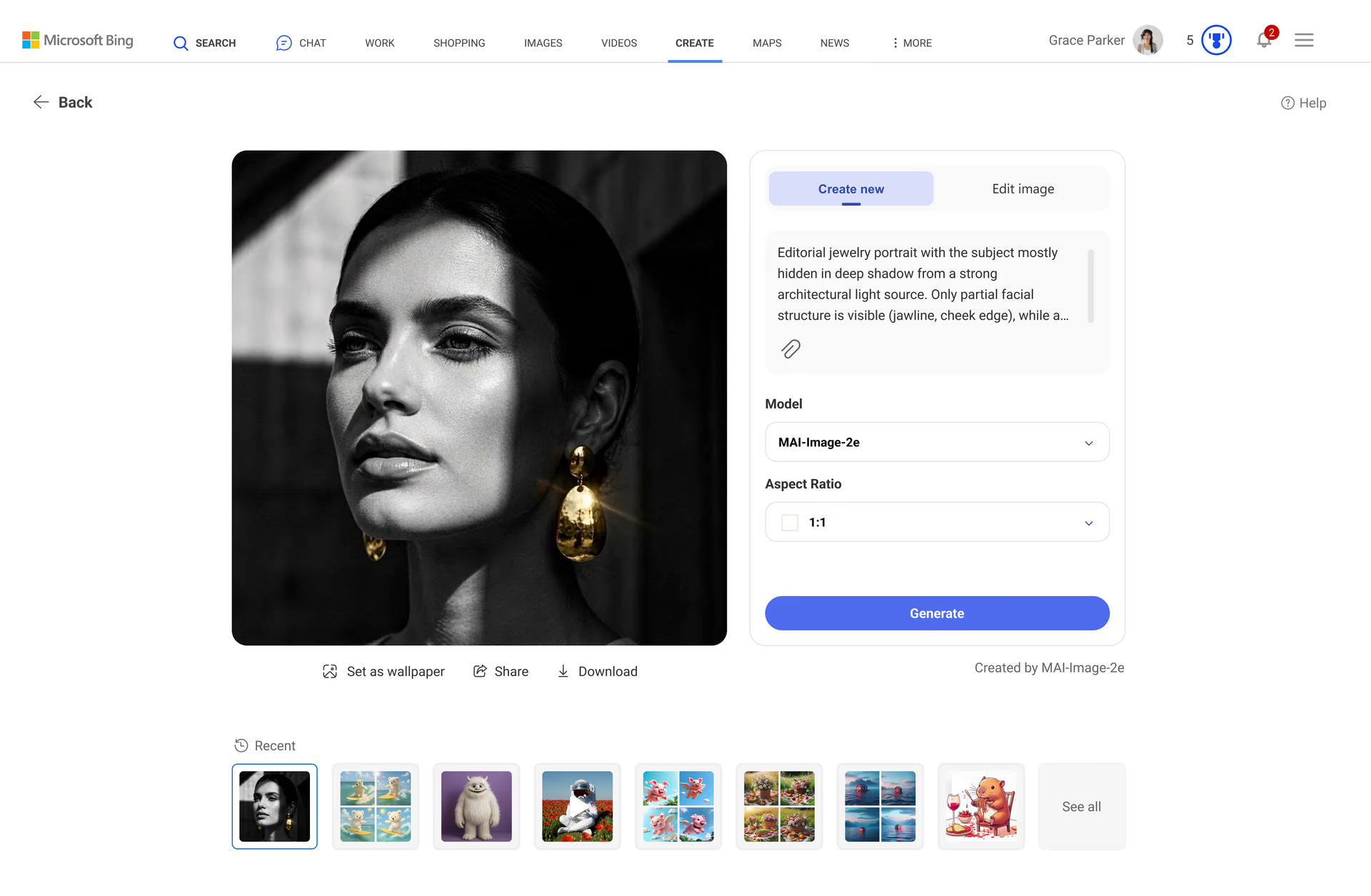
Experience the future of creativity with Bing Image Creator, a state-of-the-art, AI-powered tool that instantly turns your ideas into eye-catching visuals. Free to use, Bing Image Creator lets you choose from leading image generation models including MAI-Image-2e, GPT-4o, or DALL-E3, making it easy to produce anything from lifelike photos to unique works of art. Personalize your creations by uploading your own images, then bring them to life by animating your finished masterpieces; all in one seamless experience.
Simply visit bing.com/create or type "create image of.. [insert your idea]," directly into the search bar to unleash your creativity.
Bing Image Creator
Experience the future of creativity with Bing Image Creator, a state-of-the-art, AI-powered tool that instantly turns your ideas into eye-catching visuals. Free to use, Bing Image Creator lets you choose from leading image generation models including MAI-Image-2e, GPT-4o, or DALL-E3, making it easy to produce anything from lifelike photos to unique works of art. Personalize your creations by uploading your own images, then bring them to life by animating your finished masterpieces; all in one seamless experience.
Simply visit bing.com/create or type "create image of.. [insert your idea]," directly into the search bar to unleash your creativity.
Tips and Tricks
Frequently asked questions
MAI-Image-2e is a Microsoft image generation model developed to deliver significant image quality improvements over version 1, such as sharper detail, richer color, enhanced text rendering, and more accurate results to your prompt.
To learn more about MAI-Image-2e please review the data summary and model card.
Bing Image Creator is a fantastic tool that's free for everyone with a Microsoft Account (MSA)! Sign up for a new Microsoft Account or sign into your existing Microsoft Account, then you're ready to start creating amazing images.
Bing Image Creator is not available to users signed in with a Microsoft Entra ID (typically a work or school account).
Bing Image Creator is accessible to users around the globe, with the exception of Russia, China.
A Microsoft Account (MSA) is a personal account that you use to access Microsoft service. It's typically used for personal and consumer services and linked to your personal email.
To sign into Bing Image Creator, follow these steps:
1) Go to the Bing.com/create or open the Bing mobile app and navigate to the Bing Image Creator miniapp within the Bing mobile app.
2) Sign in to create.
- On the Bing Image Creator website, click the "Sign in to Create" button, which will appear in the top right of your screen.
- On the mobile app, click the "Sign in & Create" button, which will appear on the right side of the screen.
3) Create a new account or sign into your existing Microsoft Account (MSA) by entering your MSA credentials.
If you are using Bing Image Creator within Copilot Search or Bing Search, you will be prompted to sign-in to Bing Image Creator before generating any images.
Bing Image Creator allows you to select between three models to generate images:
- If you select MAI-Image-I, hitting the "Create" button will generate 1 image based on your prompt.
- If you select DALL-E3, hitting the “Create” button will generate multiple images based on your prompt (which will count as one creation).
- If you select GPT4o, hitting the “Create” button will generate 1 image based on your prompt.
However, if you upload an image to Bing Image Creator to use or edit, you will not be able to select DALL-E3 or MAI-Image-1 - all image editing will be done using GPT4o.
Regardless of which model you choose to use, Bing Image Creator has two creation speeds: fast creation and standard creation. Every day, you'll get a total of 15 free fast image creations with Bing Image Creator's fastest speed. If you use up your 15 fast free image creations, they'll replenish the next day!
You can keep enjoying the Bing Image Creator's fast creation experience by using Microsoft Rewards points or you can continue creating for free at our standard speed if you don't mind waiting. Standard creation is slower than the fast creation speed, so images will take longer to generate. You can input up to 200 prompts per 24-hour period; if you use all of your 200 prompts in a given 24-hour period, they’ll replenish the next day.
MAI-Image-1 is Microsoft’s first image generation model developed entirely in-house by Microsoft. MAI-Image-1 excels at generating photorealistic imagery, like lighting (e.g., bounce light, reflections), landscapes, and much more. This model was trained with the goal of delivering genuine value for creators.
To learn more about MAI-Image-1 please review the data summary and model card:
Bing Image Creator supports over 100 languages. For a full list of supported languages, please check Microsoft Translator.
Creating an image with Bing Image Creator works differently from searching for an image or video on Bing.
For the best results, be highly descriptive and imaginative. Adding specific details such as adjectives, locations, lighting, camera angles, and media styles like "digital art" or "photorealistic" can significantly enhance the quality of the generated image or video.
Follow these steps to create a high-quality prompt:
- Be Specific: Include as many relevant details as possible. For example, instead of just "astronaut", provide context and visual cues.
- Use Adjectives: Describe the subject's appearance, colors, and textures. This helps the AI understand your vision.
- Include Action: Specify what the subject is doing. This adds dynamism to your content.
- Set the Scene: Mention the environment or background. It situates the subject within a particular setting.
- Style and Mood: Indicate the media style and mood you desire, like "vintage," "modern," "bright," or "dark."
- Lighting: Video prompts are improved by including lighting styles, like "direct sunlight," "dusk," or "soft lighting."
Here's an example of how to transform a basic prompt into a detailed one for better creation:
- Original image prompt: "astronaut"
- Descriptive prompt: "a close-up photo of an astronaut in a glowing suit made of plasma, as if the galaxy is inside of it, putting on their helmet, but you can't see their face because of the visor, realistic, film stock, bright colors."
By following these guidelines, you can create more detailed and vivid prompts, leading to higher quality AI-generated content.
When you've used up your 15 free fast creations per day on Bing Image Creator, you'll be switched to Bing Image Creator's standard creation speed automatically. You will also be reminded that you have the option to use Microsoft Rewards points to keep enjoying Bing Image Creator's best creation power with the shortest processing time that Bing Image Creator offers.
We'll tell you how many Rewards points each generated creation will cost, and you can choose to enable use of Microsoft Rewards points in your Bing Image Creator settings. Enabling use of Microsoft Rewards points for Bing Image Creator will not update your settings for Bing Video Creator, you must separately update your Bing Video Creator settings to use Rewards points to generate videos. You can go back to standard creation at any time by enabling standard speed in your Bing Image Creator settings.
When you enable use of Microsoft Rewards points, you are authorizing Microsoft to deduct Microsoft Rewards points from your Rewards points balance each time you generate a creation using Bing Image Creator's fast creation speed (after you use up your 15 fast free creations per day) until you change your settings to enable standard speed or until you run out of Microsoft Rewards points, whichever is earlier.
If you run out of Microsoft Rewards points, you will be switched back to Bing Image Creator's standard creation speed automatically, but you will still get your 15 fast creations per day. You will also be reminded that you have the option to earn more Microsoft Rewards points that you can use for additional fast creations.
To learn more about Rewards, visit: Welcome to Microsoft Rewards.
There are two ways to delete your Bing Image Creator profile and history. While logged in to your Microsoft Account, you can either:
- Go to your Bing search history and select "Clear all."
- Go to the privacy dashboard for your Microsoft account, scroll down to "Search history," and select "Clear all search history."
Either option will delete your entire (1) Bing search history, (2) Bing Image Creator profile, and (3) Bing Image Creator history. Your selection will also affect your Bing Video Creator profile and history.
Any images you generate with Bing Image Creator will be stored for up to 90 days.
You can delete your creations or your Bing Image Creatoraccount at any time by following the steps outlined in the question above.
At Microsoft, we take our commitment to responsible AI seriously. Bing Image Creator is developed in accordance with our AI principles, which demonstrate commitment to making sure AI systems are developed responsibly and in ways that warrant people's trust. To learn more about our approach to responsible AI, please visit here and review the information included in the "Generative AI Features" section.
We have put controls in place to prevent the generation of harmful images. When our system detects that a potentially harmful image could be generated by a prompt, it automatically blocks the prompt and informs the user.
We also make it clear that Bing Image Creator's images are generated by AI. For each image created using Bing Image Creator:
- A watermark appears in the bottom left corner of the image, and
- We have also implemented content credentials and provenance based on the C2PA standard, to help users to identify AI generated images.
We allow living artists, celebrities, and organizations to make requests to limit the creation of images associated with their names and brands via the AI-powered features option on our Report a Concern form.
While we have designed the Bing Image Creator experience to avoid generating unexpected or offensive content, you may still see unexpected results. We're continuously working to improve our technology to prevent harmful content.
If you encounter harmful or inappropriate content, please report this to Microsoft using our Report a concern form. The Report a Concern form is also accessible through the Feedback button on the Bing Image Creator interface.
Repeated violations of our content policy may result in automatic temporary suspension of your use of Bing Image Creator and/or Bing Video Creator. Multiple suspensions may lead to permanent restriction of your use of Bing Image Creator and/or Bing Video Creator. Permanent suspension may be appealed by submitting through the Bing Image Creator or Bing Video Creator user interface.
- * Feature availability and functionality may vary by device type, market, and browser version.