Grafach a’ sealltainn diofar fheartan ruigsinneachd air Edge.

So-ruigsinneachd

A browser designed with accessibility in mind. Check out the browser with the most extensive set of built-in accessibility tools.

Lèirsinn

Listen to the web

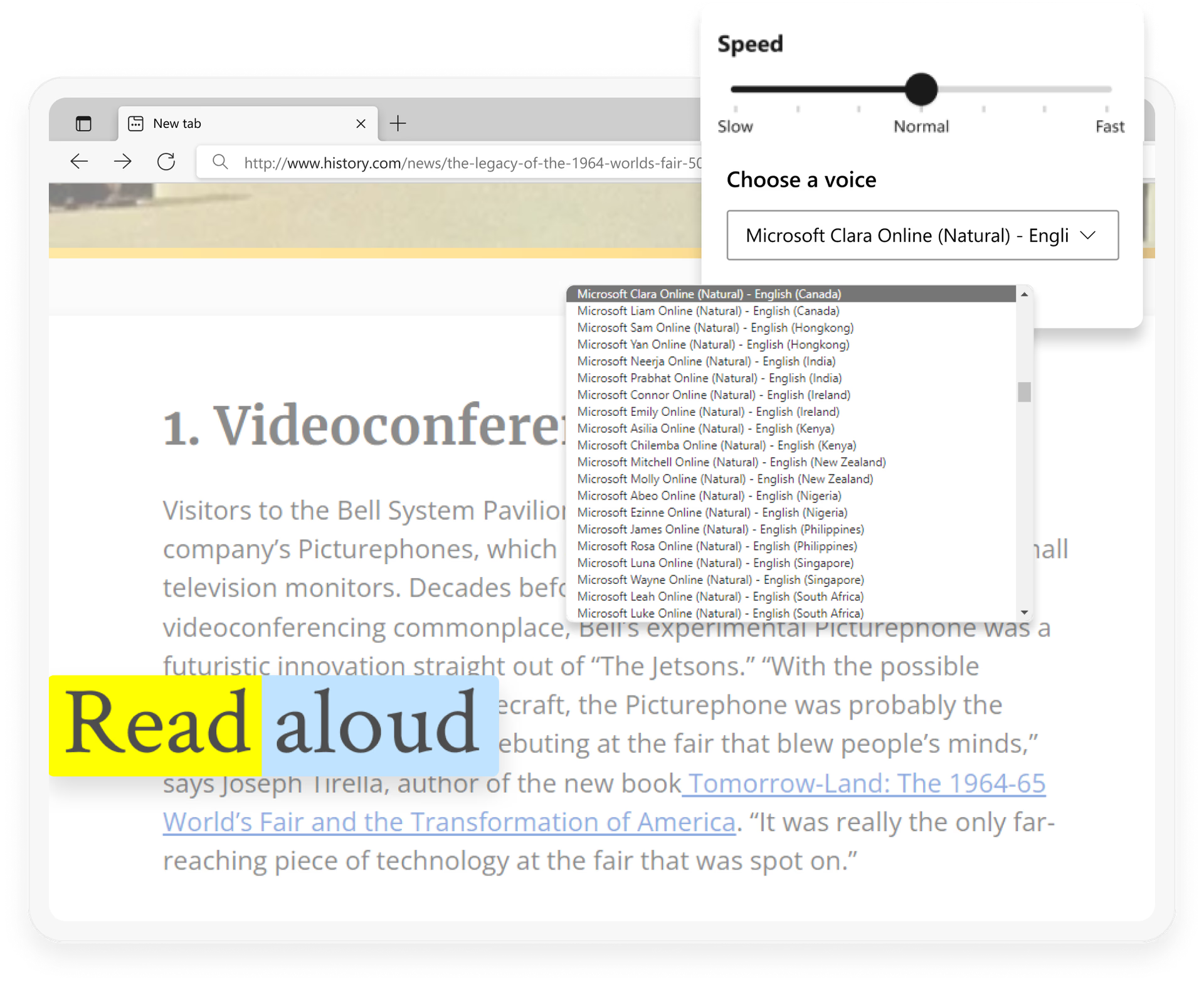
Read Aloud converts text into clear, spoken words, enabling users to access and comprehend text-based information audibly with ease.

Ìomhaigh a’ sealltainn roghainnean cànain agus astar leughaidh airson am feart Read aloud ann an Edge.

Choose colors that work best for you

High contrast can make a difference. Page Colors lets you adjust text and background colors for better readability.

Adjust text for better legibility

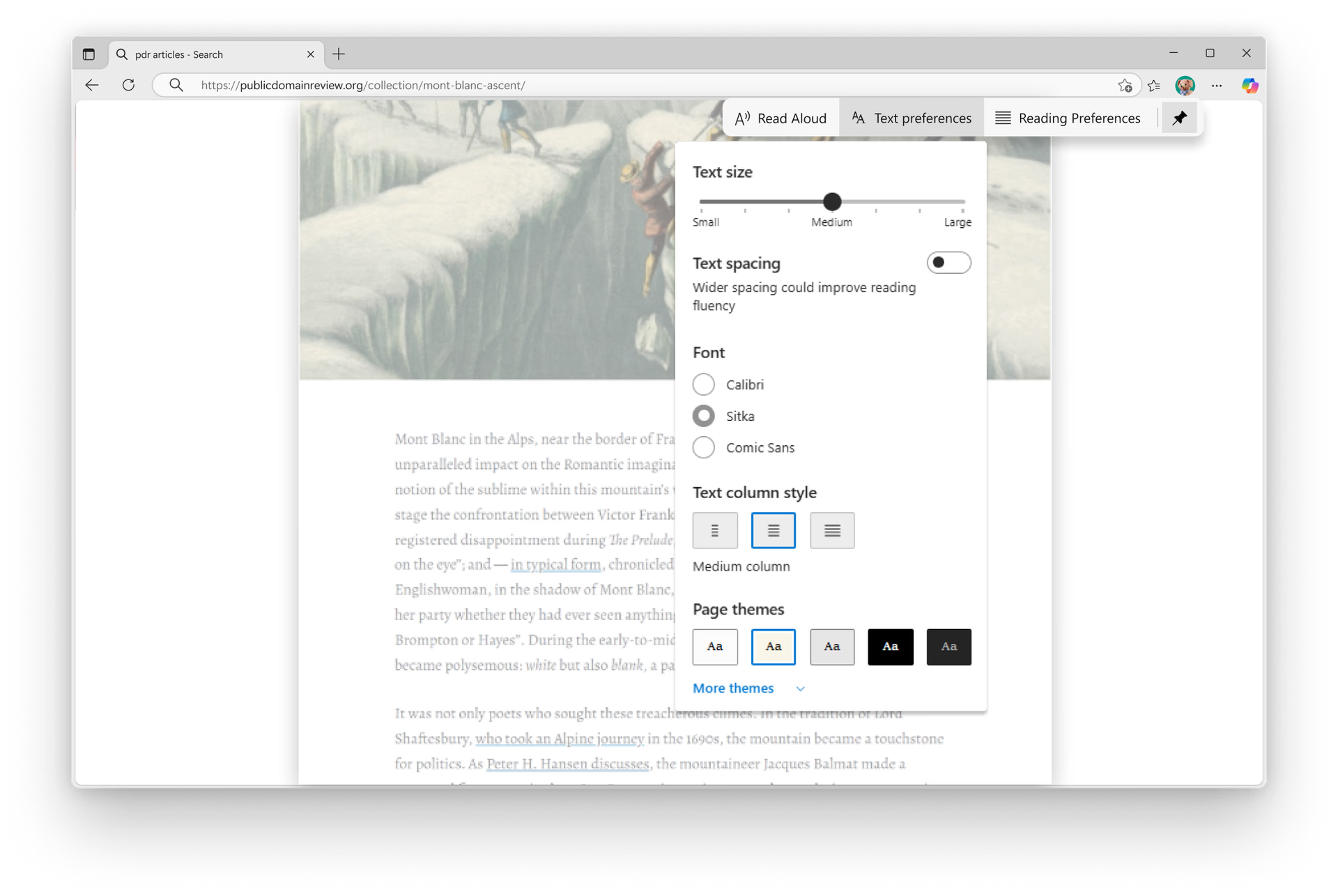
Readability of text on websites can vary. Immersive Reader declutters the content of a webpage and allows customization of text size, spacing, and background colors to enhance visibility.

Quickly enlarge images without extra clicks

Need a closer look? Magnify in Microsoft Edge lets you see enlarged images without needing to download a file or open it in a new tab.

Ensure scrollbars are always easy to find

Some websites make scrollbars harder to see. Turning off Custom Scrollbars keeps them clearly visible for easier navigation.

Get descriptions for images

Unfortunately, not all images on the web come with alt text. Automatic Image Descriptions in Microsoft Edge generates descriptions of unlabeled images for your screen reader, helping you understand visual content.

Gluasad

Enhance your browsing efficiency

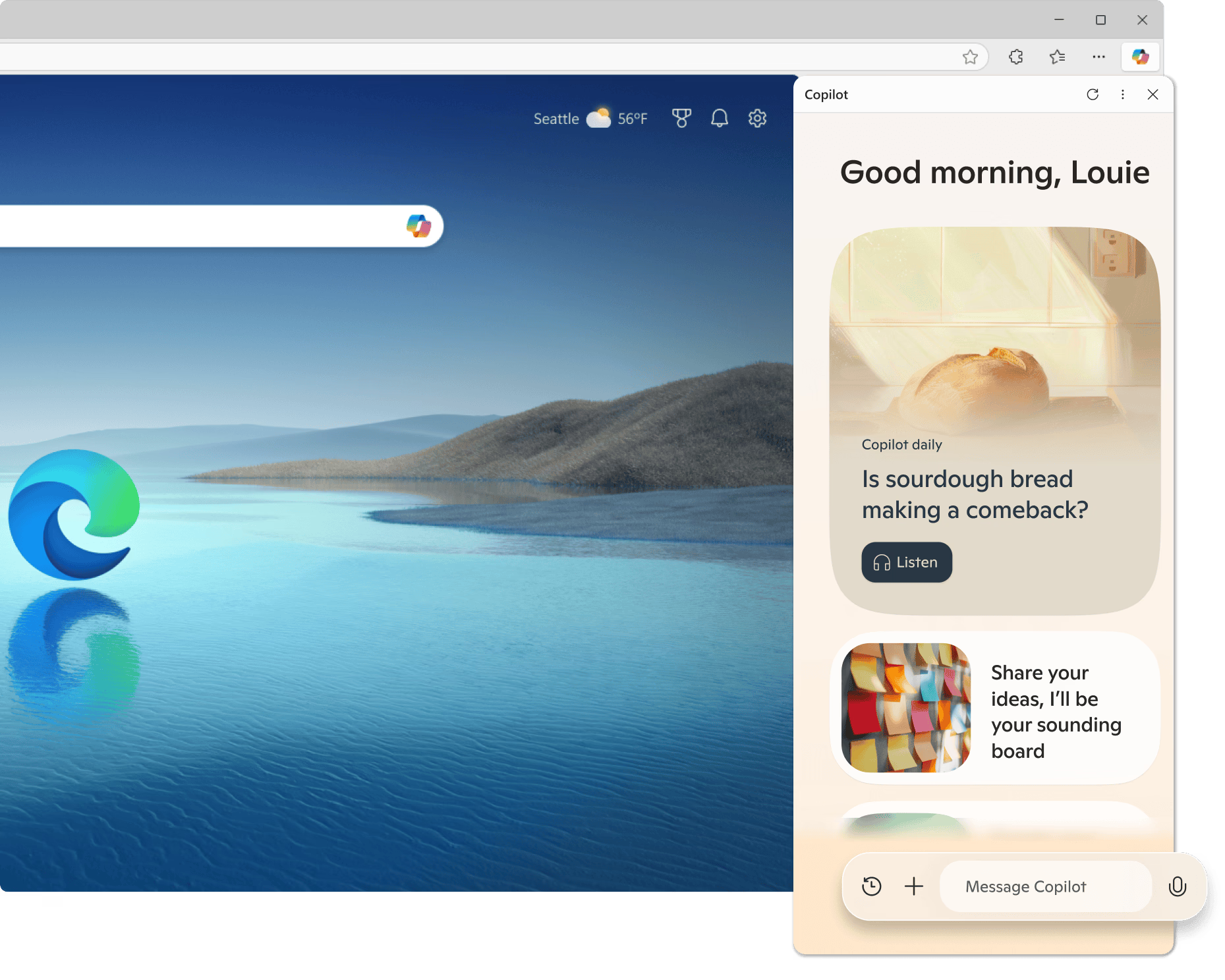
Use Copilot in Microsoft Edge to speak with an AI assistant that can help in gathering whatever information you might need from the web.

Complete forms quickly and easily

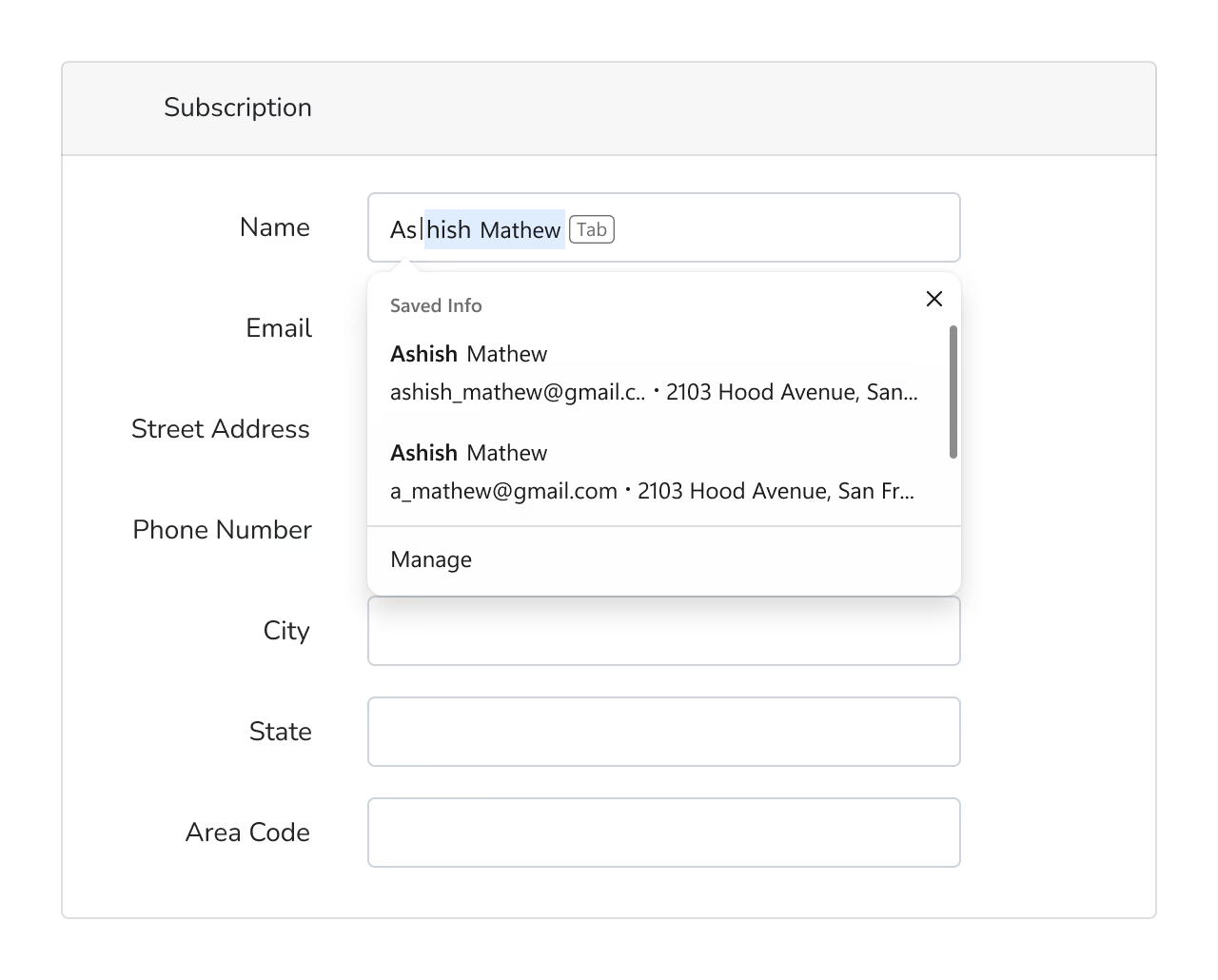
Ma chuireas tu a-steach d’ fhiosrachadh a h-uile uair a nì thu ceannach no logadh a-steach air làrach-lìn faodaidh e tòrr ùine a ghabhail. Bidh Edge gu tèarainte a’ stòradh agus a’ lìonadh do sheòlaidhean, puist-d, faclan-faire agus fiosrachadh pàighidh airson goireasachd.
Seòl gun luchag

Browse the way you prefer, without letting clicking and scrolling slow you down. Keyboard navigation lets you traverse your browser using only the keyboard while caret browsing adds a blinking cursor to webpage text, allowing you to select and interact like in a document.

Cànain

Understand complex content more easily

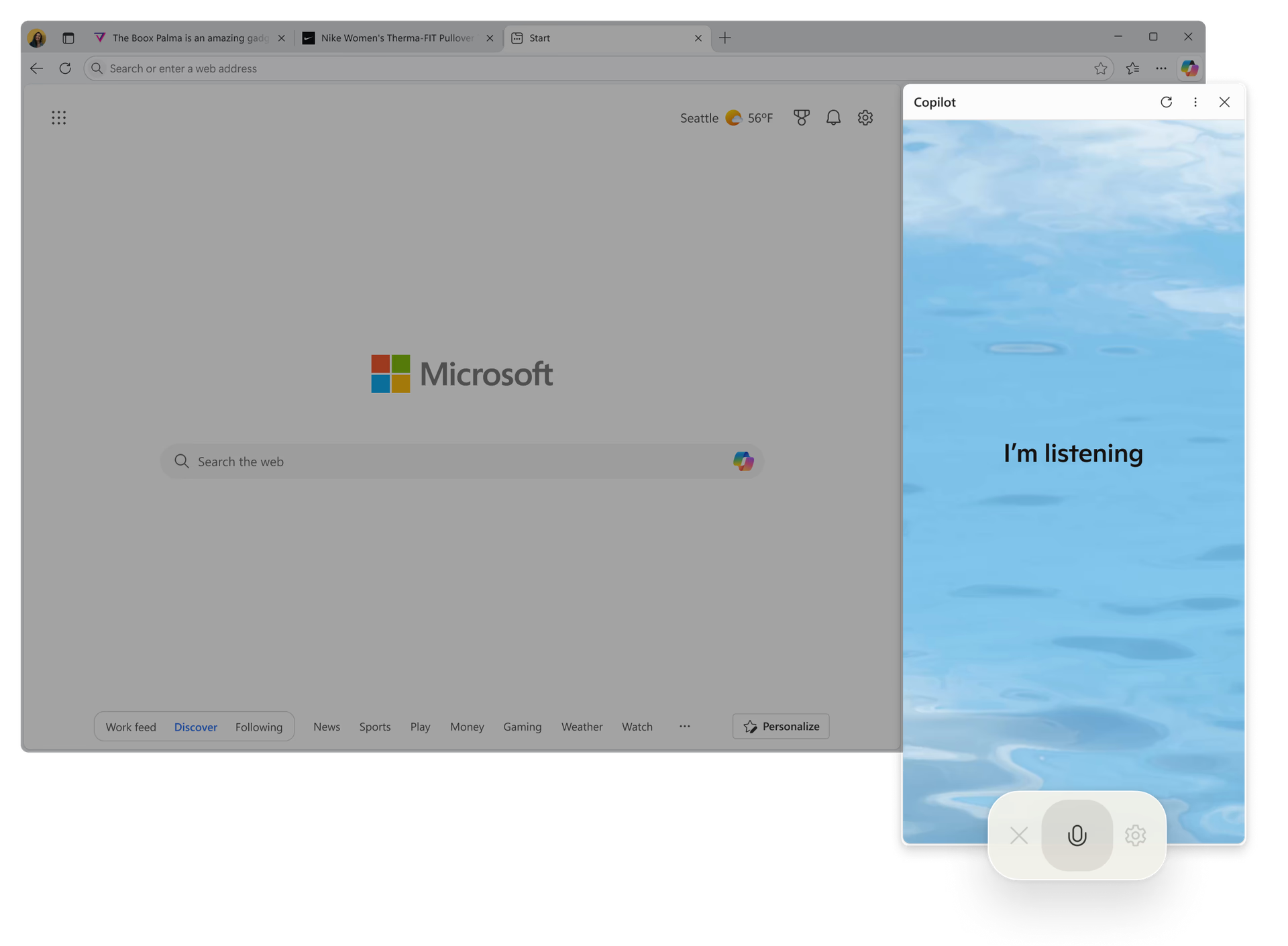
Have a question or complex content you want help understanding? With Copilot in Microsoft Edge, you can type or even speak to Copilot in your preferred language.

Hear text pronounced aloud

A bheil duilgheadasan ann le fuaimneachadh? Tha Read Aloud a’ tabhann comas labhairt teacsa, gad chuideachadh ag ionnsachadh mar a tha faclan a’ fuaimneachadh ann an diofar chànanan.

Ìomhaigh a’ sealltainn roghainnean cànain agus astar leughaidh airson am feart Read aloud ann an Edge.

Sgrìobh le misneachd

Faodaidh mearachdan gràmair a bhith dùbhlanach nuair nach eil thu a’ taipeadh sa chànan dhùthchasach agad. Bidh Deasaiche Microsoft a’ tabhann ceartachaidhean fìor-ùine gus do chuideachadh le bhith a’ conaltradh le misneachd.

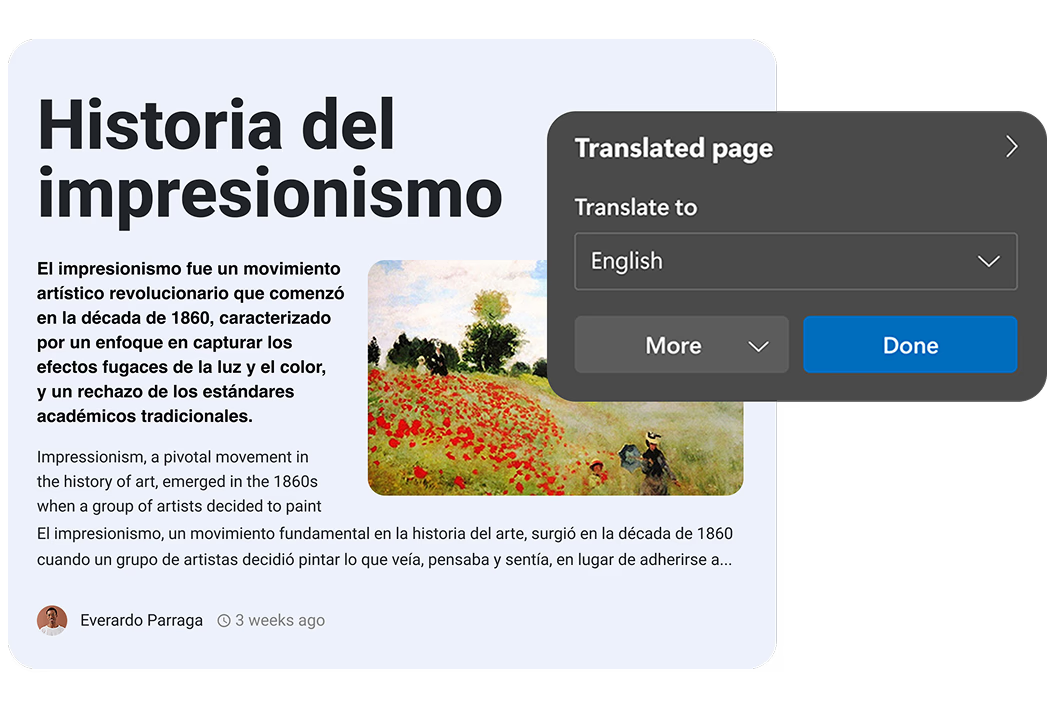
Translate pages instantly

Looking for content in your preferred language? Microsoft Edge helps you translate webpages with one click. You can even translate a PDF file or simplify a cluttered webpage and then translate it using Immersive Reader.

Ìomhaigh den eadar-theangachadh Edge le tairgse airson teacsa eadar-theangachadh gu Beurla.

Neo-iomadachd

Task Initiation & Organization

(Executive dysfunction)
Separate your work with ease

Juggling multiple projects? Workspaces let you save groups of tabs, making it easy to switch between tasks without losing track. And since your workspaces sync to the cloud, your tabs will always be right where you left them.

Kickstart tasks without the mental block

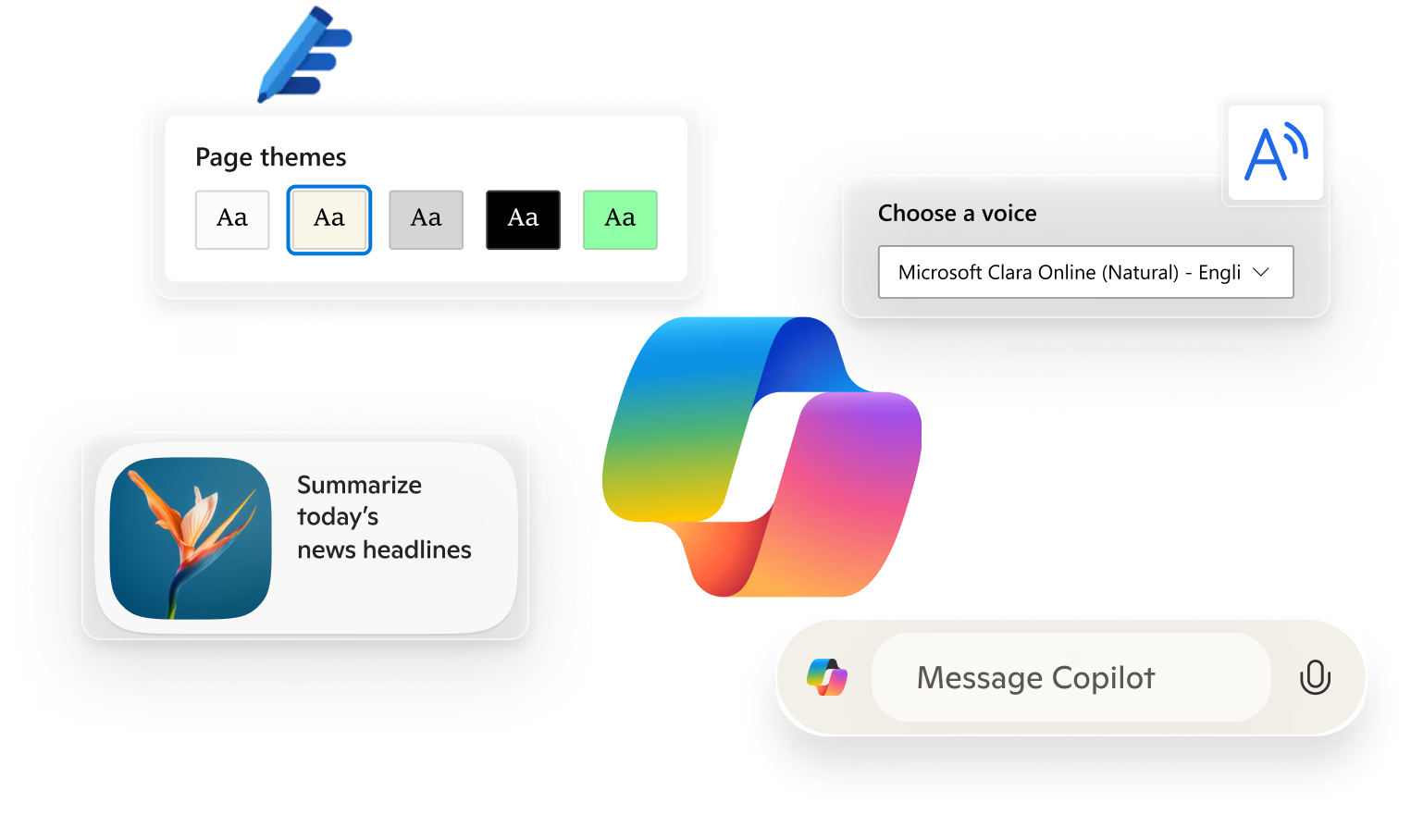
Struggling to get started? Copilot in Microsoft Edge helps you brainstorm ideas, get feedback, and summarize content—giving you the boost you need to take action.

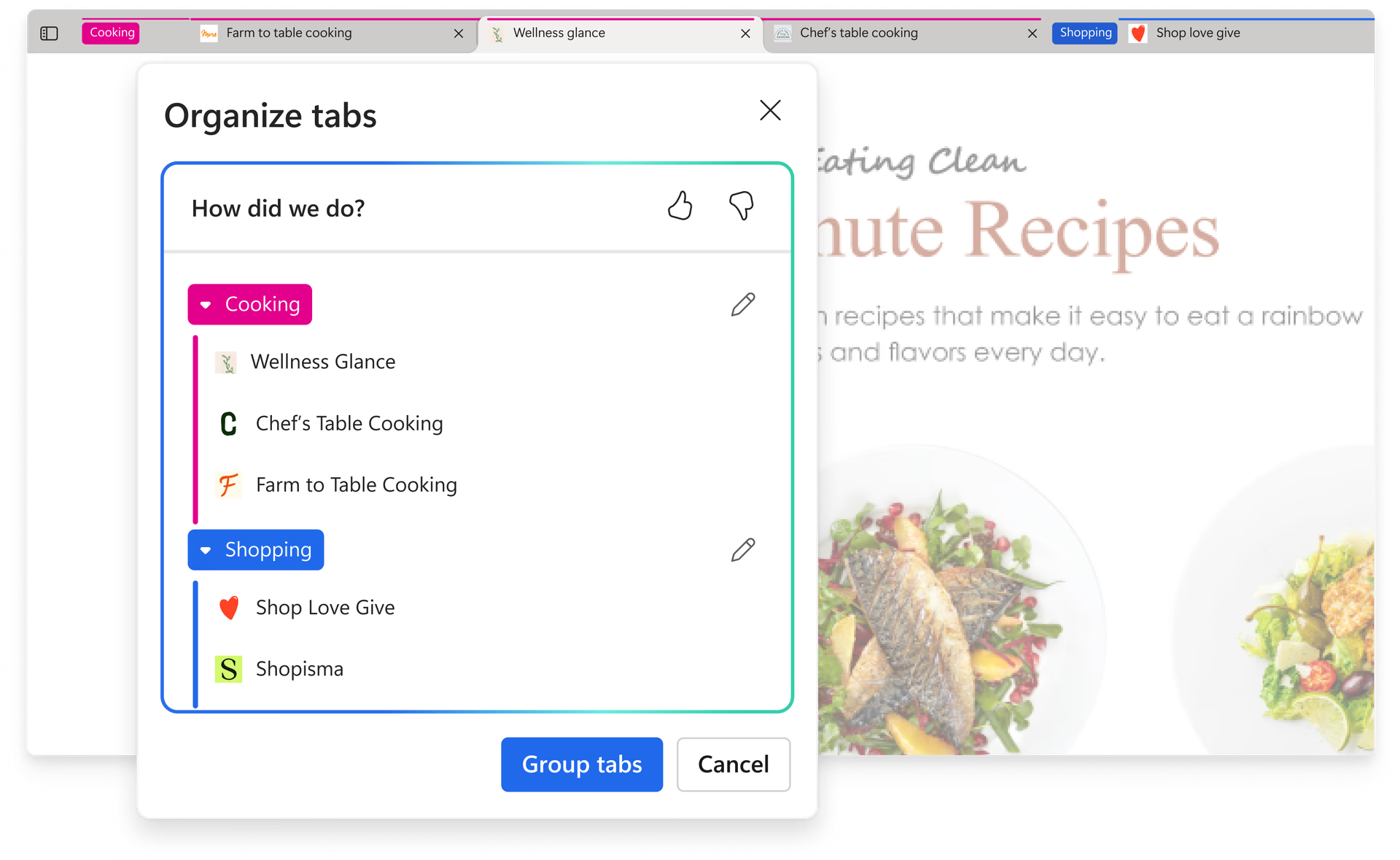
Organize tabs your way—or let Edge do it for you

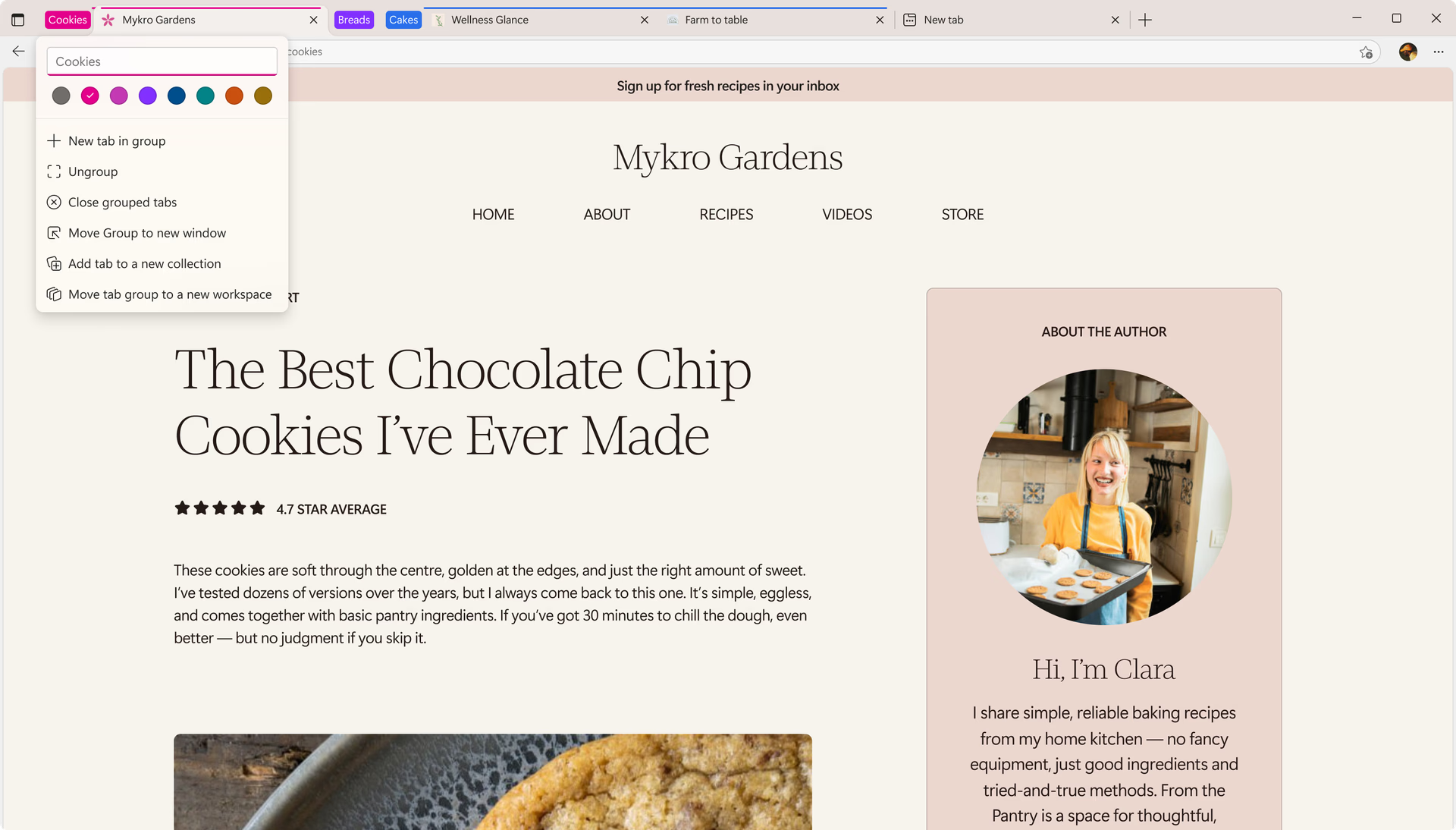
A’ brobhsadh grunn chuspairean aig an aon àm? Cuidichidh Buidhnean Tab thu gus fuireach eagraichte le bhith a’ leigeil leat tabaichean le còd-ainm agus còd dath, a’ cumail dhuilleagan co-cheangailte ri chèile agus a’ lughdachadh sgudal. An fheàrr leat dòigh-obrach làimhe? Bidh Organize Tabs a’ cleachdadh AI gus duilleagan co-cheangailte a chuir còmhla gu fèin-ghluasadach, gus an urrainn dhut fòcas a chumail gun oidhirp a bharrachd.

Working Memory

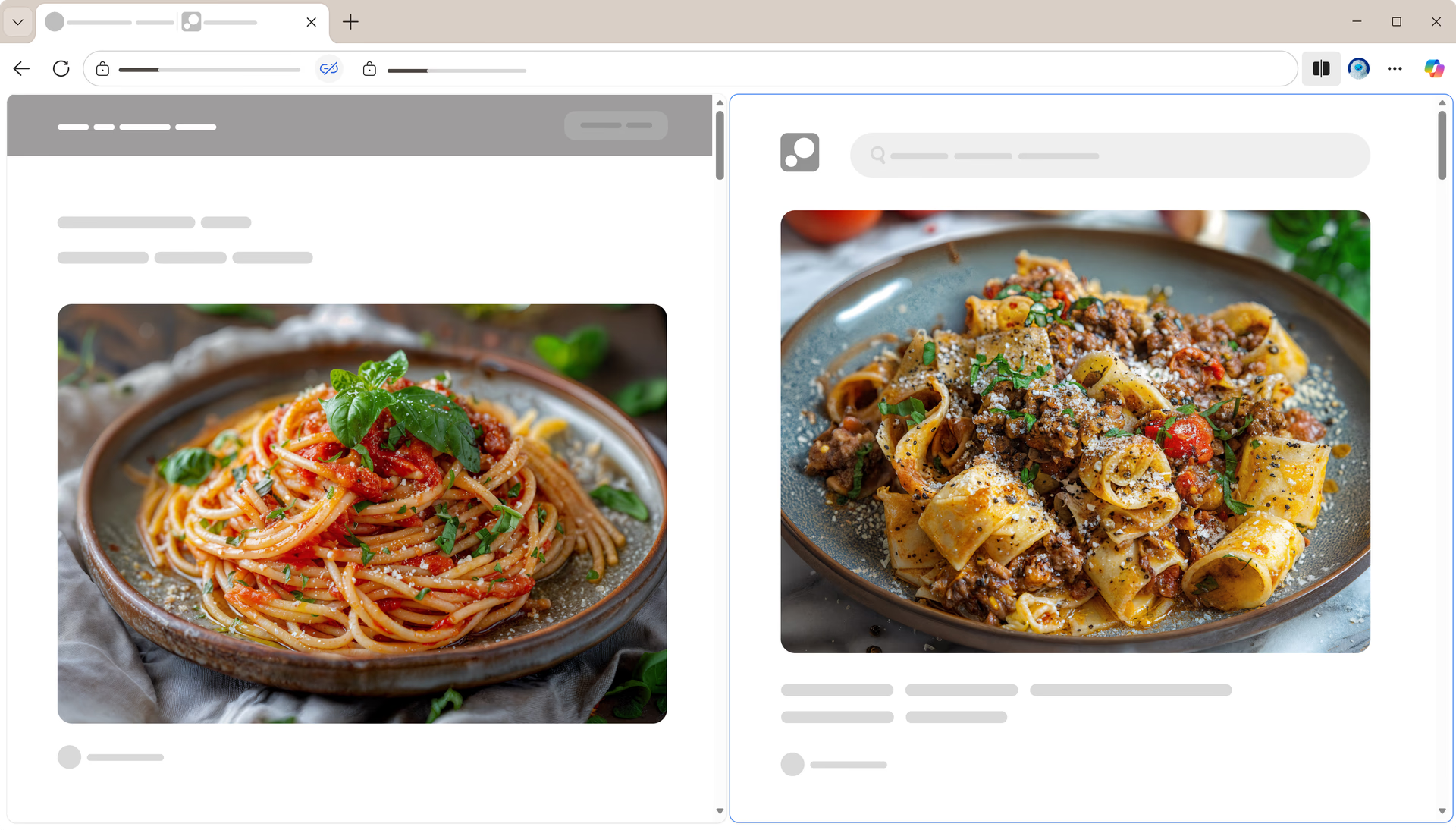
See more, switch less

Constantly jumping between pages can cause mental fatigue. With Split screen, you can view two tabs side by side, making it easier to compare information and stay on task.

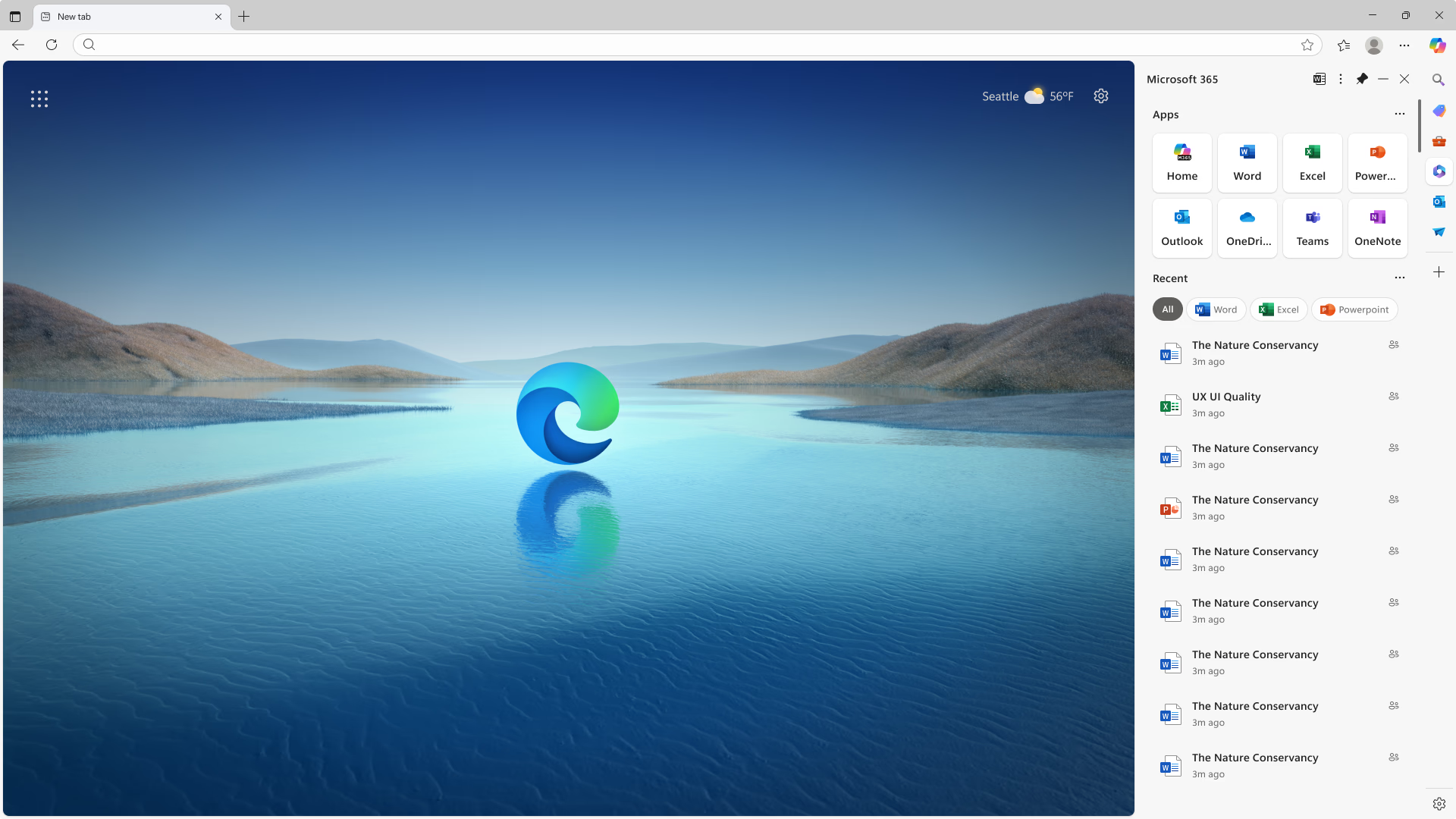
Keep your favorite tools in reach

Need quick access to your go-to tools? Sidebar keeps them in one place, so they’re always within reach without having to dig through menus.

Tog do làimh dheis far an do dh'fhalbh thu

Ever worry about losing an important set of tabs? Workspaces automatically saves your tabs and groups, so everything is right where you left it—no need to start over.

Reduce the stress of juggling multiple pages

Cus ri lorg thairis air cus tabaichean? Leigidh Tab Groups leat do dhuilleagan a chuir air dòigh gu fradharcach, gus an urrainn dhut susbaint co-cheangailte a chumail còmhla agus na tha a dhìth ort a lorg nas luaithe.

Process information faster with less effort

Dense, long pages can be overwhelming. Copilot in Microsoft Edge distills content into key points, making it easier to absorb what matters most.

Reading & Writing

Customize your reading experience

Reading should feel comfortable, not frustrating. Immersive Reader lets you adjust text size, spacing, background colors, and more—so you can read in a way that works best for you.

Worry less about typos and grammar

Spelling and grammar mistakes can make writing tricky. Microsoft Editor catches errors in real time, while text predictions suggest words as you type—helping you write faster and with fewer interruptions.

Listen while you read

Read aloud turns text into speech, helping you follow along and absorb information in a way that works best for you.

Ìomhaigh a’ sealltainn roghainnean cànain agus astar leughaidh airson am feart Read aloud ann an Edge.

Attention & Focus

Tame tab overload

Faodaidh cus tabaichean fhosgladh aig an aon àm a bhith a’ tarraing aire. Cuidichidh Buidhnean Tab thu gus fuireach eagraichte le bhith a’ cumail tabaichean co-cheangailte ri chèile - gus an urrainn dhut fòcas a chuir air aon chuspair aig an aon àm.

Hone in on what’s most important

No time for fluff? Copilot in Microsoft Edge condenses content and highlights key points, so you can get the information you need, without the extra noise.

Sgoilt an sgrìn agad ’s chan e d’ aire

It can be easy to lose focus when going back and forth between tabs. Minimize distractions and multitask more efficiently with side-by-side screens within a single browsing tab with Split screen in Microsoft Edge.

A cleaner view for better reading focus

Websites can be cluttered and filled with distractions that make it hard to concentrate. Immersive Reader simplifies your screen so you can read with fewer interruptions.

Skip reading and listen instead

Reading isn’t always the easiest way to absorb information. With Read aloud in Microsoft Edge, you can listen to text in web pages, PDFs, and documents—letting you take in content audibly instead of visually.

Ìomhaigh a’ sealltainn roghainnean cànain agus astar leughaidh airson am feart Read aloud ann an Edge.

Stay in the zone while writing

Typos and grammar mistakes can be distracting. Microsoft Editor catches mistakes as you type, while text predictions help you complete sentences faster—so you can stay focused and keep your thoughts flowing.

  • * Dh’fhaoidte gum bi diofar ghleusan ri làimh agus gun dèan iad rudan beagan eadar-dhealaichte a-rèir an uidheim, na margaid agus tionndadh a’ bhrabhsair.