

Microsoft UK Accessibility Champions Tips & Tricks
Explore practical tips and design insights that show how Microsoft solutions can help empower and connect everyone at work.

Build an equitable workplace with our blueprint
Explore the significant benefits of taking a more inclusive and accessible approach in the workplace and how Microsoft’s new Horizon methodology can help.
Download the accessibility e-bookLearn Microsoft’s Horizon Methodology
Maximise your organisation’s chances of success in implementing better accessibility through our three-step framework. Download below:
-
Horizon 1 - Adopt
Make day-to-day work faster and easier for your employees through accessibility tools
-
Horizon 2 - Build
Address inequities with enterprise-wide processes and business applications
-
Horizon 3 - Innovate
Use inclusive design principles and AI to transform the customer experience
Helping to empower inclusive workplaces, we bring you insightful talks and training sessions with special guests from a range of sectors and organisations. Plus, the chance to level up your own learning and earn an Accessibility 101 Badge.
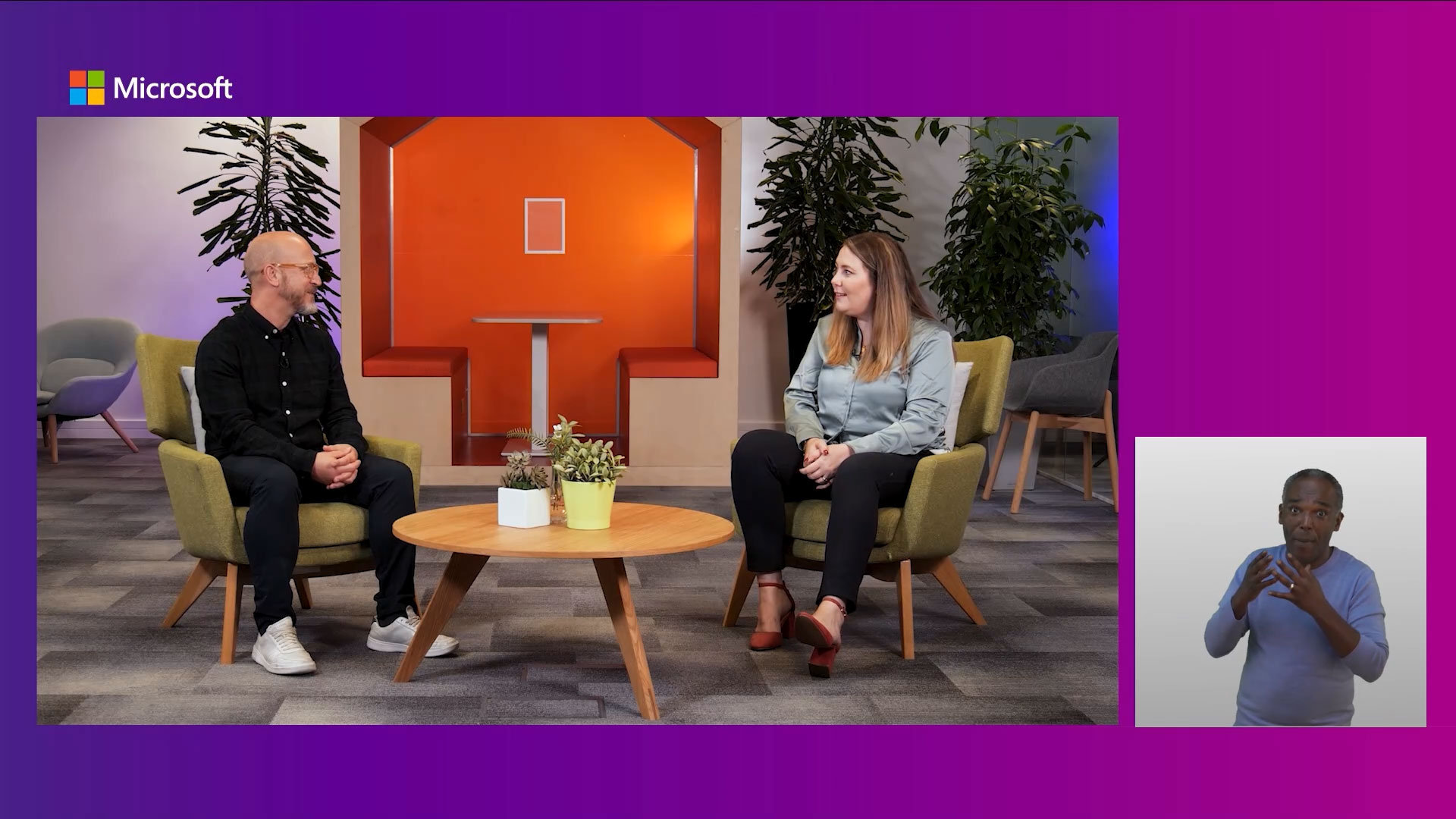
Demystifying accessibility in the workplace
Watch Microsoft's Hector Minto and Michael Vermeersch, Jemma Waters, Head of Digital Impact and Inclusion at Lloyds Banking Group and Lee Miller, from the National Employer and Partnerships team at the Department of Work and Pensions, as they discuss the Disability Confidence Statement - and learn how Microsoft can support organisations on their journey to an inclusive workplace.

Level up your team's learning with the Accessibility 101 course
To help everybody in your organisation upskill we have launched an Accessibility 101 course that you can import into your own Azure instance. To access the course, install the Community Training from Azure Marketplace and link it to your existing Azure instance. Once connected, the admin on the community training platform can visit the "Skills for Jobs" section of the Community Training platform's marketplace and search "Accessibility 101".
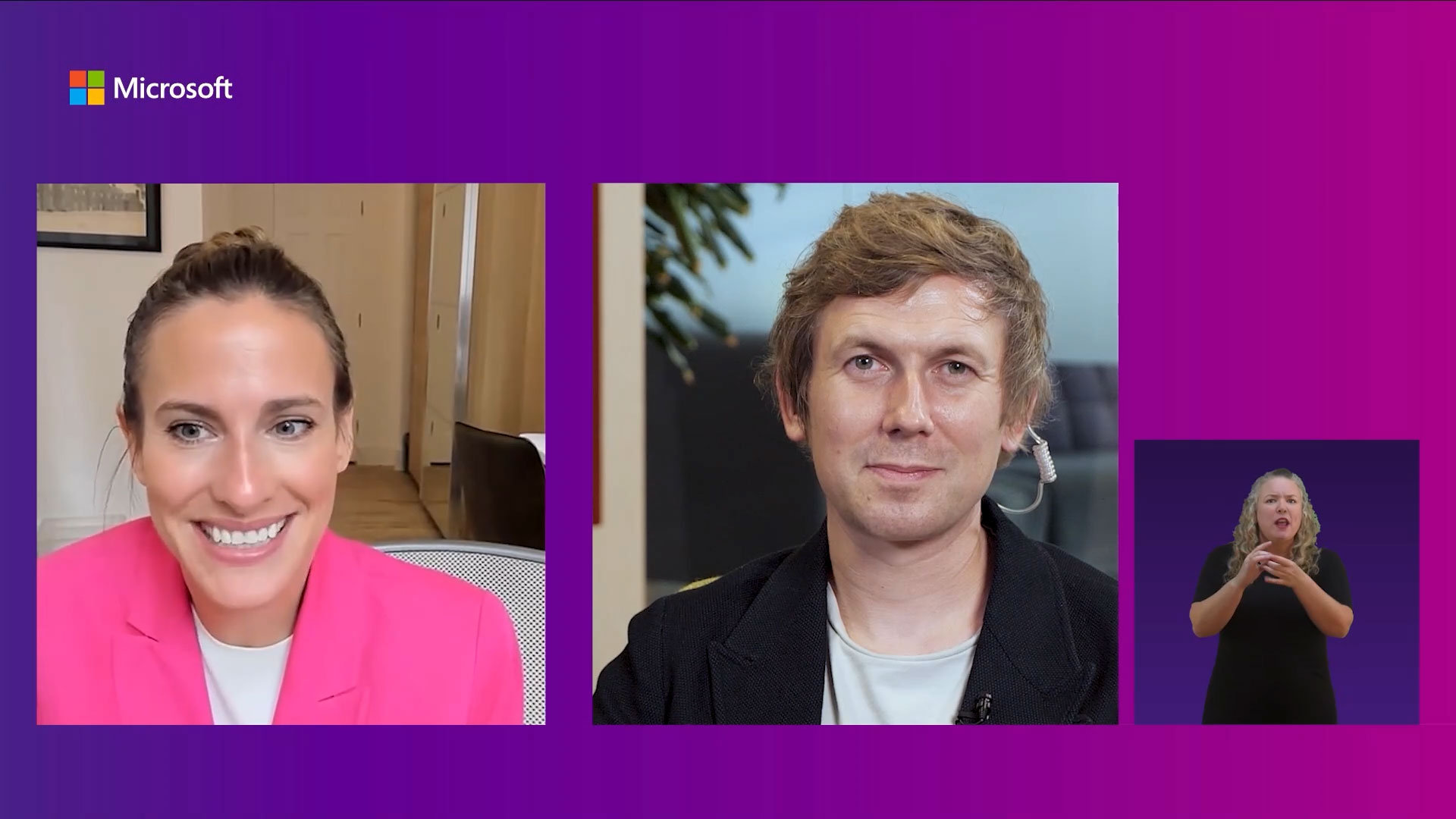
Designing with inclusion in mind
We're joined by Microsoft's Christina Mallon, Director of Inclusive Design in conversation with Perry Nightingale, Head of Creative AI at WPP, to look at how Microsoft leverages inclusive design to build products that lead to more inclusive workplaces, honouring our commitment to empower every person and every organisation on the planet to achieve more.
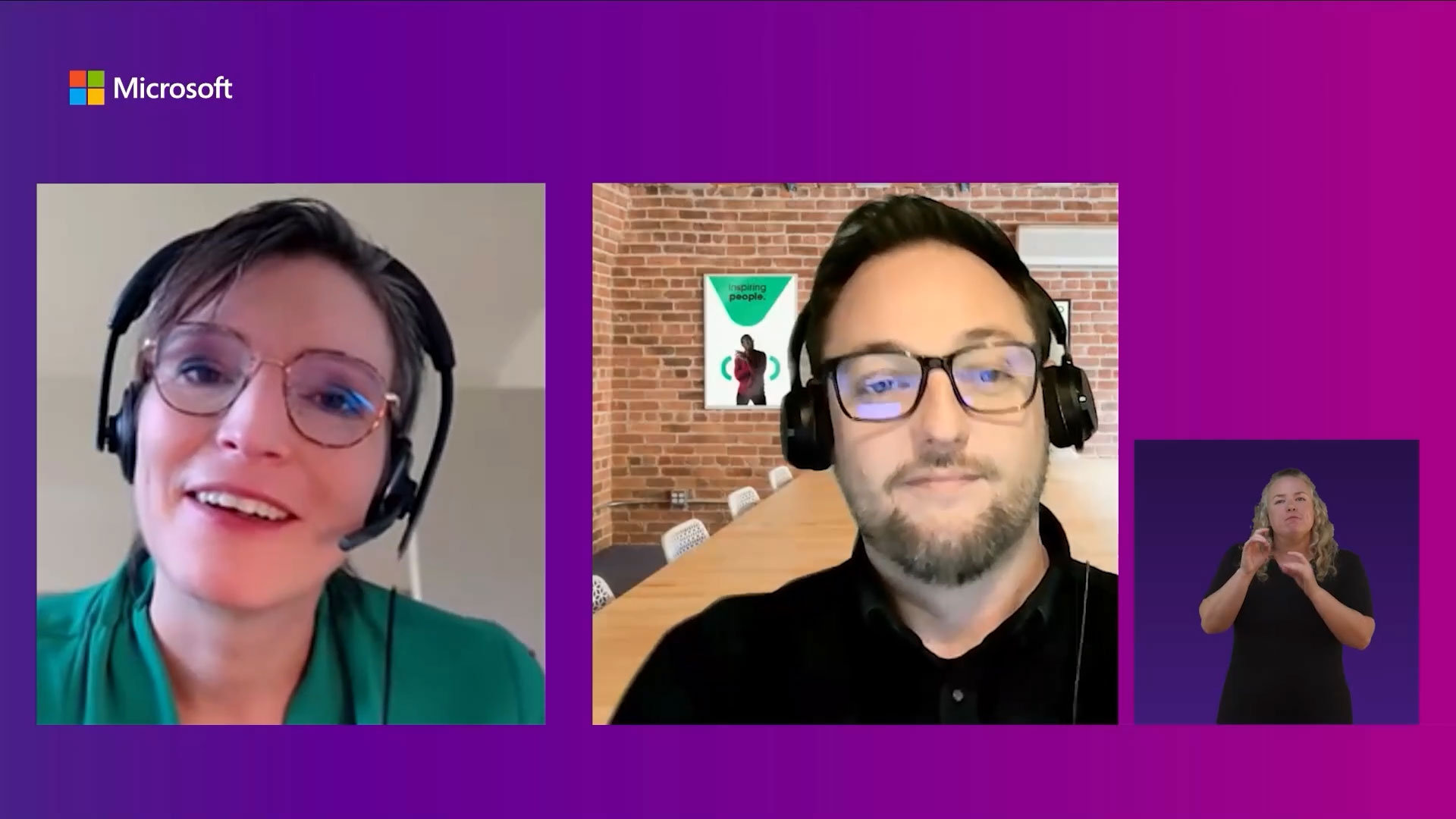
Harnessing the power of inclusive change
We're joined by Microsoft's Nathalie Foer and Jorn Salomons, alongside Steve Garside, Head of Marketing and Microsoft Partner, Hable to learn how Hable have adopted Microsoft's accessible tools to drive the inclusion agenda within their own organisation. Discover how Microsoft can support you to do the same.
Dyslexia affects up to one in ten people in the UK. Here, you can discover how to use inclusive tools that can help people with dyslexia and other learning differences. Tools that can help you every day to achieve more.
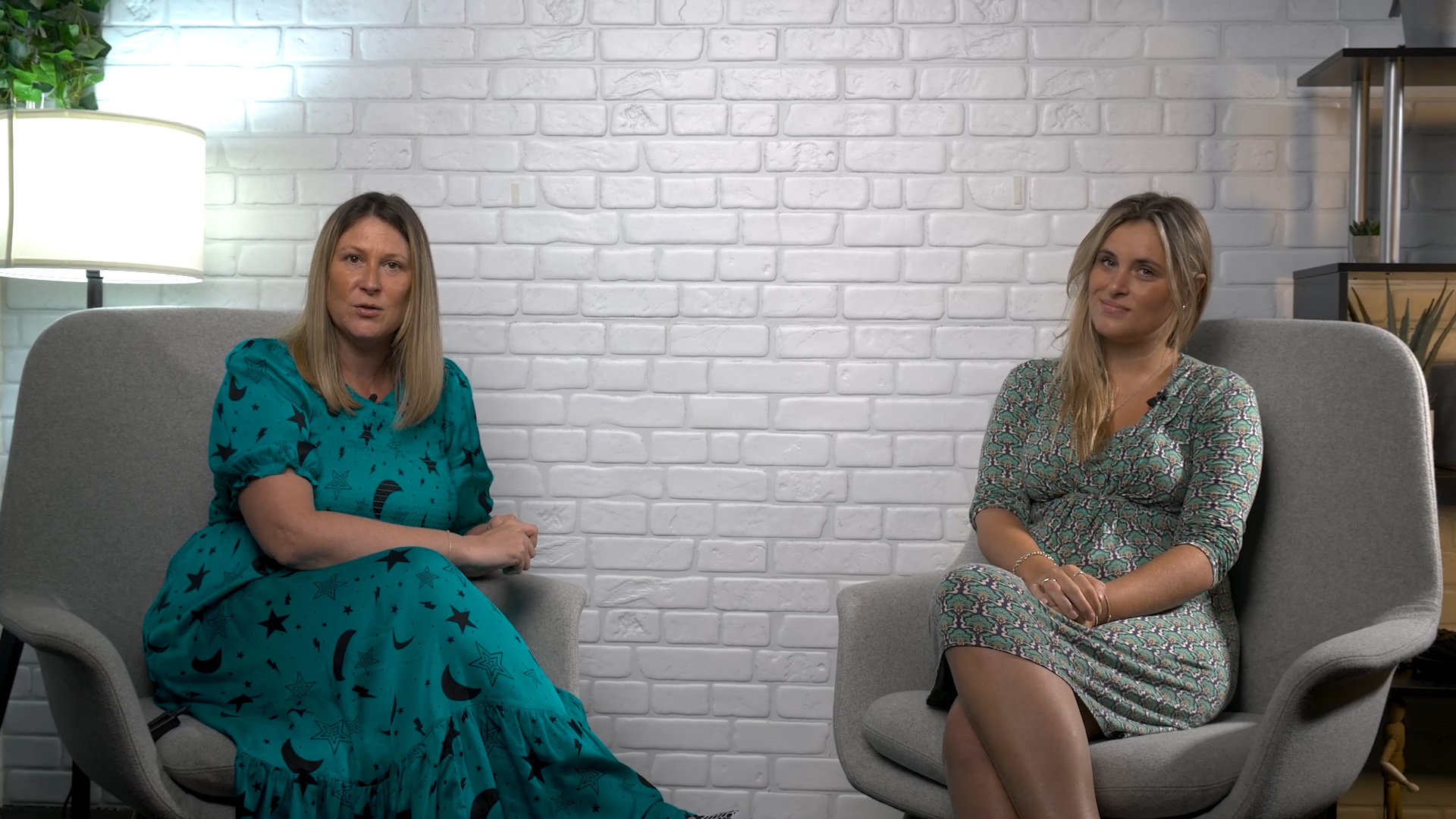
Managing dyslexia in the workplace
Learn from Kelly Monday and Natalie Brooks, founder of Dyslexia in Adults, how to manage dyslexia at work.
Your guide to Voice Typing
Learn how to enter text on your PC by simply speaking.
Your guide to Windows Accessibility
Find out how to access and customise your Windows 11 PC accessibility settings.
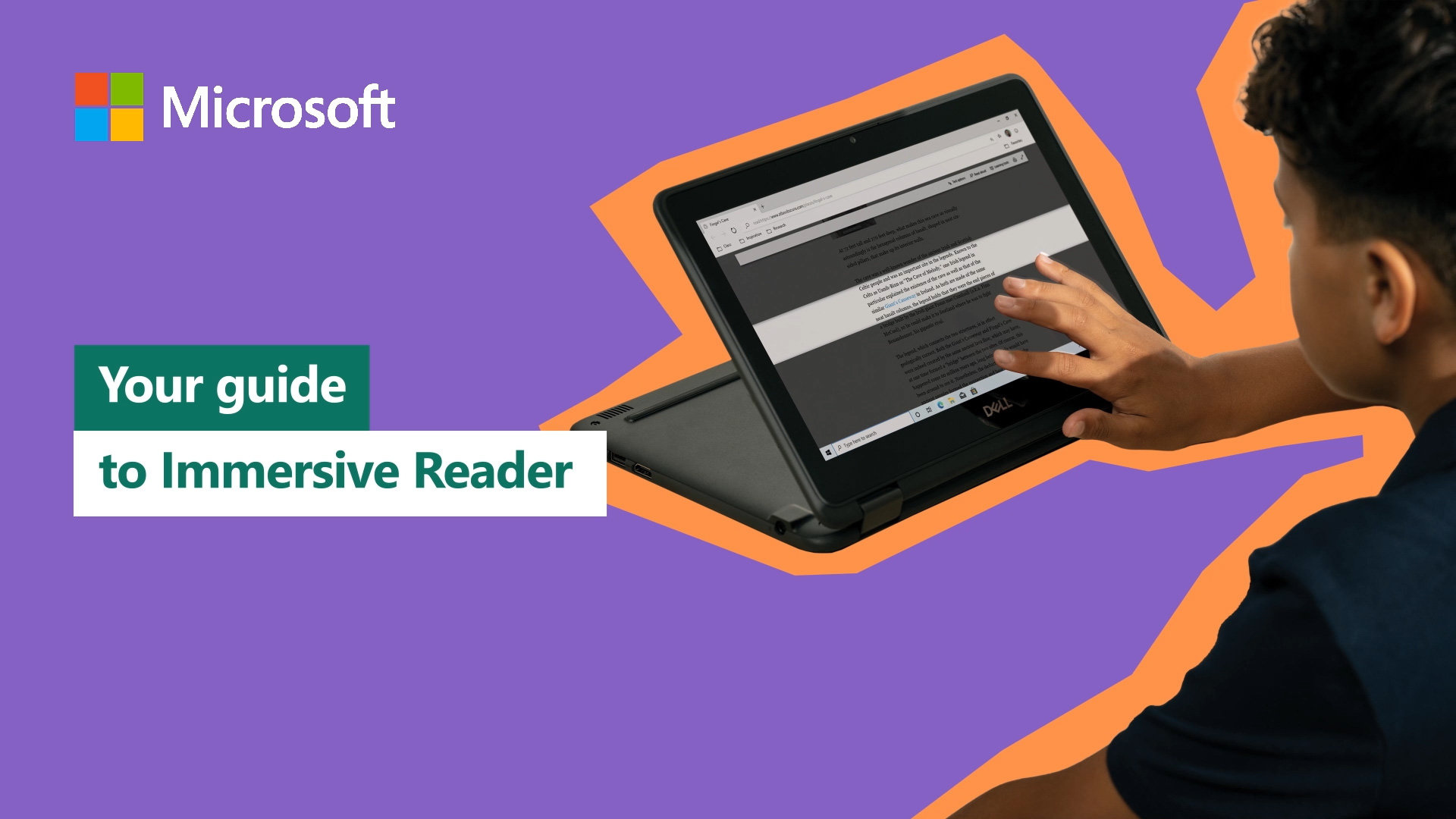
Your guide to Immersive Reader
Learn how Immersive Reader can help increase reading speed and comprehension for all ages and abilities.

Your guide to Dictation
Learn how to use speech-to-text to create documents, emails, presentations and more in Microsoft Office.

Your guide to PowerPoint
Learn the shortcuts and tricks that make using PowerPoint easier like QuickStarter, Design Ideas and more.
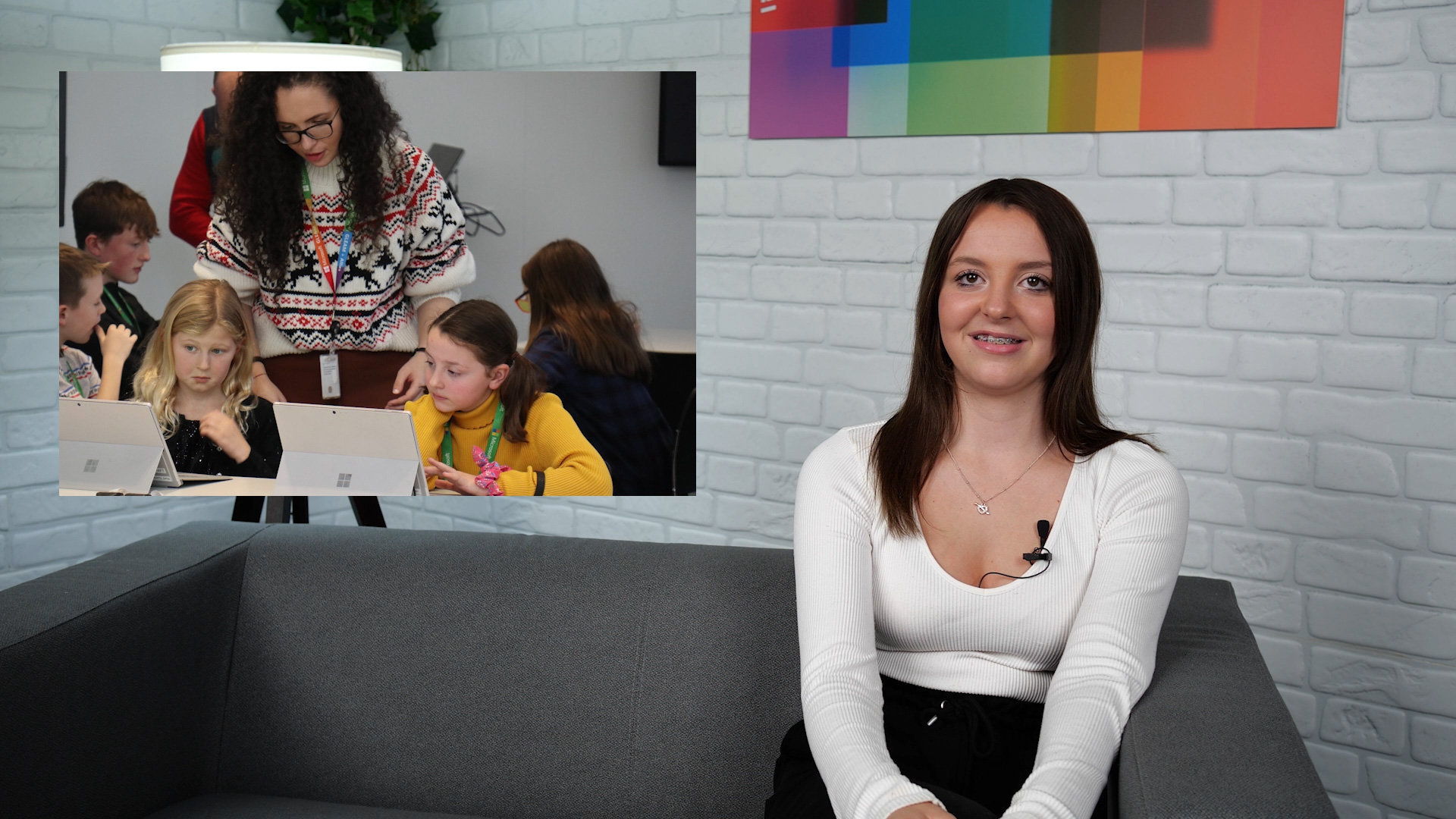
Think differently about dyslexia
Discover how Microsoft’s Think Differently About Dyslexia workshops help students work at their best and inspired our Be You campaign.
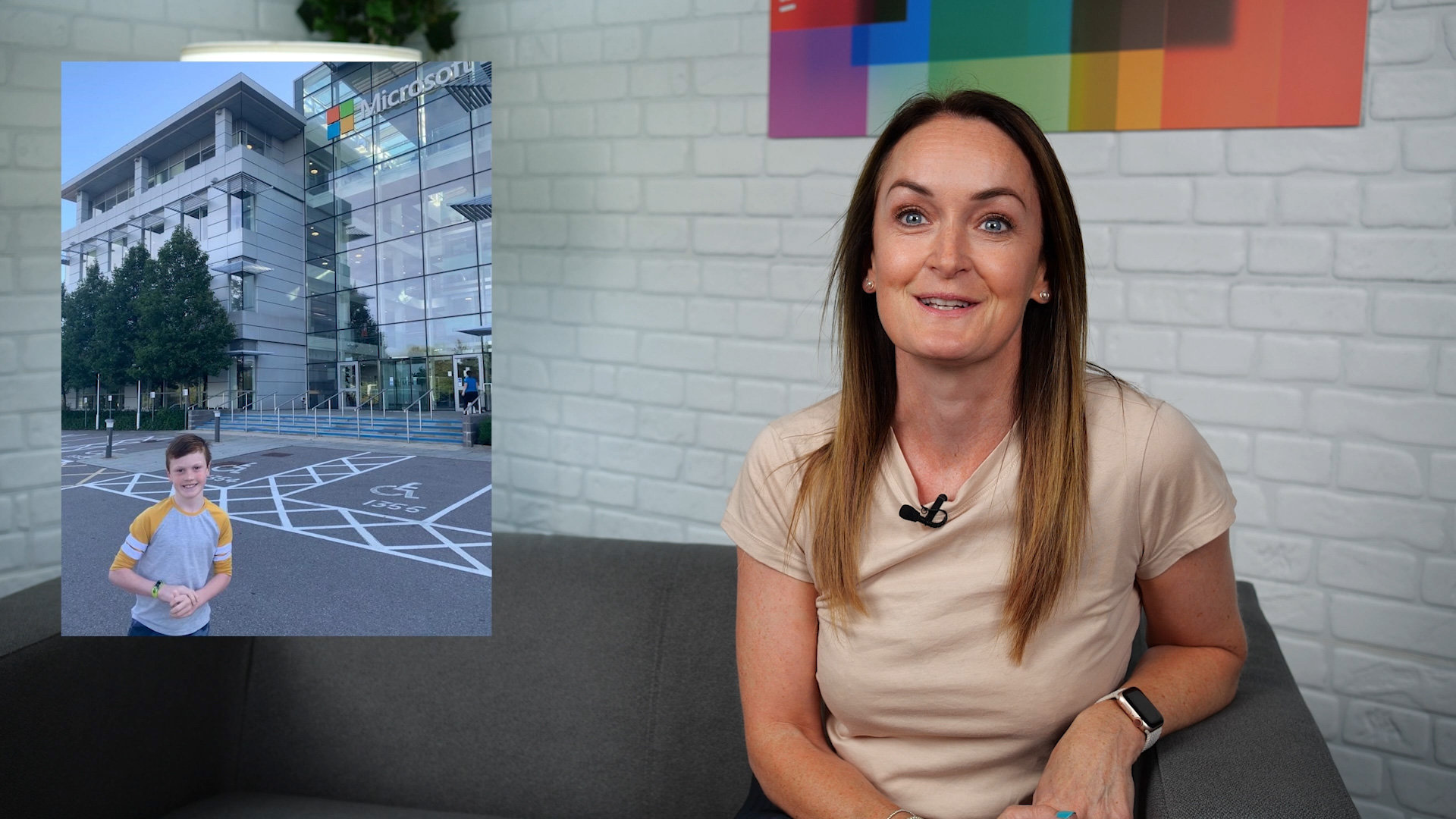
Zane's journey with Microsoft Learning Tools
Learn how Microsoft Learning Tools empowers Zane and makes learning and living with dyslexia a little easier.
Make it easier to take part in the conversation and work together on Microsoft Teams with these accessibility features.

Mute notifications in Teams meetings
Limit distractions within Microsoft Teams by muting incoming notifications when you are occupied in meetings with clients and colleagues.

Deliver your deck with PowerPoint Live
Deliver powerful presentations in your meetings using PowerPoint Live within Microsoft Teams.

Follow 1:1 meetings more easily
Make the most of your 1:1 meetings with captions.

Enhance meetings with live captions
Leverage captions in Microsoft Teams to improve your meeting experience.

Switch off with Quiet Hours
Better manage your work-life balance with Quiet Hours.

Improve text legibility with Immersive Reader
Customise the way in which you consume information from text size, to decluttering of the page, to read aloud, line focus and much more.

Use Themes to customise your Teams
Customise your Microsoft Teams to your preferences.

Bridge language gaps with Translate
Use our translation tool to collaborate across languages.
Learn how to tailor your Windows 11 device with features to help you work better and be more creative.

Improve eye comfort with Night Light
Learn how to turn on Night Light in Windows 11 to reduce the impact the blue light has on you.

Make colours stand out with Colour Filters
Need to distinguish colours on-screen? Learn how Colour Filters can help.

Secure your PC with Dynamic Lock
Ever forgotten to lock your device when you walk away? Automatically secure any paired device using Dynamic Lock in Windows 11.

Make the most of accessibility settings
Thrive using Windows 11 by navigating our Accessibility Settings for Vision, Hearing, and Interaction.

Type hands-free with Voice Typing
Easily get your message across by turning your speech into text using the Voice Typing feature in Windows 11.

Turn text into speech, instantly
Learn how Magnifier and Read aloud are better together.
Learn how features in Microsoft 365 apps ensure everyone can create, communicate, and collaborate on any device.

Build accessible Power Apps using image labels
Rapidly build and create visually Accessible Power Apps using image labels.

Ensure your PowerPoint deck is accessible
Deliver accessible presentations with Accessibility Checker.

Make the world audible with Seeing AI
Navigate your day with intelligent app Seeing AI.

Speed note-taking in meetings with OneNote
Learn how to use OneNote to take your meeting notes and have it converted into text following a simple step.

Manage Outlook emails by voice
Why not use "Play my emails" for a touch free email triage?

Set up Outlook’s accessible emails prompt
Why not let others know you prefer to receive accessible email content?

Auto-shorten meetings to support well-being
Allow yourself to take a bit of a breather by modifying your meeting duration.

Rapidly enhance your PowerPoint decks
Deliver impactful presentations with the help of Design Ideas.
Learn how accessible technology is empowering diverse and inclusive workplaces.

Hidden disability
Disabilities like dyslexia, chronic health conditions and hearing loss are invisible.
Limit distractions within Microsoft Teams by muting incoming notifications when you are occupied in meetings with clients and colleagues.
Better manage your work-life balance with Quiet Hours.
Allow yourself to take a bit of a breather by modifying your meeting duration.
Easily get your message across by turning your speech into text using the Voice Typing feature in Windows 11.
Thrive using Windows 11 by navigating our Accessibility Settings for Vision, Hearing, and Interaction.

Literacy
Different educational backgrounds in some segments make reading and writing difficult.
Customise the way in which you consume information from text size, to decluttering of the page, to read aloud, line focus and much more with Immersive Reader.
Deliver powerful presentations in your meetings using PowerPoint Live within Microsoft Teams.
Help users with vision disabilities see and read chats using dark mode, high-contrast mode, and zoom functionality.
Learn how Magnifier and Read Aloud provide assistive technology to help users with vision disabilities.
Navigate your day with intelligent app Seeing AI.

Language
Non-native speakers may prefer to communicate in a different language.
Help meeting attendees with hearing disabilities actively follow along and participate with live closed captions during 1:1 calls.
Help meeting attendees with hearing disabilities actively follow along and participate with live closed captions during Teams calls.
Better collaborate with others across languages with the help from Translate.
Empower your teams to do their best work by giving them the right tools.
| Without the right tools | With the right tools |
|---|---|
| Hidden tax on time for managers and colleagues | More time for managers and teams to focus on value-added tasks |
| Lower quality of work due to lack of understanding assignments | Higher quality of work and faster completion of work assignments |
| Safety gaps due to lack of understanding safety information, processes, and procedures | Safer job sites, compliance to company processes and procedures |
| Information gaps due to delayed or inaccurate forms, reports, and communications | Better visibility for leaders in corporate and onsite managers |
| Disengaged and isolated workers from broader team | Engagement in corporate culture across regions and roles |
| Hidden insights due to hesitancy in sharing information | Insights flow readily across and within teams |
Microsoft Copilot removes barriers to accessibility in the workplace so that every employee feels empowered and included. Learn from our colleagues with diverse abilities how they’re using Copilot every day to achieve more.

This is Adam’s Copilot
Discover how Copilot helps Adam, who has ADHD, accelerate his use of Microsoft Excel and PivotTables in particular.

This is Andy’s Copilot
Andy can struggle to keep up with fast-moving Microsoft Teams meetings due to his ADHD. Find out how Copilot helps him feel included and understand key takeaways.

This is Farah’s Copilot
Farah’s daily round of meetings can sometimes feel overwhelming. Discover how she uses Copilot in Microsoft Teams to digest information and participate more fully.

This is Michael’s Copilot
Managing social interaction can be challenging for people with autism. Using Copilot in Microsoft Outlook and Word, Michael quickly drafts emails and documents with the right tone of voice.

This is Rylin’s Copilot
Rylin is a Disability Policy Advisor and has to regularly document public policy changes. As a dyslexic notetaker, ensuring accuracy is important to her. Learn how Copilot saves her time by producing accurate summaries, citations and more.

This is Paulo’s Copilot
Paulo, who has dyslexia, brainstorms his thoughts into an Outlook email, then lets Copilot finesse the tone and other details, making him ready for the next step.

This is Ben’s Copilot
Ben is hard of hearing and can find Teams meetings difficult to follow, despite the captions. Discover how Copilot’s note-taking and “who said what” assistance help him participate more fully.

This is Elena’s Copilot
Elena’s mother tongue is Mexican Spanish and she appreciates language support when writing reports in English. Discover how Copilot gives her a head start.

This is Jeremy’s Copilot
Jeremy has to read many emails daily, despite having low vision. Hear how Copilot helps him summarise them, making his task easier and faster.

This is Laurie’s Copilot
Laurie’s disability makes it hard to type on a keyboard or use a mouse. Learn how Copilot helps her create content via the spoken word.

This is Stuart’s Copilot
In Microsoft Teams meetings, Stuart wants to be sure that he doesn’t over-contribute. Find out how Copilot discreetly gives him that assurance.

This is Kojo’s Copilot
Kojo uses Copilot to summarise where he’s been mentioned in chats or emails and to prioritise the next day’s actions. This helps him switch off from work.

This is Trinh’s Copilot
As a stroke survivor, Trinh can get mentally and physically drained in meetings. See how he uses Copilot to stay present in meetings and feel more included.
Be more inclusive with Microsoft 365
Discover features that ensure everyone can create, communicate and collaborate, on any device.

MSFTEnable: explore our accessibility work
Microsoft creates technology that is accessible to people around the world - of all ages and abilities.

Microsoft Teams: discover accessibility features
This topic contains an overview of the many accessibility features that make sure all users can have the best possible experience.

Microsoft 365: view accessibility resources for apps
The features within the Microsoft 365 apps ensure everyone can create, communicate, and collaborate on any device.