
Make Windows easier to see
Windows accessibility can make your text and apps easier to read by adjusting your text size, adding contrast, or even using the built-in magnifying tool.
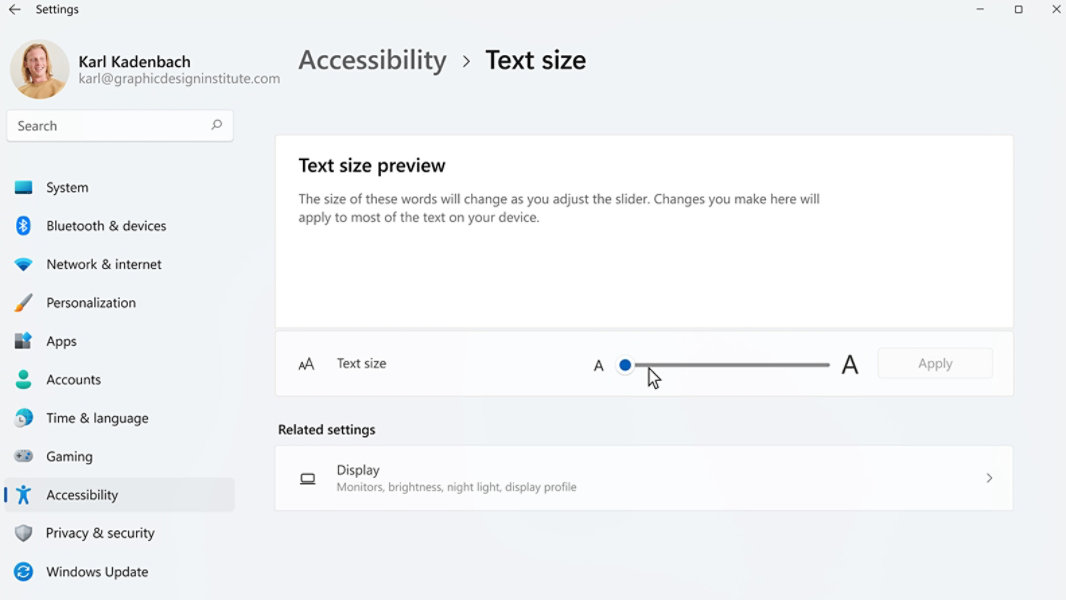
Adjust text size and elements
If you find that the text and elements on your PC are too small or hard to read, try changing the size of text and elements on your device.
- Select the Start
 button, then Settings
  > Accessibility > Text size. Use the slider next to Text size to make just the text on your screen larger.
 - To scale up everything on your screen select the Start button, then Settings > System > Display, and change the Scale drop-down menu under Scale & Layout to a larger percentage.
Apply a contrast theme
By applying a contrast theme, you can change the colour scheme of the background to enhance the readability and accessibility of text and apps on your device.
- Select the Start button, then select Settings > Accessibility > Contrast themes, select one of the options in the drop-down menu next to Contrast themes, and select Apply.
Use Magnifier to zoom in and out
Using Magnifier enlarges part, or all, of your screen so you can see words and images better. Zooming in will make everything bigger and easier to read, while zooming out will make everything smaller and fit more on the screen.
- To open Magnifier quickly, press the Windows logo key + Plus sign (+).
- When Magnifier is open, use Windows logo key + Plus sign (+) or Windows logo key + Minus sign (-) to zoom in or out.
- To close Magnifier, press Windows logo key + Esc.


Follow Microsoft Windows