
Live captions
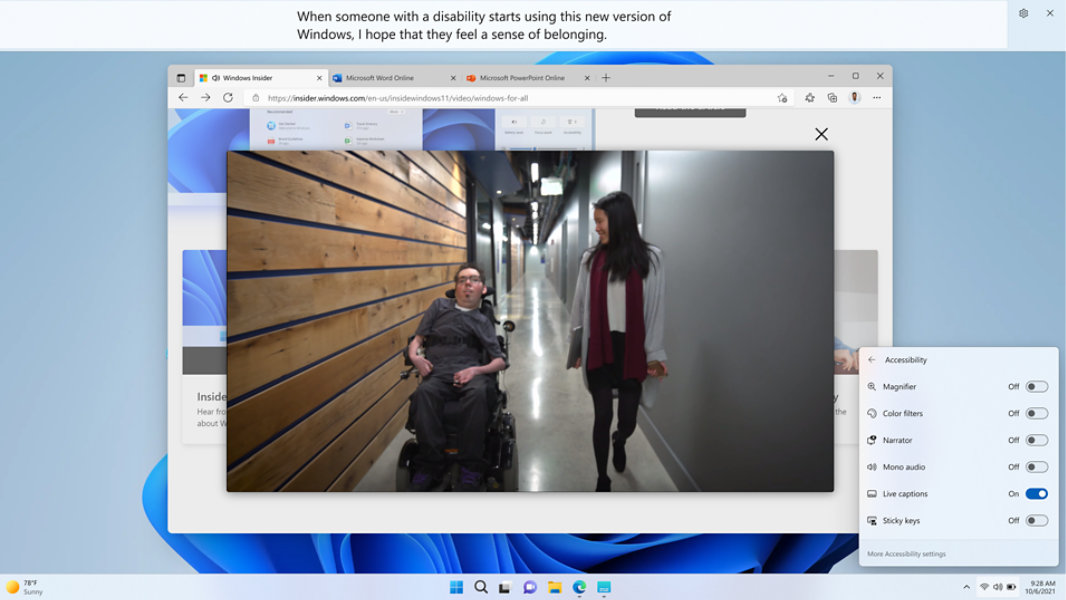
Use live captions to better understand audio
Live captions can provide automatic transcription of audio to text on the screen. To turn on live captions, do one of the following:
- Turn on the Live captions toggle in the quick settings Accessibility flyout. (To open quick settings, select the battery, network or volume icon on the taskbar).
- Press the Windows logo key
 + Ctrl + L.
 - Select Start > All apps > Accessibility > Live captions.
- Go to Settings > Accessibility > Captions and turn on the Live captions toggle.
Personalise how captions are displayed
With live captions, you can personalise how captions are displayed. To choose where captions are displayed on your desktop:
1. Select the Settings  button in the live captions window.
2. Select Position.
3. Choose either Top, Bottom or Floating on screen.
- When you choose Top or Bottom, the captions window will appear as docked to the top or bottom screen edges in reserved space on your desktop, and other apps will not be blocked by the captions window. When docked to the top, you might find that live captions work well while sharing video in a virtual meeting or conversation, whereas in other cases, such as viewing videos, docking to bottom might work best.
- When you choose Floating on screen, the live captions will appear in an overlay window which you can reposition as needed to avoid obscuring other apps in use.
Make live captions easier to read
By adjusting the appearance of live captions, you can make them easier to read. To select a style that suits your needs:
- Select the Settings button in the live captions window.
- Select Preferences.
- Select Caption style. The Accessibility settings for Captions opens.
- Under Caption style, do one of the following:
a. Select a built-in style from the dropdown menu. Use the Default built-in style to have captions displayed with colours appropriate to your device’s dark or light mode setting in Settings > Personalisation > Colours > Choose your mode.
b. Select the Edit button to create a custom style that works best for you.
Frequently asked questions
-
Live captions supports speech recognition in:
- Chinese (Simplified, China)
- Chinese (Traditional, Hong Kong SAR)
- Chinese (Traditional, Taiwan)
- Danish
- English (Australia)
- English (Canada)
- English (India)
- English (Ireland)
- English (New Zealand)
- English (United Kingdom)
- English (United States)
- French (Canada)
- French (France)
- German (Germany)
- Italian (Italy)
- Japanese
- Korean
- Portuguese (Brazil)
- Portuguese (Portugal)
- Spanish (Mexico)
- Spanish (Spain)
-
Only speech detected in audio will be captioned. Audible events such as applause or music will not be detected. Lyrics sung in music will not be reliably detected.
-
All processing of audio and generation of captions from detected voice data occurs on-device. Audio, voice data and captions never leave your device and are not shared to the cloud or with Microsoft. For more information, review the Microsoft privacy statement.
-
Live captions pays attention to the default sound output device configured in Settings > System > Sound. You might need to change your default device for audio to be picked up by live captions.
-
The microphone is always turned off by default when live captions starts up, so that only the audio you intend will be captioned.
- [1] Hardware dependent. Requires Windows PC with microphone capability. US English optimised.


Follow Microsoft Windows