Visual Studio Code - Keyboard Shortcuts
22. Juni 2015
Patric Boscolo
Dieser Blogbeitrag ist ein Repost und stammt im Original aus dem Know-how-Bereich von TechWiese, dessen Artikel in diesem Blog aufgegangen sind.
Im ersten Teil der Serie zu Microsoft Visual Studio Code haben wir uns die
Abgrenzung zu Integrated Development Environments wie Visual Studio auf der
einen Seite und zu Editoren wie Sublime auf der anderen angeschaut. Ich wollte
an einer zentralen Stelle alle Microsoft Visual Studio Code Keyboard Shortcuts
ablegen. Ich werde die meisten davon in den kommenden Blogposts erklären. Und
darauf eingehen.
Editor Basics
Diese Liste beschreibt die Keyboard Shortcuts die für alle Basissprachen
implementiert sind.
| Key | Command | Command id |
|---|
| Ctrl+X | Cut line (empty selection) | editor.action.clipboardCutAction |
| Ctrl+C | Copy line (empty selection) | editor.action.clipboardCopyAction |
| Shift+Delete | Cut line | editor.action.cutLines |
| Ctrl+Shift+K | Delete Line | editor.action.deleteLines |
| Ctrl+Enter | Insert Line Below | editor.action.insertLineAfter |
| Ctrl+Shift+Enter | Insert Line Above | editor.action.insertLineBefore |
| Alt+Down | Move Line Down | editor.action.moveLinesDownAction |
| Alt+Up | Move Line Up | editor.action.moveLinesUpAction |
| Shift+Alt+Down | Copy Line Down | editor.action.copyLinesDownAction |
| Shift+Alt+Up | Copy Line Up | editor.action.copyLinesUpAction |
| Ctrl+Shift+L | Select all occurrences of current selection | editor.action.selectHighlights |
| Ctrl+F2 | Select all occurrences of current word | editor.action.changeAll |
| Ctrl+Alt+Down | Insert Cursor Below | editor.action.insertCursorBelow |
| Ctrl+Alt+Up | Insert Cursor Above | editor.action.insertCursorAbove |
| Ctrl+Alt+] | Jump to matching bracket | editor.action.jumpToBracket |
| Ctrl+] | Indent Line | editor.action.indentLines |
| Ctrl+[ | Outdent Line | editor.action.outdentLines |
| Home | Go to Beginning of Line | cursorHome |
| End | Go to End of Line | cursorEnd |
| Ctrl+End | Go to End of File | cursorBottom |
| Ctrl+Home | Go to Beginning of File | cursorTop |
| Ctrl+/ | Toggle Line Comment | editor.action.commentLine |
| Shift+Alt+A | Toggle Block Comment | editor.action.blockComment |
| Ctrl+F | Find | actions.find |
| Ctrl+H | Replace | editor.action.startFindReplaceAction |
| F3 | Find Next | editor.action.nextMatchFindAction |
| Shift+F3 | Find Previous | editor.action.previousMatchFindAction |
| Ctrl+M | Toggle Use of Tab Key for Setting Focus | editor.action.toggleTabFocusMode |
Editor Advanced
Derzeit unterstützen wir hier JavaScript und TypeScript. Für C# kann man die
Rich Editing Experience auf eigene Gefahr aktivieren. Sie steht derzeit
versteckt zur Verfügung. Um die Editor Experience in C# zu unterstützen gehen
Sie folgt vor.
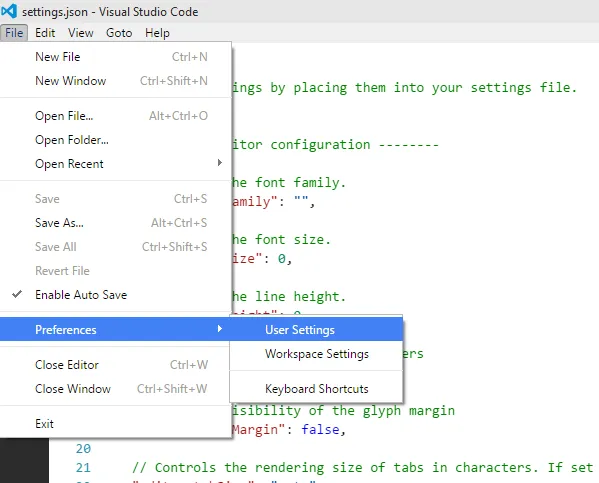 Microsoft Visual Studio Code User Settings: Menu - File - Preferences - User Settings
In der Kopie der "settings.json" Datei fügen Sie folgenden Code hinzu:
								{
								"csharp.codeActions" : true
								}
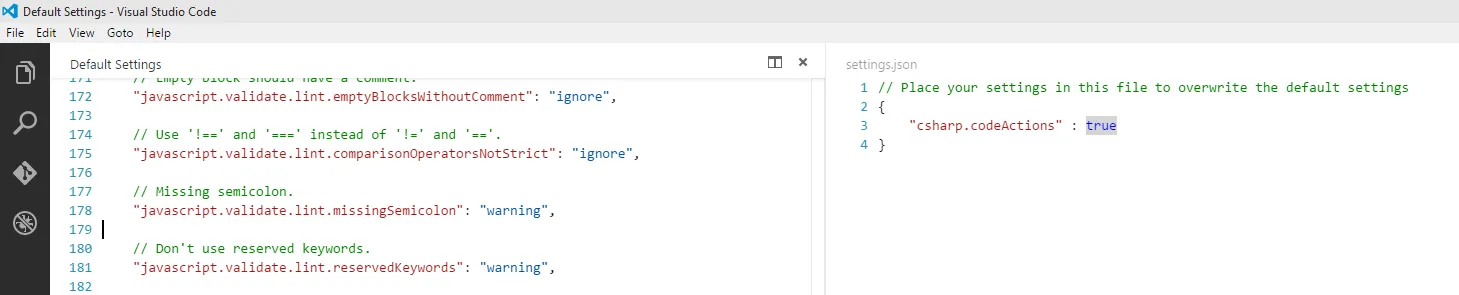
Nun stehen Ihnen die erweiterten Bearbeitungsmethoden der Roslyn API zur
Verfügung. Diese C# Extensions sind noch nicht stabil und werden in einer
zukünftigen Version von Microsoft Visual Studio Code automatisch ein Update
erhalten.
| Key | Command | Command id |
|---|
| Ctrl+Space | Trigger Suggest | editor.action.triggerSuggest |
| Ctrl+Alt+F | Format Code | editor.action.format |
| Ctrl+F12 | Go to Definition | editor.action.goToDeclaration |
| Alt+F12 | Peek Definition | editor.action.previewDeclaration |
| Ctrl+. | Quick Fix | editor.action.quickFix |
| Shift+F12 | Show References | editor.action.referenceSearch.trigger |
| F2 | Rename Symbol | editor.action.rename |
| Ctrl+Down | Replace with Next Value | editor.action.inPlaceReplace.down |
| Ctrl+Up | Replace with Previous Value | editor.action.inPlaceReplace.up |
| Shift+Alt+Right | Expand AST Select | editor.action.smartSelect.grow |
| Shift+Alt+Left | Shrink AST Select | editor.action.smartSelect.shrink |
Navigation
| Key | Command | Command id |
|---|
| Ctrl+T | Show All Symbols | workbench.action.showAllSymbols |
| Ctrl+G | Go to Line... | workbench.action.gotoLine |
| Ctrl+E | Go to File... | workbench.action.quickOpen |
| Ctrl+Shift+O | Go to Symbol... | workbench.action.gotoSymbol |
| Ctrl+Shift+M | Show Errors and Warnings | workbench.action.showErrorsWarnings |
| F8 | Go to Next Error or Warning | editor.action.marker.next |
| Shift+F8 | Go to Previous Error or Warning | editor.action.marker.prev |
| Ctrl+Shift+P | Show All Commands | workbench.action.showCommands |
| Ctrl+Tab | Navigate History | workbench.action.openPreviousEditor |
| Alt+Left | Go Back | workbench.action.navigateBack |
| Alt+Right | Go Forward | workbench.action.navigateForward |
Editor Fenster
| Key | Command | Command id |
|---|
| Ctrl+Shift+N | New Window | workbench.action.newWindow |
| Ctrl+Shift+W | Close Window | workbench.action.closeWindow |
| Ctrl+W | Close Editor | workbench.action.closeActiveEditor |
| Ctrl+` | Cycle Between Opened Editors | workbench.action.cycleEditor |
| Ctrl+\ | Split Editor | workbench.action.splitEditor |
| Ctrl+1 | Focus into Left Hand Editor | workbench.action.focusFirstEditor |
| Ctrl+2 | Focus into Side Editor | workbench.action.focusSecondEditor |
| Ctrl+3 | Focus into Right Hand Editor | workbench.action.focusThirdEditor |
| Ctrl+Alt+Left | Focus into Next Editor on the Left | workbench.action.focusLeftEditor |
| Ctrl+Alt+Right | Focus into Next Editor on the Right | workbench.action.focusRightEditor |
Datei Management
| Key | Command | Command id |
|---|
| Ctrl+N | New File | workbench.action.files.newUntitledFile |
| Ctrl+Alt+O | Open File... | workbench.action.files.openFile |
| Ctrl+S | Save | workbench.action.files.save |
| Ctrl+Shift+S | Save All | workbench.action.files.saveAll |
| Ctrl+Alt+S | Save As... | workbench.action.files.saveAs |
Ansicht und weitere Fenster
| Key | Command | Command id |
|---|
| F11 | Toggle Full Screen | workbench.action.toggleFullScreen |
| Ctrl+= | Zoom in | workbench.action.zoomIn |
| Ctrl+- | Zoom out | workbench.action.zoomOut |
| Ctrl+B | Toggle Sidebar Visibility | workbench.action.toggleSidebarVisibility |
| Ctrl+Shift+D | Show Debug | workbench.view.debug |
| Ctrl+Shift+E | Show Explorer | workbench.view.explorer |
| Ctrl+Shift+F | Show Search | workbench.view.search |
| Ctrl+Shift+J | Toggle Search Details | workbench.action.search.toggleQueryDetails |
| Ctrl+Shift+C | Open New Console | workbench.action.terminal.openNativeConsole |
| Ctrl+Shift+U | Show Output | workbench.action.output.showOutput |
|
Ctrl+U
L
| Show OmniSharp Log | omnisharp.show.generalLog |
| Ctrl+U Ctrl+L | Show OmniSharp Log to the Side | omnisharp.show.generalLogOnSide |
| Ctrl+Shift+V | Toggle Markdown Preview | workbench.action.markdown.togglePreview |
Debugging Shortcuts
| Key | Command | Command id |
|---|
| F9 | Toggle Breakpoint | editor.debug.action.toggleBreakpoint |
| F5 | Continue | workbench.action.debug.play |
| F5 | Pause | workbench.action.debug.start |
| F11 | Step Into | workbench.action.debug.stepInto |
| Shift+F11 | Step Out | workbench.action.debug.stepOut |
| F10 | Step Over | workbench.action.debug.stepOver |
| Shift+F5 | Stop | workbench.action.debug.stop |
Tasks
| Key | Command | Command id |
|---|
| Ctrl+Shift+B | Run Build Task | workbench.action.tasks.build |
| Ctrl+Shift+T | Run Test Task | workbench.action.tasks.test |
Visual Studio Code herunterladen


Teilen auf