
Photos app
Be reminded of moments you’ve forgotten
- Revisit moments you forgot about – memories can resurface pictures backed up on OneDrive 1 on a certain date.
- Clicking on memory tiles in Photos will open the experience in Microsoft Edge by default. However, you can also copy the link to open it in other browsers.
- See picture compilations of recent highlights, celebrations like birthdays and weddings, loved ones, trip recaps, and more.
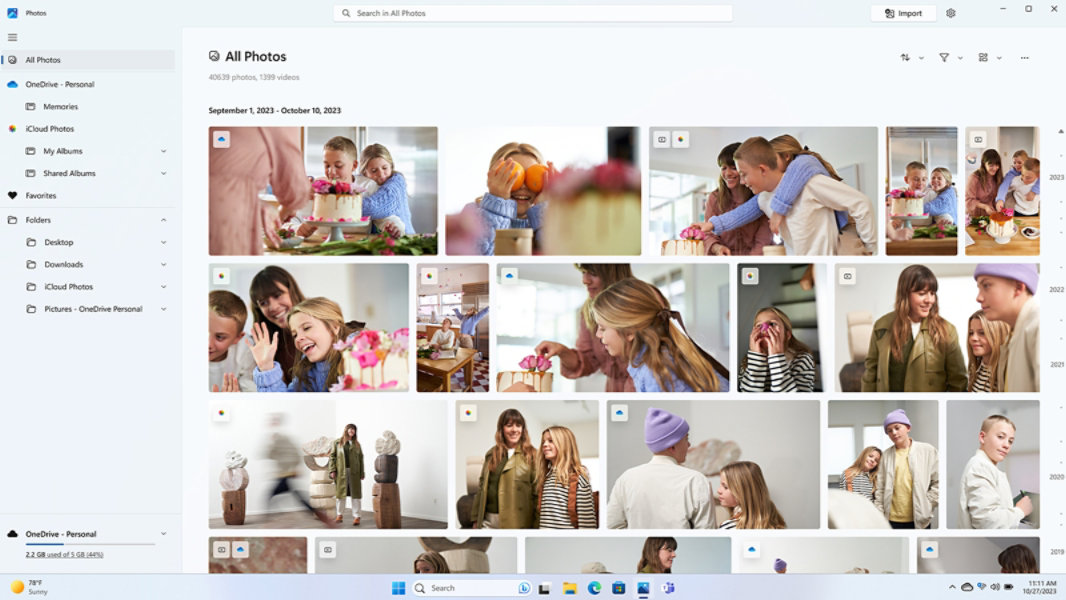
Seamless access to your iCloud® photo library
The Photos app can now sync to your iCloud and access the photos and videos on your iPhone®. Just log in and ensure that Photos is selected.
Edit a photo
Whether you like to apply changes that affect your photo's quality, feel and look – or you want to add information on top of your photos, the Photos app in Windows gives you all kinds of options for getting your photos and videos looking their best.
Frequently asked questions
-
You can import photos and videos you have stored on a camera’s SD card, a USB drive, a phone or on another device.
- Use a USB cable to connect your device to the PC.
- In the search box on the taskbar, type photos and then select the Photos App from the results.
- Select Import from the App bar.
- Your devices will automatically show under Connected devices. Choose your device from the list of connected devices.
- Select the photos and videos you would like to import.
- Choose the location of the destination folder for import.
- Decide if you want to permanently delete the photos and videos from your importing device by checking or unchecking the Delete items after import button.
- Warning: Checking the Delete items after import button permanently removes the photos or videos from your importing device.
- Select Confirm to move the photos and videos.
Note: If you're using an Android™ phone and Import isn't working, you might need to change your phone's USB setting to allow it to transfer photos.
-
One of the simplest ways to copy all your photos and videos to one place in the Photos app is to set up automatic upload to OneDrive of Photos from your mobile device.
- On your Windows PC, open the Photos app and sign in to your OneDrive account by selecting the OneDrive tab in the left navigation bar. This allows OneDrive content to sync to the Photos app.
- Then, on your iOS or Android device, install the OneDrive app. You can download the latest version from your phone's Android or iOS app store.
- From the OneDrive app on your iOS or Android device, turn on Camera Upload in the OneDrive app’s settings. The latest photos and videos that you take will automatically start uploading to OneDrive.
Once uploaded to OneDrive, those photos and videos will automatically appear in the Photos app on your PC if you have OneDrive connected to your Photos app.
-
You can edit photos in the new Windows Photos app. Open your photo and select Edit image or Ctrl + E. Select Crop, Adjustment, Filter or Mark-up to start editing. Use AI photo editing features like background blur to emphasise what you want to stand out in the image.
- Trademarks are the property of their respective owners.
- [1] Access to images stored on OneDrive is contingent on the associated Microsoft Account the device is signed in with.


Follow Microsoft Windows