
Your move to a Surface Copilot+ PC, made simple
Follow 3 easy steps to transfer your important files and settings to a powerful new Surface with Windows 11.

It’s as easy as…

Get your Windows PC ready
Check if your old PC is running the latest version of Windows.

Move your files
Back up your files to OneDrive to make them available to you on your brand new or next PC.1

Sign in to Windows 11
When you start your new Surface, sign in with the same Microsoft account and Windows Backup2 will help move your files, apps and settings over.
Which version of Windows am I running?
To find your Windows version and edition, you can use one of the following methods:
- Right-click on Start
and select Settings.
- In the Settings app
on your Windows device, select System > About.
- Use the following link to quickly open settings:
Here’s what moves with you—and what doesn’t
Save what you love and Windows Backup will transfer it to your new Surface computer.1

Transfers
- Your files, documents and photos
- Selected Windows settings and preferences1
- App list (not the apps themselves)1

Doesn't transfer
- Some apps and device‑specific settings—you may need to reinstall apps from Microsoft Store or the app’s provider and some may not be compatible with Arm devices1

Managed/school devices
- Your organisation’s policies may change the experience
Explore Surface PCs
It’s easy to move to Windows 11 on your new Surface Copilot+ PC.
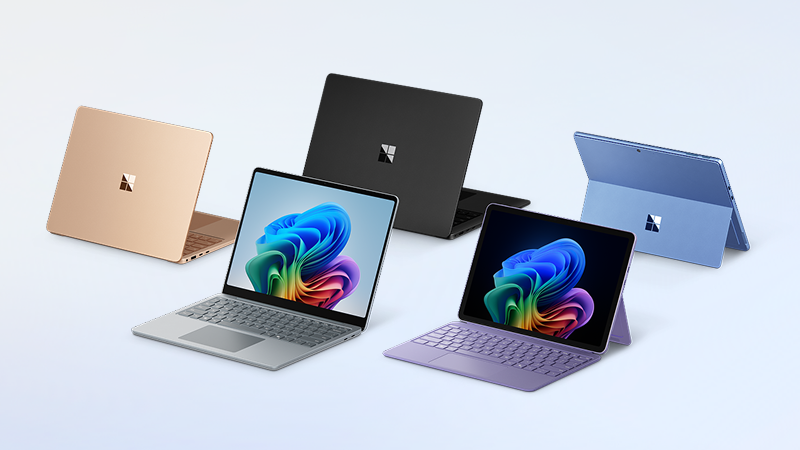
Find the best Surface for you
Whether you need a Surface Laptop or Surface Pro for your business or everyday life, find the right fit with brilliant AI features, security features built in and a choice of screen sizes.
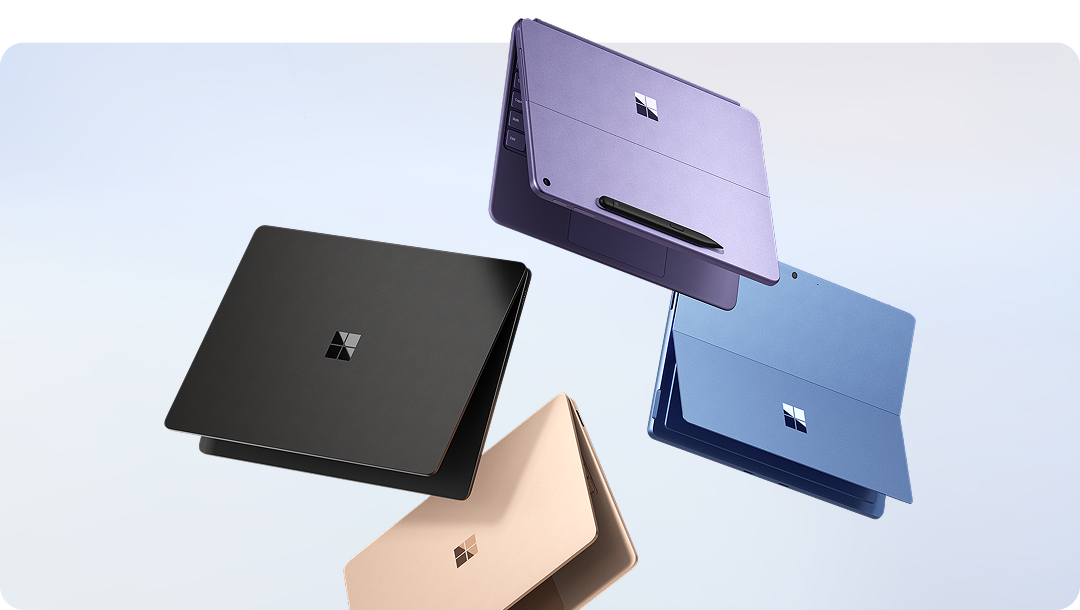
Save on Surface Copilot+ PCs
Find current deals on Surface Laptop and Surface Pro devices at Microsoft Store.
Get to know Windows 11
From AI-powered features to built-in security protections, it’s the Windows you know and more.
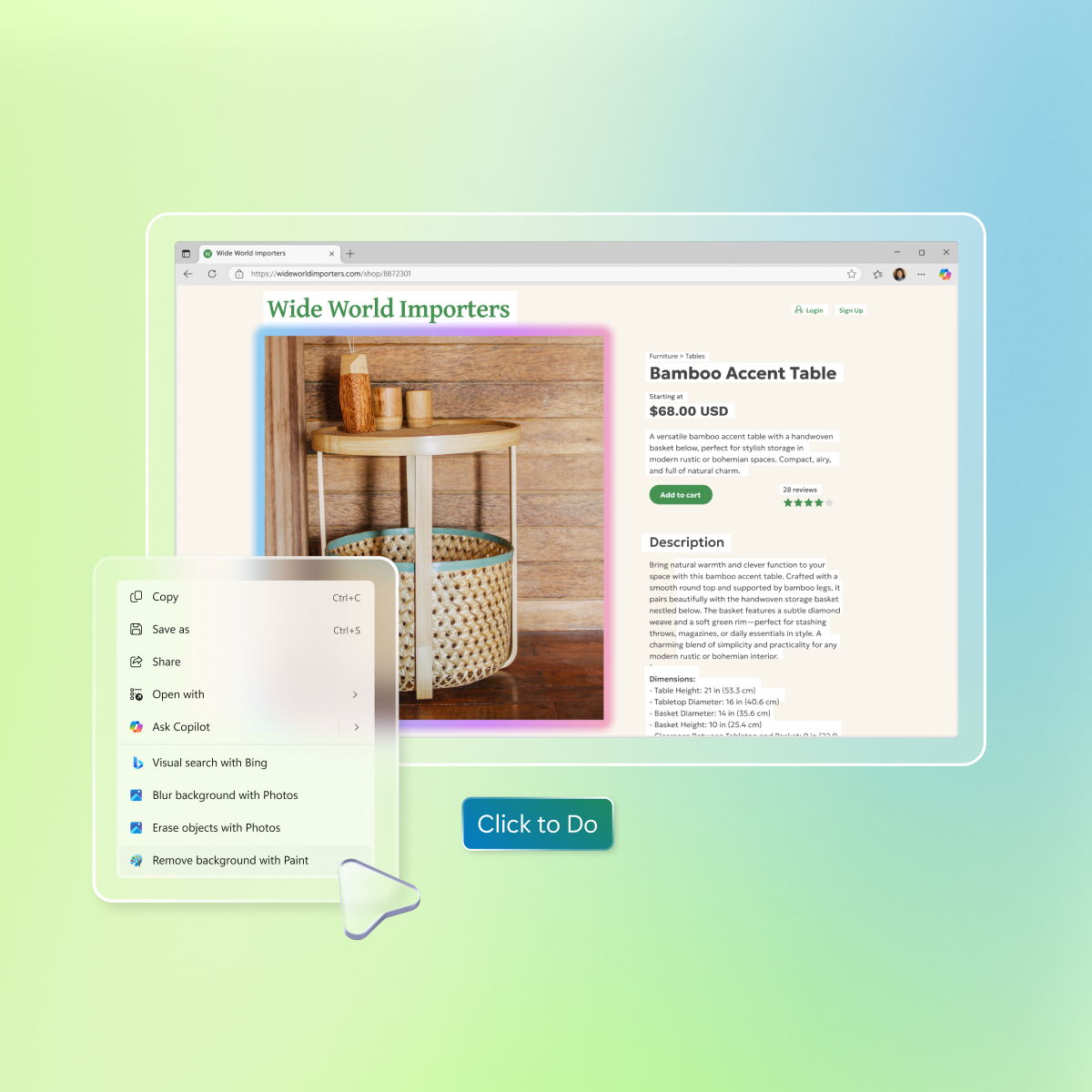
The power of AI
Advanced AI tools and apps like Microsoft Copilot help you get things done more easily and effectively.
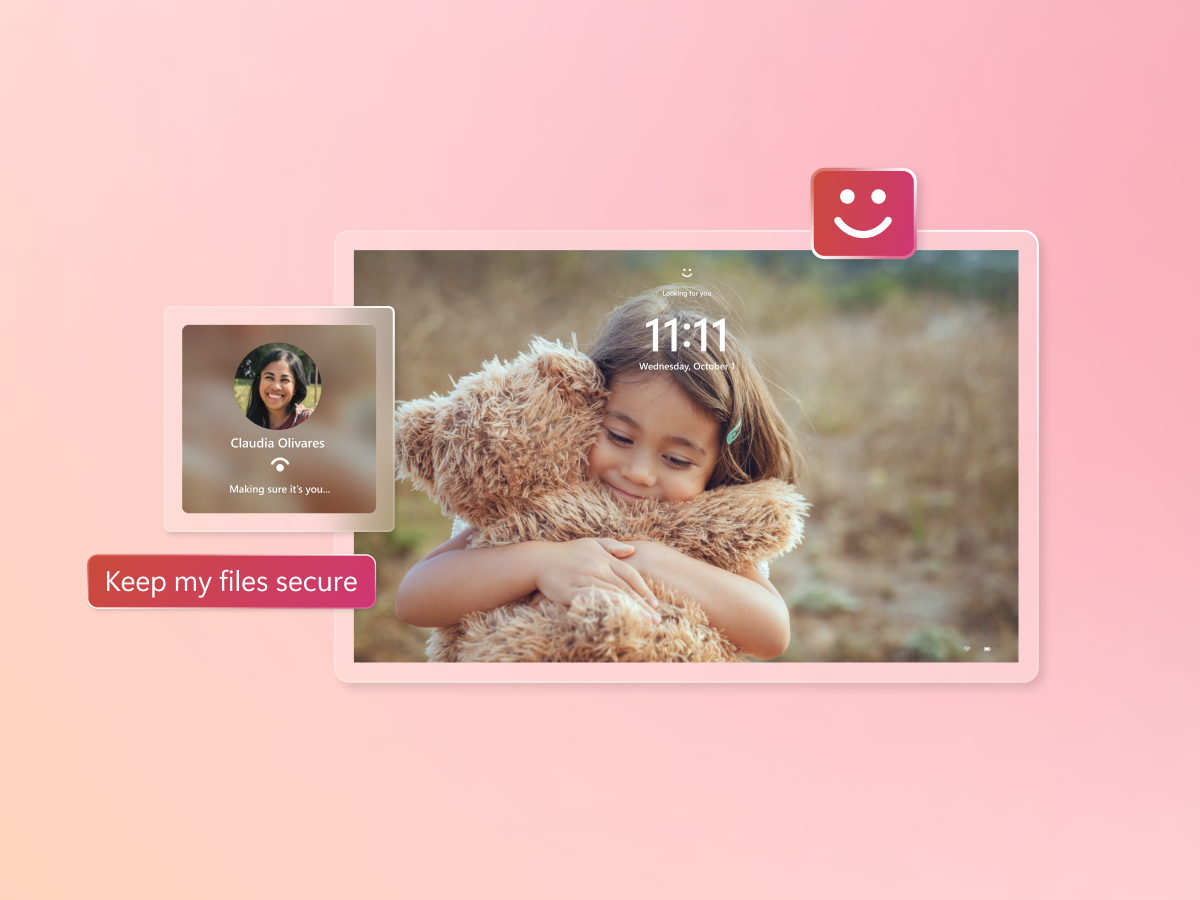
A new era of security
Windows 11 brings layers and layers of security measures to help keep your digital life in safe hands—yours.
-
Yes. A Microsoft account is required to set up a device with Windows 11 Home or Windows 11 Pro. Your Microsoft account comes with 5 GB OneDrive cloud storage and access to free web and mobile versions of Word, Excel, PowerPoint and Outlook. If you don’t have a Microsoft account, it’s easy to sign up using your existing or new email address here.
-
OneDrive is a Microsoft cloud storage service that lets you store your personal files in one place, share them with others and access them from any device connected to the internet. Learn more about OneDrive.
-
-
A Microsoft account includes 5 GB of cloud storage with OneDrive. If you need more space for your files, you can upgrade to a qualifying Microsoft 365 subscription, which offers additional storage and premium features. See available options.
-
Yes, you can bring your files with you using an external storage device such as a USB drive, SD card or external hard drive. Learn how.
-
Yes. You can install or activate compatible versions of Office on your new computer using your product key.
Activate Office on a new PC >How to install Office > -
Windows Backup helps you move files, settings and a list of your apps when setting up a new Windows 11 PC. It works with PCs running Windows 10 or later and restores on Windows 11, version 22H2 or higher.
Keep in mind that apps themselves aren’t automatically transferred or installed. When you open an app for the first time on your new PC, some can be reinstalled directly from the Microsoft Store. Others may need to be reinstalled manually from the original provider. Geographic restrictions may apply. See WOA for Arm-compatible apps and Windows Backup for details. -
Microsoft announced last October the Extended Security Updates (ESU) consumer programme that gives the option to receive critical and important security updates for eligible Windows 10 PCs enrolled in the programme through 13 October, 2026. The programme provides you with more time to stay protected on your current Windows 10 device before moving to a new Surface PC.
For additional information on Consumer ESU options, please visit ESU Settings or the ESU support page.
For additional information on Commercial ESU programme, please visit the Microsoft Learn page.
- Screens simulated. Features and app availability may vary by region.
- [1] Backs up files, settings and apps from PCs running Windows 10 or 11. Requires Microsoft account; data transfers exceeding 5 GB require Microsoft subscription or trial. Some apps require manual reinstallation from the original app provider and some may not be compatible with Arm devices. See WOA for Arm-compatible apps and Windows Backup for details.
- [2] Using Windows Backup to restore to a Windows 11 PC requires you to sign in during initial device setup with the same Microsoft account you used for Windows 10 PC backup.

-RW1dc1h?scl=1&fmt=png-alpha)