This article will explain how to activate and setup Dynamics AX to be able to use General Budget Reservation functionality that was added with hotfix KB3047235
Make sure you are on AX 2012 R3 CU8 and using a Public Sector environment.
Verify you see the checkbox General Ledger Reservation and have it marked in the License Configuration form. System Administrator | Setup | Licensing | License Configuration
- Expand the Public Sector Node
- Verify General Budget Reservation checkbox is marked

- Close the form
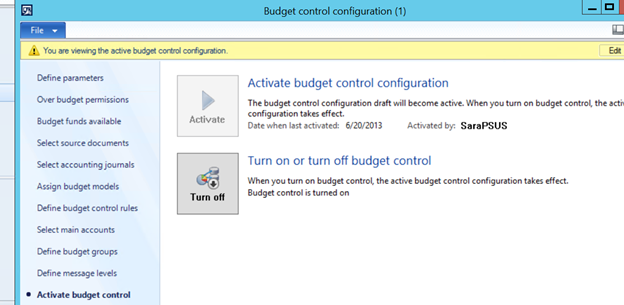
Verify Budget Control Configuration is turned on and is active. Budgeting | Setup | Budget Control | Budget Control Configuration
- Click the Activate Budget Control option
- Verify the Budget Control is turned on
- Verify the Budget Control is active
- Close the form
Setup the Budgeting Parameters for General Budget Reservation – Budgeting | Setup | Budgeting Parameters
- Mark the General Budget Reservations checkbox in the Regulatory section

- Close the form
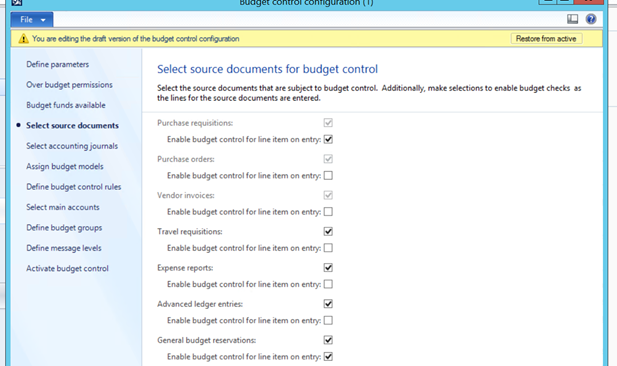
Include source documents for budget control – Budgeting | Setup | Budget Control | Budget Control Configuration
- Click the Edit
- Click the Select Source Documents link
- Mark the General Budget Reservations checkbox
- Mark the Enable Budget Control for item on Entry checkbox
- Click the Activate Budget Control
- Click the Activate button

- Close the form
Setup General Ledger for General Budget Reservation – General Ledger | Setup | General Ledger Parameters
- Click the Ledger Link
- In the Accounting Rules to Use section
- Mark the Use Posting Definitions checkbox
- Mark the Enable Budget Appropriation checkbox
- Mark the General Budget Reservation checkbox

- Close the form
Create a new posting definition for General Budget Reservation – General Ledger | Setup | Posting | Posting Definition
- Click the New button
- Enter the Posting Definition
- Enter the Description
- Select the Module General Budget Reservation
- Enter the Effective date

- Expand the Entries fast tab
- Click the Add button for Match Criteria
- Select the Expense Account structure
- Click the Add button in the Generated Entries section
- Select Account Structure: Balance
- Select Generated Account Number:
- Select Generated Debit/Credit: Same
- Click the Add button
- Select Account Structure: Balance
- Select Generated Account Number:
- Select Generated Debit/Credit: Balancing

- Click the close button
Assign the Posting Definition in the Transaction Posting Definitions form – General Ledger | Setup | Posting | Transactions Posting Definition
- Click the Budget Reservation tab
- Select the General Budget Reservation radio button
- Click the New button
- Select the Posting Definition created above

- Close the form
Create a number sequence for General Budget Reservation – Organization Administration | Common | Number Sequence | Number Sequences
- In the Number Sequence tab in the New group click the Number Sequence button
- Enter the Name

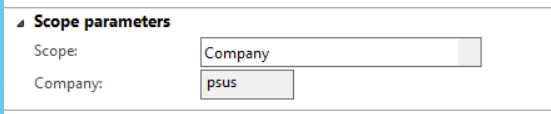
- Expand the Scope Parameters fast tab
- Select Scope: Company
- Select Company: PSUS
- Expand the Segments fast tab
- Remove the Company Segment
- Click the Add button
- Select Segment: Constant
- Enter the Value: GBR

- Expand the References fast tab
- Click the Add button
- Select Area: Budget
- Select the Reference: General Budget Reservation Voucher

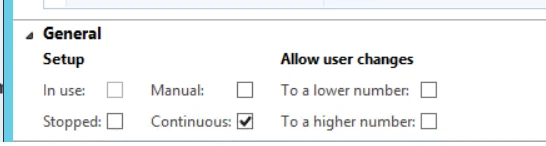
- Mark the Continuous checkbox
- Close the form
Assign the Number Sequence in the Budgeting Parameters – Budgeting | Setup | Budgeting Parameters
- Click the Number Sequence link
- Select the General Budget Reservation Vouchers you created above

- Close the form
Create a General Budget Reservation Type – Budgeting | Setup | General Budget Configuration | Reservation Type
- Click the New button
- Enter the Reservation Type
- Enter the Description
- Select Relieving Document: Purchase Order
- Select a Number Sequence if you want

- Close the form
Note the Relieving Document type on General Budget Reservation will determine what document you can use that particular General Budget Reservation on.
For reference you can view MSDN article https://msdn.microsoft.com/en-us/dynamics/dn792460(v=ax.60)
Additional Articles will be released related to this topic and will be linked here:
How General Budget Reservations will update Committed Cost on Project Contracts: