You can now upload portal customization in different environment with different set of properties using portals deployment profile. You can also create multiple deployment profiles and upload portal customization to an environment by applying the profile you want.
For example, you can have three deployment profile, each for dev, QA and prod environments like below:
| Contoso-Dev | Used for active development and testing |
| Contoso-QA | Used for nightly build deployment and testing. |
| Contoso-PROD | This is a production environment. |

Example: Use deployment profile
We want to make sure portal users can easily identify if they are accessing portal from development environment or QA environment. To achieve this, we will be appending
- “DEV” text to company name when we upload portal customization to “Contoso-DEV” and
- “QA” text to company name when we upload the customization “Contoso-QA” environment.


Prerequisite
Make sure you have installed Power Apps CLI and connected to environment. See documentation here for detail.
Steps to create deployment profile for DEV and QA environments
- Download portal content.
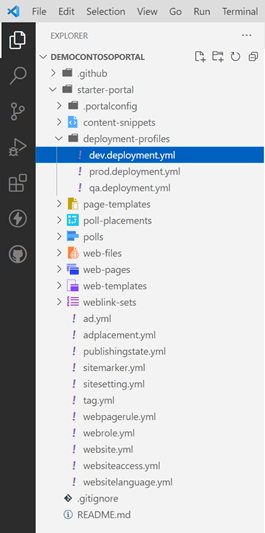
- Create “deployment-profiles” folder under portal configuration folder
- Create “dev.deployment.yml” deployment profile for “Contoso-DEV” development environment and “qa.deployment.yml” file for “Contoso-QA” daily test environments (that is, <profileTag>.deployment.yml).
- In this file, you can have the table (entity) name with table ID, list of attributes, and the values that you want to override while uploading the portal configuration using the
deploymentProfileparameter.
- In this file, you can have the table (entity) name with table ID, list of attributes, and the values that you want to override while uploading the portal configuration using the
- “dev.deployment.yml” file

- “qa.deployment.yml” file

How to use deployment profile
Run portal upload command with “–deploymentProfile” parameter to upload portal customization which will be overridden by deployment profile configuration (i.e., pac paportal upload –path “C:\portals\starter-portal” –deploymentProfile “profile-name”).
Upload to development environment (using “dev.deployment.yml” profile)
pac paportal upload --path "C:\portals\starter-portal" --deploymentProfile dev

Upload to QA environment (using “qa.deployment.yml” profile)
pac paportal upload --path "C:\portals\starter-portal" --deploymentProfile qa

Your feedback will help us continue to build on and improve the capabilities of this feature. We want to hear from you!
For details, see the documentation.
Thank you,
Neeraj Nandwana