
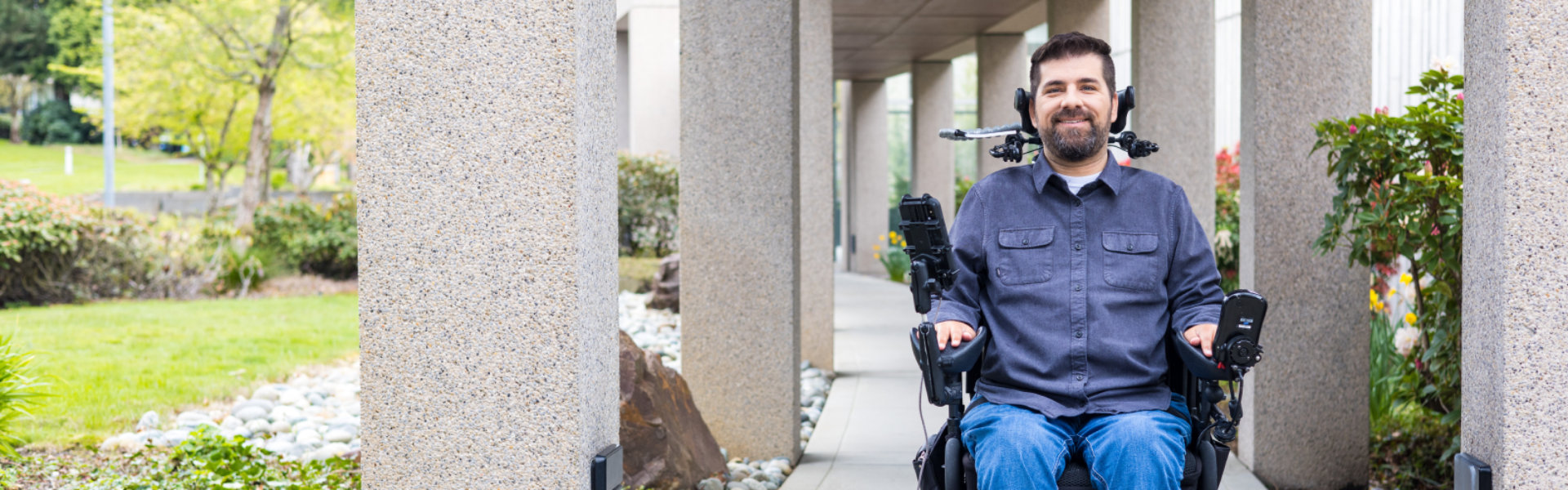
Raising the bar on accessibility
Promoting disability inclusion
Our commitment
We are committed to create and grow usage of accessible technology, expand skilling and hiring opportunities for people with disabilities, and advocate for policies that advance accessibility as a fundamental right.
Accessibility training and resources
There are many ways to support your colleagues, classmates, friends, and family members with disabilities.
Technical support
Disability Answer Desk provides product support for our customers with disabilities, including Microsoft Office, Windows, and Xbox
Accessible products and technology
Designed for you

Vision
Need a larger screen? A brighter screen? A narrator to read text? Find out about accessibility tools and features for people who are blind, color blind, or have low vision.

Hearing
For those who are hard of hearing, have hearing loss, or have deafness, our specialized features can provide solutions including closed captioning, mono sound, and live call transcription.

Neurodiversity
Innovative tools such as dictation and Windows Hello sign-in can make the digital world more accessible for those who with dyslexia, seizures, autism, or other cognitive differences.

Learning
Our applications for people living with learning disabilities can help increase focus, concentration, and understanding—and include tools to improve reading and writing skills.

Mobility
Our suite of products helps people living with arthritis, quadriplegia, spinal cord injuries, and other mobility issues to navigate the digital world in new ways.

Mental health
Learn more about assistive technologies for people living with issues such as bipolar disorder, anxiety, PTSD, depression, or ADHD. Our products can help reduce distraction and improve concentration and reading.

Driving impact together
Unique unites us

Latest news about accessibility at Microsoft

Designing with mental health in mind
On World Mental Health Day, we reiterate the importance of designing solutions with mental health in mind and that building inclusive technology should include co-creation with disability communities.

Closing the disability employment gap
In honor of National Disability Employment Awareness Month (NDEAM), Microsoft’s Chief Accessibility Officer, Jenny Lay-Flurrie, shares how we can increase employment opportunities for people with disabilities.

Explore Ability Summit 2024
Ability Summit is a free, digital event where you can explore new accessible technology and learn from leaders with a deep understanding of disabilities in the workplace. Envision how new technologies, leveraging AI, assistive technology, and inclusive design, can invent the future of inclusion.

Seeing AI app launches on Android
Microsoft announced that the newest version of Seeing AI, a free app that narrates the world for blind and low vision people, is now available on Android devices.
Embracing responsibility