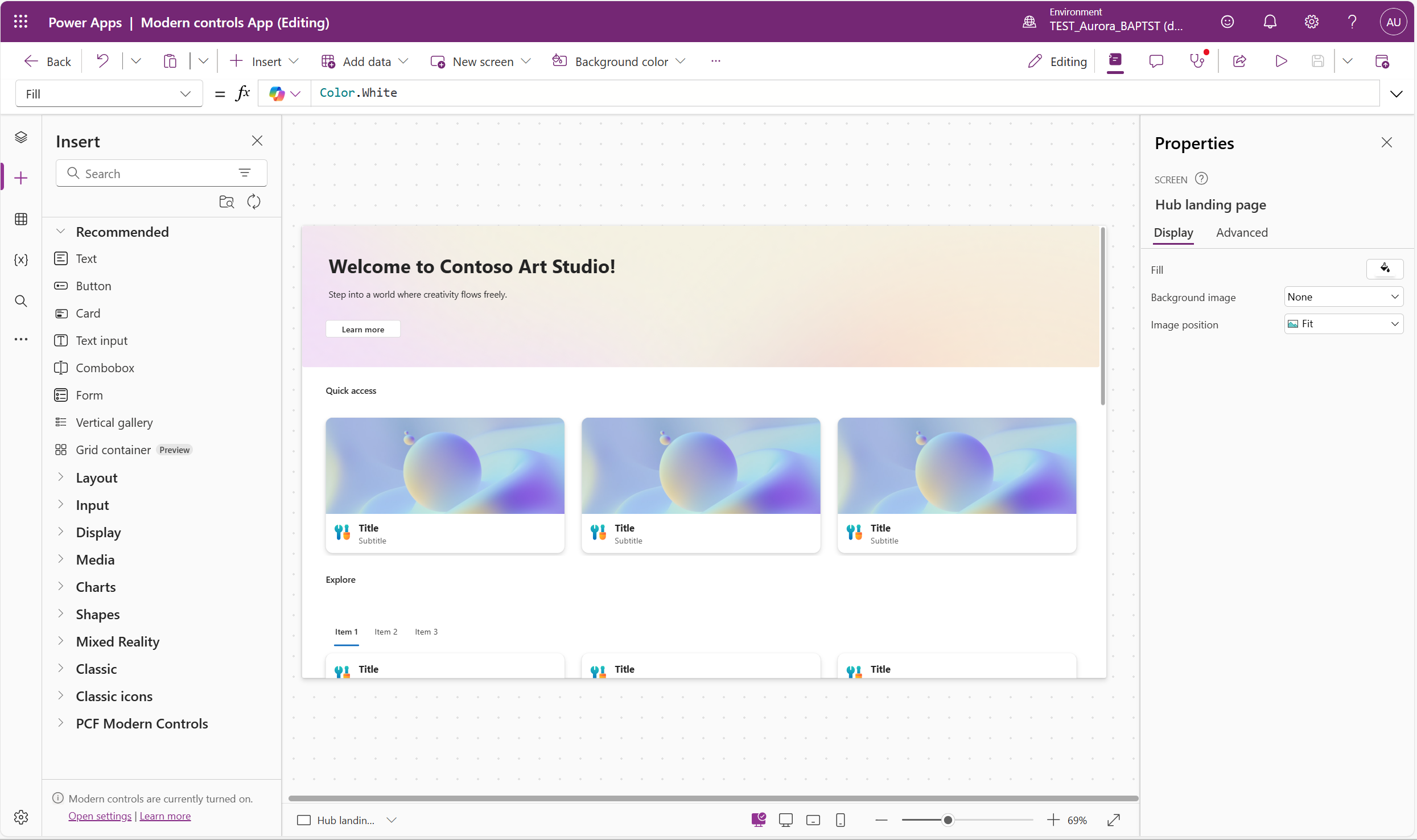
Canvas apps are at an important moment. As AI reshapes how applications are built and experienced, we’re bringing canvas apps along — and that requires a foundation that makers can rely on. Reliable controls, consistent behavior, and performance that holds up in production are what make everything else possible.
This release is focused on that foundation. It’s part of a broader pace of investment in canvas apps that also includes Card control, Confirm() for canvas apps, and copy and paste themes. In the coming weeks, we’ll share more about the future of canvas apps and upcoming investments — including AI. Today’s focus is quality updates to nine modern controls: Text, Number Input, Date Picker, Text Input, Tab List, Combo Box, Radio, Link, and Info Button.
What’s updated and why
Modern controls are the foundation of the canvas app experience we’re building toward. For that foundation to hold up — in production apps, across mobile and desktop — it needs to be reliable, performant, and consistent with the Power Fx patterns makers already know. These updates close the gaps that surfaced through real-world use across these controls.
Combo Box
The Combo Box is the primary way users make selections in most canvas apps, and this update addresses several areas where it was falling short.
The previous version had a practical item limit of around 800 records when bound to a data source — a constraint that forced workarounds in many real-world apps. The updated control handles several thousand items directly. For very large datasets, the SearchText output property enables server-side filtering so the control can work with data at any scale.
Beyond data scale, this update addresses selection behavior and form reliability. Selections can now be cleared by clicking a selected item — the control now behaves the way makers expected from the start. Many-to-One Dataverse relationships work correctly, opening up relational data patterns that weren’t reliably possible before. Inside forms, the control holds its value through SubmitForm() and resets cleanly when Reset() is called. SelectMultiple now defaults to `true`, reflecting how the control is most commonly used.
Learn more on Combo Box updates →
Date Picker
The Date Picker updates center on two themes: view-mode correctness and reliability in dynamic layouts. When DisplayMode is set to `View`, the control now renders as read-only rather than remaining editable. In galleries and in screens with navigation, date values now persist correctly. Date format and timezone settings are honored consistently. The calendar flyout is also correctly sized on mobile devices.
Learn more on Date Picker updates →
Text Input
The central update to Text Input is OnChange timing. The event now fires when the user leaves the field, not on every keystroke. This removes a class of performance issues and unintended formula side effects that were common in form-based apps — and it’s one of the most frequently raised pieces of feedback for this control. TriggerOutput now defaults to OnKeypress so the output value updates as the user types, which is the behavior most makers expected. For Text Input controls inside a form, TriggerOutput defaults to Delayed. DisplayMode.View now renders as genuinely read-only.
Learn more on Text Input updates →
Text
The Text control gains OnSelect, making it possible to trigger actions when a user selects text — for navigation, expandable content, or similar patterns — without needing a separate Button control. AutoHeight now recalculates correctly in dynamic layouts where a control is hidden and shown again. The default vertical alignment is now Middle.
Number Input
Number Input now matches Text Input in styling coverage — Font Color, font weight, and property panel organization are all consistent across the two controls. OnChange behavior aligns as well: the event fires on blur and on step button clicks. The control also now enforces that Min cannot exceed Max, removing a class of configuration errors that previously only surfaced at runtime.
Learn more on Number Input updates →
Tab List
A new Appearance property — with Transparent, Subtle, Underline, and Filled options — gives makers direct control over the visual style of the tab strip, covering the most common design patterns without custom workarounds. The Tab List also previously reordered items silently; it now preserves the order you define.
Learn more on Tab List updates →
Radio
The Radio control now behaves consistently in the scenarios makers use it in most. Item order is preserved. DisplayMode.View renders as read-only rather than disabled. The control works correctly inside galleries — registering a selection no longer requires a double-click.
Link
The Link control now behaves as expected in the authoring experience. Wrap correctly controls text wrapping, and Alt+Click in the editor opens the link — consistent with how classic controls behave.
Info Button
The content flyout now opens and expands correctly. Click reliability is improved. The AcceptsFocus property has been removed — the control now manages focus behavior automatically for accessibility.
Learn more on Info Button updates →
Improvements across all controls
A few changes apply across all nine controls updated in this release. Mobile-optimized defaults — larger touch targets and appropriately scaled font sizes — now apply automatically when a control is added to a mobile-format canvas. Property naming is consistent across all controls. And the command bar and right-click menus in Power Apps Studio now surface the most-used style properties — font, size, color, and alignment — directly, without opening the full property panel.
Updating your apps
If your app uses a previous version of any of these controls, you’ll see an update notification on the control in Power Apps Studio. Select Learn more on the notification to review the update guide for that control. An inline Update button will be available to all makers in a follow-up release to update previous versions of these controls.
For a full summary of changes across these controls, see the modern controls update overview.
What’s next
In the coming weeks, we’ll share more about the future of canvas apps and upcoming investments — including AI.
Our investment in modern controls continues. We’re working on new Fluent templates to give makers a polished, ready to-use starting point when building canvas apps. We’re also adding new controls to expand what’s available out of the box. And the quality work isn’t stopping here — we’re continuing bug fixes and improvements across the remaining modern controls, including Form, Dropdown, and Gallery, which weren’t part of this update.