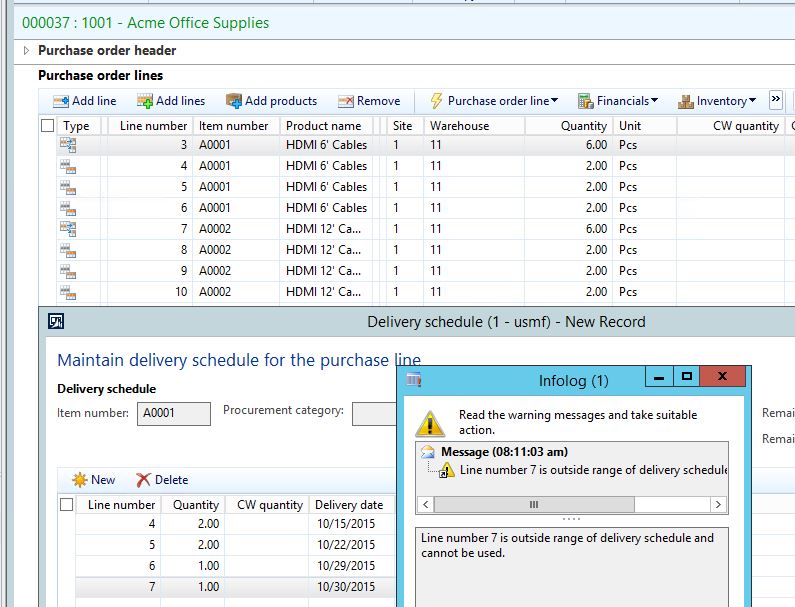
I’ve recently come across a couple of customers that were having issues modifying previously created Purchase order Delivery schedules. This typically happens if we have at least 2 items on a purchase order, both of which contain a delivery schedule. If needing to add a line to one of these existing Delivery schedules, we are seeing an error being generated that prevents the change from being saved – “Line number x is outside range of delivery schedule and cannot be used.” This was pushed up as a bug, but was declared as “By design” behavior, and a workaround was provided. I will walk through the process below for creating a purchase order with delivery schedules, and the suggested workarounds for overcoming this error.
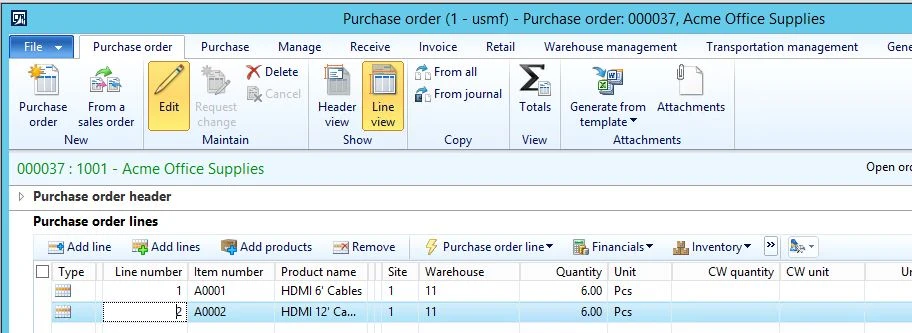
- Create a purchase order containing at least 2 lines with more than 1 unit being purchased
- Create a delivery schedule for the first line. I have 6 pcs purchased, so I’ll break my delivery schedule up into deliveries of 2 pcs.
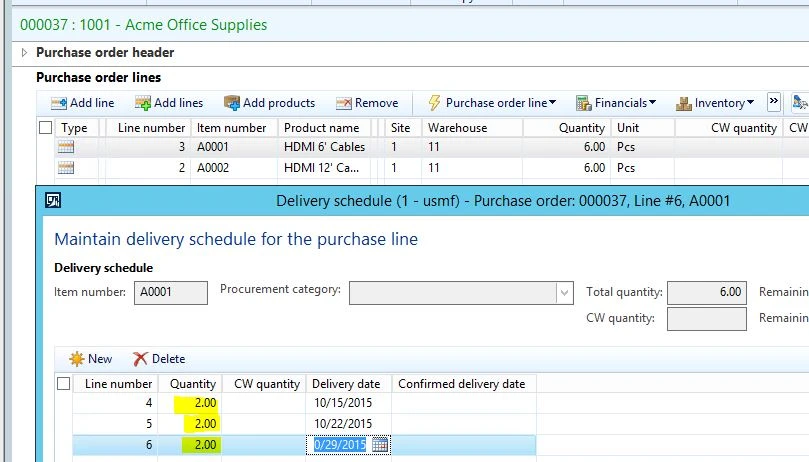
- Select your 2nd line (which should now be line number 2), and create an equivalent delivery schedule. When the delivery schedule form generates, you will notice that line number 2 has now switched to line number 7 on the Sales order.
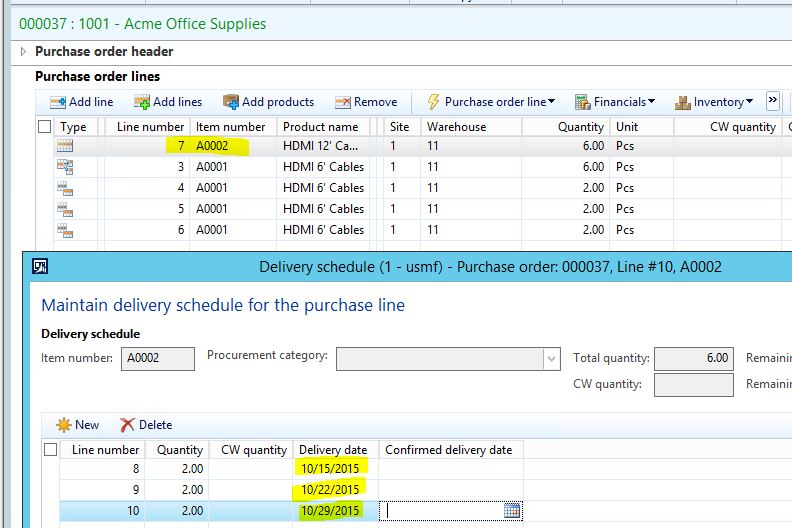
- Our Sales order and Delivery schedule will now contain 8 lines – 2 lines for the original sales order lines/quantities, and 6 delivery schedule lines (6 sets of 2 pcs). I have highlighted the original Sales order lines/quantities in the screenshot below.
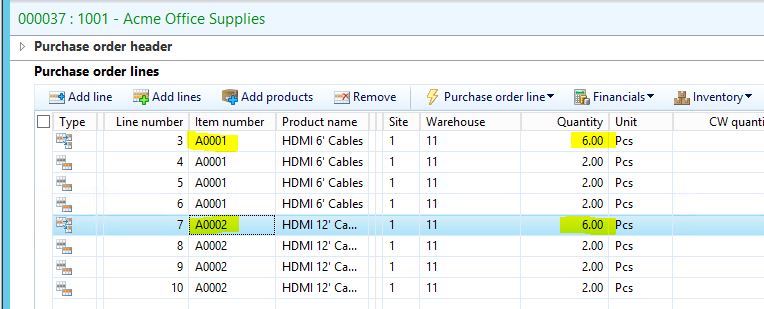
- We next decide to modify our existing delivery schedule. We get a call from the vendor stating that the final delivery of item A0001 will need to be broken up into 2 deliveries because of a backlog. Therefore, we have to split the final delivery into 2 separate deliveries of 1 pcs. We select line number 3 on the sales order, and access the delivery schedule.
- We decrease the final delivery to 1 pcs, and add a 4th line for 1 pcs, delivered the next day.
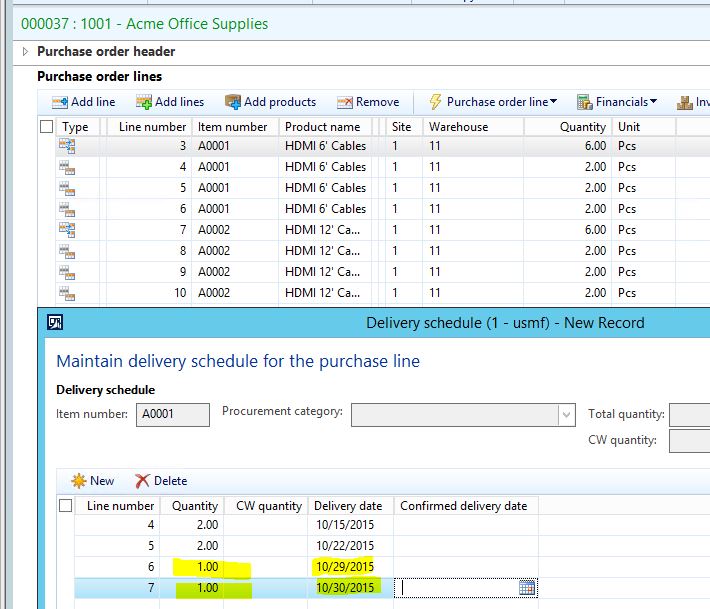
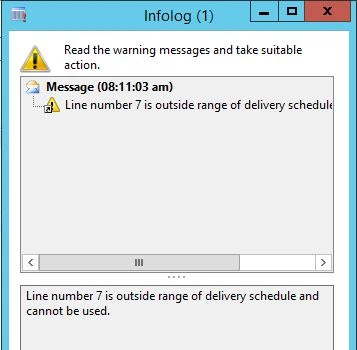
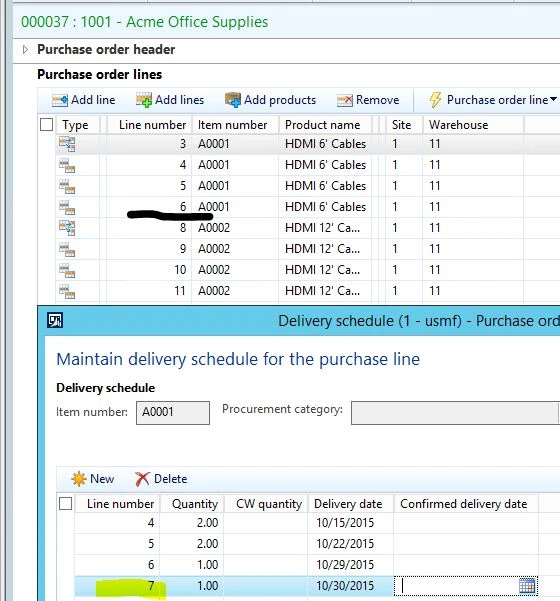
- When attempting to save these changes, the error is generated. As you can see from the screenshot, line number 7 is already taken by one of the lines in the original sales order.
WORKAROUNDS
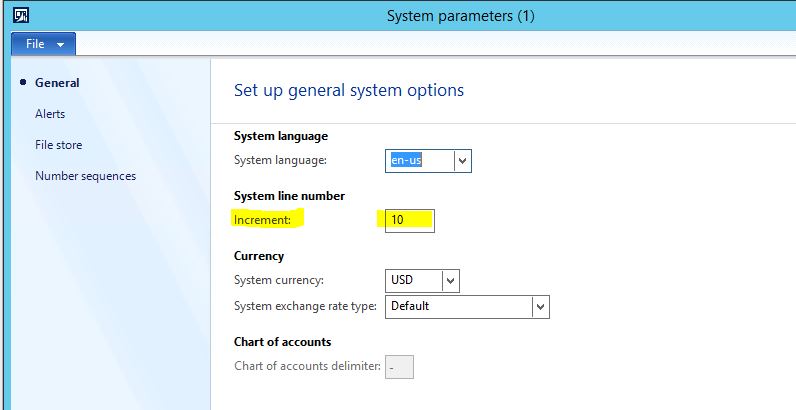
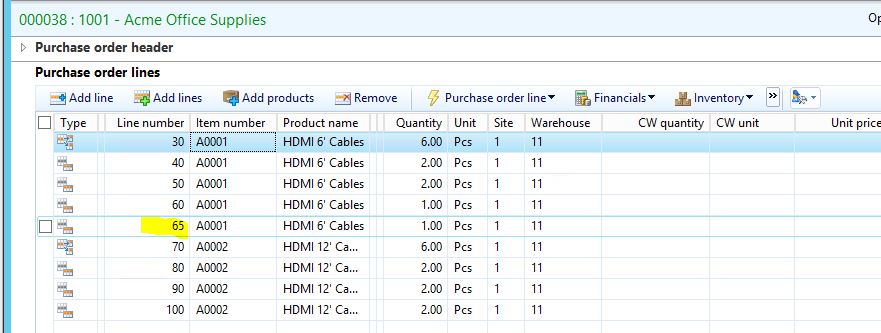
- Change the ‘System line number increment’ from 1 to 10. Whereas the current setup allows line number generation of 1, 2, 3, etc, this new setup would change numbering to 10, 20, 30, etc. If you navigate to System administration > Setup > System parameters, on the General tab, you can change the ‘System line number increment’ from 1 to 10. See the screenshots below to observe the affects of this change on the Sales order and corresponding delivery schedule. Note that the delivery schedule line now separates into increments of 5 for lines added after the initial creation of the delivery schedules. No modification to the purchase order line numbers is ever required with this workaround.
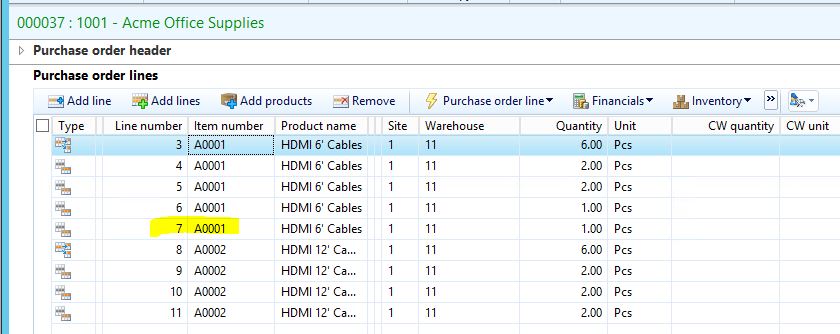
- Manual modification of the Purchase order line numbers before changing the delivery schedule. For example, we have lines 3-6 that represent Item/Delivery schedule 1. Lines 7-10 represent Item/Delivery schedule 2. In order to add a delivery schedule line to Item 1 (3-6), you would have to change sequence 7-10 to 8-11, therefore allowing line number 7 to be added to Delivery schedule 1.
![Avatar of Taylor Barrett [MSFT]](https://secure.gravatar.com/avatar/1a9c30ea07c5fc2075a8f3b3838cd389294c04690f55bf247b6cb4fe756fc791?s=212&d=mm&r=g)