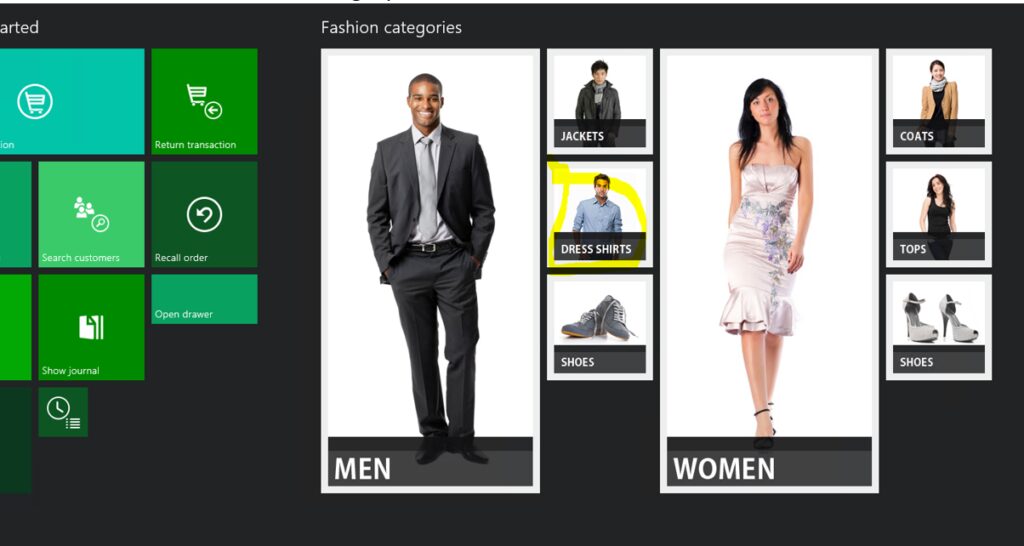
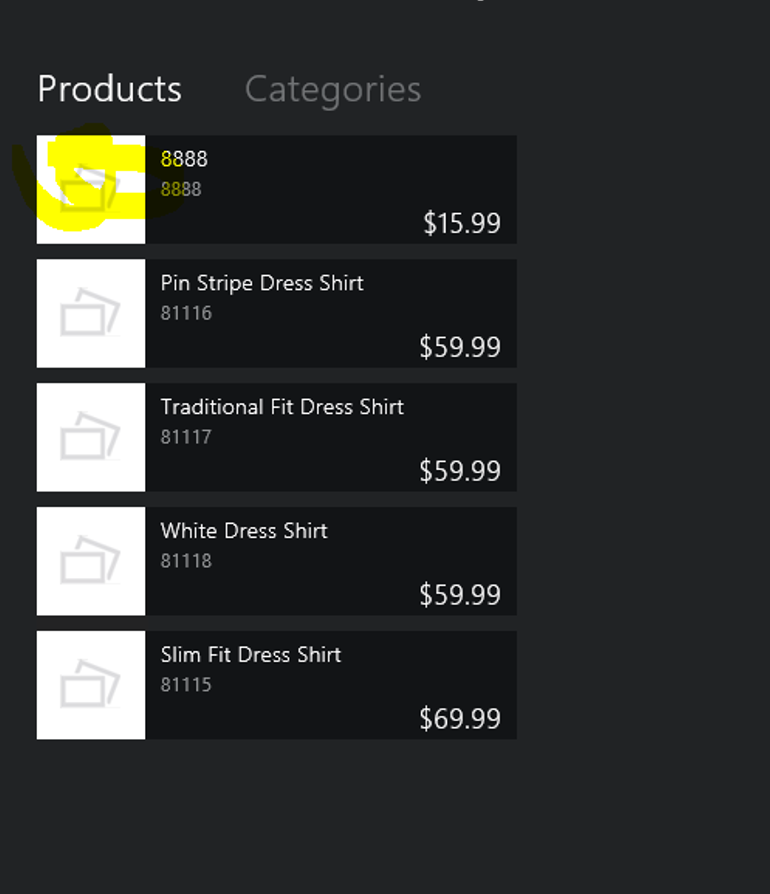
In MPOS if you want to use categories, catalogs must be setup and validated.
See the below TechNet article on setting up Catalogs
https://technet.microsoft.com/en-us/library/jj728723.aspx
See the following steps to create a new product and see the product as part of a category in MPOS:
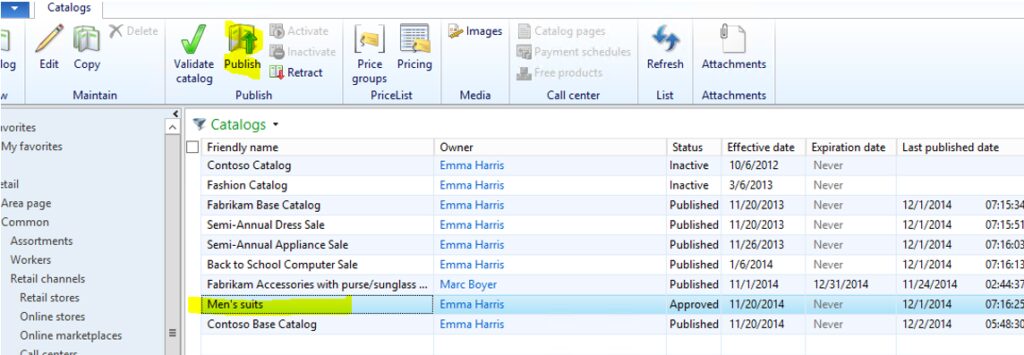
- USRT for the Houston store has a catalog called Men’s suits – My MPOS device is for the Houston store
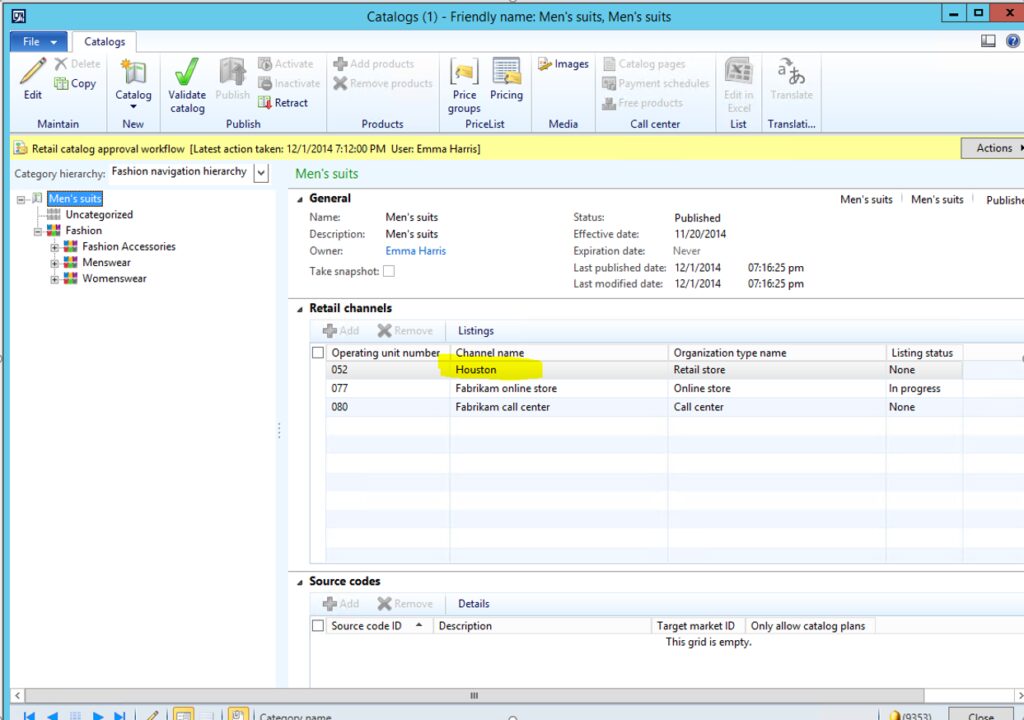
- Fashion category hierarchy – Dress Shirts
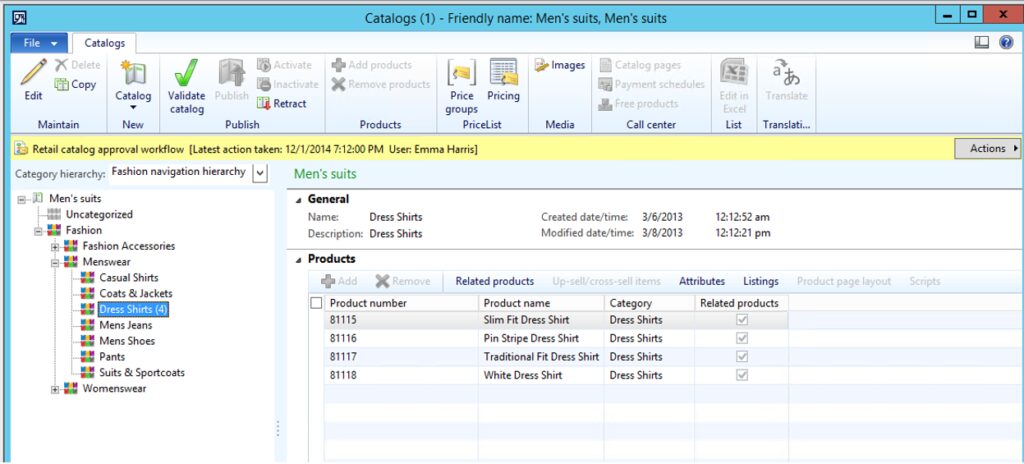
- Create a new item in AX called “8888” this item is added to the Hierarchy Fashion > Menswear > Dress Shirts
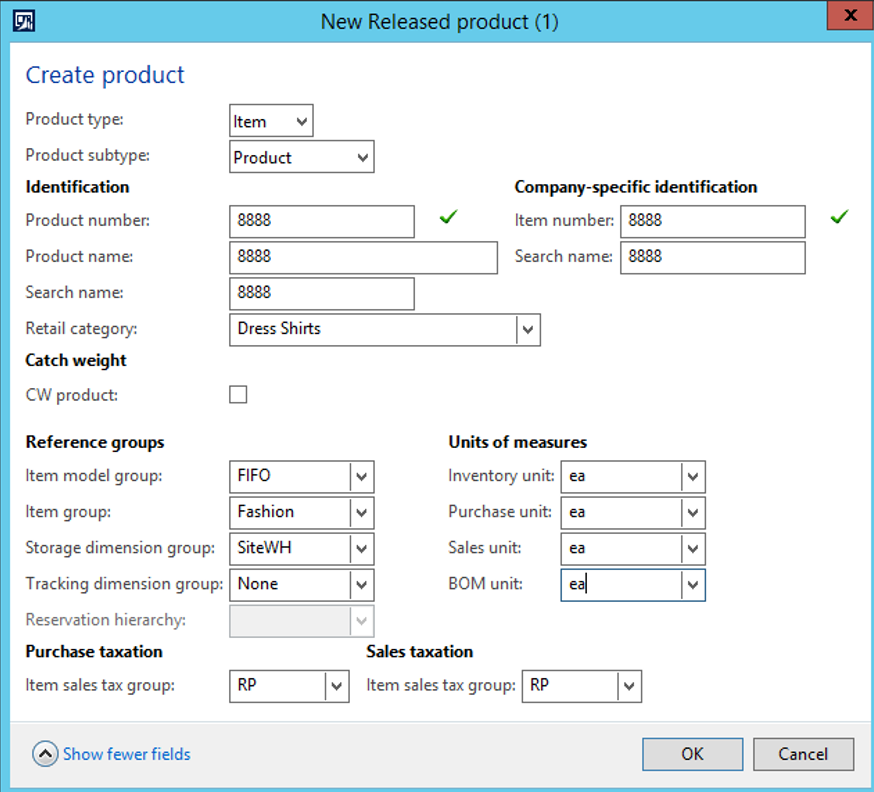
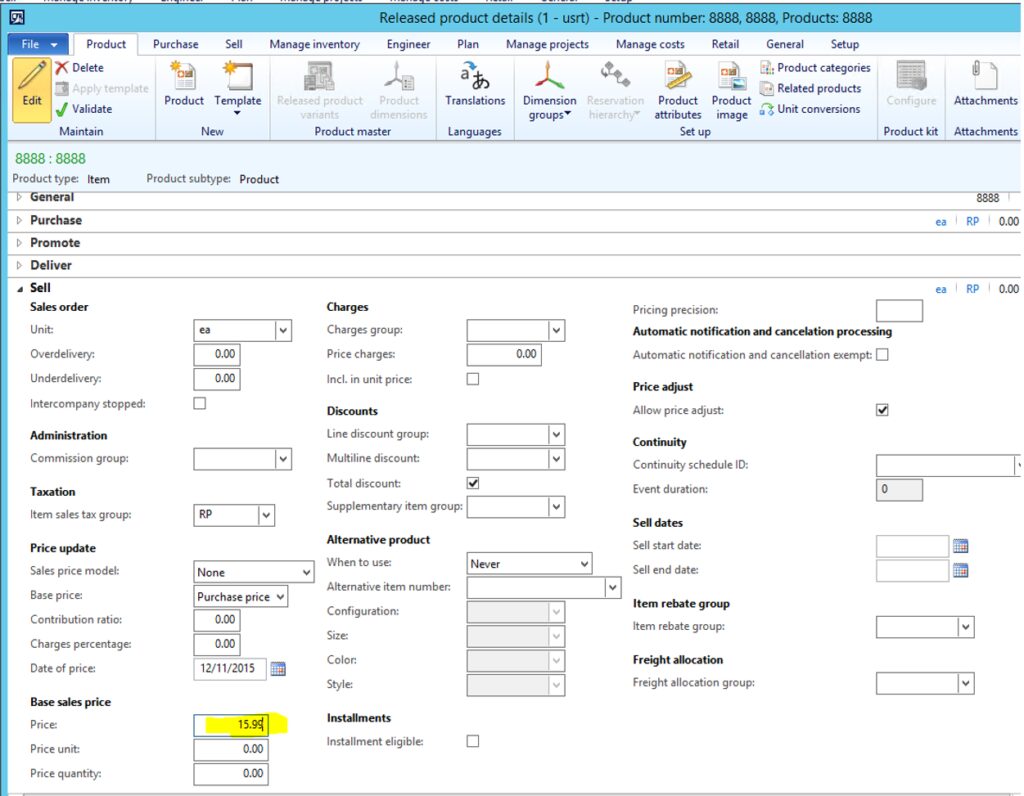
- Click OK and Edit the new item and add a selling price of 15.99
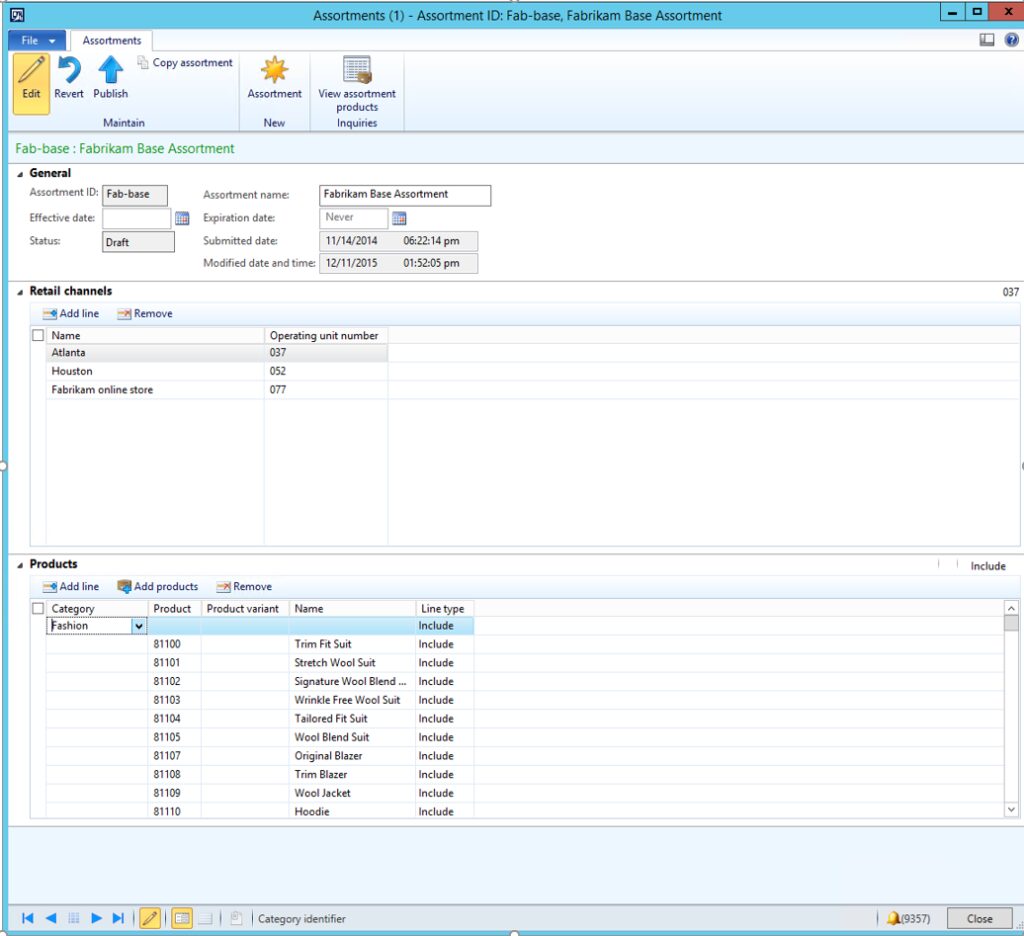
- Find the assortment that the Houston store is using
- Retail > Common > Retail channels > Retail stores
- Select Houston
- Select View assortments
- Select Fab-base and click Edit
- Add the Fashion category to the assortment
- Click Publish
- Go to Retail > Periodic > Process Assortments
- Run the Retail assortments job
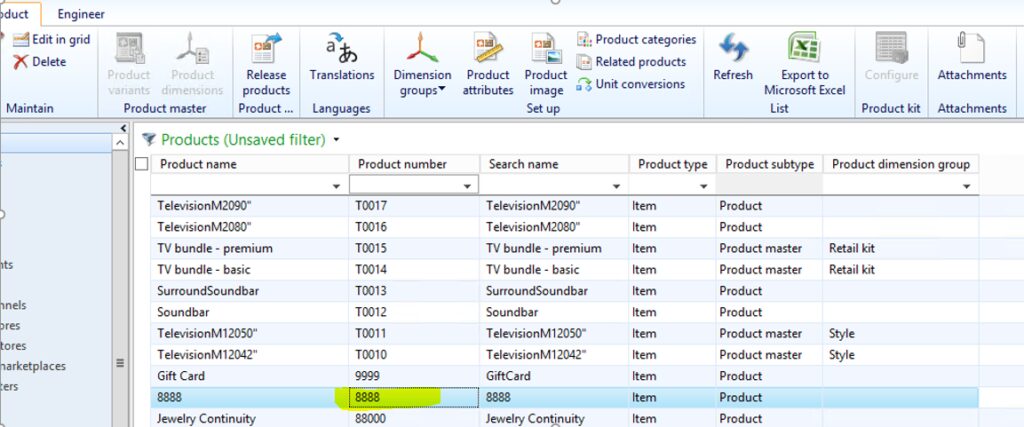
- When finished, go to the Houston store and select View channel products
- You should see item 8888
- Go to the Men’s suits catalog and edit
- Select Menswear > Dress Shirts
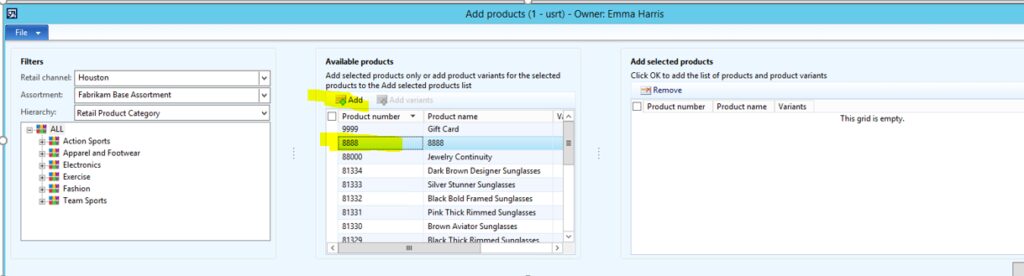
- Click Add under Products
- Select Assortment Fab base
- Add item 8888
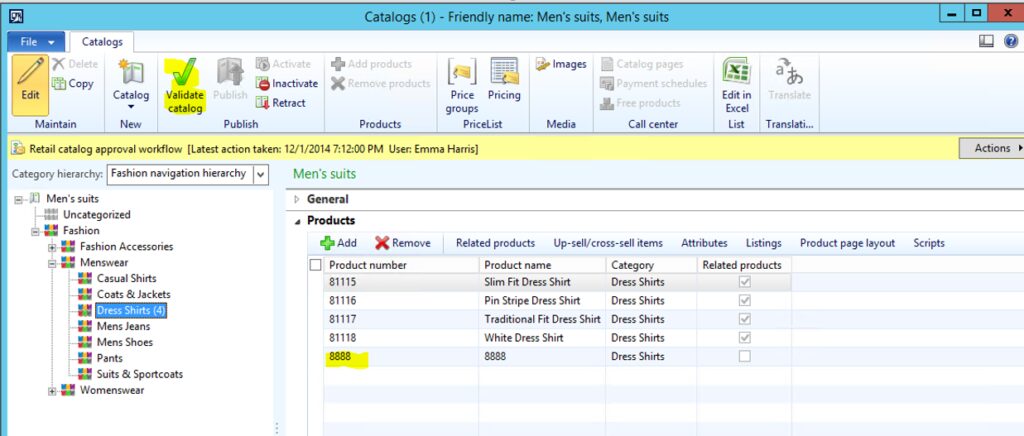
- Click Validate catalog
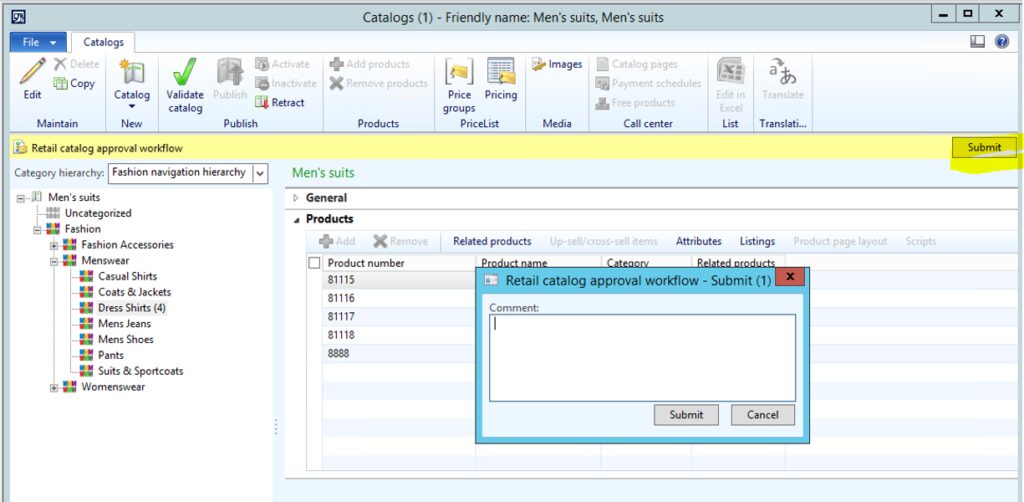
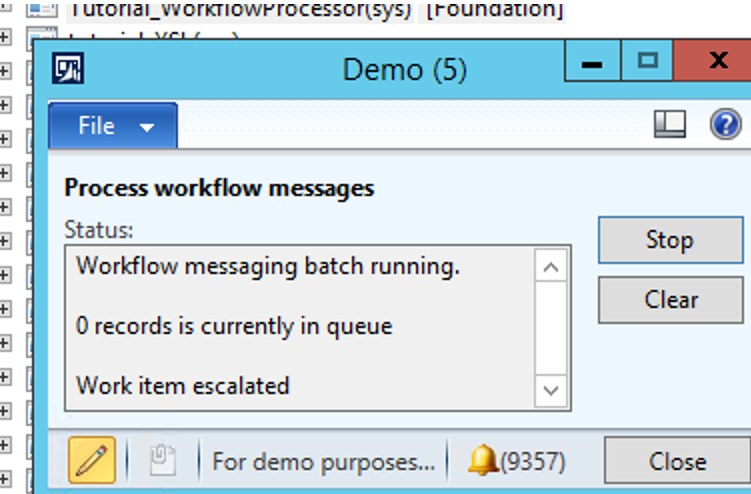
- Process the Retail catalog approval workflow
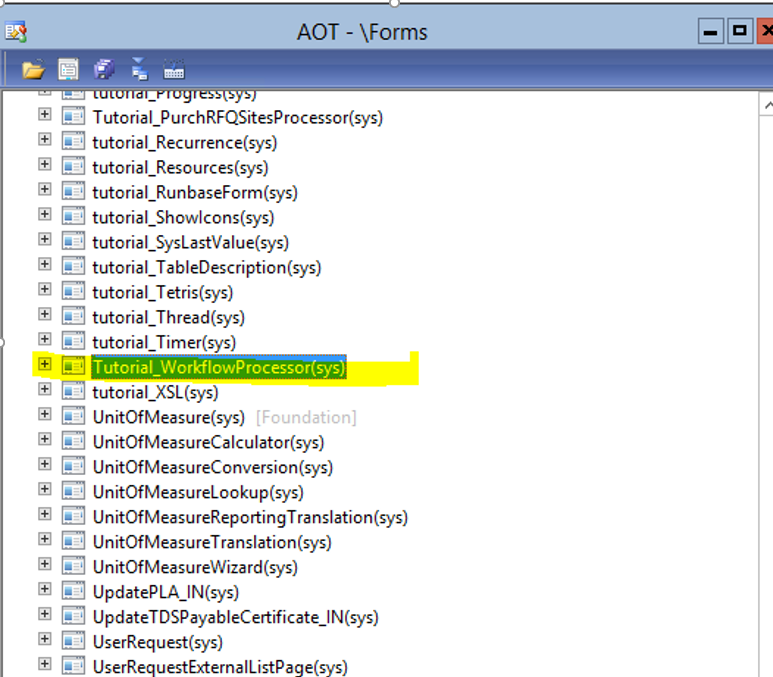
- Ctrl+D to Developer workspace
- Expand Forms
- Type U
- Select Tutorial_WorkflowProcessor
- Right click and open
- Click Start
- When done publish the Catalog
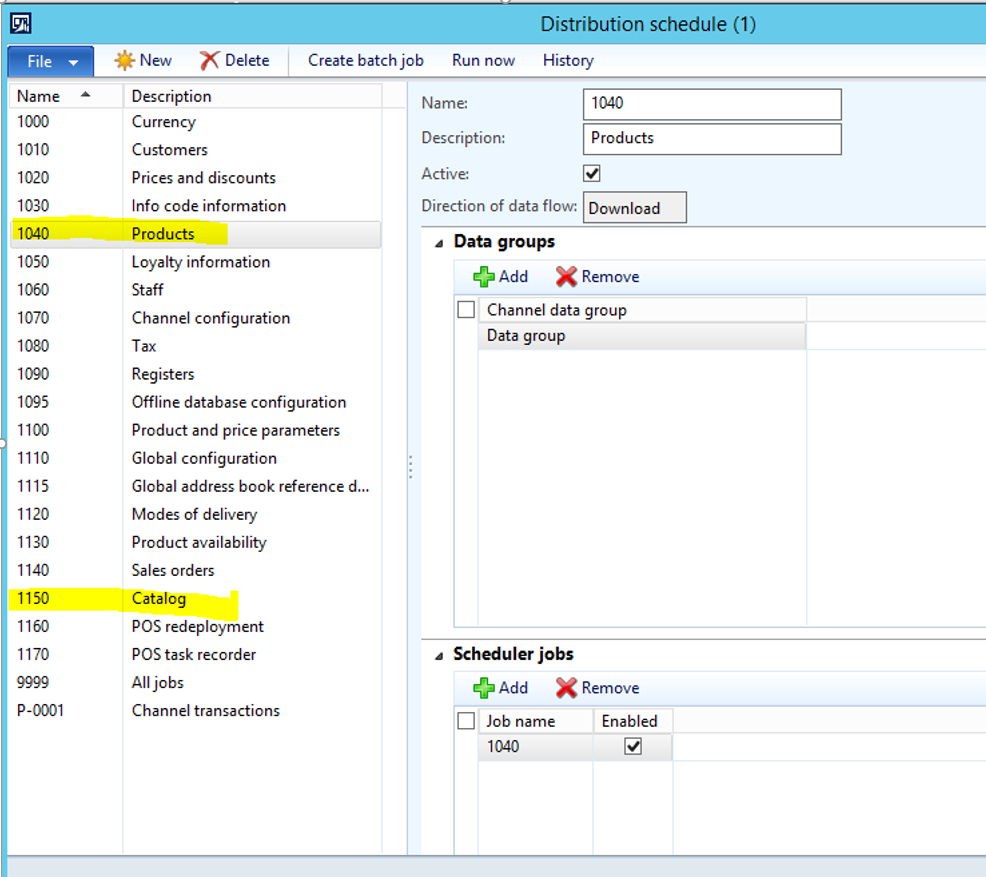
- Run the Products and Catalog job
- When done Close MPOS if open and re-open.
- The item will now show in the category