This blog goes through the steps of setting up the Manual Billing Rule for Project.
Setup a Journal for Billing Rule Fee Journal – Project Management and Accounting | Setup | Project Management and Accounting Parameters
1. Click the Journal link
2. Select Billing Rule Fee Journal:

3. Close the form
Create a Project – Project Management and Accounting | Common | Projects | All Projects
1. Click the Project button in the New group of the Project tab
2. Select the Project Type:
3. Enter the Project ID:
4. Enter the Project Name:
5. Select the Project Group:
6. Click the New button next to the Project Contract ID
7. Enter the Project Contract ID:
8. Enter the Name
9. Select the Funding Type:
10. Select the Funding Source:
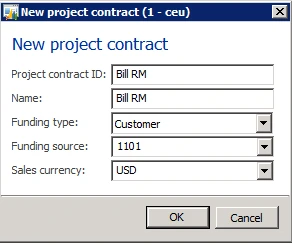
11. Click Ok
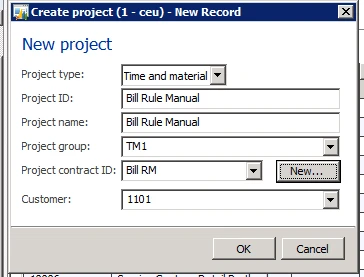
12. Click Ok
13. Click the Project Stage button in the Maintain group of the Project tab select In Process
14. Expand the General fast tab
15. Click the Project Contract ID link
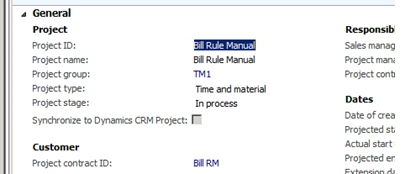
16. Click the Billing Rule button in the Set up group of the Project Contract tab in AX 2012 R2 – *NOTE* – This was changed from a button to a fast tab in AX 2012 R3. Expand the Billing Rules fast tab.
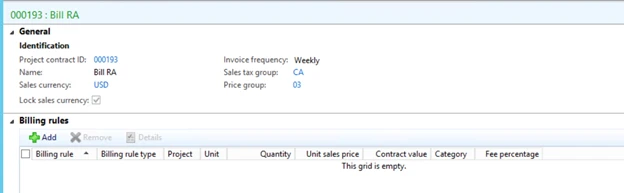
17. Click the New button – AX 2012 R2 In AX 2012 R3 click the Add button
18. Select the Line Type: Progress
19. Enter the Contract Value:
20. Select the Project you created
21. Select the Category
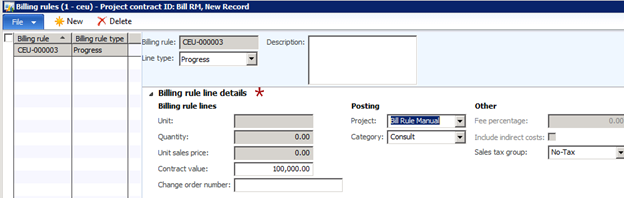
22. Close the Billing Rules form
23. Click the Manage Contract Status button in the Process group of the Maintain group of the Project Contracts form
24. Click the Update Percentage button and enter the Total Billing Percent
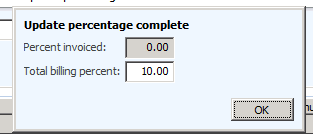
25. Click Ok
26. Note no changes to the form

27. Close the Contract Status form
28. Click the Project Invoice Proposal button in the Bill group of the Maintain tab of the Project Contract form
29. Click the Invoice Proposal From Billing Rule button in the New group of the Invoice Proposal tab
30. Select the Project Contract
31. Click the Search button

32. Mark the Select checkbox
33. Click Ok
34. Click the Post button in the Functions group of the Invoice Proposal tab of the Invoice Proposals form
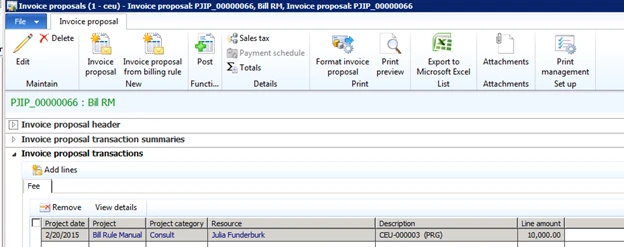
35. Click Ok
36. Click Ok if prompted
37. Close the Invoice Proposal form
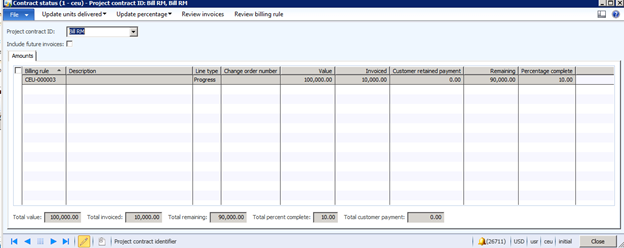
38. Click the Manage Contract Status button in the Process group of the Maintain group in the Project Contract form
Note the changes in the Contract Status form.
Reference:
How to use the Automatic Billing Rule for Projects in Microsoft Dynamics AX 2012 R2 and AX2012 R3