This blog is for creating a Automatic Billing Rule in Project Accounting
Setup a Journal for Billing Rule Fee Journal – Project Management and Accounting | Setup | Project Management and Accounting Parameters
- Click the Journal link
- Select Billing Rule Fee Journal
- Close the form

Create a new Project – Project Management and Accounting | Common | Projects | All Projects
- Click the Projects button in the New group of the Project tab
- Select the Project Type
- Enter the Project Name
- Select the Project Group
- Click the New button next to the Project Contract ID
- Enter the Project Contract ID
- Enter the Name
- Select Funding Type: Customer
- Select the Funding Source
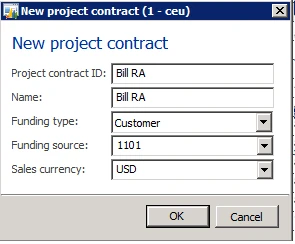
- Click Ok
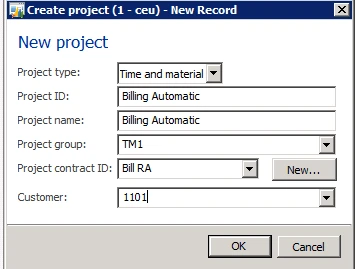
- Click Ok
- Expand the Budget and Forecast fast tab
- Click the Edit button
- Mark the Use Budget Control checkbox
- Select Transaction Type Controlled: Cost Only
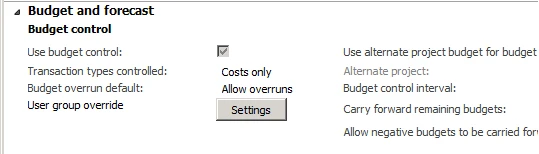
- Click the Edit button
- Click the Project Budget button in the Budget group of the Plan tab
- Expand the Costs fast tab
- Click the New button
- Select the Project
- Select Transaction Type: Hours
- Select Category
- Enter the Original Budget

- Push it through workflow

- Close the Project Budget form
- Click the Project Stage button in the Maintain group of the Project tab and select In Process
- Expand the General fast tab
- Click the Project Contract ID link
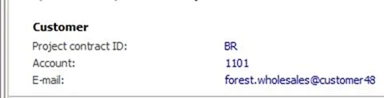
- Click the Billing Rule button in the Setup group of the Project Contract tab *NOTE* – In AX 2012 R3 this button was moved to a fast tab in the Project Contract form. – Expand the Billing Rules fast tab
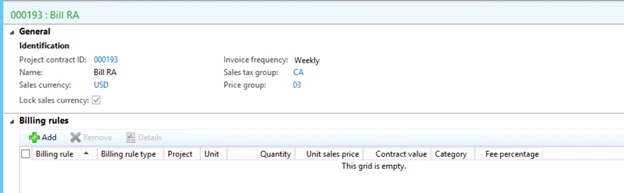
- Click the New button – AX2012 R2 in AX2012 R3
- Click the Add button
- Select the Line Type: Progress
- Enter the Contract Value: 200,000
- Select the Project
- Select the Category

- Expand the Project fast tab
- Select the Project
- Click Add
- AX2012 R3 Screenshot

- AX2012 R2 screenshot

- Click the Chargeable Categories button
- Select the Category
- Click Add
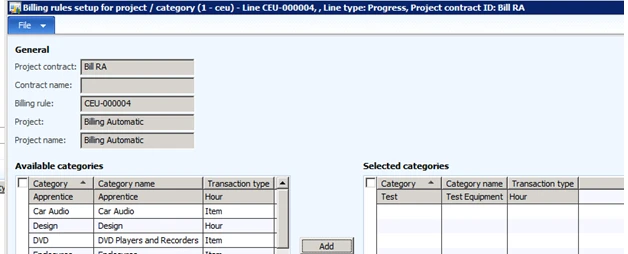
- Close the form
- Close the Billing Rules form
- Close the Project Contract form
- Click the Hours button in the Journals group of the Project tab
- Click the New button
- Select the Journal from the Name dropdown
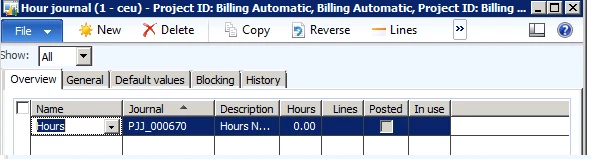
- Click the Lines button
- Change the Category
- Enter the Hours: 20
- Click the General tab
- Verify there is a Cost Price and Sales Price
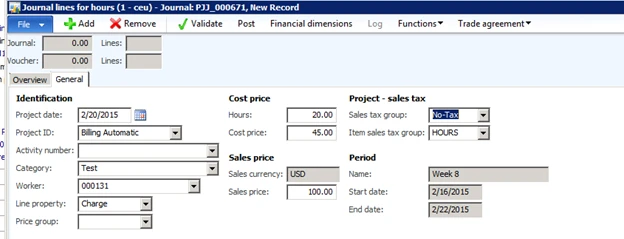
- Click the Post button
- Click Ok
- Close the Infolog
- In the Project Contracts form click the Project Invoice Proposal button in the Bill group of the Maintain tab
- Click the Invoice Proposal from Billing Rule button in the New group in the Invoice Proposal tab

- Click Ok
- Click Post in the Functions group of the Invoice Proposal tab
- Click OK
- Click Ok if prompted
- Close the Invoice Proposals button
- In the Project Contracts form click the Manage Contract Status button in the Process group of the Maintain tab
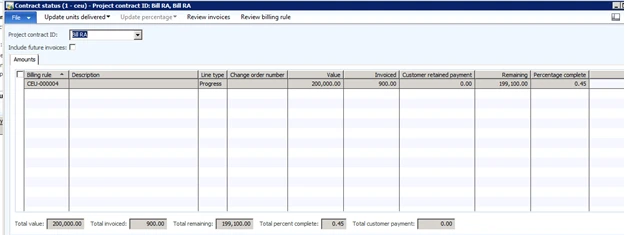
As you can see I was able to generate the invoice proposal and I can see the total percent complete updated.
Reference:
How to use the Manual Billing Rule for Projects in Microsoft Dynamics AX 2012 R2 and AX2012 R3