Introduction
In Dynamics AX 2012 R3 CU10 we have introduced additional capabilities to change license plate, split quantity, skip or override location on the mobile device while doing inbound put away. These features can also be downloaded from LCS with KB 3103960.
Issues
The workflow used when performing inbound work had some limitations when it came to the ability to:
Split put quantity: When the warehouse worker walks down to a location and can visually see, that the item does not fit into this location, the warehouse worker cannot split the item onto multiple locations. This is especially an issue if the location directive does not resolve a specific location and the location of the put instruction on the work order is blank.
Consolidate items on license plate already on a location: When the warehouse worker walks down to a location with ½ a pallet of items and the location already contains ½ pallet, the warehouse worker cannot register the item on the pallet originally on the location.
Cancel button missing in flow: When executing inbound work, there were many places, where the user couldn’t cancel out of the flow. If the user wanted to cancel out, the only option was to end the flow from the rich client.
Skip: When executing inbound work for multiple items at different put locations, the user is forced to execute the put lines if a fixed order.
Mobile device menu item with Group put = true: When performing work using a mobile device menu item, where Group put = true, the warehouse worker could be lead into strange flows on the mobile device. The mobile device menu item parameter Group put was not available for work creation flow …and put away.
Use unique check digits: Scanning a check digit in the location field on the mobile device menu item would resolve the first location with that check digit independently if Use unique check digits on warehouse was Yes or No.
Disposition code: The mobile device disposition code was not used when suggesting a new location as part of executing a put. The reason was that the disposition code was not saved in the system.
Solution
The solutions described in this blog post about the above issues are implemented for the work order type Purchase order, Finished goods put away, Co-product and by product put away, Transfer receipt, Inventory movement, Return orders and Kanban put away using a mobile device menu item with the settings in the below table.
An exception is Work order of type Replenishment which has uptake only of the ability to consolidate items on an existing license plate and the missing cancel button.
The below table describes the supported flows on the mobile device where these solutions have been enabled.
| Mode | Use existing work | |
| Work | Yes | Directed by: System directed.User directed.User grouping.System grouping.Validated user directed. |
| Work | No | Work creation method: License plate receiving and put away.Purchase order line receiving and put away.Report as finished and put away.Movement by template.Purchase order item receiving and put away.Transfer order line receiving and put away.Kanban put away. |
The next section of this blog post will present each issue and how the solution work.
Cancel button missing in flow
On the mobile device a Cancel button will be available in all steps of the flow. Click Cancel will interrupt the processing of the work order for the work order line in focus, when the Cancel button was clicked.
Split put quantity and override location
An open work order of work type Purchase order exists.

Mobile device flow
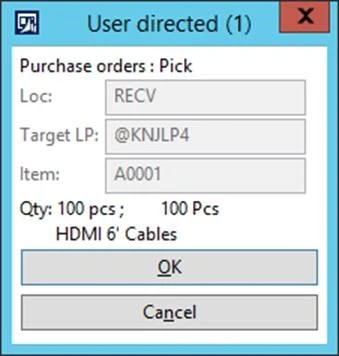
- On the mobile device the user starts processing this work order.
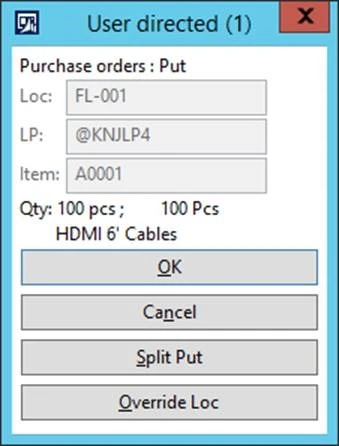
- When the user reaches the put instruction of the work order a new button named Split Put is presented. Let’s say, the user cannot fit the content to the location proposed. So the user decides to split the put. The user does so by clicking the button Split Put.
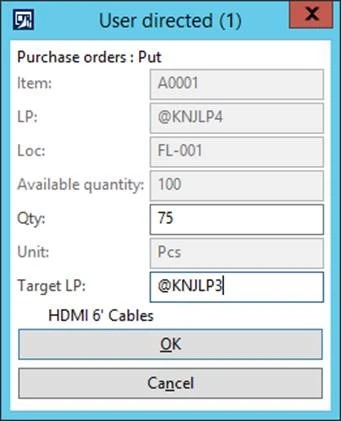
- When the user presses the Split Put button a new flow is presented to the user. The user is asked to enter the quantity to be split of the original quantity as well as the Target LP. This will put the entered quantity on the specified location, in this case FL-001. The user can create a new License plate or add the quantity to a License plate already on this location in this warehouse.

- User scan quantity and Target LP. Then click OK.
- The user is brought back to the put instruction. To change the location, the user needs to click Override Loc. button.

- The user can choose to provide a work exception code or just click OK and Continue.

- The user can manually scan a location or ask for the system to Suggest a location.
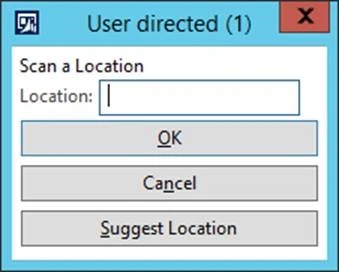
- Then the user clicks OK.
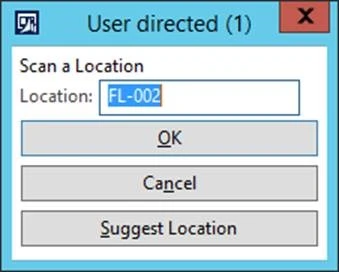
- The put validation screen is presented to the user with the new location. User click OK.

- Work completed is presented to the user.
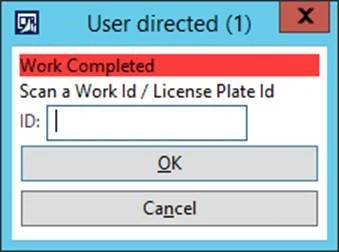
As a result of changing the location, the work put transaction was split.

Pay attention to the fact that Split Put is NOT supported in combination with grouping of work lines of type put.
Consolidate items on license plate already on a location
When performing the work with a mobile device a new parameter on the mobile device menu item has to be configured. The name of the parameter is Override license plate during put.

An open work exists for item M9200. The put location in this example is Bulk-001.

Bulk-001 is a license plate controlled location. There is already ¾ pallet on Bulk-001 on license plate LP920001.

Mobile device flow
- User execute put-away flow. Validate the item is picked up.
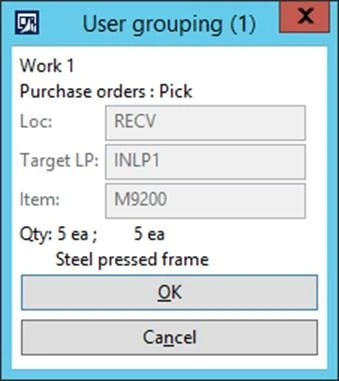
- Put instruction is presented to the user.
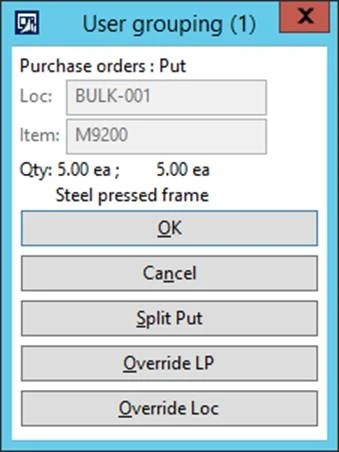
- User wants to consolidate the quantity on the license plate already on the location. The user clicks Override LP. A new flow is presented to the user.
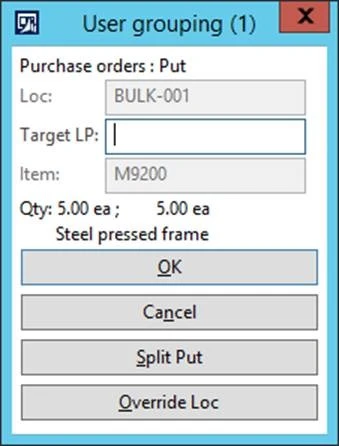
4. User scans Target LP. And clicks OK.

- Put away flow is completed. The items have now been put on the existing license plate in the location.
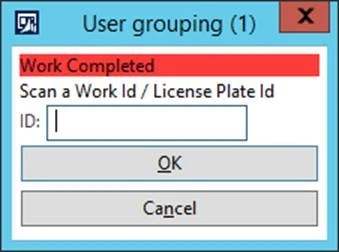
Skip
Using the Skip button will mark the work order line as skipped and the next put operation will be presented to the user.
It works as following. A work order exists with multiple put lines.

Mobile device flow
- User has performed the pick instruction and is brought to the first put instruction. A new button Skip is presented in the flow. This allows the user to skip this line and will bring the user to the next line. The user does not want to perform this put as the first and clicks the Skip button.
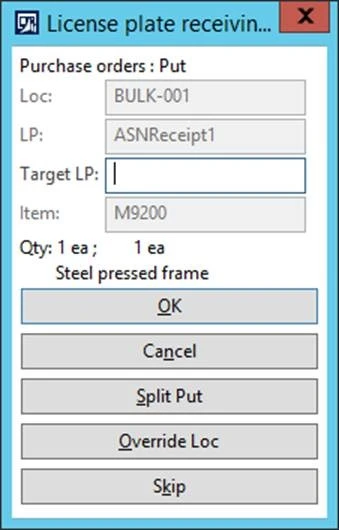
- Put instruction for the next open work order line is presented to the user. User completes this line and clicks OK.
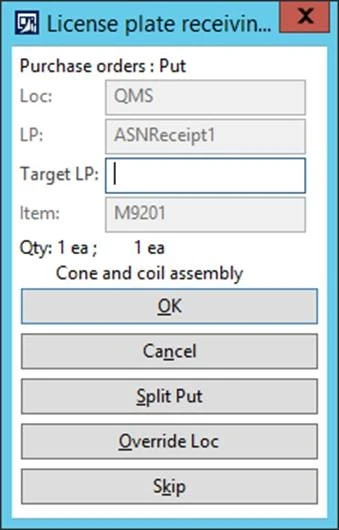
- Put instruction for the skipped line is presented to the user again. Skip button is not shown, as there are no more applicable lines.
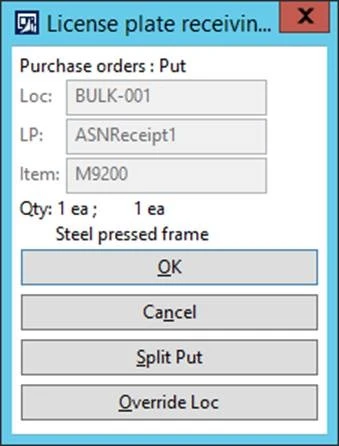
Mobile device menu item with Group put = true
Some unintended flows were observed when performing work using Mobile device menu items, where Group put was set to Yes.
Group put will function if the put location is resolved for all work order lines of type put and if the put location is the same for all work order lines grouped.
Here are a few examples to illustrate the above.
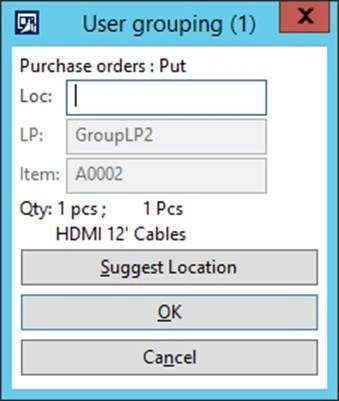
Example 1 – Multiple work orders are grouped – all work order lines of type put have blank Location
The previous behavior was inconsistent depending on the work flow and the work order.
The rule is now consistent. If the location is blank, work order lines of type Put will not be grouped.
If we have two work orders where location field on the last work order line for each work is blank.
Work order where location is blank:

You have a mobile device menu item that is configured to perform existing work.
Directed by = User grouping.
Group put away = Yes

Mobile device flow
- User has performed the pick instruction and grouped the 2 work orders. User will receive work put instruction for each line. Blank locations will not be grouped.
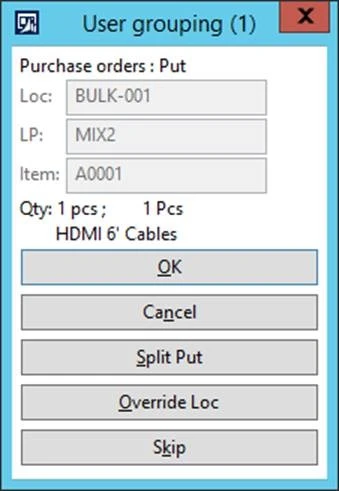
Example 2 – Multiple work orders are grouped – some work order lines of type put has same location, some has not
The previous behavior was inconsistent depending on the work flow and the work order.
The rule is now consistent. The location on work order line of type put has to be the same for all work orders grouped.
First work order has 2 work order line of type put with 2 different locations.
Second work has 2 work order lines of type put with 2 different locations. It is the same 2 locations as on the first work order.


Mobile device menu item is configured to perform existing work.
Directed by = User grouping.
Group put away = Yes

Mobile device flow
- User has performed the pick instruction and grouped the 2 work orders. User will receive work put instruction for each line.
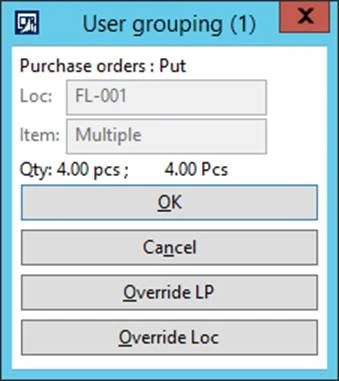
Example 3 – Multiple work orders are grouped – all work order lines of type Put have the same location
Two work orders exist.
First work order has 2 work order line of type put with location FL-001.

Second work order has 2 work order lines of type put with location FL-001.

Mobile device menu item is configured to perform existing work.
Directed by = User grouping.
Group put away = Yes

Mobile device flow
- User has performed the pick instruction and grouped the 2 work orders. User will receive one put instruction.
Pay attention to the fact that Split Put is NOT supported in combination with grouping of work lines of type put.
Example 4 – Group put away is now available on work creation flows …and put away
You can set Group put on all work creation processes that ends with … and put away.
For example:

Use unique check digits
The parameter Use unique check digits is found on the warehouse setup.

When Use unique check digit is No, this means that check digits on many locations can share the same check digits. When many locations shared the same check digit, scanning of check digits in scenarios where location was blank or the user was overriding a location was not supported. This didn’t function in all work flows. All inbound flows have been changed, so that scanning of a location check digit will not be accepted if Use Unique check digit is No.
Example 1 – Use unique check digit is No, user scans location check digit on mobile device
Use unique check digit = no on warehouse 24.

Warehouse 24 bulk locations has check digits.

Mobile device flow
- User scans location check digit in field Loc.

- User clicks OK. Scanning of location check digits is not accepted unless unique check digits is configured.

Example 2 – Use unique check digit is Yes, user scans check digit on mobile device
Use unique check digit = yes on warehouse 24.

Warehouse 24 bulk locations has check digits.

Mobile device flow
- User scans location check digit in field Loc.
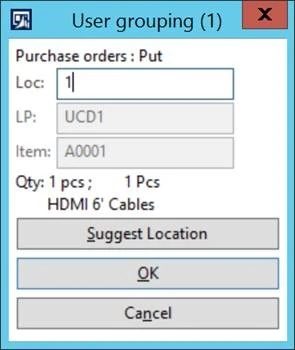
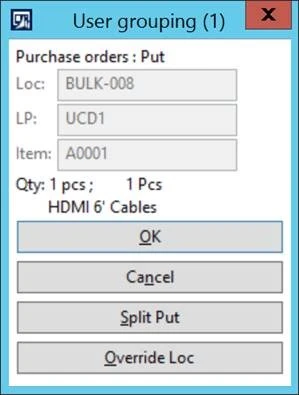
- User clicks OK. Location is found via the unique check digit.
Disposition code
Mobile device disposition code is now saved on the work order header. The mobile device disposition code is used to find the correct location directive if user clicks Override Loc on the mobile device.