Some of you have noticed that the Chart displayed in “Customer Order – Summary” contained a series label called Series 1.
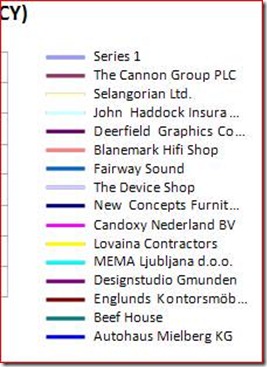
Well the reason for that being shown is because we have missed to filter out all customer with have no data in the field: Chart_SalesOrderAmountLCY.Value
So how is that actually done? Well let me show you:
- Design Report 70000
- Select “View / Layout”
- Right click the chart in the bottom of the report
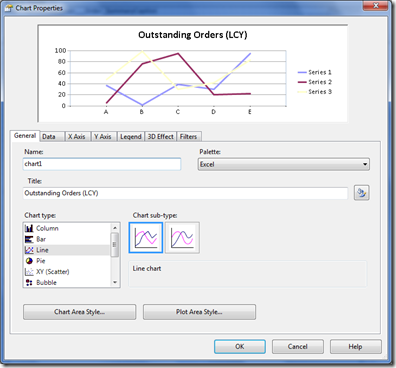
- Select “Filters” tab
- Type the follow:
Expression:
=System.String.IsNullOrEmpty(Fields!Chart_SalesOrderAmountLCY.Value)

Operator:
=

Value:
=False
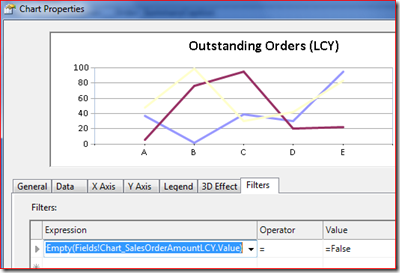
- With this filter we now filter out where “Chart_SalesOrderAmountLCY.Value” is equal blank.
- Now save and compile the report and display in RoleTailored client. Now only customers with outstanding orders are shown in the chart.
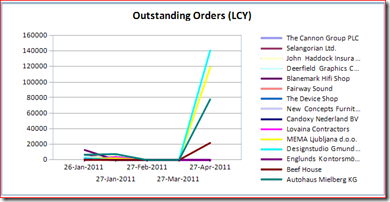
I have updated the demo reports package to reflect this change.