

AI-powered features in Windows 11
Unlock new ways to work, create, and learn with AI in Windows 11. From smart assistance to creative tools, Windows helps you get things done.

Productivity
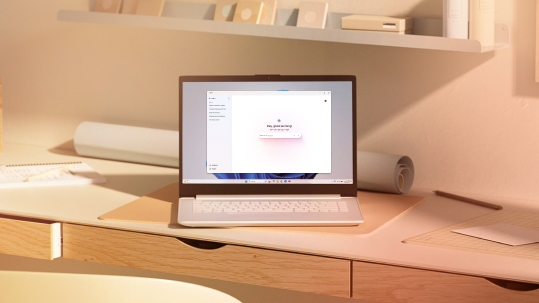
Time is limited. That’s why Microsoft Copilot is always there with the intelligent assistance you need to write, research, or organize your work faster.

Everyday
Knowledge is power, and Copilot can get it to you faster. Use AI to summarize web content, track emails, or plan your next task.

Education
Get personalized study support as you learn with AI tools across your Microsoft apps. Ask Copilot to help you plan your sessions or summarize notes.

Creativity
Make art with your vision and the help of AI creativity to match your ability.
Focus on what matters
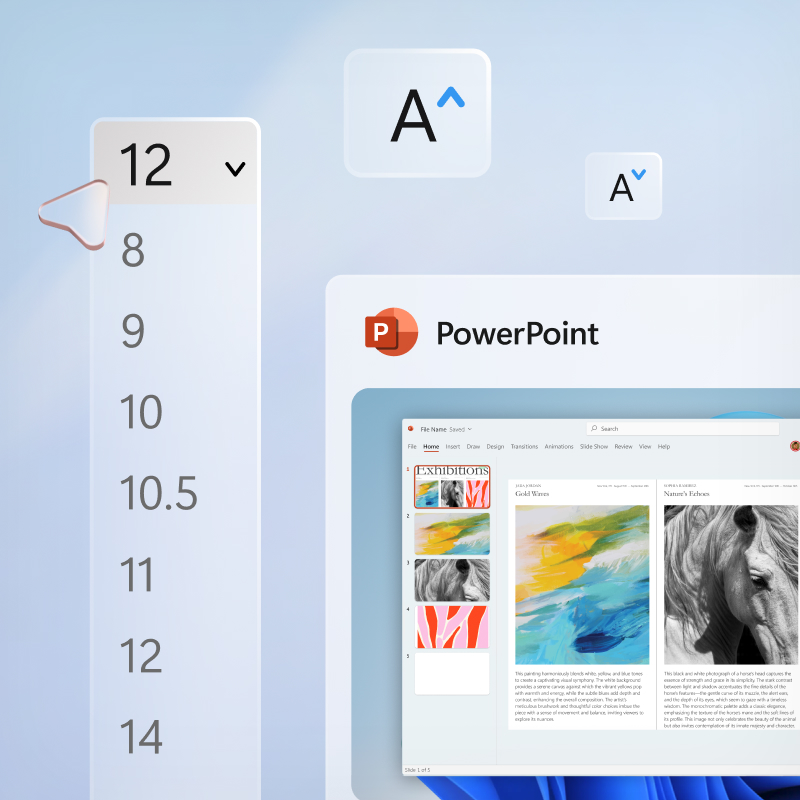
Focus on what matters while Copilot does the rest. With detailed prompts like, “Draft an informal email about…” or “Catch up on missed items,” you can get more done and keep things on track with the help of AI and Microsoft 3651. Presenting to a group? Ask Copilot what font is most legible. Need help organizing your PowerPoint? Copilot can do that, too.

Everyday tasks made easier
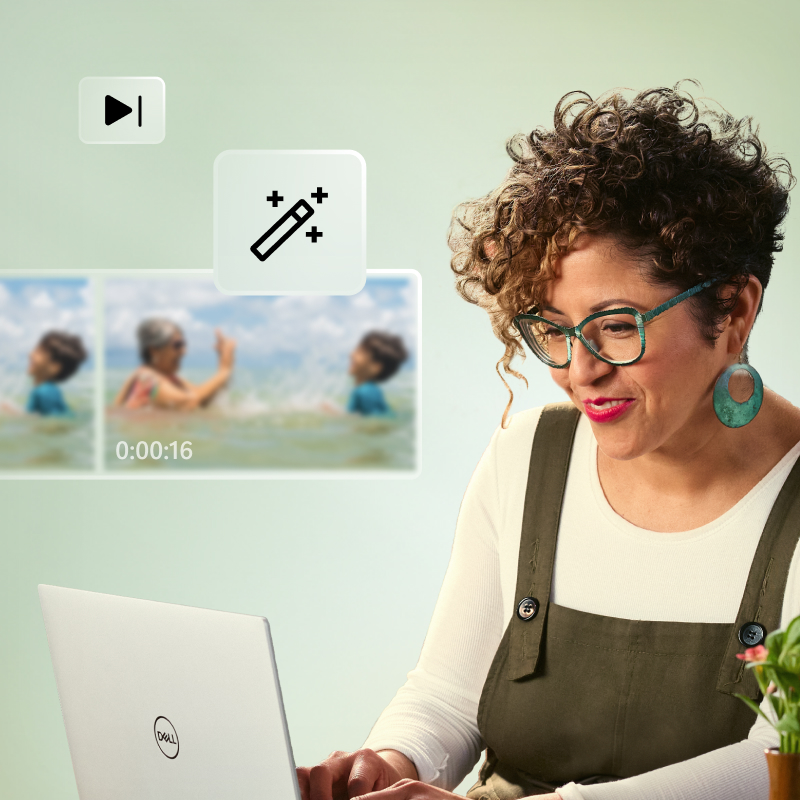
Use Copilot to help you plan, book, and prepare for a family getaway with text or voice prompts like, “What’s a family-friendly hotel in Aspen?” After your trip, use Clipchamp or Video Editor to curate your digital memories into treasured keepsakes.
Support learning with powerful tools
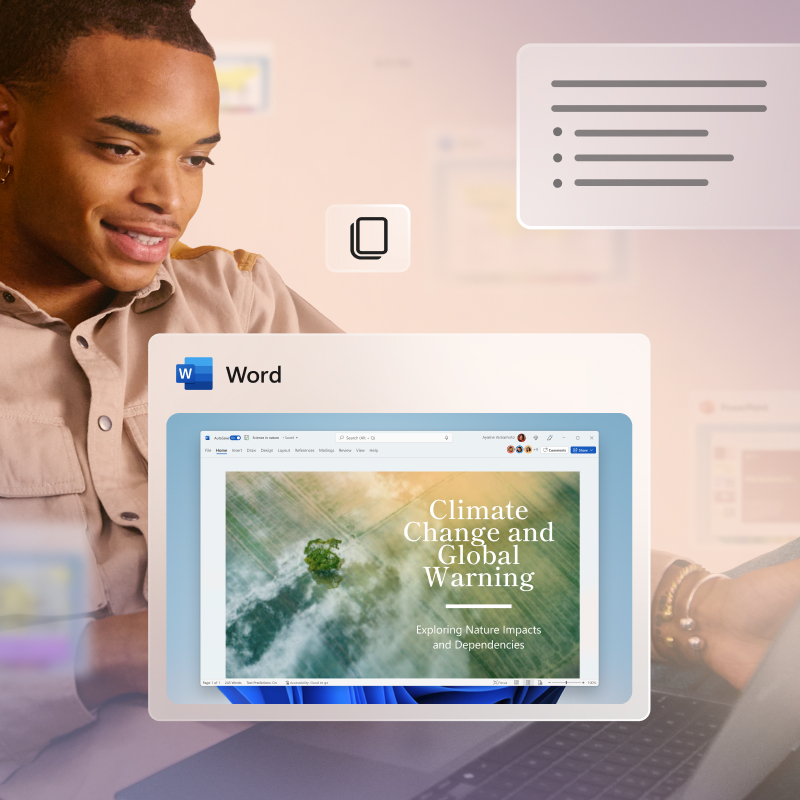
Get help when studying or with test prep using AI features in Microsoft 3651. Simply use suggested prompts in Copilot or specific asks like, “Help me plan my study sessions to prepare for my Spanish test in two weeks” or “Summarize the key points from this research paper on climate change.”

Turn ideas into digital art
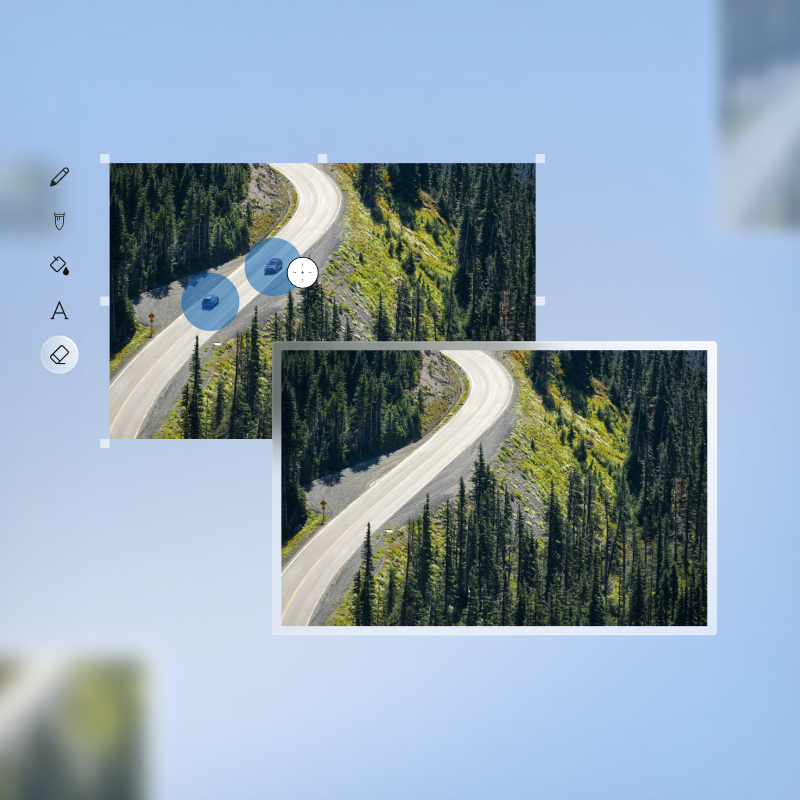
Create, edit, and enhance images like a pro using AI tools in Paint. With features like Image Creator2 and Background Removal, you can generate and iterate images with a prompt or edit existing photos to remove a background and isolate subjects.
Choose your next Windows PC
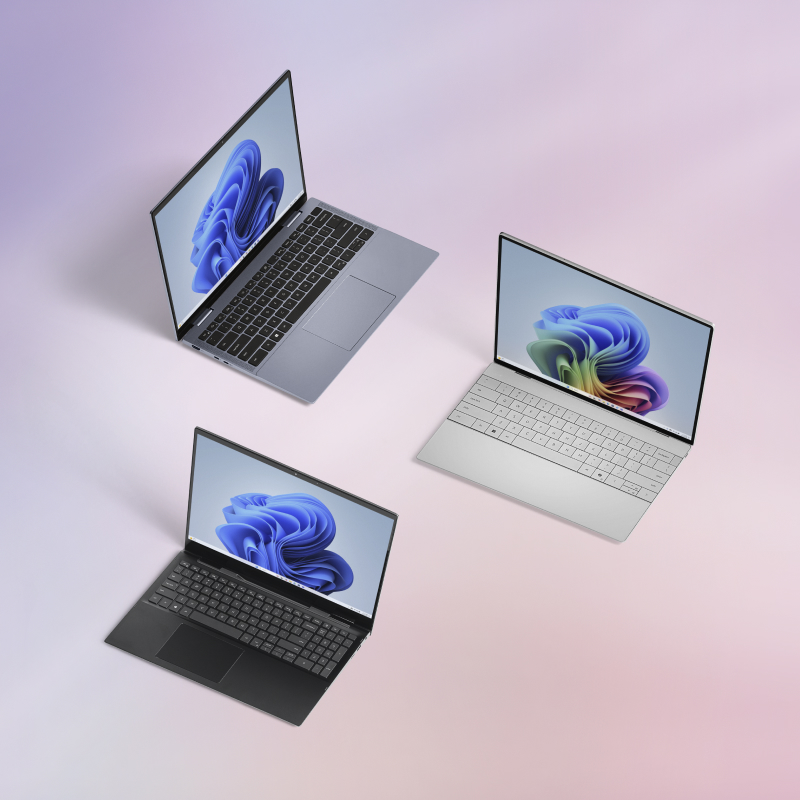
Sleek, innovative, and exactly what you need. Find an AI-powered PC that can run Windows 11 and is just for you.
The power of AI is built into Windows 11, helping you work smarter and create more with tools designed for everyday life. Apps like Clipchamp for video editing and Paint for image creation come ready on Windows 11 PCs, so you can start creating right away. For even more possibilities, download Microsoft Copilot from the Microsoft Store to get an AI assistant that helps you find answers, spark ideas, and explore new ways to be productive. For Clipchamp Premium, subscription sold separately. See Microsoft Clipchamp.
With Windows 11, AI isn’t just a feature—it’s part of the experience, making tasks simpler and creativity effortless.
And because AI is seamlessly integrated into these apps, you have the flexibility to keep what you love and remove apps you don’t. It’s all about giving you control while keeping your Windows experience smart, simple, and tailored to your needs.
Microsoft Copilot is your digital companion designed to inform, entertain, and inspire. Using advanced AI, Copilot understands your questions and requests, provides direct answers, assists with writing, and even creates images. It's like having a smart, helpful friend at your fingertips.
Copilot on Windows is a desktop app designed to inform, ideate, and inspire. Using advanced AI, Copilot understands your questions and requests, provides direct answers, and assists with writing. It's like having a smart, helpful friend at your fingertips. At your direction, it can search your files, understand what’s on your screen with Copilot Vision, and help you across apps and documents.
Copilot Vision on Windows is available in over 170 markets worldwide through the Copilot on Windows app. Usage limits for Copilot Vision will vary over time.
You can launch Copilot on Windows by clicking the Copilot icon on your taskbar. If you do not see Copilot on your taskbar, you can download the Copilot app on Windows from the Microsoft Store.
You can also launch Copilot on Windows by pressing the Copilot key or Windows key + C on your keyboard, or with your voice by saying “Hey, Copilot”, when this feature is enabled in Settings.
Learn more about Copilot on Windows, including Voice and Vision, at Copilot on Windows.
Windows 11 comes with several built-in AI-powered features such as the Snipping Tool, voice access, and smart recommendations in File Explorer and the Start menu. These tools are designed to enhance your productivity and creativity without requiring additional downloads. In some instances, features may require a Windows Update or app download from the Microsoft Store.
You don’t need a Copilot+ PC to use some of the Windows 11 AI features, such as the AI-enhanced Snipping Tool, voice access, and smart recommendations in File Explorer and the Start menu. Certain advanced AI features and features including Live Captions, agent in Settings, and Windows Studio Effects (full experience) are exclusive to Copilot+ PCs.
Yes, Copilot is free to use on Windows. But extras like extended usage limits, priority access, faster performance, and AI features in Office apps, require upgrading to Microsoft 365 Copilot. Learn more.
Yes, Copilot is free to use on Windows. But extras like extended usage limits, priority access, faster performance, and AI features in Office apps, require upgrading to Microsoft 365 Copilot. Learn more.
There are many ways AI in Windows 11 can help you stay productive. Windows 11 comes with several built-in AI-powered features such as the Snipping Tool, voice access, and smart recommendations in File Explorer and the Start menu. These AI tools are designed to enhance your productivity and creativity without requiring additional downloads.
With the help of Copilot, an AI assistant, you can get clear answers, inspiration, and solutions for your questions, projects, and to-do-lists.
Windows 11 provides AI-driven features and tools to improve your overall experience. Embark on your next creative project with insights and information that fuel your creativity. Discovering fresh ideas, summarizing lengthy pieces, and enhancing your writing are some of the ways Copilot can assist in your creative process. Additionally, it can automate tasks to speed up your workflow.
Clipchamp makes creating and editing videos simple and powerful with AI-driven tools:
- AI text to speech: generate a flawless AI voiceover in global languages to make videos with great reach.
- AI video editor: unleash your inner director with auto compose to quickly generate engaging short videos.
- AI silence remover: find and erase unwanted silences and pauses automatically in any media.
- AI background noise remover: clean up, boost clarity, and remove background noises without losing audio quality.
- AI subtitles: create accessible and easy-to-follow videos with subtitles in any language.
- AI background removal: remove the background of any image and replace with stock video, images, solid colors, and more.
Paint now comes with new AI-powered tools to help you edit images like a pro and create art like a visionary. Included in the latest version of Windows 11, Paint is your new creative partner.
- Image Creator is your AI-powered partner, ready to inspire your next creation. Give it a prompt, pick a style, and see where it takes you.
- Background removal uses AI to help you isolate a subject and remove the background with just one click.
To use Image Creator, you need to sign in with your Microsoft account. Signing in with your Microsoft account also allows you to access your credits, which are needed to generate images. Learn more.
AI enhances security in Windows 11 through a variety of features designed to protect against evolving cyber threats and to simplify security for users and IT professionals. AI is used in the Smart App Control* in Windows 11 to predict which apps are safe to download and run while blocking unknown apps often associated with new malware. This proactive approach is designed to simplify security and make Windows more secure out of the box.
Windows 11 helps ensure your device remains secure and current by automatically downloading and installing updates including the latest AI features. Furthermore, users have the option to update the pre-installed apps to their latest versions via Microsoft Store, independent of the Windows 11 OS updates. Microsoft Store will automatically update apps in the background. If your PC is managed by an organization, it may be that they disable updates. Contact your administrator to find out how your device may be updated with the latest features.
- Screens simulated. Features and app availability may vary by region.
- Trademarks are the property of their respective owners.
- May require Windows Update or app download from the Microsoft Store.
- 1 Microsoft 365 Personal or Family subscription required.
- 2 Optimized for English text prompts. Requires Microsoft account and internet connection to access cloud services that help ensure the responsible use of AI. Usage limits apply. Learn more.
Follow Microsoft Windows
Share this page