
Access clipboard history to stay productive
Save time and effort with shortcuts. Press Windows logo key + V to save recent copied or cut items on the cloud-based clipboard so you can paste them in other apps or sync across devices.
To start using clipboard history, press Windows logo key  + V.
+ V.
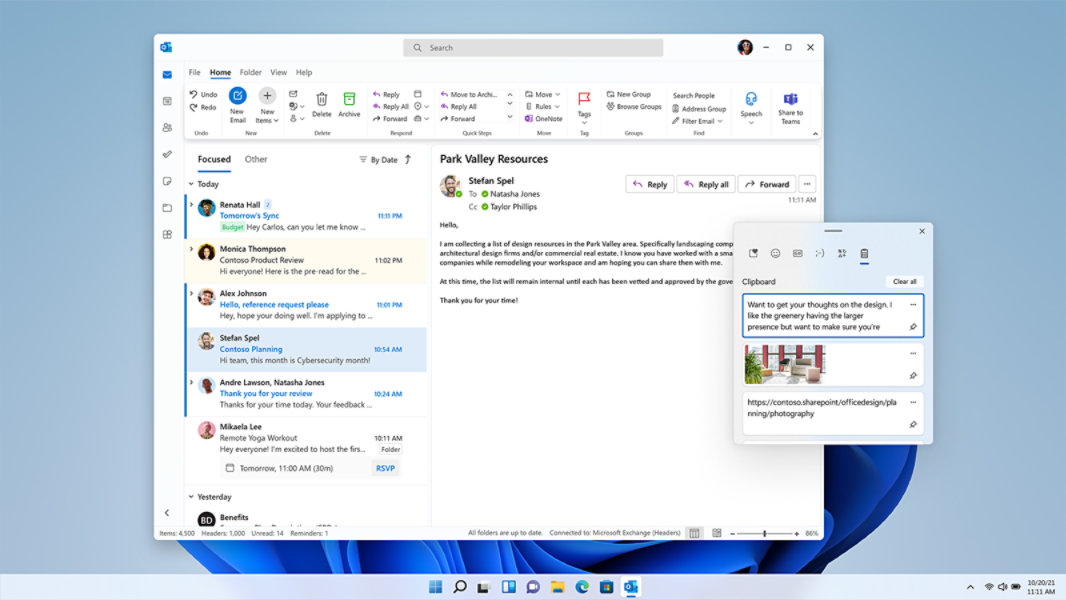
Sync your clipboard history to your PC
Copy images and text from one PC to another with a cloud-based clipboard. To sync clipboard items to your PC, you'll need to make sure the sync feature is on.
- Select Start > Settings > System > Clipboard.
- Set the Sync across devices toggle to On.
- Select Automatically sync text that I copy. The sync feature is tied to your Microsoft account, or your work account, so remember to use the same login information on all your devices.
Learn more about how to use this Windows 11 feature to stay productive:
Frequently asked clipboard history questions
-
Make sure you’ve turned on clipboard history. To turn your clipboard on for the first time, select Windows logo key
+ V and select Turn on.Clipboard history gets cleared each time you restart your PC, except for the items you’ve pinned.
-
You can quickly clear everything—except pinned items—on your device and the cloud.
- Select Start > Settings > System > Clipboard.
- In the Clear clipboard data area, select Clear.
You can also clear your device clipboard history by selecting Windows logo key + V and then selecting the Clear all option at the top.
-
You can clear any specific item on your clipboard.
- Select Windows logo key + V.
- Next to the item in question, select See more (...) and then select Delete.
- Select Windows logo key
-
Your clipboard history is limited to 25 copied entries. Older items—unless they're pinned—are removed automatically to make room for new clipboard items.
Learn more about how to use this Windows 11 feature to stay productive:
Related features

Keyboard shortcuts in Windows
Keyboard shortcuts in apps


Follow Microsoft Windows