
Snipping Tool
See it, snip it, share it. Take a snapshot to copy words or images from all or part of your PC screen. Use Snipping Tool to make changes or notes, then save, and share.
To start using the Snipping Tool press Windows logo key  + Shift + S.
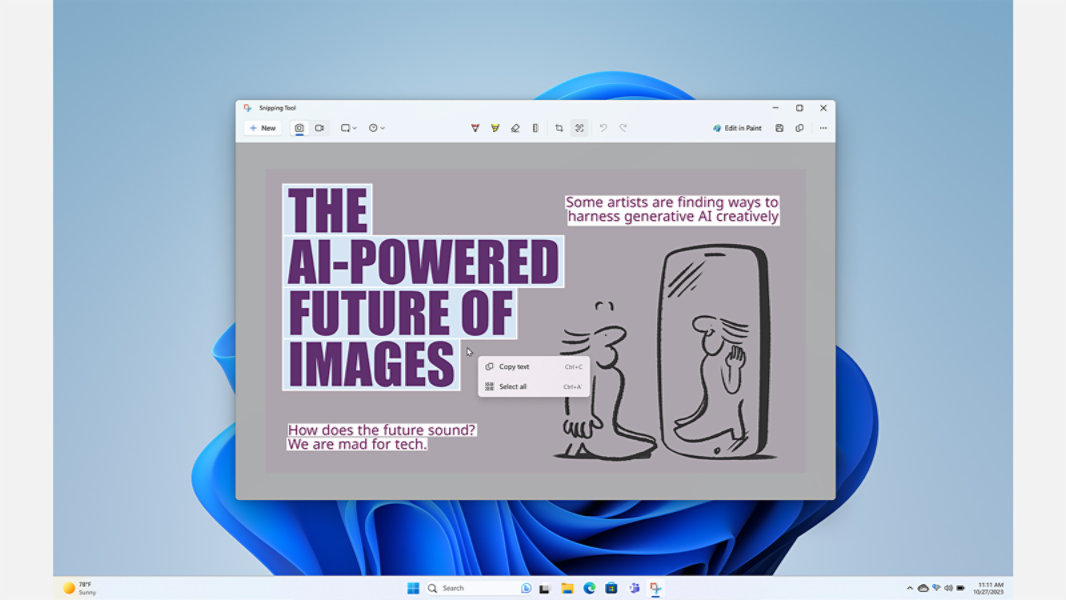
Capture exactly what you see
If it’s on your screen, you can capture it with Snipping Tool. Just click, drag to frame your shot, and voila.
- Capture a single moment or motion.
- Crop shots or capture the whole screen.
- Shortcut for fast access (Windows logo key + Shift + S).
Editing made easy
After you’ve made your capture, you can further edit it to make it clear what you’re trying to show. Crop or mark it up with the built-in tools.
- Crop your capture to focus on what you want to show.
- Bring attention to certain details with the highlighter tool.
- Provide context or a personal touch with the pen tool.
Frequently asked questions
-
First, identify the menu or other components you want to capture. In Snipping Tool, select Delay and then select, for example, 5 seconds. Select Mode to start the 5-second countdown. Within 5 seconds, open a menu or otherwise compose your image. At 5 seconds, when you see the screen turn gray, use the mouse to draw around the area you want.
-
When you capture a snip from a browser window and save it as an HTML file, the URL appears below the snip. To prevent the URL from appearing:
- In the Snipping Tool, select the Options button.
- In the Snipping Tools Options box, clear the Include URL below snips (HTML only) check box, then select OK.
-
After you capture a snip, select the arrow next to the Send Snip button, and then select an option from the list.
Related features

Access Clipboard History
Use a cloud-based clipboard to copy and paste images and text from one PC to another.
Snap your windows
Snap layouts help you better organize what’s on your screen so you can bring out your best ideas.
Make your PC more accessible
Windows accessibility can help you navigate your PC with ease. You can adjust text size, contrast, and magnification, or use voice access and Narrator to interact with your PC.


Follow Microsoft Windows