


As artificial intelligence continues to reshape the digital landscape, a new category of web experience is emerging: the AI browser. Designed to go beyond traditional browsing, AI browsers integrate intelligent features that understand context, automate tasks, and personalize your online experience. We’re constantly reimagining what Microsoft Edge can do and Copilot Mode brings the latest AI features directly into your browser.
OCTOBER 23, 2025 4 MIN READ
AI browser: innovation with Copilot Mode in Edge
What is an AI browser?
So, what is an AI browser? It’s a browser enhanced with artificial intelligence that can understand your intent, anticipate your needs, and help you complete tasks more efficiently. Unlike traditional browsers, an AI browser offers:
- Context awareness: Understanding what you’re doing and offering relevant support.
- Automation: Completing multi-step tasks like form-filling or bookings.
- Personalization: Tailoring content, suggestions, and workflows to your preferences.
Edge is always innovating in this space, offering a seamless blend of browsing and AI assistance through experimental launches like Copilot Mode. It’s a more powerful way to browse the web alongside your AI companion, Copilot.
Copilot in Edge
Copilot in Edge is more than just an AI assistant; it’s a transformative tool that turns your browser into a productivity partner. Whether you're researching, writing, coding, or shopping, Copilot is here to help. Deeply integrated into the Edge experience, Copilot understands the content of your tabs, provides intelligent suggestions, and can even take action on your behalf.
Copilot Mode in Edge activates a more immersive, task-oriented experience. In this mode, Copilot becomes even more proactive, helping you navigate, compare, and create—all without leaving your browser.
Solve real problems with Copilot Mode
Here are the handy AI browser features you can enjoy with Copilot Mode in Edge:
Copilot Actions in Edge Preview
Copilot Actions in Edge Preview helps you get more done while you browse. With Copilot Mode, you can ask Copilot for live, on-page assistance performed locally in your browser. With Actions Preview, your AI companion can help you reason across tabs and access browser features with a text prompt and even help you manage browser resources with a simple command, such as “clear my cache.” Copilot Actions in Edge is currently available in a limited preview in the US only.
Multi-tab context
With your permission, you can let Copilot see all your open tabs so it can understand the full context of what you’re exploring online. This means better comparisons, faster decisions, and less tab toggling. For example, when planning a dinner party and browsing multiple recipes at once, Copilot can adjust each recipe to account for your number of guests, create a coordinated cooking schedule, and give you a grocery list to make sure you have everything you need.
Journeys
Pick up right where you left off with Copilot Mode’s contextual memory feature, Journeys. Journeys remembers where you left off and brings it back when you need it. With Journeys, you see your past browsing projects grouped into helpful topics, so you can dive right back in, all with your explicit permission. Be the first to try it today—Journeys is currently available for free in a limited preview in the US only.
Streamlined new tab page
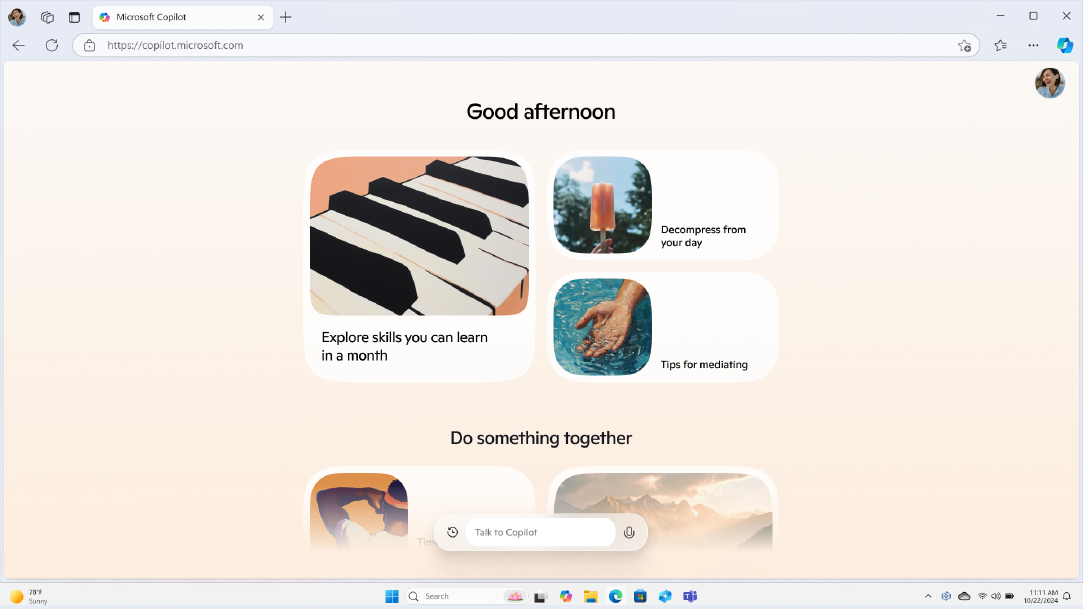
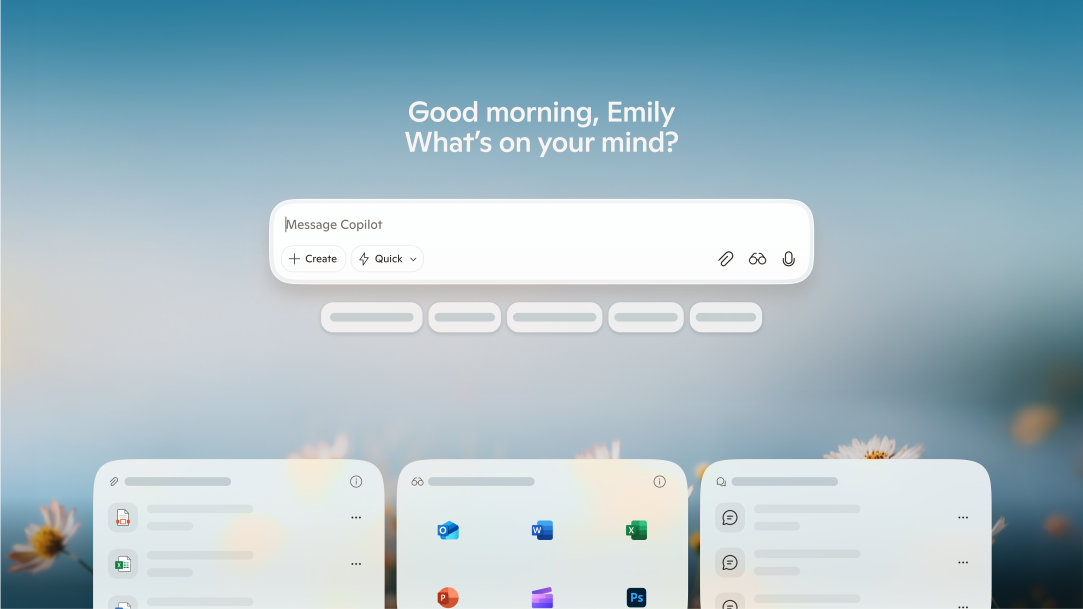
Tired of an unhelpful blank page or a page littered with visual news clutter when you open a new tab? Copilot Mode’s improved new tab page offers a clean, modern experience that combines chat, search, and browsing.
Quick Assist
Bring Copilot into any webpage without losing your context with Quick Assist. With Copilot open in a dynamic pane, this tool can help you navigate distractions and complex content more quickly. For example, Quick Assist can go through your email inbox and help you unsubscribe from all of the shopping newsletters that are filling up your inbox.
An AI browser designed for you
Copilot Mode’s design in Edge is made to be simple and intuitive to navigate. Its clean, intuitive layout reduces cognitive load by keeping the most important tools right where you need them—no clutter, no confusion. Smart features like multi-tab context and Quick Assist help you organize and complete tasks faster, so you can stay focused on what matters. Plus, Edge puts you in control with clear privacy settings and transparent options, so you always know what’s happening behind the scenes.
Get started with Copilot Mode in Edge
Ready to jump into the future of AI browsers? Get started with Copilot Mode in Edge by following these steps:
- Open a new window in Edge.
- Sign in with your Microsoft account to unlock personalized features.
- To turn on Copilot Mode, visit aka.ms/copilot-mode and select the toggle to turn on Copilot Mode in Edge.
Copilot Mode in Edge is available in all Copilot markets exclusively in Edge for Windows and Mac.
Your AI browser for the future
The future of browsing is here—and it’s intelligent, intuitive, and incredibly powerful. With Copilot Mode in Edge, you can do so much more. Whether you're navigating the web, managing tasks, or diving deep into research, this AI browser is designed to work with you, not just for you.
Ready to experience the difference? Try Copilot Mode in Edge today and see how AI can elevate your everyday browsing.
DISCLAIMER: Features and functionality subject to change. Articles are written specifically for the United States market; features, functionality, and availability may vary by region.
Mentioned in this article

Message Copilot
Copilot mobile app
Copilot for individuals

Copilot in Edge
You may also like
General AI - 4 MIN READ
What is Copilot, and how can you use it?
Learn how you can use Copilot, your AI-companion.
General AI - 4 MIN READ
Where can you access Copilot?
Learn how to access your AI assistant to its fullest potential in your daily life.

AI art prompting guide - 5 MIN READ
AI art prompting guide
Learn to write the best AI prompts with free text-to-image AI built into Copilot. Turn your ideas into stunning visuals with this easy-to-use AI artwork generator.
