

Tired of all the restarts? Get hotpatching for Windows Server
Hotpatching for Windows Server 2025, made available in preview in 2024, will become generally available as a subscription service on July 1st, 2025.



I once talked to a doctor who told me about a recent patient that had serious medical symptoms for over a year before visiting the doctor. He said that if the patient had mentioned these symptoms when they first arose, the prognosis was very good but now the patient was in trouble. That reminded me of some advice I once heard, “Never hold anything back from your doctor”. Doctors have exactly one job: to help you. They can only help you with problems that they know about so if you aren’t completely open and honest with them, you are only hurting yourself. The other thing is that by sharing your situation with a doctor, the doctor gains knowledge and skills to help other people as well. This model and thinking applies to our Customer Experience Improvement Program (CEIP) for Windows Server 2012 Beta. That is where we ask you to allow us to collect data about the health and usage of your servers. We frequently receive questions about CEIP; ‘what is CEIP?’ and ‘how is CEIP data used?’. In this post, Karen answers these questions along with the most important question ‘why should I enable CEIP?’
Karen Albrecht, a Program Manager on the Windows Server Telemetry team, authored this post.
–Cheers! Jeffrey
When we talk to the server community about the Windows Customer Experience Improvement Program (CEIP), most people say ‘Never heard of it’. Those that have heard of it sometimes don’t enable it because they ‘don’t want to share their data’. In this blog article we will explore what CEIP is and what benefits you may receive by enabling it on your deployed Servers. We will also discuss several new features in Windows Server 2012that make it easier to enable CEIP.
Let’s start by answering the question ‘What is CEIP?’ For those who have never seen CEIP before, using Windows Server2012 Beta you can get there through Server Manager -> Local Server -> select the Customer Experience Improvement Program link.

CEIP is the program by which we learn how you use Windows Server 2012, in order to improve the product based on your feedback. You can join the Windows Server2012 CEIP program in several ways. First, for pre-release beta software, such as the Windows Server2012 Beta, CEIP is enabled by default to help us improve the software before its’ final release. Alternatively, in released products such as Windows Server 2008 R2 we provide notice through the CEIP user interface (shown above) so you can elect to opt-in to the program.
We know that you need to get the most out of your servers, especially when it comes to server performance and network bandwidth. The CEIP report collection and transfer process are light weight in order to meet this need. Windows records CEIP usage information using a high-speed tracing component, Event Tracing for Windows (ETW). ETW enables Windows Server2012 to write out CEIP usage data no noticeable impact to server performance. CEIP usage information is transferred to Microsoft in a two part process using the Consolidator and Uploader scheduled tasks. The consolidator exports CEIP data into a compressed binary format that is ready for transfer. The binary is typically less than 1 MB in size so that the transfer has minimal impact to network bandwidth. The uploader scheduled task runs every once every 24 hours and transfers the CEIP binary data to the Microsoft frontend servers using the Windows Telemetry Protocol.
Another question we are often asked is ‘What data is collected by CEIP’? The data consists of basic information about how your server is configured and used; roles installed, features installed, settings used, and information about hardware. CEIP does not intentionally collect Personally Identifiable Information (PII). So, CEIP reports do not contain your contact information, such as your name, address, or phone number. This means CEIP will not ask you to participate in surveys or to read junk e-mail and you will not be contacted in any other way. The Microsoft Customer Experience Improvement Program privacy statement discusses, in detail, the data collected by CEIP and how we use it.
Moving on to the heart of the question, ‘What do I get for sending this data to Microsoft?’, you might be surprised in the ways Windows Server uses your data to improve the product. There are many examples beyond what is listed here. However we narrowed it down to the following to give you a flavor of some of the ways CEIP data is used to improve the product.
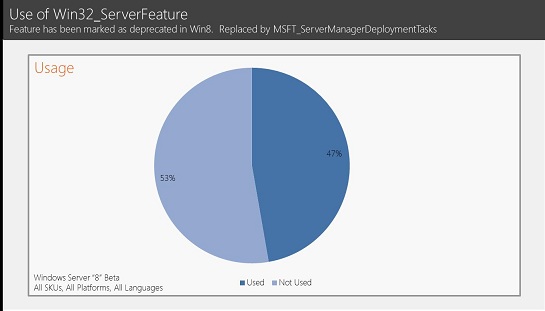
As part of the deprecation process, we added CEIP data to record interface usage and based on the latest Windows Server 2012 Beta CEIP data, we found that 47% of customers are using Win32_ServerFeature. Using this data, we are able to identify migration off of Win32_ServerFeature so that it is not formally removed from the product until migration to MSFT_ServerManagerDeploymentTasks can be done without impact to you.
Diversity of Windows Certified hardware: One of the frequently asked questions we get is ‘What CEIP data does Microsoft share with partners?’ There are certain scenarios where a subset of CEIP data (but no PII) is shared with IxVs (independent hardware or software vendors) as part of hardware certification. An important part of the Windows server offering is supporting high quality drivers for a diversity of devices in market. The challenge is to understand what devices are most commonly used in market. CEIP data is used to model hardware profiles and map diversity of different devices in order to inform certification strategy for IxVs. Using this data, IxVs determine the breadth of drivers to certify (based on what is in market) and prioritize which devices get certified first (based on popularity).
Improved product experiences: CEIP data is used on a day-by-day basis to understand a broad range of feature configurations so that we can prioritize work according to your usage patterns. For example, in order to reduce the cost to setup new servers, CEIP records what settings you use. This allows us to refine default settings by tuning them to reflect most common usage patterns so it is faster for you to setup a new server. Another example of internal usage is in testing. In order to increase test coverage of real world test patterns, we analyze CEIP data to understand how the product is used. This ensures that both design and testing are driven with your usage patterns in mind. There are many, many more examples of how CEIP is used to drive customer feedback into the product but in the interest of time, let’s move on to how to configure CEIP.
After the release of Windows Server 2008 R2, we did an assessment of CEIP adoption and found that 5-7% of servers in market were reporting CEIP. While working with customers on CEIP adoption we found that although servers were opted-in we weren’t getting data from them. We did a root cause analysis and learned that the main reason servers weren’t reporting is because they are deployed in firewalled environments. To send CEIP data, servers need to be able to communicate over HTTPS (default port 443) and need to have proxy settings configured (if the server is in a network that uses a proxy server). In working with Technology Adoption Program (TAP) customers, we found that frequently one or more of these settings were not configured, thus preventing CEIP data from reaching Microsoft.
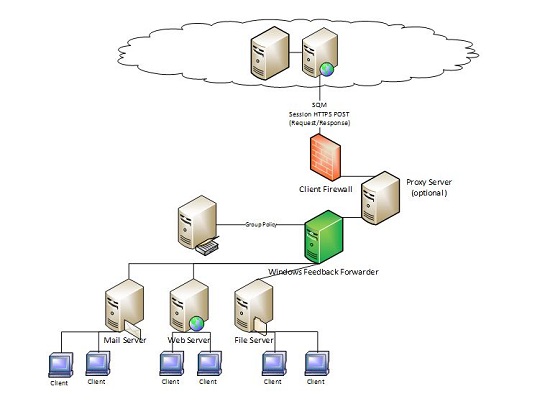
To make it easy to send CEIP data, Windows Server 2012 Beta ships several new features that allow you to get past the blocking issues so you can ‘set and forget’ CEIP. To participate in the CEIP program, the simplest way to deliver CEIP data to us is to use a new feature called Windows Feedback Forwarder (WFF). WFF is a service that proxies CEIP data from machines in a domain to Microsoft. WFF will proxy CEIP data Windows products including Windows 7 and Windows Server 2008 or higher. WFF will also proxy data for any Microsoft product that is enabled to ‘send customer feedback’.
The forwarder can sit within the domain or as an edge server. Machines in the domain are configured to send data to the forwarder via group policy. When an individual machine is triggered to collect data, it sends the data to the forwarder over HTTP and the forwarder relays the data to Microsoft over HTTPS.

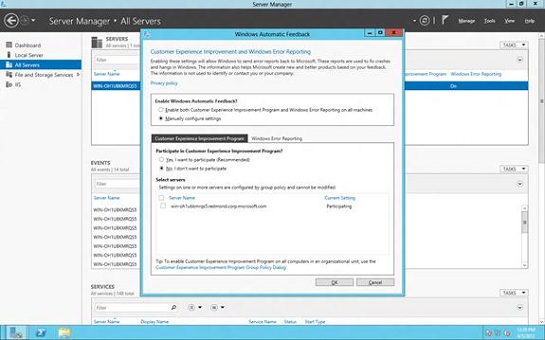
An alternative method to enable CEIP is the Windows Automatic Feedback dialog, which is a new multi-machine opt-in experience that ships in Server Manager. It enables you to configure multiple individual machines to send CEIP data within just 3 clicks.
We would love to know what you think of this program and how we can improve it to provide the best experience for your deployments and Windows Server usage. Please give us your comments below.
Karen Albrecht
Program Manager
Windows Server Telemetry
Hotpatching for Windows Server 2025, made available in preview in 2024, will become generally available as a subscription service on July 1st, 2025.

Microsoft System Center 2025 is now available, offering enhanced security, infrastructure management, and cloud capabilities for efficient IT operations.

Windows Server 2025 builds on our mission to deliver a secure and high-performance Windows Server platform tailored to meet customers’ diverse needs.