This is the Trace Id: c98afb8e10c68898c8259f928c74e2d5
Skip to main content
Windows
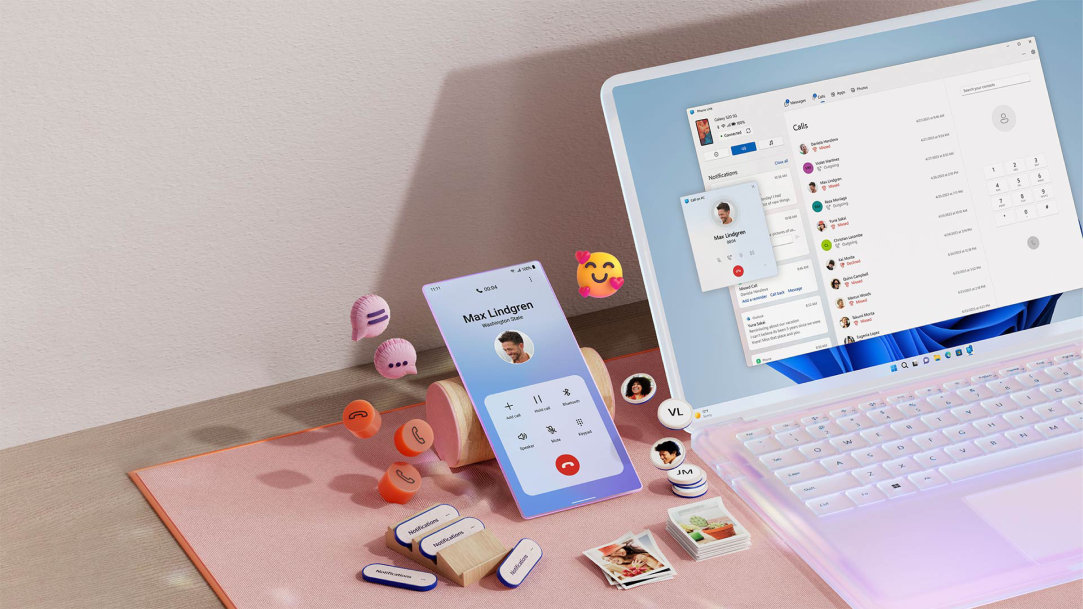
An open PC laptop with a mobile phone sitting next to it with floating emojis

February 11, 2026

How to connect your phone to a computer (Android & iPhone)

Connecting your smartphone to your Windows PC laptop or computer is a convenient way to stay organized and focused throughout your day. With a quick setup, you can reply to messages, check notifications, and view your recent photos—all without reaching for your phone. It only takes a few minutes to set up and doesn’t require technical expertise.

Read on to learn how to connect an Android™ or iPhone® to your PC, plus the simplest solution of all: using the Phone Link app built right into Windows 11.

The easiest way: Use the Phone Link app on Windows

The quickest, most convenient way to sync your smartphone and PC is with Phone Link1,2, a built‑in Windows 11 experience that works wirelessly in the background. No cables. No complicated setup. Just a seamless way to stay connected while you work or browse.

Phone Link works with both Android and iPhone3,4 devices5. While Android users enjoy a few extra perks like app mirroring, both platforms deliver the essential communication features you need to stay productive and connected.

How to connect an Android to a PC

Android6 devices offer the most complete Phone Link experience. Before you begin, make sure you have:

  • A Windows 11 PC
  • An Android phone with the Link to Windows app
  • Wi‑Fi and Bluetooth (Bluetooth is required for making and receiving calls)
  • A Microsoft account

To get connected:

  1. Launch Phone Link on your PC, or search for Phone Link on your Windows 11 PC taskbar.
  2. Select Android as your device type.
  3. Use the Link to Windows app on your phone to scan the QR code shown on your PC.
  4. Approve the permissions on your phone to let the two devices talk to each other.
  5. Confirm the connection on both devices.

Once connected, you can do the following from your PC:

  • Send and receive text messages
  • View and dismiss notifications
  • Instantly grab photos from your phone
  • Make and receive calls

How to connect an iPhone to a PC

iPhone support in Phone Link focuses on keeping you in the loop with your most important conversations.

Make sure you have:

  • A Windows 11 PC
  • An iPhone running iOS 14.0 or later and with Bluetooth turned on
  • A Microsoft account

To get connected:

  1. Launch Phone Link on your PC, or search for Phone Link on your Windows 11 PC taskbar.
  2. Choose iPhone as your device type.
  3. Pair your iPhone via Bluetooth when prompted.
  4. Approve the pairing code and permissions on both devices.

After pairing, you can stay on top of your day from your PC:

  • Send and receive messages (including iMessage).
  • Receive notifications directly on your desktop.
  • Make and take calls.

Note: For iMessage7, you’ll see messages that arrive while your devices are connected. Keep in mind that group chats and media sharing (like photos or videos) aren't supported through Phone Link for iPhone.

A woman at a desk with a PC computer using Phone Link to grab photos from her synced smartphone

AI Art Created by Copilot

Other ways to connect your phone to a computer

Phone Link is great for staying connected throughout the day, and sometimes another method is preferred depending on the task at hand.

USB cable

Use a USB cable when you need the fastest possible connection for:

  • Fast charging
  • Moving large batches of files or videos
  • A connection that doesn't rely on Wi‑Fi or Bluetooth

Cloud storage

Cloud storage is ideal when you want to access your files on the go, even if you don't have your devices with you. Services like OneDrive, iCloud, or Google Photos let you:

  • Sync photos and documents automatically
  • Back up important files for peace of mind
  • Access content from any web browser

Bluetooth

Bluetooth works well for:

  • Quickly sending a single file to a friend or colleague
  • Hands‑free calling
  • Quick, wireless connections without installing any apps

Troubleshooting common connection issues

If things aren't pairing quite right, don't worry—it’s usually a quick fix.

Phone not pairing?

Try:

  • Ensuring Bluetooth and Wi‑Fi are turned on.
  • Toggling Bluetooth off and on for both devices.
  • Keeping your phone close to your PC during the initial setup.

Notifications not appearing?

Check:

  • Notification permissions within your phone's settings.
  • Whether Do Not Disturb is turned on.

Connection drops?

A quick refresh usually does the trick:

  • Restart Phone Link.
  • Give your phone and PC a quick restart.
  • Then, reconnect using the pairing steps.

Which connection method should you choose?

The best connection method depends on what you want to:

  • For everyday convenience and staying in your flow: Phone Link
  • For moving high-resolution videos or large photo albums: USB cable
  • For access to your files from any device, anywhere: Cloud storage

Conclusion: Your phone, your PC in sync

Imagine handling a quick call or a verification code while your phone stays tucked away in your bag or plugged in charging in another room. By bringing your phone’s best features to your PC, Phone Link removes the need to juggle multiple devices. Connect your smartphone to your PC today, and simplify your digital world into one view, so you can deal with the “pings” of life and get back to the moment.

  • DISCLAIMER: Features and functionality subject to change. Articles are written specifically for the United States market; features, functionality, and availability may vary by region. 
  • [1] To experience the full functionality, Android phones must be running Android 7.0 or later.
  • [2] Microsoft Phone Link and PC both need a Wi-Fi connection, or you can give permission for the app to use your mobile data.
  • [3] To experience the full functionality, mobile phones must be running iOS 14 or later with Windows 10 or 11 on the PC.
  • [4] iPhone® only (no iPad® OS support)
  • [5] Bluetooth connection to PC required.
  • [6] Available on supported Android devices. See full compatible devices list here: Connect on a new level with Link to Windows on your Surface Duo or Samsung or HONOR or OPPO device.
  • [7] Messaging feature is limited by iOS. Image/video sharing and group messaging is not supported. Messages are session based and will only come through when phone is connected to PC.

Mentioned in this article

Windows 11 bloom

Shop Copilot+ PCs

Windows 11 bloom

Benefits of Windows 11

Windows 11 bloom

Find the Windows PC that's right for you

You may also like

Copilot+ PCs for productivity and play

Copilot+ PCs for productivity and play

See how Copilot+ PCs use built-in AI to boost creativity, gaming, and multitasking.
Two Surface devices, one showing the Copilot bloom

Why a Microsoft Surface is the best Copilot+ PC experience

Learn the advantages of Surface Copilot+ PCs and how Copilot+ PCs differ from other computers.
A video showing the gaming features of Copilot+ PCs

Do Copilot+ PCs offer the best setup for gaming?

Power, personalization, and play-anywhere freedom lets you explore the next frontier of gaming.