 Discover Windows
Discover Windows
Discover Windows

September 23, 2025
Share this page


Digital wellbeing doesn’t have to mean total unplug mode. With Copilot+ PCs and Windows 11, it’s more like: track a little, limit what you want, feel good about it—and move on with your day.
Whether you're working late, gaming hard, or just tired of doomscrolling, these built-in tricks help you take back your time—no stress, no guilt, and yes, Copilot can totally help.
1. See where your screen time actually goes
Think you're just “checking one thing” on your computer? Surprise—it's been two hours. Windows 11 makes it easy to see where your time is actually going with just a couple of clicks. Simply head to Settings > Privacy & security > Activity history to view a timeline of your recent activity—apps opened, files accessed, and more. It’s not a judgment zone—just the facts to help you stay aware and in control.

2. Set limits without the drama
Spending too much time on one app? You can set daily limits that gently nudge you to take a break.
To do it:
On a Copilot+ PC, you can ask Copilot to help. Just press the Copilot Key on your keyboard to launch it instantly. Then type:
“Limit this app to one hour a day.”
Copilot will guide you through setting limits—making it easy to stay focused without the guilt.
3. Turn on Focus Sessions and get in the zone
Need help staying on task? Try Focus Sessions—a built-in timer in Windows 11 that helps you work in focused intervals with optional breaks.
To turn it on:
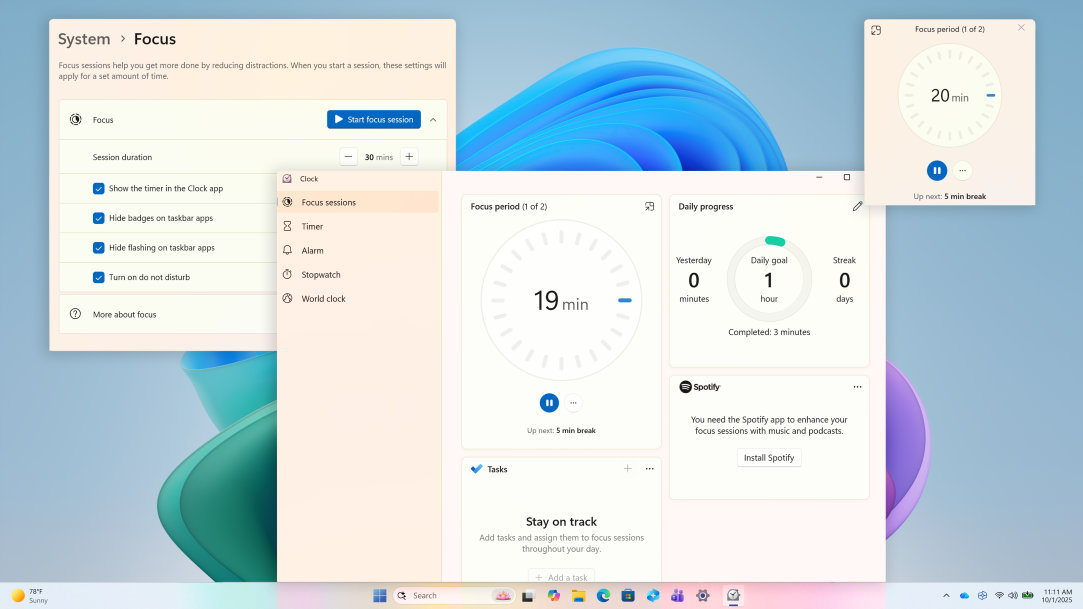
It’s a simple way to stay productive—without burning out. Work, pause, repeat. Your brain will thank you.
4. Hit Do Not Disturb like a boss
Dings, pings, pop-ups—nope. Turn on Do Not Disturb to silence the noise:
Want to activate it faster? Just tell Copilot, “Mute my notifications”—and enjoy the peace.
5. Use Copilot as your digital wellbeing buddy
Use Copilot to stay balanced and focused throughout the day—it’s built right into Windows 11 and available in Microsoft Edge. Just open Copilot from your taskbar or browser, then
type:
You get instant tips, nudges, and insights. Kind of like a digital BFF, always looking out for you.
6. Give your eyes (and brain) a break
Screen fatigue is real. Luckily, Windows 11 has features like:
Protect your eyeballs. They’ve earned it.
Balance beats burnout every time
Digital wellbeing isn’t about cutting tech—it’s about using it with intention. With Windows 11 and Copilot+ PCs, these 7 tips help you scroll smarter, stay focused, and feel better online. And honestly? You’ll barely lift a finger.
Shop Copilot+ PCs today.


