
When we first introduced computer-using agents (CUAs)—AI systems that can see, understand, and act across web and desktop apps—we showed what was possible: AI that works across applications, just like a person would. Early adopters quickly put CUAs to work automating brittle processes, navigating legacy systems, and stitching together workflows where APIs don’t exist.
Then, customers like you pushed us further.
You told us where agents didn’t scale, where authentication slowed runs, and where it was hard to understand why something failed—or to prove it behaved correctly. You also told us where your organization needed more control, visibility, and flexibility before rolling out computer‑using agents at scale.
Today’s updates are a direct response to that feedback.
Computer‑using agents in Microsoft Copilot Studio now offer more model choice, stronger security and governance, and easier scale—so you can automate more of your work across web and desktop apps with confidence.
Here’s what’s new with computer use—and why it matters.
Build more powerful agents with Copilot Studio
Create, customize, deploy, and manage your agents with Copilot Studio. Check out available features, use cases, resources, and FAQ.

Choose the right model to navigate dynamic interfaces
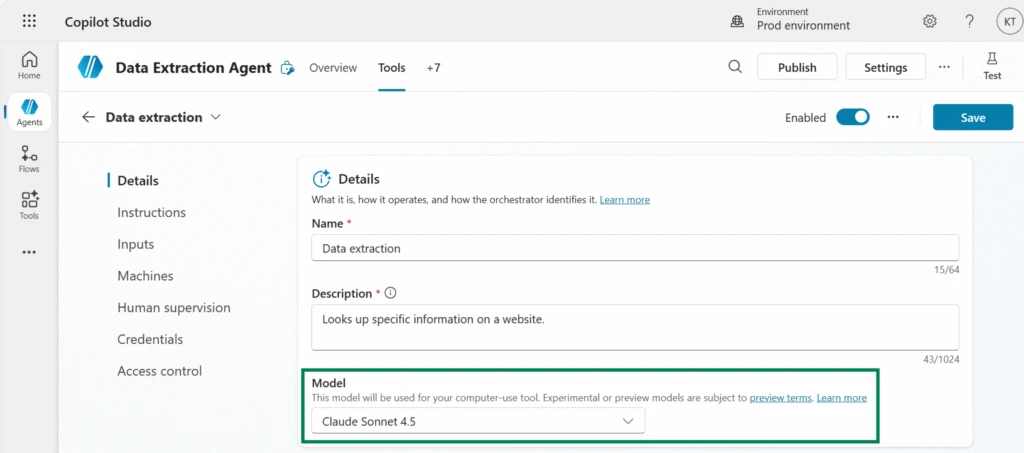
Computer-using agents now support multiple foundation models, including Anthropic’s Claude Sonnet 4.5 alongside OpenAI’s Computer-Using Agent. This gives you the flexibility to choose the best fit for each agent, based on the interface and the task.
- Use OpenAI Computer-Using Agent to orchestrate multi‑step web and desktop flows.
- Opt for Anthropic Claude Sonnet 4.5 when you need high performance reasoning on dynamic user interfaces (UIs) and interpretation of dense, changing dashboards.
Secure authentication with built in credentials and Azure Key Vault
Authentication shouldn’t be the reason automations stall. Computer use now offers built‑in credentials so agents can:
- Securely perform website and desktop app logins.
- Reuse them across multiple agents and automations.
- Eliminate manual login prompts during runs, enabling unattended execution.
For example, if an agent needs to log into a vendor portal and update a desktop ERP every night, built-in credentials now let the agent authenticate to both the web portal and the desktop app automatically. This removes manual interruptions and makes overnight processing dependable while maintaining governance controls. No need to babysit “unattended” runs.
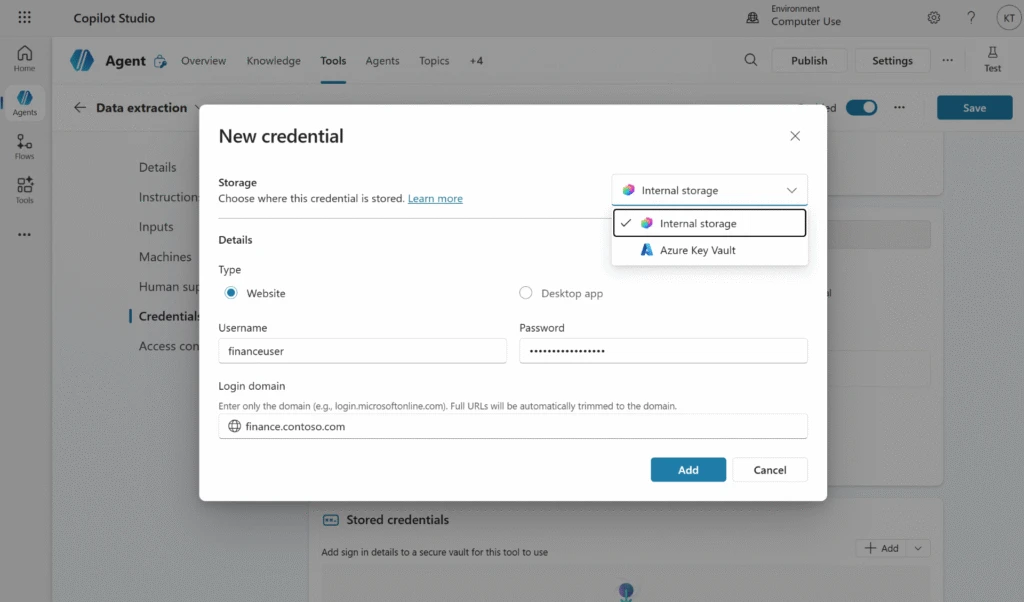
You can choose between two storage options aligned to your governance needs: internal storage (encrypted in Microsoft Power Platform) for low-friction setup, or Azure Key Vault for enterprise-grade secret management.
Credentials are encrypted and are never exposed to the AI model, so only authorized agents can access them. This way, your security and compliance team can feel confident scaling CUAs to more scenarios.
See every computer-using agent action with session replay and audit logs
As agents touch more business‑critical systems, teams need to know what happened, why it happened, and where.
Computer use now has advanced monitoring and richer observability, so operations, security, and compliance teams can inspect behavior step‑by‑step. This includes:
- Session replay with screenshots.
- Step‑by‑step action logs with action types, coordinates, timestamps, and context.
- Run summaries instruction text, duration, action counts, average time per action, and human escalation counts.
- Resource tracking including websites, desktop apps, credentials used.
- Export options for offline review.
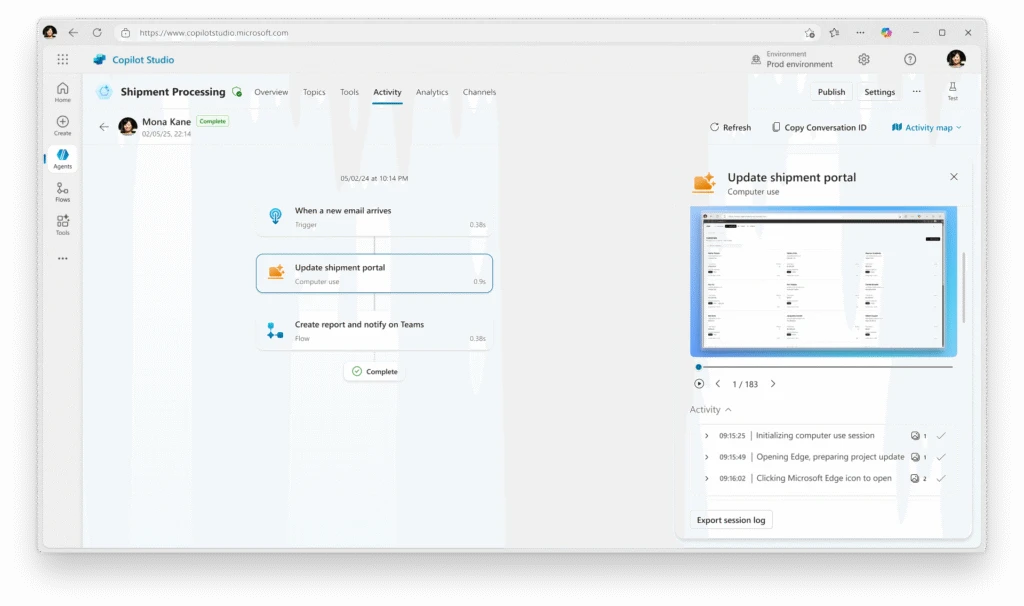
But what does this look like in practice? Imagine an agent run produces an unexpected update, and your team can’t tell whether the agent misread the UI, clicked the wrong control, or encountered a hidden pop‑up.
Session replay and action logs now show exactly what the agent saw and did, pinpoint the step where the UI changed, and produce an exportable record for audit review. That way, you can fix issues faster and retain a defensible compliance trail.
Beyond the monitoring pane, compliance is further strengthened through:
- Microsoft Purview integration, sending audit logs to Purview.
- Dataverse logging with configurable verbosity—choose All data, Data without screenshots, or Minimal.
- Retention options from 7 days to indefinite, to match regulatory and governance requirements.
Simplify infrastructure with managed Cloud PCs for computer-using agents
Scaling UI automation shouldn’t require managing fleets of desktops or fragile virtual machines. The new Cloud PC pool, powered by Windows 365 for Agents, provides fully managed cloud‑hosted machines that are Microsoft Entra joined and Intune enrolled, designed for computer use runs and built to scale with demand.
In other words, these Cloud PC pools provide managed capacity for high-volume runs when demand spikes—without the overhead of keeping dedicated hardware patched, available, and idle the rest of the time. This way, your team can handle spikes without over-provisioning hardware.
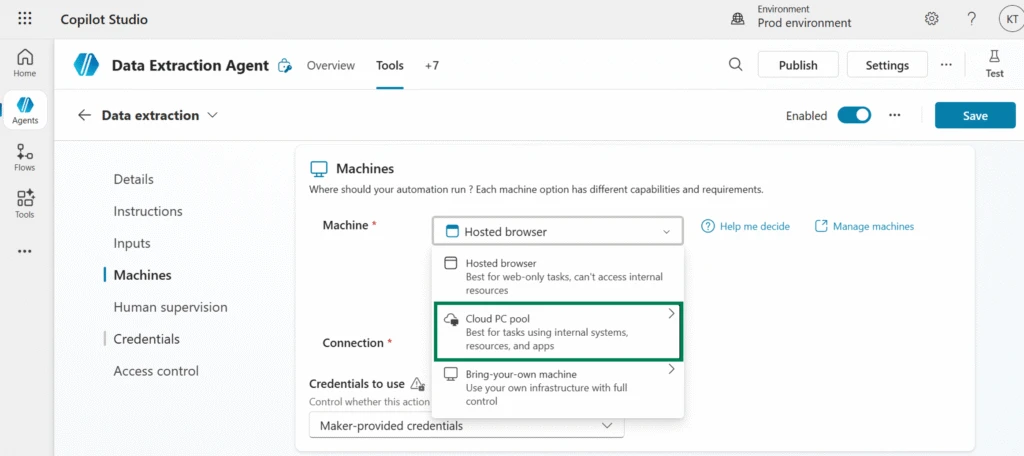
Note: For evaluation, you can create up to two Cloud PC pools per tenant with 50 hours of free usage for published autonomous agents—making it easier to pilot CUAs at scale before broader rollout.
Extend—don’t replace—your automation
If you’ve built automations with Microsoft Power Automate and RPA, computer use expands what you can automate—especially when:
- Interfaces change frequently
- APIs aren’t available
- Decision logic becomes more complex
Thankfully, you can keep classic RPA for deterministic scenarios with stable interfaces. CUAs then add flexibility and adaptive reasoning where RPA falls short (such as dynamic web apps, shifting layouts, or complex decisioning). After all, the goal isn’t to start over—it’s to modernize and extend what you already have.
For example, say you have an RPA bot that depends on fixed selectors. Historically, it broke each time a web form changed, forcing constant script updates.
Now, the RPA stays the same, while a CUA handles the variable UI portions—navigating changing layouts, interpreting dialogs, and escalating edge cases. The result? Reduced maintenance and improved reliability.
Get started and help shape what comes next
Ready to try computer‑using agents in a US‑based Copilot Studio environment?
- Create or open an agent in Microsoft Copilot Studio.
- Go to Tools → Add tool → New tool and select computer use.
- Describe the task you want the agent to perform in natural language.
- (Optional) Choose a model, configure built‑in credentials, and set up a Cloud PC pool for secure, scalable runs.
For deeper guidance, configuration details, and best practices, see the computer use documentation.
Before you go: We’re actively investing in advanced governance, operations, and scale for CUAs—and customer feedback directly informs the roadmap. Tell us what you think of the latest CUA updates today:
- Email feedback to computeruse-feedback@microsoft.com
- Join the Copilot Studio community