
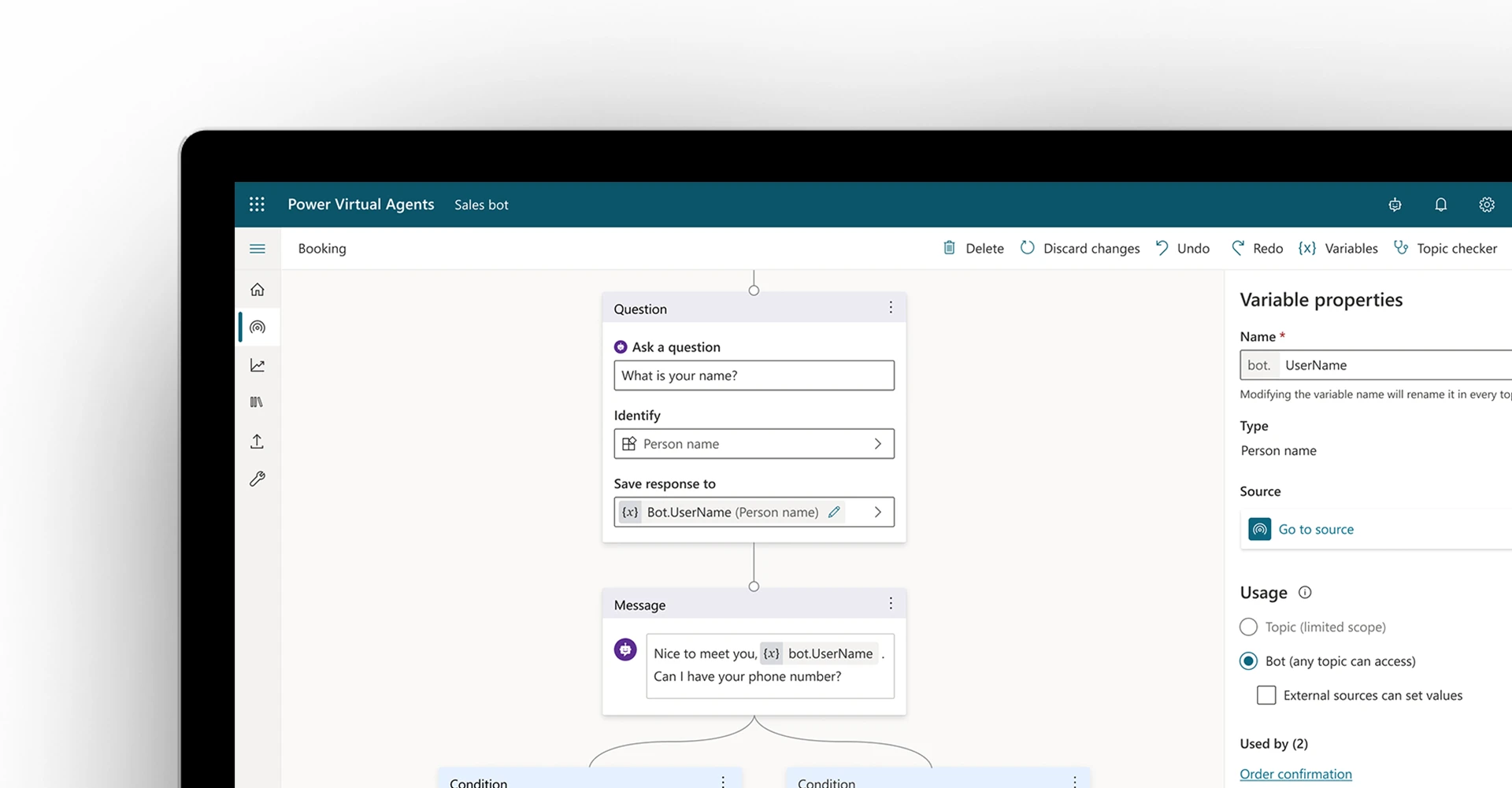
As Power Virtual Agents customers build ever more powerful bots, two of the most requested features are global variables, and a way to pass context into the bot from external sources.
Today we are excited to announce the availability of both. In this blog post, we will show you how to start using them.
Bot variables
First, let’s introduce a new type of variable available in Power Virtual Agents. Commonly known as global variables, in Power Virtual Agents they are referred to as bot variables, as they apply across the entire bot.
Bot variables are useful to store information that does not change from topic to topic, like the user’s name, or their address. This way the bot doesn’t need to ask the same question more than once.
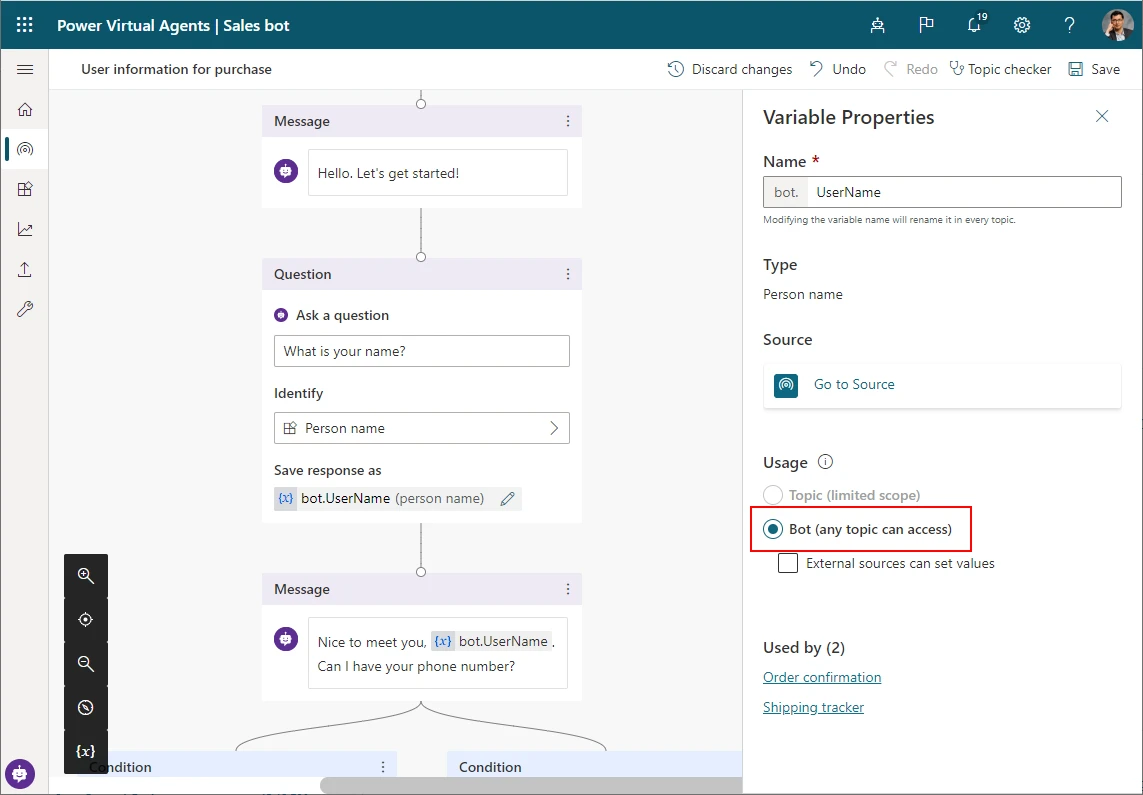
Here is a quick look at how you can change the type of an existing variable to a bot variable:
- Create a variable in a topic
- Click on the “Edit” button on the variable to open the new “Variable Properties” pane
- In the page, select the “Bot” option under the “Usage” section
Setting bot variable values from external sources
You can also set the value of this variable from external sources. This lets the bot start the conversation with some context acquired before it starts to chat with the user, and skip a question to which it already knows the answer. For example, you can bring the web page URL or Product name the user was looking at before launching the bot and tailor the greeting message.
Here is a view on how to set the value of a variable from external sources
- Create a bot variable as shown above
- Select the “External sources can set values” option under the “Usage” section
- On the canvas which the bot is launched from, append the variable name as a parameter, and the value for the variable as shown in the example below:
This will set the value of “ProductName” variable as “Surface Book”, and skip the question. This makes the bot smarter, and contextually aware of your customers interaction before they talk to the bot.

We’re always listening to your feedback, so please visit our community forum at https://aka.ms/PowerVirtualAgentsForum and share your thoughts with us.
You can also submit your idea requests at https://aka.ms/PowerVirtualAgentsIdeas.


