
December 11, 2025
Share this page


Getting the most from Surface Pen: advanced tips and tricks
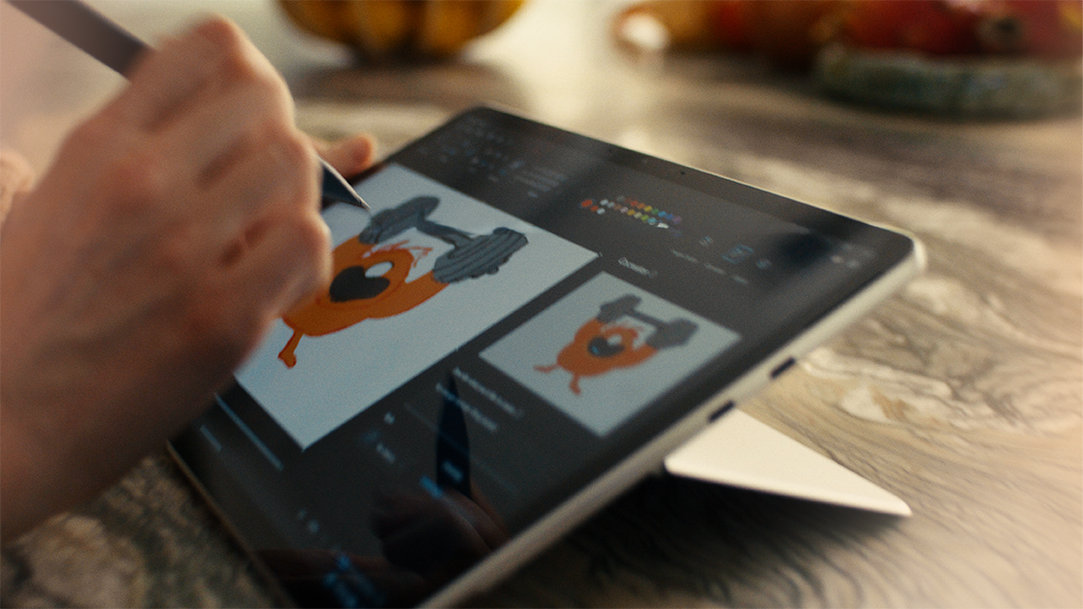
Surface Slim Pen is Microsoft’s most advanced digital pen, designed for natural writing and drawing that goes beyond traditional stylus input. Its flat, comfortable design and sharp tip offer exceptional control and accuracy, ideal for artists, students, and professionals.
Use Surface Slim Pen to take handwritten notes or sketch with a pen-on-paper feel, thanks to its precision and pressure sensitivity. Customizable vibrations mimic real drawing tools, enhancing realism and control1.
Surface Slim Pen basics
When paired with Copilot+ PCs like Surface Pro, Surface Slim Pen unlocks AI-powered features in apps such as Windows Paint (sketch-to-image generation) and Microsoft OneNote (intelligent note summarization). Surface Slim Pen also supports handwriting-to-text conversion across multiple languages.
Offering up to 15 hours of battery life3, Surface Slim Pen charges wirelessly and magnetically attaches to compatible Surface accessories2.
Key features of Surface Slim Pen include:
- Programmable top button for launching apps or shortcuts.
- 4,096 pressure points and tilt support for nuanced drawing and writing.
- Magnetic attachment and charging with supported Surface devices.
Pair Surface Slim Pen with your laptop
Surface Slim Pen connects via Bluetooth. To pair a Surface Slim Pen with a laptop:
- Go to Start > Settings > Bluetooth & devices.
- Hold the top button until the LED flashes white (5–7 seconds).
- Select Add device > Bluetooth.
- Choose your pen (for example, “Surface Slim Pen”).
- Select Done once connected.
Advanced features and customizations
Take control of productivity with customizable pen actions:
- Single-click the top button to open OneNote instantly.
- Double-click to open Snipping Tool for quick screenshots.
Customize these functions in Settings > Bluetooth & devices > Pen & Windows Ink.
Adjust pressure for drawing precision
When used with a Surface Pro, you can adjust Surface Slim Pen’s pressure response in the Surface app to suit your drawing or writing style:
- Softer settings make it easier to reach higher pressure levels with a lighter touch—ideal for sketching or natural handwriting.
- Firmer settings provide finer control at low pressure levels, which can help with detailed or precise strokes.
Collaborate in real time
Use Surface Slim Pen with Microsoft Whiteboard to draw, write, and add notes with your team, making collaboration smoother and more engaging.
Unlock creative workflows for artists
Surface Slim Pen integrates with popular drawing apps:
- Tilt detection allows nuanced shading like traditional pencils or brushes.
- Custom brush presets and layers help organize and refine artwork.
Enhance notetaking and study for students
Surface Slim Pen combines natural handwriting. For example:
- Take handwritten notes in OneNote and convert them to editable, searchable text. You can also ask Copilot, your AI companion in OneNote, to summarize your notes4.
- Highlight, underline, and annotate PDFs and other documents.
- Sync notes across devices, such as a Surface Pro, a PC workstation, and a smart phone, for seamless study sessions.
Productivity boosts
Surface Slim Pen helps you accomplish more using core Microsoft 3655 apps and collaboration tools:
- Write, edit, and annotate in Microsoft Word, Microsoft Excel, and Microsoft PowerPoint naturally.
- Sign documents and add handwritten markups digitally.
- Collaborate in Microsoft Teams and Whiteboard with real-time annotation.
Tips for Surface Pen maintenance and accessories
To keep your pen performing well:
- Keep a tip replacement kit on hand and replace pen tips when worn for a smooth writing experience.
- Charge wirelessly by attaching magnetically.
- Avoid extreme temperatures.
- Troubleshoot by restarting devices or checking Bluetooth settings.
- Save by bundling Surface Slim Pen with a Surface Pro keyboard.6
Experience precision, comfort, and AI-powered creativity with Surface Slim Pen
Surface Slim Pen offers comfort, control, and long battery life with a pen-on-paper feel. Its sharp tip and 4,096 pressure levels with tilt support let you experience natural shading and expressive inking. Customizable haptic feedback simulates various drawing tools.
Beyond drawing and notetaking, Surface Slim Pen converts handwriting to editable text in multiple languages and unlocks AI features on Copilot+ PCs (like Surface Pro), such as image generation and smart note summarization.
Discover how Surface Slim Pen combines comfort, precision, and intelligent technology to elevate your creativity, study, and productivity.
- [1] Surface Slim Pen (2nd Edition) experiences and compatibility vary by which Surface device you are using it with. Visit Surface Slim Pen Compatibility to learn more.
- [2] Surface Slim Pen (2nd Edition) can charge with Surface Pro, Copilot+ PC, 12-inch, Surface Slim Pen Charger, Surface Pro 13-inch Flex Keyboard, Surface Pro 13-inch Keyboard with pen storage, and Surface Laptop Studio. All are sold separately. Visit Surface Slim Pen Compatibility to learn more.
- [3] Battery life varies significantly based on usage, network and feature configuration, signal strength, settings and other factors. See Surface Battery Performance for details.
- [4] Available now on Copilot+ PCs with Snapdragon® X Series processors and on other devices starting early 2025. Optimized for English text prompts and requires a Microsoft account and internet connection to access cloud services that help ensure the responsible use of AI. Visit Copilot+ PCs FAQs to learn more.
- [5] Microsoft 365 Personal or Family subscription required; AI features only available to subscription owner and cannot be shared; usage limits apply. Learn more.
- [6] Sold separately.
Mentioned in this article
Experience precise inking
Compare Surface Copilot+ PCs

Accomplish more with Microsoft 365
Bundle a Surface Pro keyboard with Surface Slim Pen
You may also like

The differences between Surface Laptop and Surface Pro from Microsoft

Why a Microsoft Surface is the best Windows device experience
