This is the Trace Id: dd3e215a264317c614191ca8070a9bad
Skip to main content Surface Pro Surface Pro Keyboards Surface Slim Pen Surface Laptop Surface Laptop accessories Surface Studio 2+ Surface Laptop Studio 2 Compare Surface devices Do more with Surface All Surface Pro 2-in-1s for Business Surface Pro for Business, Copilot+ PC, 12-inch | Snapdragon Surface Pro for Business, Copilot+ PC, 13-inch | Intel Surface Pro for Business, Copilot+ PC, 13-inch | Snapdragon Surface Pro 10 for Business Surface Go 4 for Business All Surface Laptops for Business Surface Laptop for Business, Copilot+ PC, 13-inch | Snapdragon Surface Laptop for Business, Copilot+ PC, 13.8 and 15-inch | Intel Surface Laptop for Business, Copilot+ PC, 13.8 and 15-inch | Snapdragon Surface Laptop 6 for Business Surface Laptop Studio 2 for Business Surface Studio 2+ for Business Surface Hub 3 All Accessories Compare Surface devices for Business Surface for Business Home Surface Pro accessories Surface Laptop accessories Surface Studio accessories Surface Pro Keyboards All Surface accessories All Surface devices Surface deals Surface bundles Certified refurbished Surface Surface repair parts Where to buy Surface Support Transfer your data to a new Surface Copilot+ PC SHOP DEALS Microsoft 365 Azure Copilot Windows Surface Xbox Deals Small Business Support Windows Apps Outlook OneDrive Microsoft Teams OneNote Microsoft Edge Moving from Skype to Teams Computers Shop Xbox Accessories VR & mixed reality Certified Refurbished Trade-in for cash Xbox Game Pass Ultimate PC Game Pass Xbox games PC games Microsoft AI Microsoft Security Dynamics 365 Microsoft 365 for business Microsoft Power Platform Windows 365 Small Business Digital Sovereignty Azure Microsoft Developer Microsoft Learn Support for AI marketplace apps Microsoft Tech Community Microsoft Marketplace Software companies Visual Studio Microsoft Rewards Free downloads & security Education Gift cards Licensing Unlocked stories View Sitemap
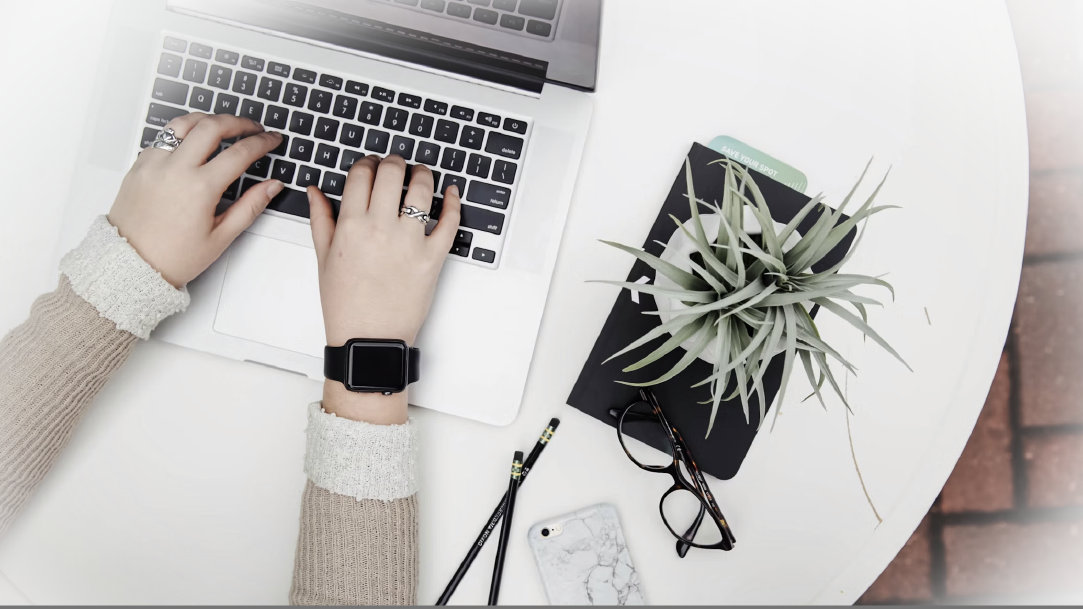
Woman typing on a laptop

October 09, 2024

How to customize the Windows experience on your laptop

When it comes to personalizing your Windows experience, there’s more to it than just choosing a desktop background. Whether you’re a casual user or a power user, tailoring your operating system to suit your preferences can make a significant difference in your daily workflow. In this article, we’ll explore how to customize Windows 11, focusing on desktop backgrounds, themes, taskbar settings, and personalization features.

Customize using your operating system

Let’s start by understanding the basics. Windows 11 offers a range of customization options that allow you to make your laptop truly yours. Here are some key areas to explore.

Customize your desktop background and theme

  • Background: Right-click your desktop and select Personalize. Choose from a variety of wallpapers or set your own custom image.
  • Themes: Explore pre-defined themes or create your own by adjusting colors, sounds, and fonts.

Change your Start menu layout

The Start button is now centered on the taskbar, but if you prefer the classic left-aligned position, follow these steps:

  1. Right-click the taskbar and open Taskbar Settings.
  2. Under Taskbar Behaviors, change Taskbar Alignment to Left.

Set your power and battery settings

Ensure your device’s power settings match your needs:

  1. Select the battery icon in the taskbar.
  2. Adjust settings like sleep mode, screen brightness, and battery saver.

Choose when to get notifications

Customize your notification preferences:

  1. Select the notification icon in the taskbar.
  2. Manage which apps can send notifications and when.

Select your account profile photo

Make your account feel more personal:

  1. Open the Start menu and select your profile picture.
  2. Select Change account settings and update your photo.

Update your system storage settings

Keep your device running smoothly:

  1. Go to Settings > System > Storage.
  2. Optimize storage by removing temporary files and managing disk space.

Personalize your device

Remember, personalization isn’t just about aesthetics—it’s about creating an environment that suits your wants and needs. Whether you’re a minimalist or love vibrant colors, Windows 11 lets you express yourself.

By following these simple steps, you can make Windows 11 truly yours. So go ahead, explore the options, and create a personalized experience that suits you. And remember, Microsoft is here to support you every step of the way. Try Surface Pro 11th Edition and Surface Laptop 7th Edition to elevate your Windows journey! Go to the Microsoft Surface home page to learn about our Surface devices.

DISCLAIMER: Features and functionality subject to change. Articles are written specifically for the United States market; features, functionality, and availability may vary by region. 

Products featured in this article

Windows 11 logo
Windows 11

Surface logo

Surface Pro 11ᵗʰ Edition

Surface logo

Surface Laptop 7ᵗʰ Edition

Related topics

Surface Pro 11ᵗʰ Edition in black, platinum, sapphire, and dune colors

Surface Pro 11ᵗʰ Edition vs. Surface Pro 9

Explore Surface Pro 11ᵗʰ Edition vs. Surface Pro 9 specs to learn why you should upgrade your PC.
A person working on a Surface device with two monitors in glassy office

How to use Windows Memory Diagnostic

Optimize your PC performance and prevent slowdowns with Windows Memory Diagnostic and RAM tools.
Surface laptop on a table

How to reset your Surface device

Learn how to reset your Microsoft Surface device with these simple steps.
English (United States)
Your Privacy Choices Opt-Out Icon Your Privacy Choices
Consumer Health Privacy Sitemap Contact Microsoft Privacy Manage cookies Terms of use Trademarks Safety & eco Recycling About our ads
