

July 23, 2024
Share this page


How to take better notes using Surface pens
Notetaking has evolved far beyond the traditional pen and paper method, especially with the advent of digital note taker pens. Among the most innovative tools in this domain are the Surface digital pens, including Surface Slim Pen,1 which have revolutionized how you can record, organize, and utilize information. Learn how to take better notes using these advanced tools, along with note applications like OneNote, to enhance your productivity and make your note-taking process more efficient and enjoyable.
Why use a Surface digital pen?
Surface pens are cutting-edge accessories designed specifically for Surface laptops. Highly responsive and precise, Surface pens enhance your touchscreen experience and provide a new level of efficiency for your notetaking needs.
Our most advanced digital pen unlocks your creativity and productivity like never before. Turn your ideas into reality with powerful creative tools supercharged by AI and Surface Slim Pen.1 Take handwritten notes and draw with the same feeling you get with pen on paper, with exceptional accuracy and magnetic storage. Surface Slim Pen also delivers incredible shading and superior pressure sensitivity.
How to utilize your Surface pen
To fully harness the capabilities of your Surface pen, it's essential to customize and adapt it to your workflow:
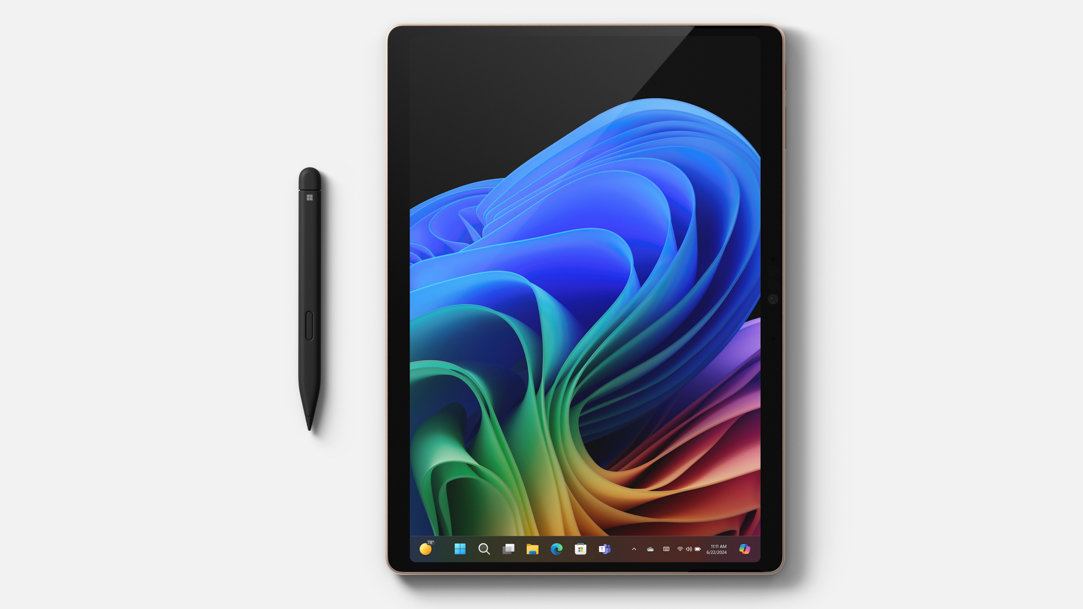
- Seamless device integration: The Slim Pen seamlessly pairs with Surface laptops, including Surface Laptop 7ᵗʰ Edition and Surface Pro 11ᵗʰ Edition, through Bluetooth®. This ensures instant connectivity and a ready-to-go setup.
- Boosting productivity: Utilize the pen's shortcut button to quickly launch applications or take notes without interrupting your flow.
- Personalization: Adjust the Slim Pen's pressure sensitivity to suit your writing style and assign functions to the buttons, such as erasing or right-clicking, to enhance your note-taking efficiency.
- Convenient charging: With a space that’s specifically designed in the Surface Pro Flex Keyboard,1 you can effortlessly charge your Slim Pen, ensuring it's always ready when you need it.
- AI assistance: Create with Cocreator.2 Everyone has an imagination and an ability to be an artist. Describe or draw your vision with text or image prompts and watch Cocreator generate an interpretation of it.2 Or you can get help from Copilot to summarize your handwritten notes in OneNote.
Organize your notes with OneNote
OneNote, part of the Microsoft 365 suite, is an excellent platform for organizing your notes. It allows you to create separate notebooks for different subjects or projects, and its intuitive design makes it easy to navigate through your notes. With your Surface digital pen, you can write directly onto the screen as if you were writing on paper, but with the added benefits of digital technology.
Utilize different pen types and colors
Switch between different pen types and colors to differentiate your notes. This can help you highlight important information, organize notes into categories, and also make your notes more visually appealing and easy to review.
Annotate documents
Annotating documents is straightforward with Surface digital pens. This functionality is incredibly useful for students and professionals alike, allowing for direct interaction with texts, diagrams, and charts. Annotations can help you understand and remember the material better by actively engaging with the content.
Integrate handwritten notes with digital platforms
One of the most powerful features of notetaking with a Surface digital pen is the ability to integrate handwritten notes with digital platforms. For instance, OneNote can convert your handwritten notes into typed text, making them searchable and shareable.
Notetaking with Surface digital pens offers a seamless blend of traditional handwriting and digital innovation, making it easier than ever to take better notes. By understanding the capabilities of your digital pen, organizing your notes with tools like OneNote, and utilizing features such as different pen types and document annotation, you can maximize your productivity and efficiency. As you integrate these tips into your notetaking routine, you'll discover a more organized, effective, and enjoyable way to capture and utilize information in the digital age. Elevate your notetaking and document management today with accessories1 and devices available on Microsoft Surface.
- [1] Chargers, software, accessories, and devices sold separately. Availability may vary by market.
- [2] Microsoft Account required. Optimized for English text prompts. See https://aka.ms/copilotpluspcs.
Products featured in this article
Surface Slim Pen
Surface Pro 11ᵗʰ Edition
Surface Laptop 7ᵗʰ Edition
Related topics

Why a Microsoft Surface is the best Windows device experience

Pen & paper in a digital age
