 Discover Windows
Discover Windows
Discover Windows
September 18, 2025
Share this page


Deadlines, edits, rewrites, “Can you just tweak this?”—sound familiar? Copilot+ PCs bring calm to your creative storm with built-in tools that think (and create) fast.
From video editing tools in Clipchamp to AI art magic, here are five fun tips to help you create more and stress way less.
1. Start with inspiration, watch it appear
Got an idea but not sure where to start? Cocreator in Paint helps you turn a quick text prompt—and a few brushstrokes—into a visual concept.1 Just describe what you want to create—like “a treehouse in the clouds”—and Cocreator makes it happen.
2. Remix your style, your way
Your art doesn’t have to stay in one lane. Cocreator helps you explore different looks with preset styles like watercolor, pixel art, and sketch.1 Just one click gives your work a fresh spin.
If you want more flexibility, use the creativity slider to control how far the style transforms your piece—dial it down to stay close to your original, or up for something totally unexpected.1
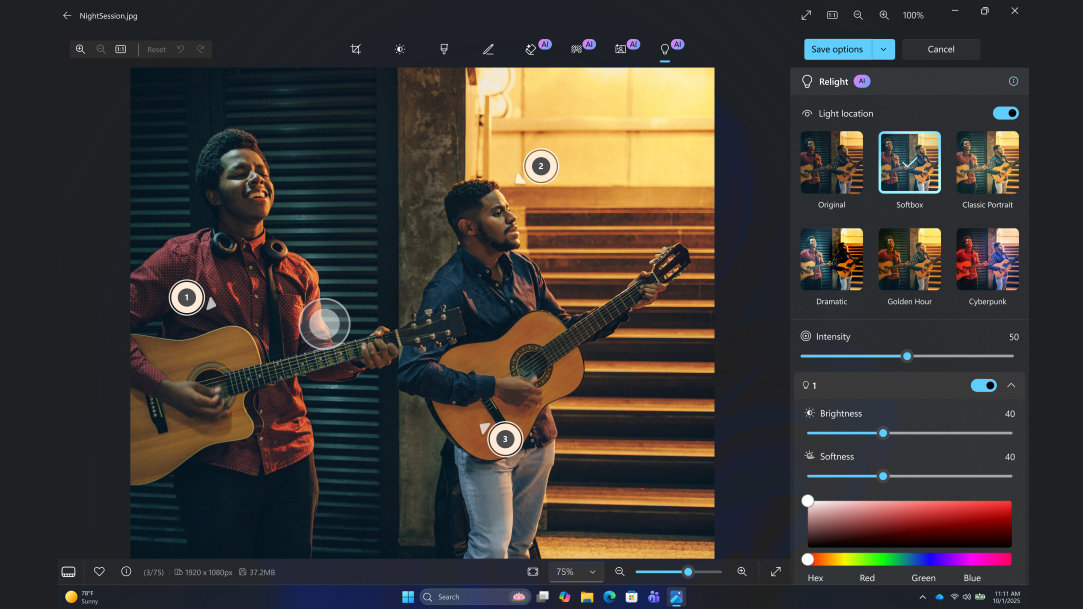
3. Snap now, relight later
Captured the right moment—but in the wrong lighting? Relight uses AI to fix it after the fact, adjusting shadows and highlights to bring your photo back to life.2
No filters, no reshoots—just natural-looking light, the way it should have been.
4. Go from idea to upload with smart video templates
Clipchamp—Microsoft’s video editing tool—helps you turn ideas into polished videos without starting from scratch. With ready-made templates3,4 for everything from daily vlogs to vacation slideshows, you can move from rough cut to ready-to-share in minutes. Just choose a layout, drag in your clips, customize the text, and export.
It’s a faster, simpler way to keep your creativity flowing.
5. Cut faster with AI video editing tools
Great ideas shouldn’t get lost in the edit. Clipchamp’s AI-powered tools help you turn raw footage into a tight, clean first cut—fast.
Why it’s your secret weapon:
Final creativity tip? Get yourself a Copilot+ PC
Tools like Cocreator, Clipchamp AI features, and Relight are built into Copilot+ PCs—and they’re designed to help you move from idea to execution at lightning speed.
Whether you’re working on a pitch, a portrait, or a personal project, Copilot+ PCs help you stay in your flow, not in your head.


