This is the Trace Id: 26fde8a7f67a2d2fd56777ba7a6f91cf
Skip to main content
Windows
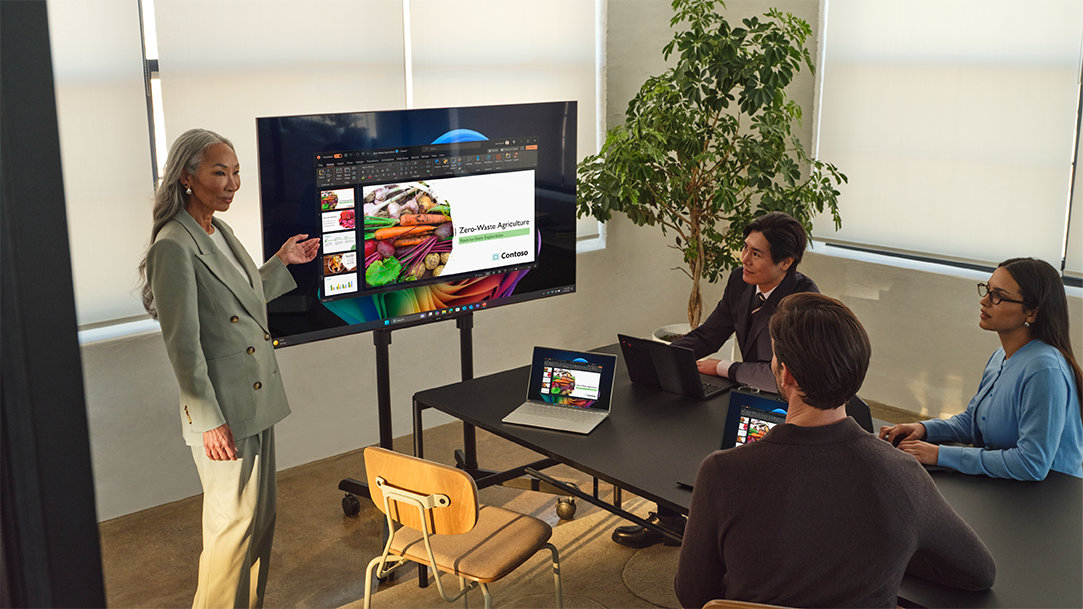
A woman connects a Windows 11 PC to a TV wirelessly and presents to a team

December 19, 2025

How to set up a wireless display

Ready for freedom from cable clutter? Setting up a wireless display lets you connect your Windows laptop to a TV wirelessly, so you can say goodbye to the hassle of cables. Present from anywhere in the room, multi-task across screens, or enjoy your favorite movies, games, or photos on the big screen. Windows screen sharing technology offers a seamless, clutter-free way to enhance your productivity and viewing experience.

What is wireless display technology?

A wireless display lets you connect your Windows 11 PC to a TV, monitor, or projector without using cables. Using Miracast technology, you can choose between screen mirroring and screen casting. Screen mirroring duplicates your PC screen in real time, so everything you do appears on the external display. Screen casting streams specific content—like a video or presentation—to the external screen, allowing you to continue using your PC for other tasks without interrupting playback.

If your external display doesn’t support Miracast, you can connect a Microsoft Wireless Display Adapter to its HDMI and USB ports to enable wireless functionality.

The benefits of going wireless include:

  • Convenience: No cables, less clutter.
  • Productivity: Use multiple screens to manage tasks more efficiently.
  • Entertainment: Enjoy movies, games, and media on a bigger screen.

Windows screen sharing: System requirements

To use wireless display features, your PC must meet certain requirements:

  • Operating System: Windows 11
  • Hardware: Wi-Fi capability and Miracast support

To check if your PC supports wireless display, press the Windows logo key + K. If you see a list of available devices, your PC supports Miracast. Alternatively, go to Settings > System > Display > Multiple displays and locate the option to connect to a wireless display.1

Preparing the display device

Before connecting, make sure your external display is ready:

  • Smart TVs: Many modern TVs support Miracast natively.
  • Monitors/Projectors: If Miracast isn’t built-in, use a Microsoft Wireless Display Adapter.

To enable the wireless display feature on your TV or adapter:

  • For Smart TVs with Miracast Support:
    1. Turn on your TV.
    2. Open the input/source menu and select Screen Mirroring, Miracast, or Wireless Display—the exact name varies by brand.
    3. Enable the feature if it's not already active. This makes the TV discoverable to your Windows PC.
    4. Wait for a prompt or screen that shows the TV is ready to receive a connection.
  • For Microsoft Wireless Display Adapter:
    1. Plug the HDMI end of the adapter into your TV, monitor, or projector.
    2. Plug the USB end into a USB charging port on the same display (or use a USB power adapter).
    3. Set the input source on your display to the HDMI port where the adapter is connected. The adapter will display its name and status on the screen, indicating it is discoverable.
    4. Optionally, use the Microsoft Wireless Display Adapter app to manage settings and security, personalize, and update firmware.

Connect a Windows laptop to a wireless display

Once your display is ready, follow these steps for Windows screen sharing:

  1. Ensure your Windows laptop and the wireless display device are on the same Wi-Fi network.
  2. Press the Windows logo key + A to open the Quick Settings panel.
  3. Click Connect.
  4. Select your TV or wireless display from the list of available devices.
  5. If prompted, enter the PIN or passcode shown on your TV screen or wireless display.
  6. (Optional) Customize your Windows wireless display settings by going to Settings > System > Display. From here, you can configure resolution, layout, and projection mode (Duplicate, Extend, or Second screen only).

Troubleshooting tips:

  • Restart both devices if the Wi-Fi connection fails.
  • Ensure your display is set to the correct input source.
  • Update your PC and display firmware for best compatibility.
A man cooking stir fry while watching a cooking show on a TV via Windows screen sharing from a Windows PC 2-in-1 laptop

AI Art Created via Copilot

Smart ways to use a wireless display at home and work

Wireless display technology makes everyday tasks easier and more enjoyable:

  • Join a video call on the TV – Connect your PC to a TV wirelessly during a family video chat or remote meeting. It’s easier to see everyone, and you can sit back in comfort.
  • Collaborate in a group setting – Working on a project with others? Use Windows screen sharing so everyone can follow along, edit a document together, or review designs.
  • Follow a workout or recipe hands-free – Mirror a fitness video or cooking tutorial from your laptop to the TV. You get a full view while keeping your hands free to move, stretch, or stir.
  • Watch your videos on the big screen – Cast your videos to the big stream for a more immersive experience. Whether you’re watching your favorite live streamer or watching a show, a wireless display lets you watch from the comfort of your couch.

Security and privacy tips

Keep your wireless display experience secure:

  • Manage permissions: Only connect to trusted devices.
  • Disconnect safely: Use the Windows logo key + K to stop projecting.
  • Prevent unauthorized access: Disable wireless display when not in use.

More tips for using a wireless display

To help ensure a smooth and enjoyable experience when using a wireless display:

  • Keep your Windows laptop and wireless display updated: Ensure your PC and wireless display have the latest software and firmware updates.1
  • Check your network: Verify that the PC and wireless display are connected to the same Wi-Fi network and that your wireless display is set to the correct input source.
  • Optimize your connection: For optimal performance, position your PC and wireless display closer to your Wi-Fi router and reduce the number of devices connected to the network.
  • Troubleshoot connection issues: If you encounter frequent connection drops, try restarting both PC and the wireless display, and try reconnecting.
  • Fine-tune your display: Adjust your PC display settings to match your TV's capabilities. Consider factors like resolution, refresh rate, and color profile.

Ready to cut the cord? Connect your laptop to a display wirelessly

Wireless display technology in Windows 11 makes it easy to work smarter, present with confidence, and enjoy media on a bigger screen—without the clutter of cables. Whether you're setting up a second screen in your home office or casting a video call to your living room TV, going wireless gives you more flexibility and freedom. Start using a wireless display with your Windows laptop today.

  • DISCLAIMER: Features and functionality subject to change. Articles are written specifically for the United States market; features, functionality, and availability may vary by region. 
  • [1] App features vary depending on adapter hardware and Windows edition.

Mentioned in this article

Windows 11 bloom

Shop Copilot+ PCs

Windows 11 bloom

Benefits of Windows 11

Windows 11 bloom

Find the Windows PC that's right for you

You may also like

Overhead view of a person with a laptop box and gift-wrapping material, while also using a laptop

Get Started with Copilot+ PCs

Unlock AI-powered productivity with Copilot+ PCs. Personalize your PC for smarter, faster performance.
Two Surface devices, one showing the Copilot bloom

Why a Microsoft Surface is the best Copilot+ PC experience

Learn the advantages of Surface Copilot+ PCs and how Copilot+ PCs differ from other computers.
Image of a man using a tablet and watch TV

How to screen cast a Surface to a TV

Enliven your TV viewing experience. Screen cast from a Surface, Copilot+ PC to a TV.