 Discover Windows
Discover Windows
Discover Windows
February 10, 2026
Share this page


For decades, Paint was the simple, friendly Windows classic. In Windows 11, the Paint app has evolved into a modern, capable creative tool—faster, cleaner, and designed for how people create today. With a refreshed UI, smarter tools, and no learning curve, Paint feels instantly familiar yet far more capable than the classic version you remember.
Sketch ideas, refine images for a presentation, or explore concepts on the fly—Paint keeps creativity moving without slowing you down. Simplicity and ease of use make Paint a valuable tool for quick and easy image editing, giving you creativity uninterrupted.
This is Paint, all grown up.
Getting started with the Paint app on Windows
Paint now comes with new AI-powered tools to help you edit images like a pro and create art like a visionary. Included in the latest version of Windows 11, Paint is your modern creative partner ready the moment you are. There’s nothing to install, nothing to configure, and nothing to slow you down.
Fast ways to open Paint:
The Windows 11 design of Paint provides a clean, modern workspace where everything is within reach:
Paint supports PNG, JPG, BMP, GIF, and transparency, making it great for thumbnails, graphics, social content, and clean cutouts. For prosumers who value speed and clarity, the value is straightforward: instant access, instant results, zero setup.
Draw, sketch, and design—fast
Paint excels at rapid, lightweight creation. With intuitive tools and a responsive canvas, you can jump straight into:
Whether you’re using a mouse, a Windows pen, or touch, Paint feels precise and immediate.
Pro tip: Combine shapes + fill + text to create clean, presentation‑ready visuals—ideal for diagrams, social graphics, or simple layout explorations.
Grab a stylus, like Surface Slim Pen, and sketch with a pen-on-paper feel in Paint. Whether you’re sketching thumbnails, painting layers of detail, or editing concept art, Surface Slim Pen helps you move from thought to creation with ease.
Paint lets you communicate visually without the overhead of professional design suites. It’s creativity in pure, fast form.
Smarter editing with AI‑powered tools in Paint
The AI tools in Paint are designed to enhance your workflow. They’re integrated, optional, and easy to use, giving you advanced capabilities while keeping the experience lightweight.
Use the AI-powered tools in Paint to help create digital images like a pro, spark creativity with AI-generated inspiration, and allow anyone, from novice to pro, to manipulate, manage, save, and share image files in most file formats. And because some AI features use cloud intelligence, Paint gives you the ease people often look for when they search for Paint online—but with the speed and power of a native Windows app.
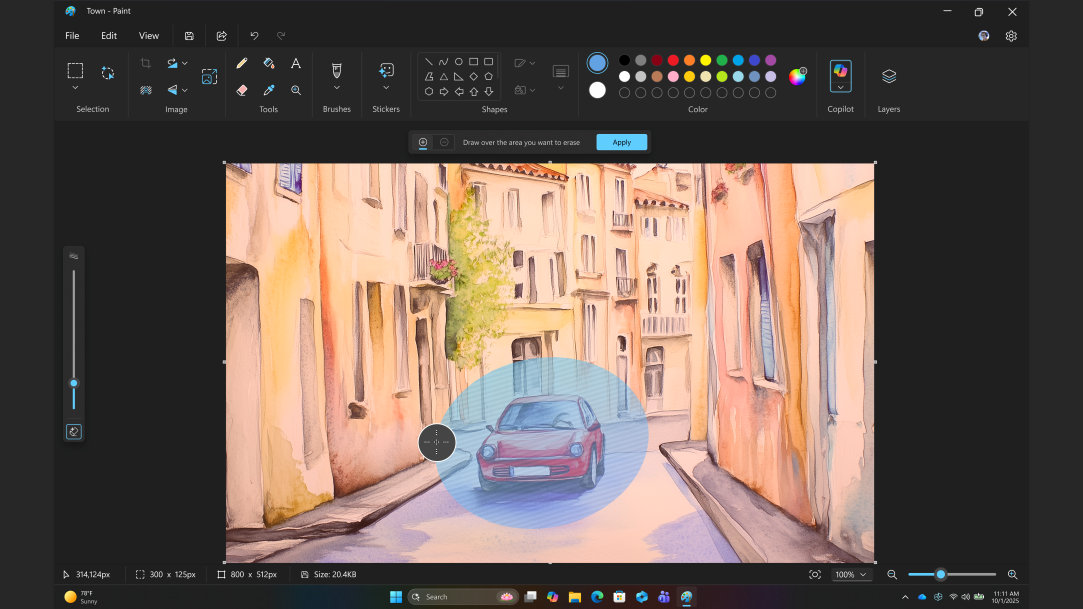
Generative Erase
Generative Erase lets you keep what you want and remove the rest. Use Generative Erase to take care of unwanted elements, intelligently filling in the background, so the rest of your image remains intact. With Generative Erase, you have a simple but powerful way to clean up visuals quickly.
Use Generative Erase to remove:
Image Creator
Turn inspiration into endless possibilities using Image Creator 1,2, which lets you create amazing artwork with just a few words. Image Creator in Paint is a feature that lets you collaborate with a powerful AI model called DALL-E. Simply give Image Creator a prompt, pick a style, and see where it takes you.
Image Creator is ideal for:
Everyday creative workflows
Paint fits naturally into everyday work and creative tasks. Just open and start creating.
Use Paint to:
Because Paint is fast, familiar, and always available, it becomes a creativity accelerator—helping you move from idea to output with almost no friction.
Why Paint belongs in your creative toolkit
Paint doesn’t replace professional design software. Instead, it excels at what modern creators value most: speed, clarity, and momentum.
Paint shines at:
Paint is the companion that helps you create, iterate, and move forward—faster.


