 Discover Windows
Discover Windows
Discover Windows
January 15, 2026
Share this page


If you’re someone who doodles between meetings, sketches characters at midnight, or occasionally gets lost inside a color palette, Windows 11 is a surprisingly great place to create. You don’t have to track down extra apps or install anything complex. Paint is already there, giving you a clean, simple, and surprisingly fun space to bring ideas to life.
Let’s dig into what it offers, and how you can make it part of your creative flow.
Microsoft Paint gives you a creative launchpad
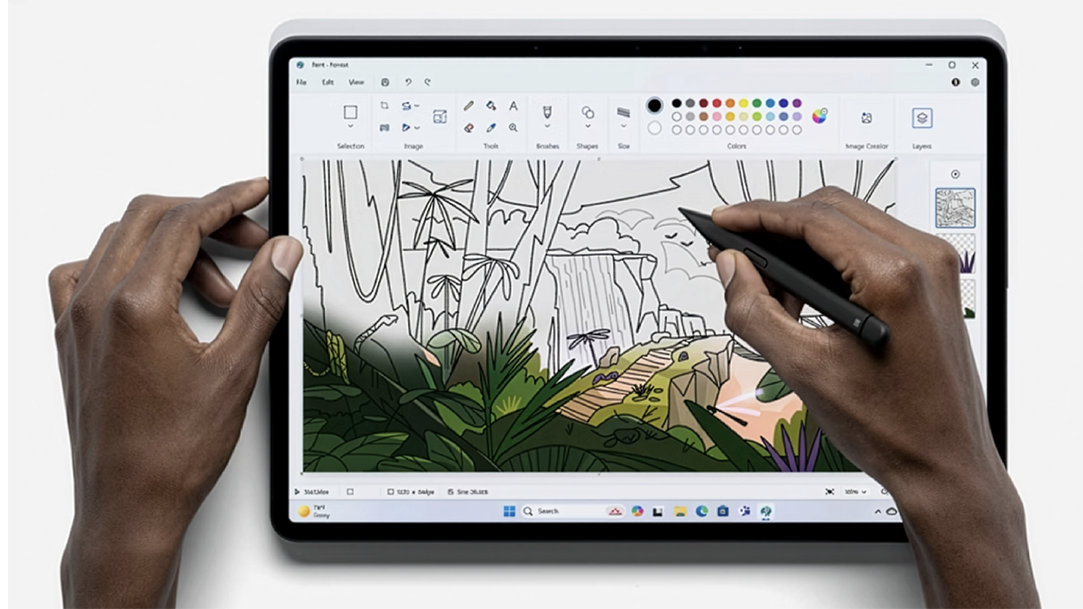
Opening Paint feels a little like flipping open a favorite sketchbook: inviting, pressure-free, and ready whenever your ideas are. The new Windows 11 interface gives Paint a clean layout and a more modern feel, with tools that are easy to find and even easier to experiment with.
And once you start drawing, you’ll quickly see how Paint’s updated features aren’t just upgrades, they’re aligned with the real steps artists take when building a piece.
Brushes and inking tools make drawing feel good
Smooth, responsive brushes aren’t just a nice-to-have; they’re the foundation of expressive digital drawing. In Paint, the brush engine feels more natural, especially with a stylus. Strokes taper the way your hand intends. Pressure creates real variation. Even simple shading gets a gentle, hand-drawn quality.
If you’re using a pen-enabled device, a quick visit to Pen & Windows Ink settings (where you can adjust pressure sensitivity, haptics, and stroke reassurance) can make your lines feel even more natural.
Advanced color tools let you dial in your style
Color is where your personality shows up, and Paint gives you the tools to be intentional about it. With support for RGB, hex, and HSV color options, it’s easy to maintain consistency across your work, especially if you’re developing characters or recurring themes.
You might like this approach:
Create a mini color palette along the edge of your canvas. Drop in swatches for skin tones, shadows, highlights, or theme colors. It keeps your palette visible and gives your art a cohesive style.
Paint’s eyedropper tool also makes it easy to pull colors from references or from Image Creator results.
Layers help you experiment without the stress
Layers are one of the biggest creative boosts in Paint because they bring structure to your drawing without limiting your imagination. Instead of treating your artwork like one fragile sheet of paper, layers let you break it into pieces you can develop independently. You’ll find the Layers panel pinned to the right side of the canvas, ready whenever you need it.
Here’s how many artists naturally build a piece in Paint:
And with everything separated, it’s so much easier to tweak, explore, and keep your creative momentum going.
Image Creator gives you instant visual inspiration
We all have those days when our brain says, “Draw!” and our hands say, “… what exactly?” Paint’s Image Creator, available right in the top toolbar, helps solve that. It generates visuals from a short text prompt, but its real value is how it fuels your imagination.1,2
Instead of scrolling endlessly for poses, lighting setups, or atmospheric scenes, you can create them in seconds. Just open Image Creator, type your prompt, pick a style, and watch references appear that you can build from, refine, or reinterpret entirely in your own voice.
Drawing software that’s ready for whatever you dream up next
Microsoft Paint hits the sweet spot between simple enough to open on a whim and powerful enough to shape real ideas. It launches fast, keeps the pressure low, and gives you creator-friendly tools like layers, rich brushes, precise colors, and AI inspiration. It’s an easy place for your imagination to stretch, play, and make something you didn’t expect.
And with Windows 11 powering it all, you’ve got everything you need to dive in. Find the Windows PC that's right for you and explore your creative side in Paint today.


