This is the Trace Id: e471274dd2e8794ab95684b4e30ae79d
Skip to main content
Windows
A dual monitor setup with a laptop, keyboard, headphones, and mouse on a desk

December 15, 2025

Why a dual monitor setup makes sense with your laptop

Ever try writing an email while hopping between a spreadsheet, a chat, and a Teams call—all on one tiny laptop screen? It’s like juggling flaming torches in a phone booth. Enter the hero of modern productivity: the second monitor. Add a second monitor, and suddenly your workflow feels wide open. With just one extra screen, your workflow opens up, and your Windows laptop becomes an even more efficient multitasking setup.

Dual monitor setup: multitask without the madness

A dual monitor setup with your laptop means no more frantic tab-shuffling. Picture this: you’re in a virtual meeting on one screen while taking notes or updating a doc on the other. Or you’re editing photos with full-screen previews on one display while keeping your tools open on the second.

And here’s the kicker—Copilot+ PCs, Microsoft’s new Windows AI PC, take everything Windows 11 does best—speed, creativity, and convenience—and supercharges it. These top performers are faster than the MacBook Air with M4 and up to five times quicker than a five-year-old Windows device.1 Translation? You’ll actually feel the difference in every keystroke, drag, and drop.

Pro move: Use your laptop screen for communication (chat, email, and calls) and your second monitor for deep work. It helps reduce distraction.

Real-life wins with a dual monitor setup

Dual screens aren’t just for techies; they fit into everyday tasks.

  • Remote workers: Keep video calls open while cranking out reports.
  • Students: Research on one screen, write essays on the other. Hello, organized brain.
  • Creators: Video editors, coders, and designers finally have space to spread out timelines, tools, and previews.

Tip: Flip your second monitor into portrait mode for reading, coding, or scrolling long docs. Feels like holding a giant digital book.

Setting up your second screen (it’s easier than you think)

Setting up a second monitor on Windows is actually pretty smooth—and Windows 11 makes it even easier once you're plugged in:

  1. Plug it in: Most laptops handle HDMI, USB-C, or DisplayPort. Docking stations give you more options. If you're going wireless, grab a display adapter and follow the instructions to connect via Settings > System > Display > Connect to wireless display.
  2. Choose your display mode: Open the display options with Win + P and select Extend. This gives you the expanded desktop space you want.
  3. Fine‑tune settings: Go to Settings > System > Display. Here you can rearrange screens by dragging their icons, set your main display, adjust orientation (like portrait vs. landscape), resolution, and scale.
  4. Fix hiccups fast: If your laptop doesn’t recognize the display, try Win + P again to reselect “Extend,” check cables, update drivers, or disconnect any docks or adapters that might interfere.

Quick win: Arrange the on-screen monitors to match their real-world position—so dragging your mouse from one to the other feels natural.

Monitors and accessories worth considering

Not sure what type of monitor to add? Here are a few ideas:

  • Budget-friendly monitors: Solid displays perfect for students or small home offices.
  • Portable monitors: Thin, light, and powered by USB-C—great for coffee shops or travel.
  • Accessories: Monitor stands, cable organizers, and docking stations that turn your desk into mission control.

Good to know: Check your laptop’s ports before buying. The right monitor saves you from adapter overload.

Pro tips for mastering dual monitor setups

Once your second monitor is up and running, the real magic comes from learning a few built-in Windows features that help you organize and move faster. These tools make dual-screen life feel effortless instead of overwhelming:
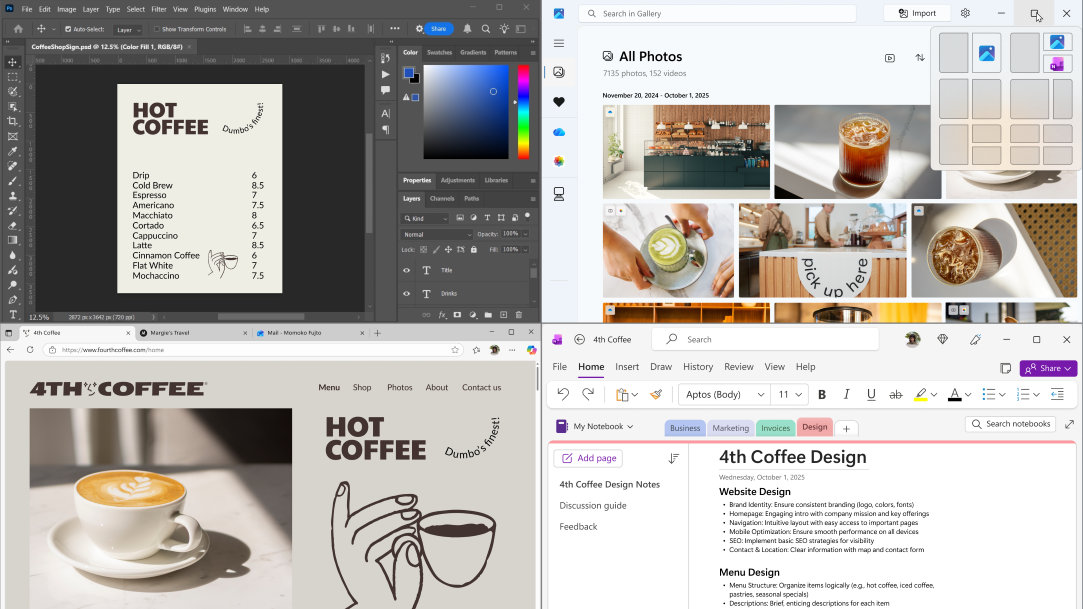
  • Snap layouts: This Windows 11 feature is like window-Tetris. Drag a window to the edge or corner, and it “snaps” into place. Hover over the maximize button to see preset layouts—like side-by-side, three-column setups, or one large window with two smaller ones stacked. Perfect for comparing spreadsheets, editing while referencing notes, or streaming a webinar while jotting down ideas.
The Snap feature shows how easy it is to arrange windows into organized preset layouts
  • Virtual desktops: Create separate desktops for work, study, or personal projects so you can stay organized without mixing everything together.
  • Keyboard shortcuts: Use Win + Arrow keys to move apps between monitors instantly, or Win + Tab to see all your open apps at a glance.

A little extra screen, a lot more freedom

Adding a second monitor isn’t just about more pixels. It’s about reclaiming focus, flow, and fun in your day. With dual screens, Windows 11, and the powerhouse performance of Copilot+ PCs, you can work smarter, create faster, and stress less. Shop Copilot+ PCs and explore Windows 11 today.

  • DISCLAIMER: Features and functionality subject to change. Articles are written specifically for the United States market; features, functionality, and availability may vary by region. 
  • [1] Based on Cinebench 24 Multi-Core benchmark. Performance varies significantly by device. See aka.ms/cpclaims

Mentioned in this article

Windows 11 bloom

Shop Copilot+ PCs

Windows 11 bloom

Benefits of Windows 11

Windows 11 bloom

Find the Windows PC that's right for you

You may also like

Overhead view of a person with a laptop box and gift-wrapping material, while also using a laptop

Get Started with Copilot+ PCs

Unlock AI-powered productivity with Copilot+ PCs. Personalize your PC for smarter, faster performance.
Two Surface devices, one showing the Copilot bloom

Why a Microsoft Surface is the best Copilot+ PC experience

Learn the advantages of Surface Copilot+ PCs and how Copilot+ PCs differ from other computers.
Copilot+ PCs for productivity and play

Copilot+ PCs for productivity and play

See how Copilot+ PCs use built-in AI to boost creativity, gaming, and multitasking.
