
March 19, 2024
Share this page


How to clean your laptop keyboard
Your laptop keyboard can quickly accumulate dust, crumbs, and other debris, leading to an unpleasant typing experience. Cleaning your laptop keyboard is essential for maintaining its functionality and hygiene. Learn how to clean your laptop keyboard safely and effectively.
Why cleaning your laptop keyboard is important
Maintaining a clean laptop is a crucial preventive measure against viruses and diseases. Bacteria, germs, dust, grime, and even food crumbs can accumulate on the keyboard, making regular cleaning vital for a healthy workspace. Apart from the health benefits, a clean keyboard guarantees smooth and responsive typing, extends its lifespan, and prevents costly repairs or replacements. It also enhances your overall computing experience by reducing frustration caused by sticky keys or slow responsiveness.
Incorporating a regular cleaning routine for your keyboard not only promotes healthy hygiene but also boosts computer performance, ensures your computer's longevity, and enhances your productivity by preventing potential downtimes due to keyboard issues. So, don't overlook the importance of a clean keyboard in maintaining a healthy, efficient, and long-lasting computer.
How to clean a laptop keyboard
Now, let's explore the step-by-step process of cleaning your laptop keyboard safely:
1. Power off your laptop
Before you start cleaning, turn off your laptop and unplug it from any power source to avoid electrical hazards.
2. Gather your cleaning supplies
You will need the following supplies:
- A microfiber cloth or cotton swabs
- Isopropyl alcohol (70% or higher)
- Compressed air can
- Small screwdriver (if necessary)
3. Shake out loose debris
Hold your laptop upside down and gently shake it to dislodge loose debris like crumbs and dust.
4. Use compressed air
Use the compressed air can to blow away remaining dust and particles from between the keys. Ensure you hold the can upright to prevent any moisture from escaping.
5. Clean the keycaps
Dampen a microfiber cloth or cotton swab with isopropyl alcohol and gently wipe the keycaps. For stubborn stains, you can use a mixture of water and a mild detergent.
6. Clean between the keys
Dip a cotton swab in isopropyl alcohol and carefully clean between the keys to remove dirt and grime.
7. Allow to Dry
Let your laptop keyboard air dry for at least 10-15 minutes before powering it back on.
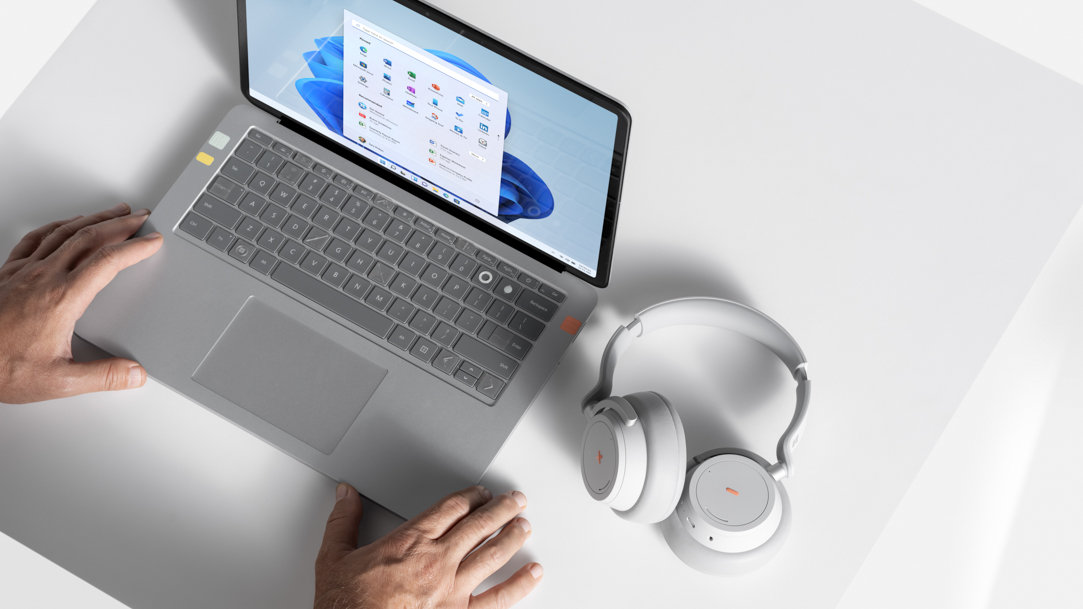
For a highly durable laptop keyboard, consider purchasing a Microsoft Surface device. They offer a comfortable typing experience, are easy to clean, and have a plethora of accessories suited for your needs. You can enhance your experience with accessories like the Surface Pro Signature Keyboard or Surface Arc Mouse, which offer ergonomic design and easy connectivity.
Maintaining a clean laptop keyboard is essential for optimal performance and hygiene. By following our step-by-step guide on how to clean a laptop keyboard, you can ensure that your keyboard remains in top condition. Remember, regular cleaning and proper maintenance can prolong the lifespan of your laptop keyboard and enhance your overall computing experience.
Ready to experience the exceptional performance and design of Microsoft Surface devices and accessories? Try Microsoft Surface today and elevate your computing experience.
Products featured in this article

Surface Pro Signature Keyboard
Surface Arc Mouse
Related topics

Tips for your Surface Pro Signature Keyboard

How to attach and use your Surface Pro Keyboard
