April 09, 2026
Share this page


If you’re a Windows user, you have a set of built‑in photo and video editing apps that are ready to use when you are. Microsoft Photos, Clipchamp, Paint, and Snipping Tool cover the most common editing tasks, such as cleaning up photos, cutting videos, capturing screens, and sharing results. Each app is designed for specific tasks. Together, these tools form a practical editing stack that fits into creative workflows.
The quick answer
Each app has a clear role and, when used together, supports most everyday photo, video, and visual content tasks on Windows 11. Start here:
Best built‑in Windows 11 photo editor: The Photos app
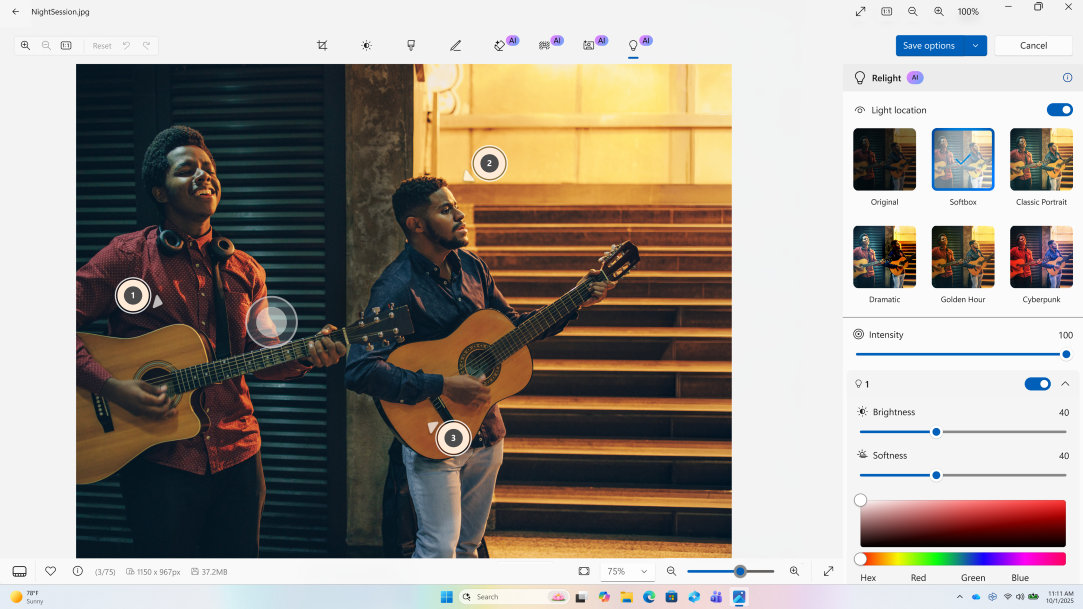
The Photos app is the primary photo editor on Windows 11 and serves as a central photo library.
Use the Photos app to:
The Photos app brings together images and videos from your PC, OneDrive,1 and iCloud Photos, making it easy to review, organize, and share content across devices.
AI‑powered tools help speed up common photo adjustments. Relight helps users change the lighting in a photo, making it easier to fine‑tune portraits or draw focus to a subject. Super resolution helps users upscale older or low‑quality photos, which can be especially useful for improving images captured on earlier mobile devices.
Pro tips for prosumers
The Photos app works well for batch workflows. Import a set of images, review quickly, apply consistent adjustments, and export clean files. Edits are non‑destructive, so you can revisit decisions without starting over.
Learning keyboard and mouse shortcuts can make the Photos app feel significantly faster, especially when working through larger sets.
When to use something else
The Photos app is designed for fast, practical edits. For complex compositing or advanced color grading, specialized tools may be a better fit. For everyday photo work, use the Photos app to keep your workflow moving.
Best built‑in Windows 11 video editor: Microsoft Clipchamp
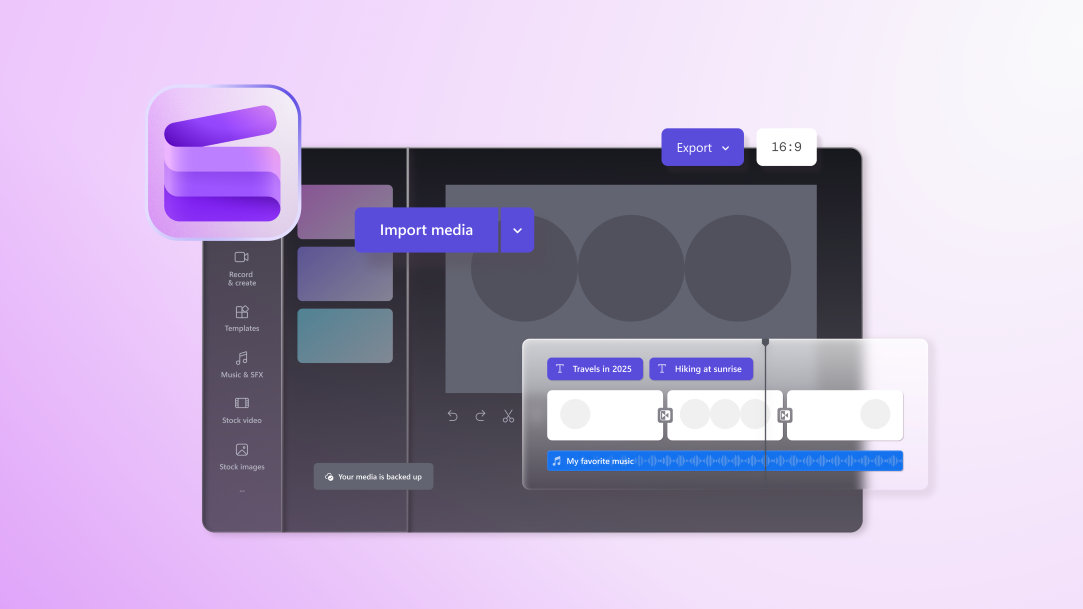
Microsoft Clipchamp2 is the built‑in AI-powered video editor available in Windows 11. Designed for modern creation workflows, Clipchamp supports both templates3 and a full timeline, making it easy to start quickly and refine videos as needed.
Trim and split clips, add captions and transitions, adjust audio, and resize your video for different platforms. Use features like automatic captions, noise suppression, and silence removal to clean things up in the background, so voice‑driven and short‑form videos take less effort to finish.
A repeatable prosumer workflow
A simple rhythm works well. Start with a template to set the pace. Switch to the timeline to tighten cuts and adjust timing. Make an audio pass to balance voice and music. Then add captions, titles, and alternate versions in formats like 16:9, 9:16, or 1:1.
Export guidance
When you’re ready to export, choose the highest practical resolution for where you plan to publish it. Keep your frame rate consistent, listen once more for audio balance, and give the file a clear name before saving.
Best built-in app for graphics and illustration: Paint
Paint has grown from a basic drawing app into a lightweight creative tool for Windows. It’s still easy to use but now offers more modern features for people who want to sketch ideas, create graphics, build layered compositions, or make AI-assisted edits.
Paint is perfect for:
Standout feature: Generative Erase
The AI tools in Paint are designed to enhance your workflow and are ideal for removing distractions or unwanted objects. For example, generative erase is one of several AI‑assisted creative tools in Paint, helping users remove unwanted elements while supporting broader composition and illustration workflows.
Pair Paint with Photos
Paint and Photos serve different but complementary creative purposes on Windows. Use Paint when you want to create, compose, or illustrate—such as building digital artwork, combining images, or restyling photos with creative effects. Use Photos when you want to enhance, touch up, organize, and export individual photos. Rather than following a linear workflow, these apps work best when you choose the one that matches your creative goal.
Best for capturing and annotating content: Snipping Tool
Snipping Tool has been part of Windows for years, and in Windows 11 it’s more powerful than ever, with a cleaner design, smarter shortcuts, built‑in screen recording, and productivity‑focused capture features.
Snipping Tool is a fast way to capture content for tutorials, bug reports, product shots, or social posts. In addition to freeform, window, and full‑screen captures, it includes inline Quick Markup tools, a built‑in Color Picker for identifying on‑screen colors, and Perfect Screenshot—an AI‑powered capture mode that helps users get the shot they want without extra cropping.
Pro tips
Bonus: Copilot on Windows for creative prep
Copilot on Windows4 (your AI assistant) is ready to help you think, plan, and get things done right from your desktop. Use Copilot to help you prepare the creative work you plan to do in the Photos app, Clipchamp, and Paint, such as:
Which built‑in app should you use?
The tool you choose depends upon the task at hand. For example:
Frequently asked questions


