This is the Trace Id: e703f4331ba780abf3a8ee824bb7770c
Skip to main content
Windows
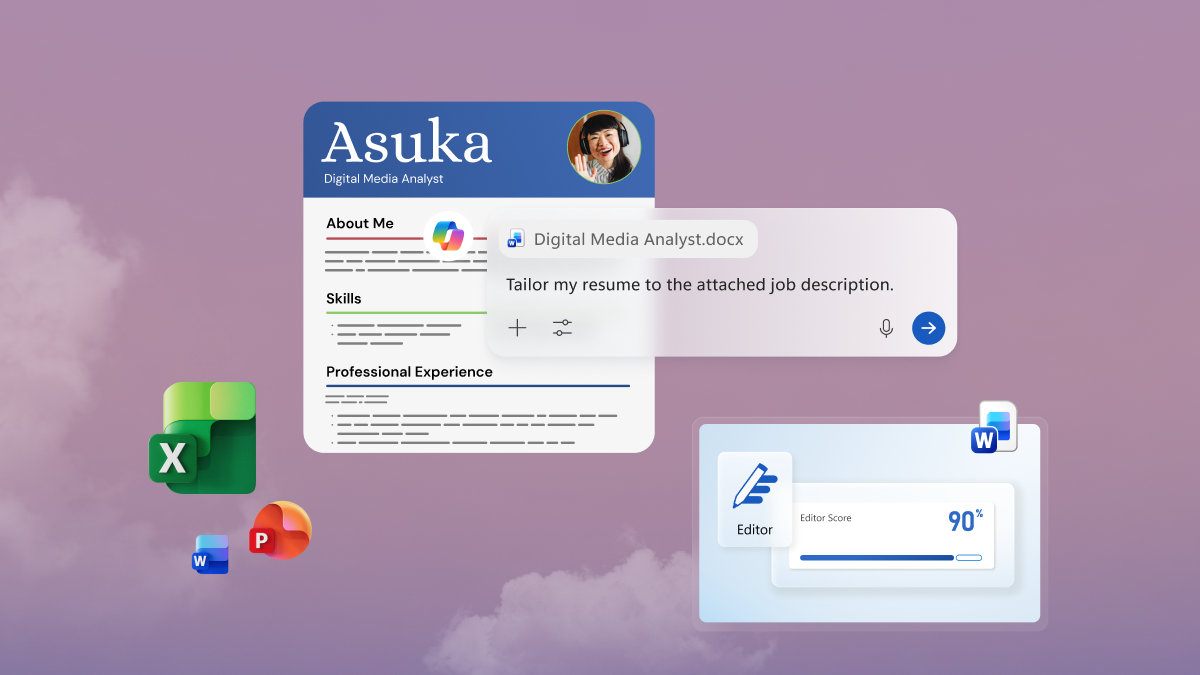
Copilot in Word generating a tailored resume from a job description

May 20, 2026

Get more done with Copilot in Microsoft 365 Apps on Windows

ⓘ In this article:
  • Copilot is built directly into Microsoft 365 apps (Word, Excel, PowerPoint, Outlook, and more) so there's no separate tool to learn; you access it via the Copilot icon in each app.
  • Each Microsoft 365 app has tailored AI capabilities: drafting and editing in Word, plain-language data analysis and formula writing in Excel, converting outlines into slide decks in PowerPoint, and inbox summarization and reply drafting in Outlook.
  • The Microsoft 365 apps work alongside you, every step in your workflow. You can move from summarizing emails in Outlook, to drafting a document in Word, to analyzing data in Excel, to building a final presentation in PowerPoint, with Copilot supporting each step.

Copilot in Microsoft 3651 is an AI-powered assistant built directly into the apps you use every day—Word, Excel, PowerPoint, and Outlook. It works alongside your existing workflows on Windows 11, so there's no separate tool to open or learn. Whether you're drafting a document, sorting through a full inbox, or trying to make sense of a spreadsheet, Copilot is there where you need it. 

Draft and edit documents faster in Word

Starting a document is often the hardest part. Copilot in Word removes the blank-page problem by turning a short prompt or rough idea into a working first draft — so you can spend your time refining instead of starting from scratch.

Here are some ways Copilot in Word can help: 

  • If you need to write a project status update for a non-technical audience, type a quick description and let Copilot draft it. You edit from there rather than starting from nothing. 
  • If a document is too formal, too casual, or too long, ask Copilot to rewrite it in the tone you want. 
  • If you've finished a long meeting or comprehensive research study and need to condense it, Copilot can create a summary of key points. 

To access Copilot in Word, look for the Copilot icon in the bottom right corner of the app. You can ask it to continue writing from your cursor, generate alternatives, or explain why it made certain edits. 

For the best results, be specific with your prompts. "Write a three-paragraph project status update for a VP audience" gives Copilot more to work with than "summarize the project." 

Analyze data and build formulas in Excel

Excel is already a powerful tool for tracking data and planning budgets. Copilot in Excel2 lets you ask questions in plain language to get formula suggestions, clean up messy data, spot trends, and create charts – all without manual coding or complex setup.

Here are some ways Copilot in Excel can help: 

  • If you notice a dip in your data and want to understand why, ask "What drove the drop in March?" and get a straightforward answer. 
  • If you need a formula but can't remember the syntax, describe what you want to calculate, and Copilot will write it for you. 
  • If your spreadsheet has inconsistent formatting or duplicate entries, ask Copilot to clean it up. 
  • If you want a quick summary of your data, ask Copilot to create a chart or PivotTable without building it manually.

To get started, save your workbook to OneDrive and turn on AutoSave—Copilot in Excel can only be used with Excel files that have been saved to OneDrive with AutoSave enabled. Then click the Copilot icon to access Copilot chat. 

To get the most out of Copilot, share your goal, not just the task. "Help me identify what drove the change in Q3" gives Copilot more context than "summarize column C." 

Build presentations from ideas and documents in PowerPoint

Turning your ideas, notes, or data into a polished slide deck can be time-consuming—especially when you're also the one who has to present it. Copilot in PowerPoint can take what you already have and build a structured presentation from it, so you can focus on your message instead of the mechanics.

Here are some ways Copilot in PowerPoint can help: 

  • If you have a completed Word document, a rough outline, or even just notes, Copilot can convert it into a slide deck with structure, headings, and layout suggestions.
  • If your slides need cleaner language or stronger speaker notes, ask Copilot to rewrite them. 
  • If your presentation lacks a clear narrative thread, Copilot can suggest how to restructure it so your story flows from slide to slide.
  • If you need to create a slide deck fast, Copilot can create an entire presentation for you from a single prompt.

You'll find the Copilot icon in the bottom right corner in PowerPoint. You can keep the Copilot panel open while you work to ask follow-up questions and refine slides as you go. 

You can start with whatever you have, even if it’s a one-line idea or a messy outline. Copilot can turn a rough beginning into a structured deck that you refine from there. 

Manage your inbox more efficiently in Outlook

A full inbox at the start of the day can set the wrong tone for everything that follows. Copilot in Outlook helps you get on top of it faster by surfacing what matters and helping you respond more quickly. 

Here are some ways Copilot in Outlook can help: 

  • If you’re added to a long email thread, ask Copilot to summarize it so you understand the situation without reading every message. 
  • If you need to respond to several emails, ask Copilot to draft replies that match the right tone (professional, direct, or conversational) and edit from there. 
  • If you're not sure what needs your attention first, Copilot can help you prioritize so you focus on the conversations that matter most. 

Use Microsoft 365 Apps together for an end-to-end workflow

Each Microsoft 365 app can save you time on its own—but the greatest benefit comes when everything works together on Windows 11. Instead of jumping between tools and losing focus, you can move seamlessly from one task to the next, with Copilot supporting you every step of the way. Your day might look something like this:

  1. Start in Outlook: Ask Copilot to summarize your inbox and highlight what actually needs your attention.
  2. Move into Word: Turn those conversations into a draft proposal or document in minutes.
  3. Switch to Excel: Pull in your data and quickly uncover the insights that back up your work.
  4. Finish in PowerPoint: Turn everything into a presentation that’s ready to share—with structure and speaker notes already in place.

On Windows 11, Copilot stays with you across your workflow, helping you move forward without losing momentum. 

The result? Less time managing tools, and more time getting meaningful work done. 


Frequently asked questions

  • Copilot is built directly into apps like Word, Excel, PowerPoint, and Outlook. You access it through the Copilot icon in the bottom right corner of each app. From there, you can type prompts in plain language — asking Copilot to draft content, summarize information, analyze data, or improve what you've already created. It works within your existing documents and files, so there's no need to copy content into a separate tool.
  • Copilot is available in Word, Excel, PowerPoint, and Outlook, as well as Teams. Each app has its own Copilot capabilities tailored to the kind of work you do there — writing and editing in Word, data analysis in Excel, slide creation in PowerPoint, and email management in Outlook.
  • Yes. Copilot in Microsoft 365 Apps1 is included with Microsoft 365 Personal, Family, and Premium plans. AI features apply to the subscription owner and cannot be shared; usage limits apply. Features and availability may vary by device, platform, and region.
  • Copilot can help you draft and create content from scratch, summarize long documents or email threads, analyze data and surface insights, rewrite or refine existing content, build presentations from ideas or documents, and manage your inbox more efficiently. Across apps, it handles the time-consuming starting work so you can focus on thinking, deciding, and creating.
DISCLAIMER: Features and functionality subject to change. Articles are written specifically for the United States market; features, functionality, and availability may vary by region. 
  • [1] Microsoft 365 Premium, Family, or Personal, subscription required; AI features only available to subscription owner and cannot be shared; usage limits apply. Learn more. Minimum age limits may apply to use of AI features. Details.
  • [2] Copilot in Excel requires AutoSave to be enabled, meaning the file must be saved to OneDrive; it doesn’t function with unsaved files. AI features are only available to the subscription owner and cannot be shared; usage limits apply.