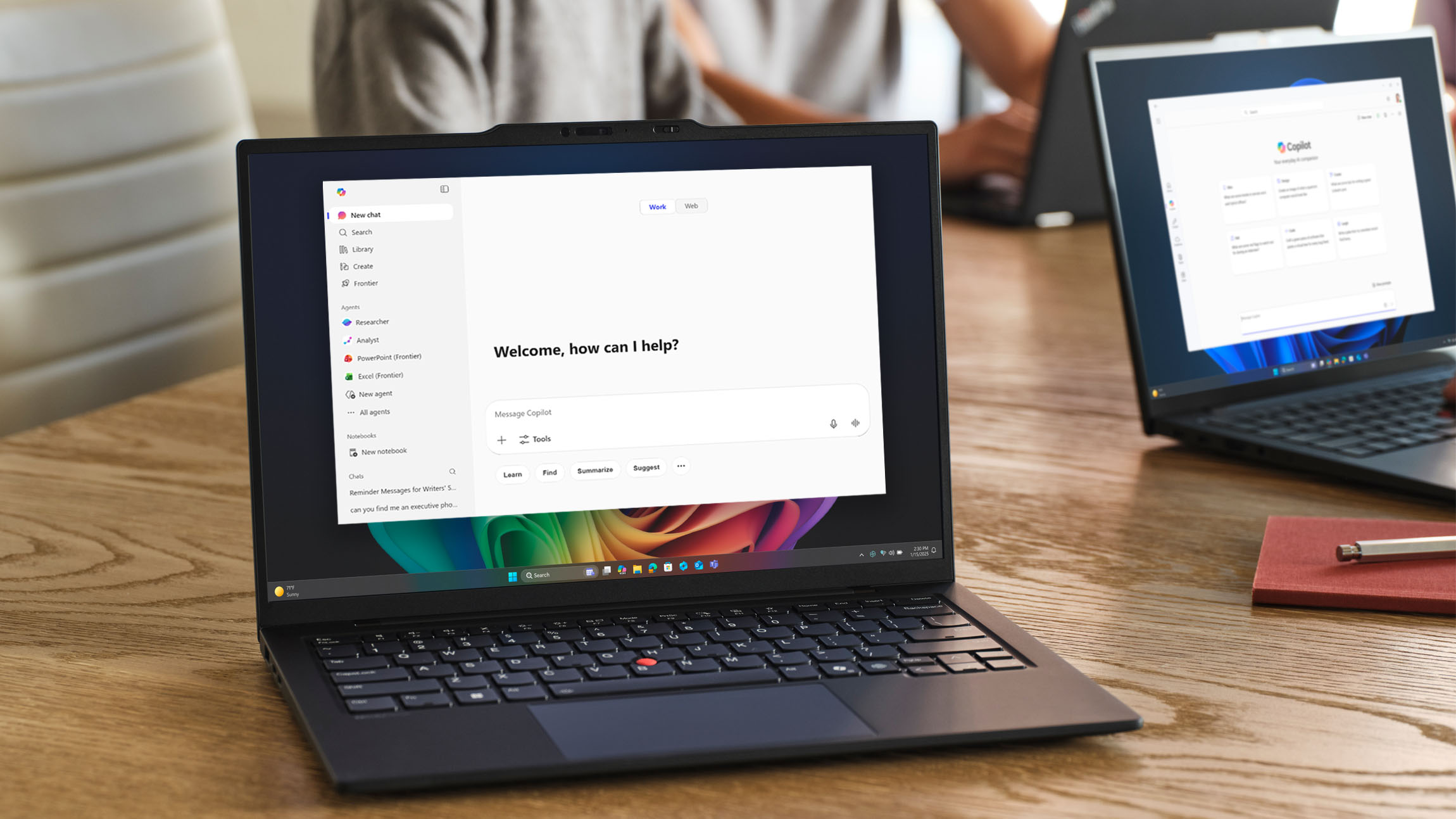
Since its launch in 2023, Microsoft 365 Copilot has evolved from a single AI assistant into a full squad of powerful AI sidekicks, including chat, search, agents and many more.
And with the introduction of agents, Copilot can now also act on your behalf—agents extend the capabilities of Microsoft 365 Copilot beyond conversation, giving you the power to elevate how you work, create, and make decisions.

“Copilot agents free you from the manual work, so you can concentrate on big-picture thinking.”
Eva Etchells, senior content program manager, Microsoft Digital
The challenge today isn’t whether to use an agent or Copilot module to help you accomplish more—it’s knowing which one to use, and when to use it. Making the smart choice can help you produce amazing work while streamlining workflows and reducing friction.
“Copilot agents free you from the manual work, so you can concentrate on big-picture thinking,” says Eva Etchells, a senior content program manager in Microsoft Digital, the company’s IT organization.
Copilot thinks; agents ‘do’
Agents, simply explained, are purpose-built tools designed to automate tasks, handle repeatable work, and save time by improving efficiency. You can even create your own agents to match the way you work.

“I use several agents to simplify repetitive daily tasks. They help me stay organized, quickly research what I need, and analyze information so I can focus my energy on the work that requires the most strategic thinking.”
Opeoluwa Burnett, senior product manager, Microsoft Digital
If Copilot and its modules help us think, create, and explore, then think of its agents as entities that execute and automate tasks.
Choosing the right agent or module is like selecting the right tool for a job: You want the one that fits the task at hand and helps you get your work done more quickly with less effort.
“Now I can quickly ask an agent to create a one page vision document in Word because the agent does the heavy lifting,” says Opeoluwa Burnett, a senior product manager in Microsoft Digital. “I use several agents to simplify repetitive daily tasks. They help me stay organized, quickly research what I need, and analyze information so I can focus my energy on the work that requires the most strategic thinking.”

Read about how Opeoluwa Burnett uses Copilot
Facing agent adoption challenges
At Microsoft, we’re still navigating a few common challenges related to agent adoption:
- They have access to agents and the ability to create them but often feel overwhelmed or unsure where to begin.
- For those still learning Copilot, agents can feel like an additional hurdle.
- Others who’ve embraced “regular” Copilot may not realize that agents exist or know how to find them.
Our use of Copilot and AI agents continues to evolve. As Customer Zero within Microsoft Digital, we want to share how we’re using agents today, as well as what we’ve learned along the way.
Here’s a rundown of how our employees are using Copilot tools and agents to accomplish tasks faster and more efficiently:
Where to begin: Copilot Chat
Chat is often the starting point—the launchpad where you provide a prompt and kick off your interaction with Copilot.
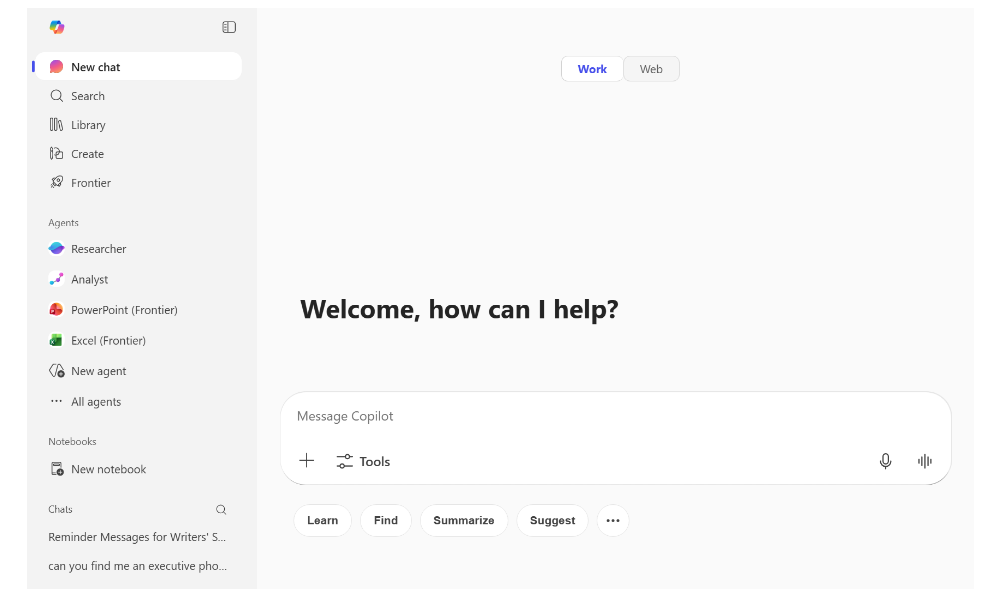
Here you can search for general answers, explore complex queries, get quick results, or discover a Copilot agent that can help you complete your task.

“Copilot is a productivity booster. I can ask it to help me brainstorm and structure a use case and the results are pleasantly surprising, especially as the Copilot ecosystem continues to evolve and we fast-track new capacities.”
Swapna Malekar, principal product manager, Microsoft Digital
When Swapna Malekar needed to create a presentation with a short turnaround time, she turned to Copilot. So Malekar, a principal product manager in Microsoft Digital, shared a screenshot of the slide she was planning to present with Copilot. The tool generated a presentation-ready script she could then read aloud in her meeting later that day.
Now, she incorporates Copilot into her everyday workflows.
“Copilot is a productivity booster,” Malekar says. “I can ask it to help me brainstorm and structure a use case and the results are pleasantly surprising, especially as the Copilot ecosystem continues to evolve and we fast-track new capacities.”
Seamless workflows with Copilot applications
Because Copilot is built into Microsoft 365 apps like Word, Excel, PowerPoint, OneNote, OneDrive, and Teams, you can navigate seamlessly between tools without losing context. Your Copilot Chat history follows you, no matter where you start.
That flexibility means you can work the way you naturally do. You might start a Copilot Chat in Word while drafting a document, then switch to Excel or Teams and continue the same conversation without needing to reset or start over.
There’s no single “right” way to use Copilot. Everyone approaches work differently, but Copilot meets you where you are, whether in the browser or in your go-to app, while helping you reach the same solution.
“Choosing the right Copilot for the job is like being in one of those ‘Choose Your Own Adventure’ books,” Etchells says. “You pick the path you want to go, and you set off on your journey.”
Speed and efficiency: Copilot search
Copilot search shares the same underlying technology as chat. The purpose of the search function in Copilot is to process requests and retrieve results. The difference between the two lies in how the results are delivered.
Chat is designed for more explorational interactions, while search prioritizes fast, targeted access to content and links.
“The value prop for Copilot search is simple: Get what you’re looking for faster.”
Vasanthi Vangipurapu, senior product manager, Microsoft Digital
Search administrators also have access to the admin portal, where they can customize features such as bookmarks that know what employees are usually looking for when they search common terms.
“The value prop for Copilot search is simple: Get what you’re looking for faster,” says Vasanthi Vangipurapu, senior product manager in Microsoft Digital. “When I need specific answers quickly, I use Copilot search. If I want to explore further, I love that it redirects me to Copilot Chat to continue my conversation there.”
Any employee
What Copilot search can do: Find a shared file when you have limited details.
Sample prompt: “Find the file shared with me by (name) within the last six months. I don’t remember where it was shared. Search across Outlook, Teams, OneDrive, and SharePoint.”
Data compliance manager
What Copilot search can do: Understand what data Copilot can access, how it’s processed, and how residency and retention of data are handled.
Sample prompt: “Explain what data Microsoft 365 Copilot can access within my organization, including how it respects existing permissions and role-based access controls. Describe how data residency is handled for Copilot processing and outline what logging, retention, and audit trail information is available to administrators.”
Technical writer
What Copilot search can do: Generate a cloud architecture diagram or flow chart to support documentation.
Sample prompt: “Create a vector-style cloud architecture diagram showing users, load balancers, web servers, application tier, and cloud database. Use minimalistic icons, blue/gray palette, simple arrows, and white background.”
Visuals at your fingertips
Copilot Create is a design generator that helps you produce visual assets such as images, posters, infographics, banners, branding, and video. It’s an especially useful tool for people who aren’t professional designers, but who need to create visuals quickly as part of their workflow.
The Create module also supports rapid iteration, making it easy to refine results without starting from scratch. You can adjust layout, tone, or visual direction through simple prompts. This lets you explore multiple approaches and keep creative momentum without getting bogged down in detail.
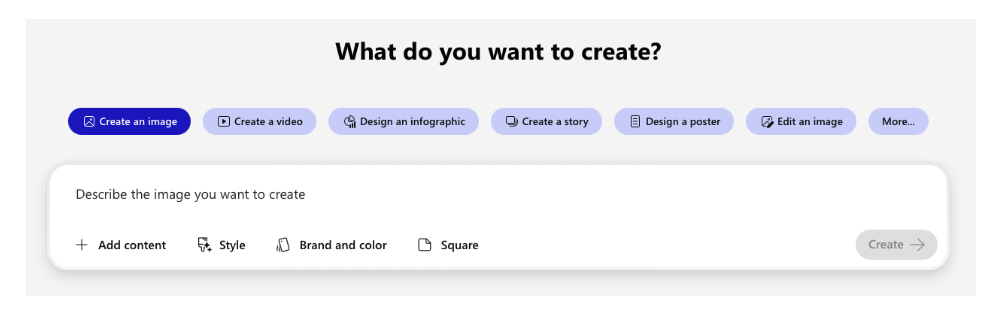
You can give Create a prompt, even a rough one. It often results in unexpected visual directions you may have not considered on your own—a bit like having an enthusiastic creative partner who’s tossing new issues and helping you discover fresh variations.
While you can also use Copilot Chat to generate visual assets, Copilot Create offers a consolidated experience specifically built for visual design.
Here are prompts you can try in the Copilot Create module:
Marketing manager
What Copilot Create can do: Turn a PowerPoint deck into a branded marketing video for a product launch.
Sample prompt: “Turn this PowerPoint deck into a high-quality, 45- to 60-second marketing video designed for prospects and customers.
Tone: modern, energetic, and brand-aligned
Include: clear voiceover script, punchy on-screen text, smooth transitions
Highlight: key value props and visuals from each slide
Add: subtle animation and upbeat music
Output: 1080p MP4 video + options for a shorter cut and social formats”
HR manager
What Copilot Create can do: Create an employee-friendly infographic from a policy document.
Sample prompt: “Turn this HR policy document into an engaging infographic.
Audience: all employees
Style: simple, friendly, and easy to scan
Include: key rules, do/don’t lists, and any required steps
Use: icons, color coding, and clean layout
Output: a single-page PNG plus a version sized for intranet posting”
Analysis and insights: Copilot Researcher agent
The Copilot Researcher agent acts as your supercharged research partner, providing deep analysis and generating detailed reports. You can use Researcher to quantify the expected impact of a new feature, gather usage data, analyze audience insights, and project outcomes based on target user logistics.
Here are some prompts you can use to get started with Copilot Researcher:
Product manager
What Researcher agent can do: Quarterly product feature planning
Sample prompt: “Review emails, files, and meeting transcripts, to surface insights about where employees experience friction in daily workflows.”
Business analyst
What Researcher agent can do: Documentation optimization and process improvement
Sample prompt: “Analyze the following documentation and generate detailed, actionable ideas to improve clarity, structure, usefulness, and alignment with business goals.”
Engineer
What Researcher agent can do: Improve upon code
Sample prompt: “I want to improve the following code for a software feature (insert detailed description, including the software name, programming language, targeted platforms, and what it does). Help me come up with ways to make the code better using best practices. Generate clean, optimized code and explain the rationale behind each decision.”
Streamlined operations: Employee Self-Service Agent
The Employee Self-Service Agent helps employees quickly find answers to their questions relating to human resources, IT support, and campus services topics.
This tool now serves as a centralized entry point for HR, IT, and facilities support at Microsoft. The agent removes the guesswork, delays, and frustration that our employees used to experience when searching across multiple systems, websites, and knowledge bases for answers to their employment-related queries.
“Our employees rely on AI tools like Copilot to help get their work done,” says Becky West, a principal group product manager for Microsoft Digital. “And the same is now true for resolving an issue related to facilities and other high-prio employee self-service topics.”
Here are some prompts that you can use to get help from your Employee Self-Service Agent:
As an employee, I want to
- Shower after riding my bike to work
- Learn more about the upcoming return to the office requirement
- Find out what’s for lunch at my cafe
- Catch a Connector bus to my neighborhood in Seattle
What the Employee Self-Service Agent can do
- Help you locate a bathroom near you that has a shower
- Guide you on the requirements for returning to the office
- Tell me what’s on the menu at my café
- Help you find a Connector bus to reserve
Sample prompt
- “Is there a locker room in building 3?”
- “How many days am I expected to be in the office each week?”
- “What’s available at Café 31 today?”
- “Help me find a Connector bus route to Capitol Hill.”
Intelligent collections: Copilot Notebooks module
The Copilot Notebooks module is an interactive workspace that combines the flexibility of a notebook with the intelligence of an AI notepad. Copilot makes it easy to add your chats to a Copilot Notebook, where it can review all included content, summarize information, and answer questions about it—making it easier to navigate large collections of files, presentations, and notes. Notebooks can also be shared, making them useful for teams collaborating on a common goal.
For perspective, Copilot Notebooks is designed for project-based work where you can gather files, references, notes and have Copilot collectively reason over them, while Copilot in OneNote enhances notetaking, content creation and not project-specific reference modeling.
Some of our employees use Copilot Notebooks to prepare for their performance reviews. Instead of scrambling to gather six months of their work, feedback, and other documentation, they easily can assemble everything in one place using the Notebooks module.
“I can take all the campaigns I’ve worked on, the metrics, and any praise I’ve received, drop it all into a Word doc and add it to my Review notebook,” Etchells says. “Then I ask Copilot to tell me how I contributed to each campaign. It saves me a ton of time.”
Here are prompts you can use in the Copilot Notebooks module to do something analyze the impact you have had as a seller over a certain window of time:
I’m a seller and I want to summarize my impact over the last quarter
What content Notebooks can hold
Pipeline health analyses, accounts prioritized based on intent signals, deal outcomes correlated with activities (calls, emails, meetings), QBR visuals
Sample prompt to create Notebook
“I’m a sales executive. Build me a Copilot notebook that:
Ingests CRM CSV/XLSX, validates schema, and summarizes columns.
Computes KPIs (pipeline value, #opps, win rate, avg cycle) and visuals: stage value bar, conversion funnel, win-rate heatmap (industry × product).
Flags stale/stuck opportunities; creates a transparent 0-100 risk score with explainable factors; outputs Top 20 risky + Top 20 high-potential deals.
Builds a simple forecast (optimistic/likely/conservative) from historical stage-to-win rates and charts forecast vs. target.
Surfaces segment/account insights; exports 2 CSVs (prioritized exec‑outreach + risk register).
Generates a 1-page executive summary, 5-7 QBR bullets, and a 3-sentence email for the field.”
SharePoint agents
SharePoint offers two types of Copilot agents: the built-in Knowledge agent and a custom agent.

“You ask the question and the agent provides the answer, so you can focus on the work, not the search.”
Sunitha Bodhanampati, senior product manager, Microsoft Digital
The Knowledge agent acts like a SharePoint content steward, analyzing and organizing content across your sites. It tags and structures information in ways that allow Copilot to deliver more accurate answers to site-related queries.
You can also create custom agents to manage specialized workflows, connectors, or administrative tasks. You define the agent’s rules and scenarios, and it can operate across other apps and external systems, not just SharePoint.
“Instead of navigating countless folders, files, and links, agents remove the need to remember where information lives,” says Sunitha Bodhanampati, a senior product manager in Microsoft Digital. “You ask the question and the agent provides the answer, so you can focus on the work, not the search.”
Here are some SharePoint agent prompts you can try, depending on your role:
Content manager/site owner
What the agent can do: The Knowledge agent can update and improve content quality so Copilot can reason more accurately across it.
Sample prompt: “Review this library and auto-tag all documents with owner, category, and review date info. Show me any pages with missing details or broken links.”
HR helpdesk
What the agent can do: The SharePoint custom agent can create an agent that responds to department-specific questions using SharePoint data or other systems.
Sample prompt: “Create an agent that answers policy questions using our HR SharePoint library and routes complex requests to the HR team.”
Operations analyst
What the agent can do: The SharePoint custom agent can build a multistep workflow agent that merges with CRM and ticketing.
Sample prompt: “Build an agent that checks open support tickets, summarizes urgent ones, retrieves related SharePoint documentation, and notifies the team in Teams.”
Business owner
What the agent can do: The SharePoint custom agent can standardize approvals and record‑keeping across sites—validating required fields, routing items for review, posting updates, and compiling summaries—so routine requests move faster with clear ownership. (You can also tailor its behavior and starter prompts when you create it.)
Sample prompt: “Build an agent that validates new entries in the ‘Procurement Requests’ list, routes them to the right approver, writes back status and PO number when approved, and posts a daily summary with exceptions to our Teams channel.”
Site visitor
What the agent can do: The ready‑made SharePoint agent (included on every site) acts like a site concierge—answering questions, summarizing pages and libraries, and pointing people to the right documents and owners, all scoped to the site and the visitor’s permissions.
Sample prompt: “I’m new to this site—give me a two‑paragraph overview, list the three most important pages to read this week with their owners, and build a one‑page starter checklist with links.”
Create your own agent
If you don’t find a Copilot agent that meets your needs, you can create your own. Getting started is as easy as telling Copilot what your ultimate objective is, even if you don’t have all the specifics.
“Just ask Copilot, ‘How do I get started with an agent?’” Etchells says. “Copilot will walk you through it, step-by-step.”
One of our teams in Microsoft Digital built an internal agent we dubbed the Copilot Agent Ideation Partner. This is useful for employees who are just exploring or ready to build, as it helps employees brainstorm agent ideas by spotting repetitive tasks, uncovering work patterns, and turning everyday challenges into actionable concepts they can build into an agent.
“Every employee should build at least one agent,” Burnett says. “When you turn your daily patterns into an agent, you reclaim your time and free yourself up to focus on the work that matters most.
The future of agents
Each agent and module has its own unique strengths. Together, they are part of a broader, AI-powered shift toward helping our employees be more productive and efficient every day.
As the number and variety of agents grows, we’re continuing to raise awareness among employees and our customers about what agents are available and how they can start putting these game-changing capabilities to work.
“We’re still focused on helping people understand what agents can do and how they fit into our everyday work,” Etchells says. “As agents evolve, the goal is to make them easier to discover, try out, and apply within the workflows our employees are already used to.”

Key takeaways
Here are some things to keep in mind as you move along in your journey with Copilot agents and modules:
- Copilot is more than one tool. You can choose from multiple Copilot modules and agents designed for different tasks, roles, and scenarios.
- Selecting the right Copilot unlocks targeted results. Matching the right Copilot to the job reduces friction and helps create seamless workflows.
- Copilot agents enhance productivity and creativity. Whether through Copilot Chat, search, research, notebooks, or other specialized agents, each Copilot agent unlocks efficiency while sparking innovative ideas.
- Copilot agents are evolving into collaborators. These agents are reshaping how people learn, work, and innovate every day.


Related links
- Read our companion story on a day-in-the-life with Copilot.
- Jump into action with the Copilot Prompt Gallery (sign in required).
- Browse the Microsoft AI agent hub.
- Decide which Copilot is right for your organization.
- Find out how we’re powering AI value at Microsoft with Copilot extensibility.
- See an overview of Copilot and AI agents.
- Get started with Researcher in Microsoft 365 Copilot.
- Learn more about how Copilot and agents are built to power the Frontier Firm.

We’d like to hear from you!