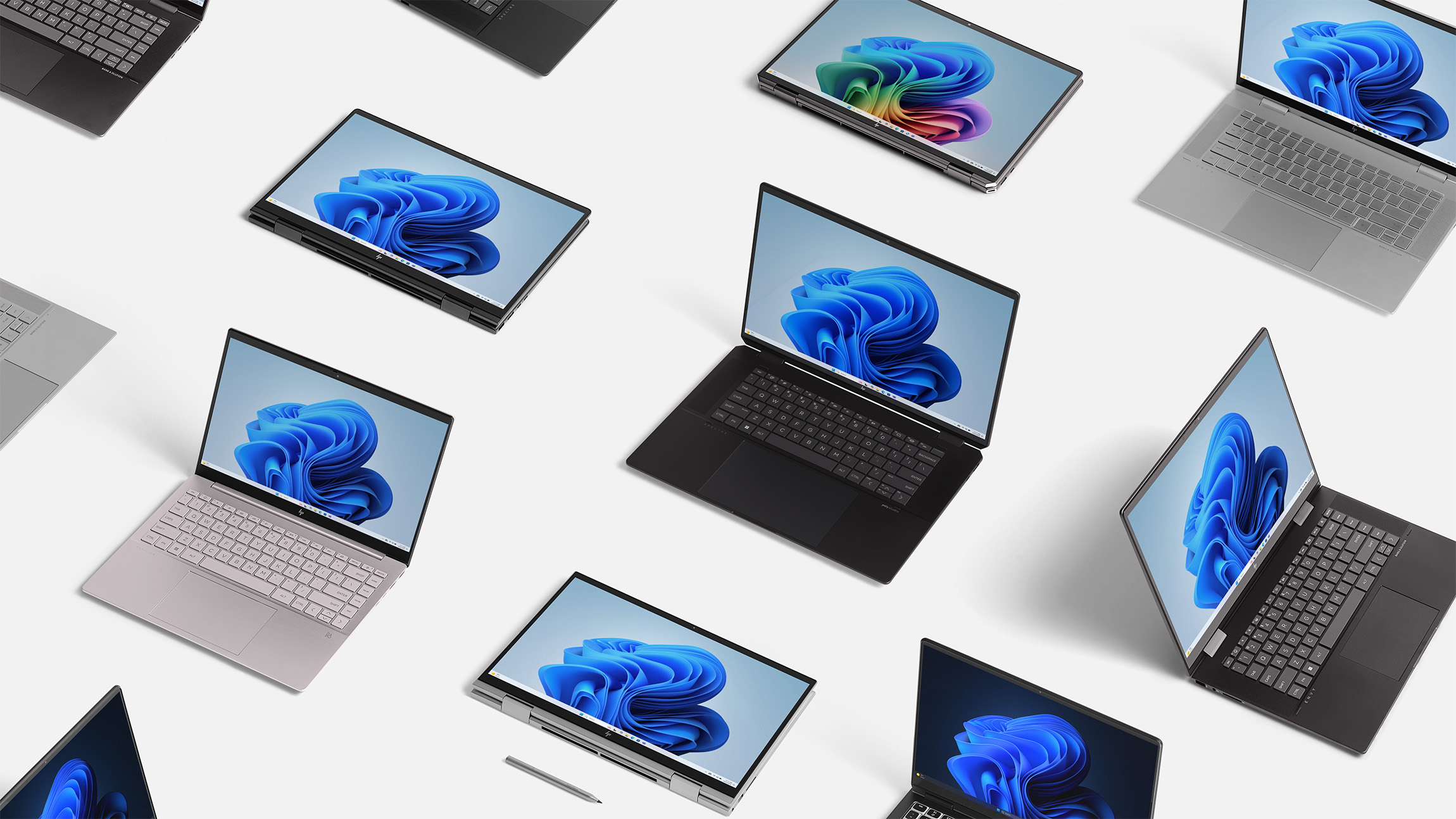
AI is no longer a buzzword—it’s the engine driving a new era of productivity, security, and personalization. And Windows 11 and AI PCs are at the center of it.
At Microsoft Digital, the company’s IT organization, we’re embracing this as Customer Zero for the company.
What does that mean?
It means that we’re testing and shaping new Windows 11 features before they ship to customers. And as such, we’re helping the company reimagine what the OS can do for enterprise users in an AI-first world. We’re also helping the company transform the tools and processes we and our customers use to manage the Windows devices that our employees use to do their work.

“Windows 11 is our foundation for the future of work. We’re helping to build an OS that’s not just reactive—it’s predictive. It understands context, adapts to users, and helps IT teams stay ahead of the curve.”
Sean MacDonald, partner director of product management, Microsoft Digital
When we rolled out Windows 11 across Microsoft in 2021, we wanted to modernize the Windows experience for our global workforce. That meant moving beyond the legacy of Windows 10 and building a platform that’s smarter, more secure, and easier to manage. It also meant working closely with engineering teams to ensure that what we deploy internally reflects what customers need externally.
“Windows 11 is our foundation for the future of work,” says Sean MacDonald, partner director of product management at Microsoft Digital. “We’re helping to build an OS that’s not just reactive—it’s predictive. It understands context, adapts to users, and helps IT teams stay ahead of the curve.”
This transformation isn’t happening in isolation. It’s part of a broader organizational commitment to AI across Microsoft. From the integration of Copilot into dozens of Microsoft products to intelligent device management, we’re aligning every layer of the stack to deliver smarter experiences.
And we’re doing it because the time is right. The end of Windows 10 support is here, and Windows 11 is the essential solution for organizations seeking the enhanced productivity, security, and personalized experiences that AI makes possible.
Embracing a secure and efficient update environment
Keeping Windows 11 secure and up-to-date has evolved into a streamlined, intelligent process.
With Windows Autopatch, we’ve automated the deployment of updates across our enterprise.
But automation doesn’t mean losing control. The management tools available across Microsoft Intune and Windows allow us to exercise complete control over updates. We can leave Autopatch to make patching decisions, or we can dictate how any part of the process works—evaluate and select which updates to perform, define the rollout structure and schedule, and monitor the updates.

“Autopatch update readiness takes us to a new level with Windows 11 updates. It allows us to be proactive, rather than reactive in ensuring our Windows devices are in a ready state to seamlessly update, which minimizes disruptions and distractions to our employees.”
Dave Rodriguez, principal product manager, Windows team, Microsoft Digital
Autopatch lets us tailor rollouts to match our business structure. We’ve created custom Autopatch groups of up to 50 rings so we can deploy updates to the right people at the right time.
This flexibility is critical. It means we can schedule around sensitive periods like year-end close, define grace periods, and even choose which updates to deploy—feature, driver, or quality.
But the real magic happens behind the scenes.
With Windows 11 and Autopatch, we’re not just reacting to issues—we’re anticipating them. That’s where the Autopatch update readiness (AUR) comes in. It adds a new layer of resilience to our update management strategy.
Update readiness continuously monitors device health and update compliance across the enterprise.
By analyzing real-time telemetry, update readiness flags irregularities early and recommends targeted fixes.
“Autopatch update readiness takes us to a new level with Windows 11 updates,” says Dave Rodriguez, a principal product manager on the Windows team in Microsoft Digital. “It allows us to be proactive, rather than reactive in ensuring our Windows devices are in a ready state to seamlessly update, which minimizes disruptions and distractions to our employees.”
“Hotpatching has been a game-changer for keeping our devices secure without disrupting work. Security updates take effect immediately—no reboot required. That’s a big deal.”
Harshitha Digumarthi, senior product manager, Windows team, Microsoft Digital
One of the biggest wins?
Hotpatch, which allows us to apply most of our monthly security updates without our employees needing to restart their devices, which has been huge for our productivity.
“Hotpatching has been a game-changer for keeping our devices secure without disrupting work,” says Harshitha Digumarthi, a senior product manager on the Windows team in Microsoft Digital. “Security updates take effect immediately—no reboot required. That’s a big deal.”
Hotpatch works by modifying in-memory code to silently apply updates in the background. It’s especially valuable for operations that require high availability.

“We’re seeing a shift from device-centric recovery to user-centric personalization. It’s not just about getting the machine back—it’s about getting the person back to work.”
Markus Gonis, senior service engineer, Microsoft Digital
Together, hotpatch, update readiness, and Autopatch are helping us transform how we manage updates. We’re not just deploying tools—we’re reshaping business critical processes.
Protecting data using Windows Backup and Restore for Organizations
With Windows 11, we’ve redefined what backup and restore means for enterprise users with Windows Backup and Restore for Organizations. It’s not just about getting a device back online—it’s about restoring the user’s experience.
When a user signs into a new device with their Entra ID, they can select a backup to automatically restore their Microsoft Store app configurations, settings, and preferences. It’s seamless. It’s secure. And it’s fast.
“We’re seeing a shift from device-centric recovery to user-centric personalization,” says Markus Gonis, a senior service engineer on the Windows team in Microsoft Digital. “It’s not just about getting the machine back—it’s about getting the person back to work.”
This matters. Especially in large organizations where device turnover is constant and downtime is costly.
With Entra ID, we can automatically enroll devices into Microsoft Intune for management. That means IT policies, security configurations, and compliance settings are applied instantly. No manual setup. No waiting.
And because the restore process is tied to the user’s identity, it works across devices. Whether it’s a laptop refresh, a lost device, or a hardware upgrade, users get their familiar environment back—apps, layout, even their desktop background.
“Windows 11 is designed for fast deployment and compatibility,” Gonis says. “We’ve seen up to 25 percent faster deployment times compared to Windows 10. That’s a huge win for IT teams.”
This isn’t just about convenience. It’s about resilience.
By combining Entra ID with modern device management, we’ve built a recovery system that’s secure by default. Data is encrypted. Access is conditional. And IT retains full control over who can restore what, when, and where.
Capturing the power of AI-enabled apps and experiences
Windows 11 is bringing intelligent experiences to the forefront, and we’re seeing it firsthand at Microsoft Digital. From productivity to security, AI is transforming how our people work.
Windows Recall is an opt-in AI-powered feature built directly into Copilot+ PCs with Windows 11. It’s designed to solve a problem every person knows too well: Finding something you’ve already seen.
Recall allows you to search across time to find the content you need. Just describe how you remember it, and Recall retrieves the moment you saw it. Once opted-in snapshots are taken periodically while content on the screen is different from the previous snapshot. The snapshots of your screen are organized into a timeline. Snapshots are locally stored and locally analyzed on your PC. Recall’s analysis allows you to search for content, including both images and text, using natural language.
Here are its core capabilities:
- Semantic AI-powered search. No need to recall exact filenames. Just describe what you remember—like “blue sustainability slide from last meeting”—and Recall uses on-device AI to surface images or text that match the description.
- Full user control and privacy. IT admins have a full set of controls to manage security and privacy when enabling the Recall feature for the enterprise. Once enabled by enterprise admins, you as the end user then have the choice to opt in to enable snapshots on your machines.
- Explore content with a visual timeline. Recall periodically captures screenshots of your active window and displays them in an interactive, chronological timeline. When you need to revisit something, you can simply scroll through your past activity or jump directly to the specific moment you remember seeing it.
- Granular snapshot management. You choose which apps and websites to include or exclude. You can pause snapshot capture, delete past captures, and set retention limits (e.g., 30, 60, 90, or 180 days) to manage storage and privacy. And IT admins can control how these capabilities work for the entire organization.
- All snapshots, indexing, and AI processing occur on-device. Recall runs completely locally—no data leaves your PC.It never shares your data with Microsoft or third parties, nor across different user accounts on the same device.
Recall doesn’t just remember—it protects. IT admins can control snapshot storage, retention policies, and even filter which apps and websites are recorded.
That’s where enterprise-scale controls come in.

“We helped define these controls. We tested them to validate they worked as expected.”
John Philpott, principal product manager at Microsoft Digital
Microsoft Digital partnered with the Purview and Intune product teams to help build a rich set of controls that give IT full visibility and governance over Recall’s data store. That includes sensitivity labels, data loss prevention (DLP) policies, and tenant trust reviews—all designed to keep enterprise data safe.
Purview and Intune provide the level of control that IT admins need to ensure that Recall respects the security and privacy concerns of the enterprise and the end user.
If a document is labeled “Highly Confidential,” Recall won’t index it. If a meeting is tagged “Recipients Only,” it won’t be captured. Purview admins can decide exactly which sensitivity levels are allowed in Recall and which are excluded.
Recall’s content redaction feature automatically detects and removes highly confidential information from screen snapshots based on Purview sensitivity labels. Users can work with both sensitive and non-sensitive documents on the same screen without risk of accidental exposure.
“We helped define these controls,” says John Philpott, a principal product manager within Microsoft Digital. “We tested them to validate they worked as expected.”
Implementing Windows 11 for the enterprise
Windows 10 support officially ended on October 14, 2025. Still, many companies have not yet made the needed move, something that Microsoft would like them to do as soon as possible.
At Microsoft Digital, we’ve already made the leap. We’ve deployed Windows 11 across our internal fleet, and we’ve learned what works and what doesn’t.
The most important thing? Have a plan and a phased approach.
“We didn’t try to do everything at once,” Digumarthi says. “We went slow, monitored help desk calls, and paused when needed. It wasn’t about speed—it was about getting it right.”
That phased approach helped us avoid surprises. We used security groups to segment users, deployed in waves, and ran parallel communication campaigns to keep everyone informed. “We built tech web pages, sent individual emails, and used Viva Engage for direct outreach,” Gonis says. “We wanted users to know what was coming and why.”
Organizations have options. They can upgrade to Windows Pro to Windows Enterprise. They can subscribe to Windows 365, which provides access to Windows 11 in the cloud. And they can extend the life of Windows 10 devices with Extended Security Updates (ESU).
Windows 365 lets you keep older hardware while giving users a modern experience. You get ESUs at no extra cost, and you don’t have to manage license keys or deploy images.
With tools like Autopatch and Intune, deployment is faster and easier. Compatibility is strong. And support is built in.
Looking ahead
We’re just getting started.
At Microsoft Ignite, we’re unveiling new capabilities that push the boundaries of what’s possible with AI and automation. Expect deeper integration between Windows and Microsoft Defender, new agentic workflows, and expanded support for AI-driven security operations.
We’re expanding the update readiness initiative, introducing carbon-aware updates in Autopatch, and expanding privacy capabilities in Recall.
Baseline Security Mode is growing, too, with more features, better reporting, and stronger baselines coming soon.
And we’ll keep telling the story. Start with the tools. Lean on the community. And let us help you make the leap to a more intelligent and secure enterprise powered by AI and Windows 11.

Key takeaways
Here are several practical steps you can take right now to maximize your transition to Windows 11 and harness the full potential of its AI-powered capabilities:
- Understand Windows 11’s AI-driven transformation. Learn how Windows 11 leverages artificial intelligence to enhance productivity, security, and user experiences across your organization.
- Discover new enterprise features and deployment strategies. Explore the latest tools and best practices for rolling out Windows 11 efficiently, including advanced management and security capabilities tailored for businesses.
- Learn from Microsoft Digital’s role as Customer Zero. Benefit from Microsoft Digital’s firsthand insights and lessons learned as the initial adopter of Windows 11 within a large enterprise environment.
- Explore migration options. Review your choices for upgrading to Windows 11, such as moving to Windows 11 Pro or Enterprise, subscribing to Windows 365, or leveraging Extended Security Updates for legacy devices.
- Prepare for what’s next. Stay ahead by planning for upcoming features, security enhancements, and innovations that will continue to shape the future of Windows in the enterprise.

Try it out

Related links
- Check our Microsoft Ignite Windows news announcements.
- Learn more about AI improvements to Windows that we’re announcing at Microsoft Ignite.
- Learn how we’re accelerating workplace productivity at Microsoft with Windows Recall.
- Find out more on how we’re transforming security and compliance at Microsoft with Windows Hotpatch.
- Check out how we’re hardening our defense at Microsoft with Baseline Security Mode.

We’d like to hear from you!