Need help finding a product or solution? Try Ask Microsoft.
FEATURED NEWS
Discover what’s happening with Teams
From Threads to Workflows: Microsoft Teams Features That Boost Everyone’s Productivity
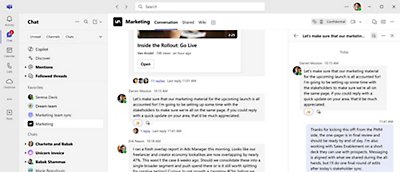
Organizations want to work faster and smarter. Guided by customer feedback, Microsoft Teams is adding new features like threads, multiple emoji reactions, and emoji-triggered workflows.
Microsoft was named a Leader in the Gartner® Magic Quadrant™ for Unified Communications as a Service (UCaaS) for the eighth consecutive year, and positioned highest on the evaluation’s “ability to execute” axis and furthest on the ‘completeness of vision’ axis1 in 2026.
Prompt like a pro with Microsoft 365 Copilot in Teams
Realize the full potential of your team's decision-making with prompts for Copilot in Teams. Streamline and transform your meetings so that every idea is visualized, evaluated, and brought to life.
Fortune Brands Innovations unifies their brands under one portal with Microsoft Power Pages
Fortune Brands Innovations created a more streamlined customer experience using Microsoft Power Pages and Dynamics 365 Customer Experience.
Solv eliminates 98% of clerical errors with Dynamics 365 Business Central
Solv improved report accuracy and efficiency by switching to Dynamics 365 Business Central, saving 40 man-hours monthly and enhancing financial controls.
Syensqo.AI leverages Azure OpenAI Service to develop SyGPT chatbot in record time
Syensqo.AI, a division of the Belgian science and technology leader Syensqo, has developed SyGPT, an advanced AI chatbot using Azure OpenAI Service.
Gartner, Magic Quadrant for Unified Communications as a Service, Worldwide, Pankil Sheth, Megan Fernandez, Rafael Benitez, Nitin Narang, 28 July 2026.
Gartner and Magic Quadrant are trademarks of Gartner, Inc., and/or its affiliates. This graphic was published by Gartner, Inc. as part of a larger research document and should be evaluated in the context of the entire document. The Gartner document is available here.
Gartner does not endorse any company, vendor, product or service depicted in its publications, and does not advise technology users to select only those vendors with the highest ratings or other designation. Gartner publications consist of the opinions of Gartner’s business and technology insights organization and should not be construed as statements of fact. Gartner disclaims all warranties, expressed or implied, with respect to this publication, including any warranties of merchantability or fitness for a particular purpose.
Teams Phone enables advanced call handling and connectivity with a Public Switched Telephone Network (PSTN) solution. A PSTN solution is separate from a Teams Phone license. A PSTN solution provides a customer’s tenant with phone numbers and PSTN access to domestic, international, and emergency calling.

 Teams
Teams























Follow Microsoft Teams