Why does formatting sometimes get messed up when you cut and paste text? And what is that thing that appears at the end of the last sentence every time you paste–like a fly returning to honey.
That thing–the Paste Options button–is your friend, a worker bee and not a fly whose only job is to follow your formatting instructions. Learning how it works keeps you from wasting time manually formatting pasted text.
Microsoft Word
Put your best words forward with an Office 365 subscription.

Using the Paste Options button
Click the down-arrow on the Paste Options button and you’ll see a menu with icons that lets you format copied text in different ways. The options you’ll see depend on where you’re cutting and pasting from and to, e.g., from within or between documents. Roll your mouse over the icons and you can see how your pasted text will look before you click.
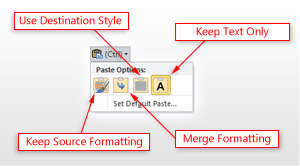
These are the four most common options:
- Keep Source Formatting: Keeps the formatting of the text you copied
- Use Destination Styles: Matches the formatting where you pasted your text
- Kept Text Only: Discards both the text formatting AND the non-text elements you copied, such as pictures or table, and then matches the formatting where you pasted the text
- Merge Formatting: Keeps the formatting of the text you copied without changing the formatting of the destination document, e.g., if you cut and paste a sentence from another document that had a different font type or size
Word gives you other options for copying and pasting things such as bulleted or numbered lists, or hyperlinks. Plus, it lets you define how you want cutting and pasting to work most of the time (click Set Default Paste under the icons)–including getting rid of the Paste Options button if it still seems like a pesky fly.