Over the summer, a crew of interns joined the PowerPoint team and our goal for them was to experience the excitement of designing and implementing features for PowerPoint Online. We tasked our interns with delivering a feature that you, our customers, have been asking for—the ability to format slide backgrounds in PowerPoint Online, which is known as Format Background in PowerPoint desktop. The PowerPoint Online implementation of this feature was designed by a program manager intern, coded by a developer intern and has been thoroughly tested by our engineering team to ensure that it meets a high quality bar. Our interns have now returned to their respective universities, but their contributions are available to all our PowerPoint Online users around the world.
Much like in PowerPoint desktop, you can find the Format Background feature on the Design tab.
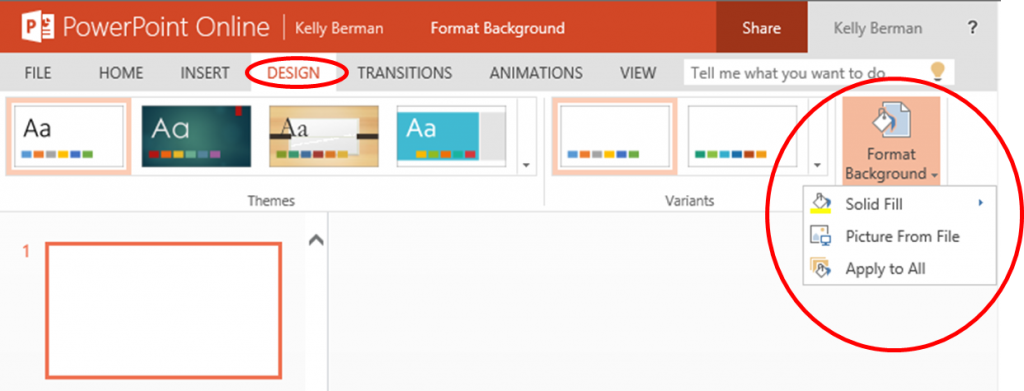
From there, you can then choose to change your slide background to a solid color or to a picture that is saved on your computer. After you format the background of your slide, you can use the Apply to All option to apply the background of the current slide to all the other slides in your presentation.

Please let us know what you think by leaving a comment below, or click or tap HELP IMPROVE OFFICE directly from PowerPoint Online.