
OneDrive is expanding version history to support all file types for your OneDrive personal account—one of our most highly requested features. OneDrive is committed to helping you focus on being more productive and having to worry less about accidental edits by you or others collaborating with you.
With these improvements to version history, you can see and restore older versions of all your files in your OneDrive. Previously, version history only supported Office files. Now, version history is compatible with all file types, so you no longer need to worry about your PDFs, CAD files or even your photos and videos getting accidentally edited—you’ll always be able to restore or download a previous version. OneDrive will keep an older version of your files for 30 days. Expanded version history support has started rolling out and will be available to everyone this summer.
Using version history in OneDrive
Using the version history is easy; just navigate to OneDrive.com, right-click the file you want to restore or view a previous version and then select Version history.

The Version History window shows the date of the previous revisions, who it was modified by and the size of the previous revision.
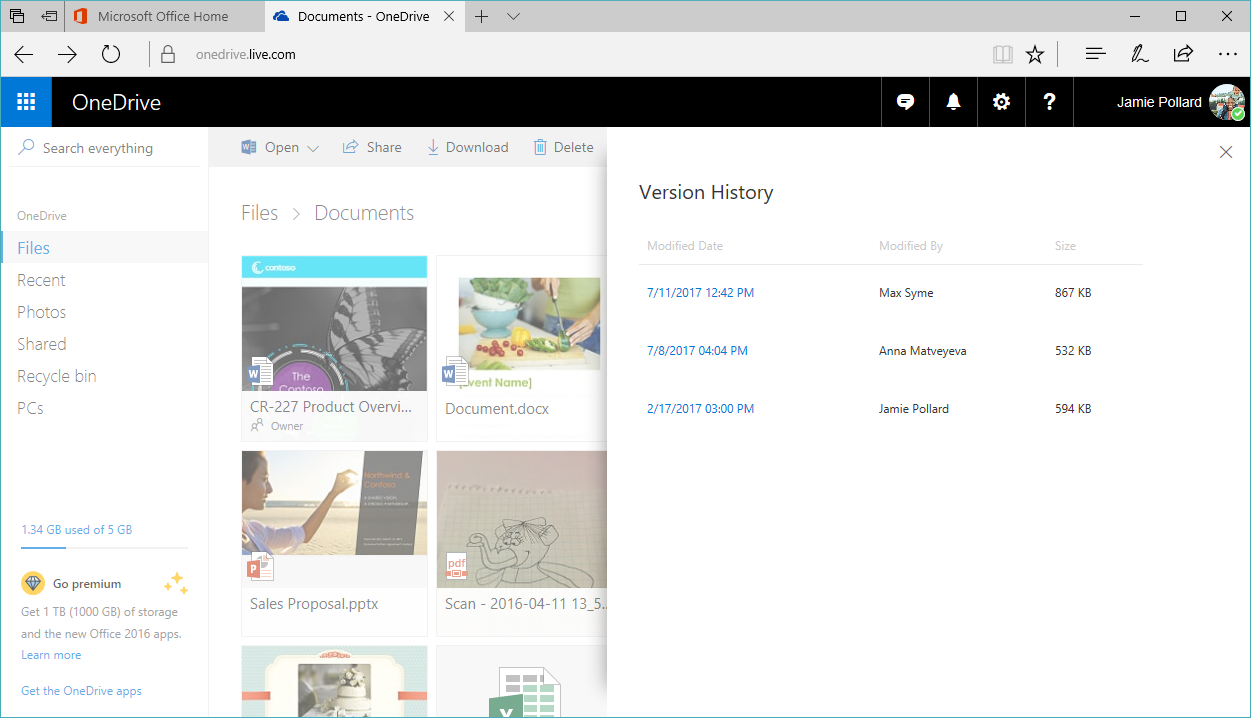
Simply select your desired revision and either click Open File to view or download it or click Restore to replace the current version with the revision you selected.

This is just one of multiple steps you will see OneDrive take in making sure your data is protected in OneDrive.
—The OneDrive team