
Microsoft 365 Copilot is now available for small and medium-sized businesses.

What is video conferencing and how to meet for free
Video conferencing connects two or more people in different places for a live meeting over the internet. Seamlessly transition from remote work to the office (or anywhere in between) with the free version of Microsoft Teams. Host a free video call or group video call for up to 100 people, with chat, screen sharing, and file sharing built in.
How does video conferencing work
Video conferencing services use the microphone, camera, and speakers on a computer or phone, along with an internet connection, to send and receive audio and video at the same time. Everyone joins from a shared link or meeting ID, so no one needs to be in the same room
What you need to join a call
A device with a camera and microphone, a stable internet connection, and a meeting link. Most services also run in a browser, so participants can join without installing an app
Video conferencing vs. video calling vs. web conferencing
Benefits of video conferencing
Meeting face to face over video makes it easier to read tone and body language, which text and audio-only calls lose. Groups that meet on video tend to reach decisions faster, cut travel time, and keep remote and in-office colleagues on equal footing. Choosing the right virtual meeting platform decides how much of that value you actually get.
Clearer communication
Easier collaboration
Lower travel costs
More inclusive meetings
Key features of free video conferencing software
No matter where you go, collaborate across teams with free online meetings, free video calling, video chat, file sharing, and storage. The video conferencing tools below are included at no cost on the Microsoft Teams free plan
Free 60-minute meetings
Host up to 100 participants. Or upgrade to meet for up to 30 hours with up to 300 people.
Screen sharinng
Share your whole screen or a single window so everyone can follow a document, deck, or demo
Flexible, consistent app experience
Whether signing in from your phone or your laptop, easily find what you need on any device.
What you can do in a free video conference
Connect and collaborate to bring plans to life. Teams video conferencing puts meetings, chat, files, and tasks in the same place, so nothing is lost between apps.
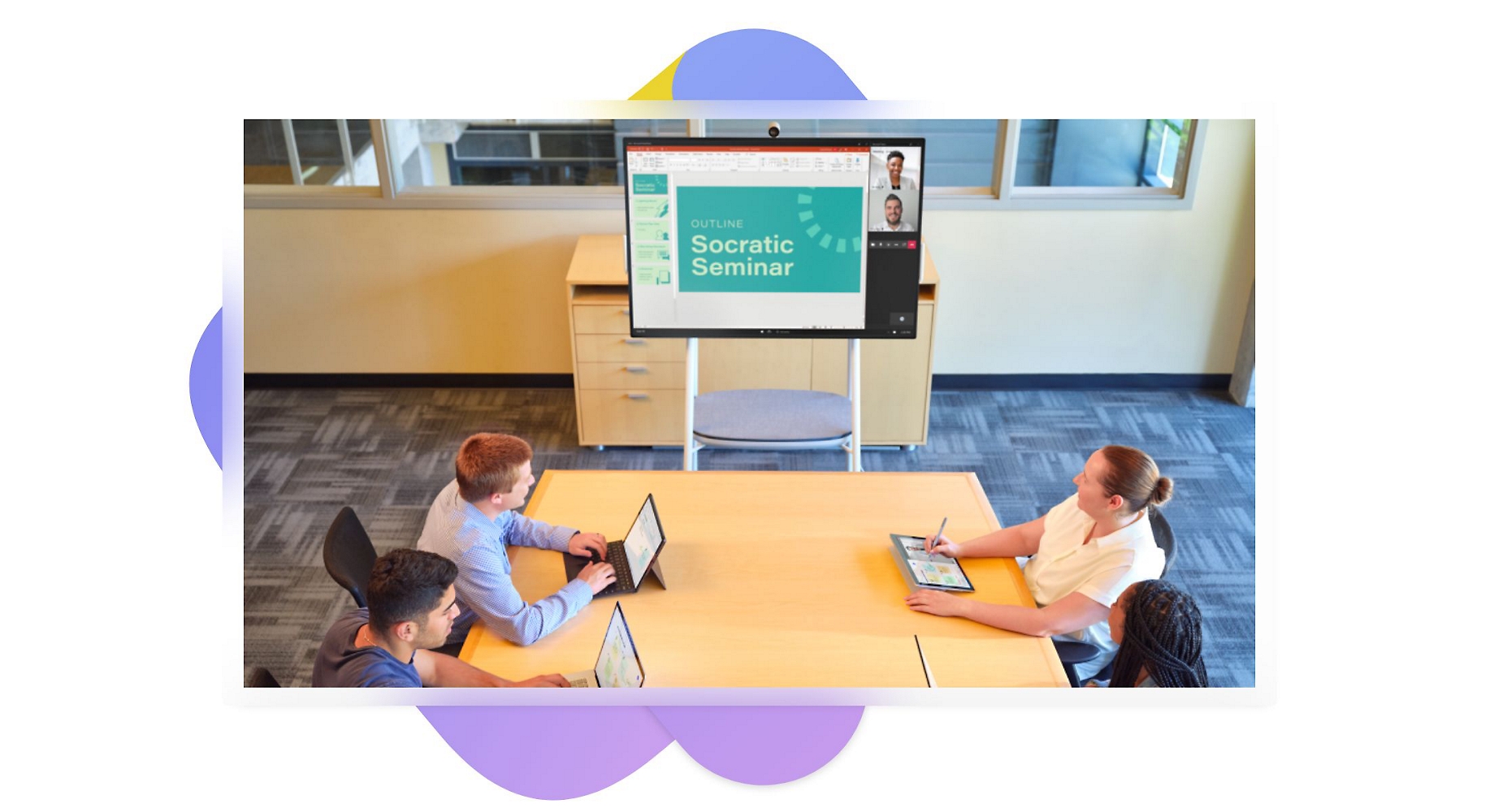
Free video conferencing features
Meet one-on-one or with up to 100 people for up to 60 minutes.
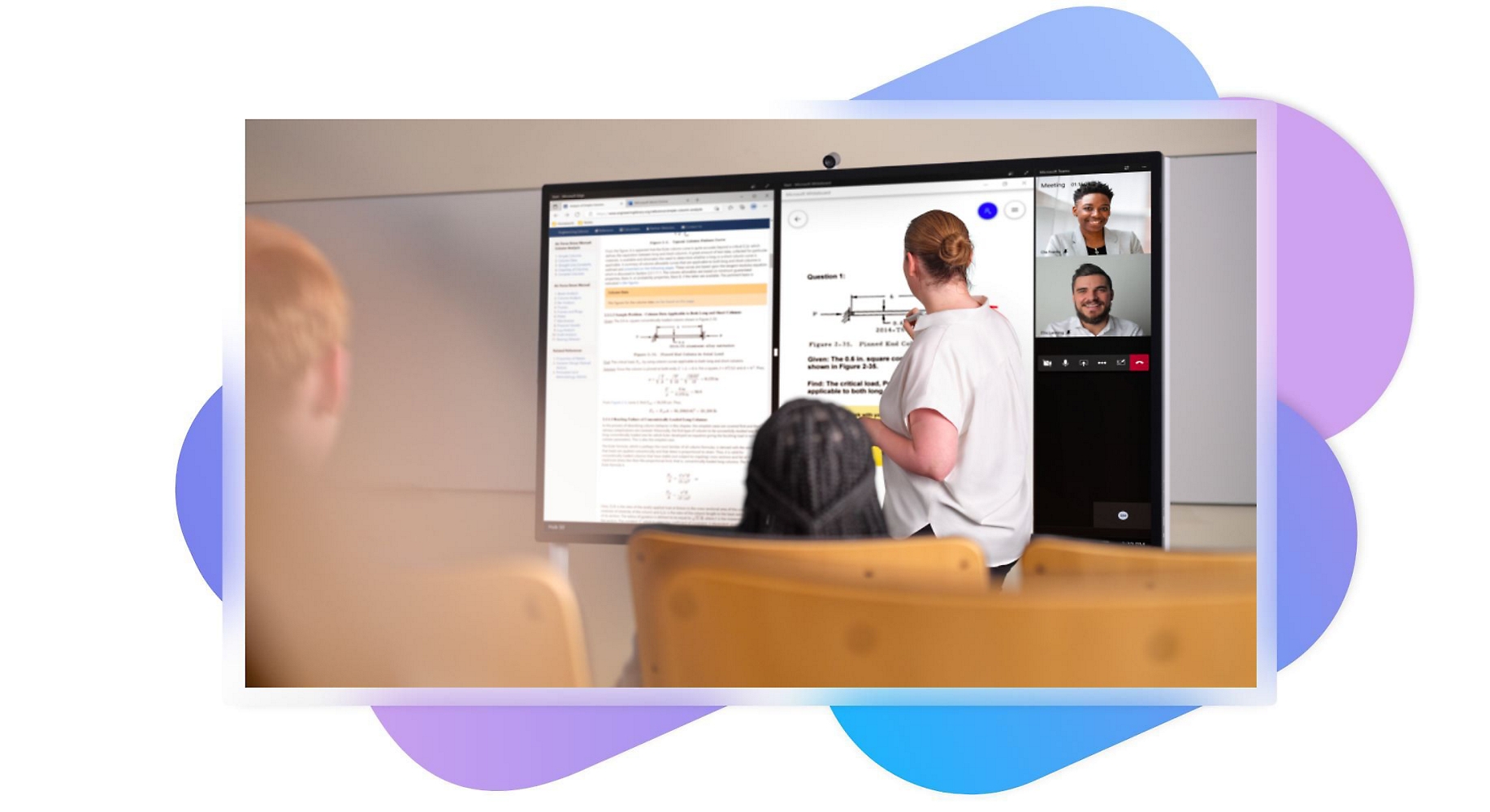
Collaborate with everyone
Voice your thoughts in real-time and share files to collaborate with others inside and outside your organization.
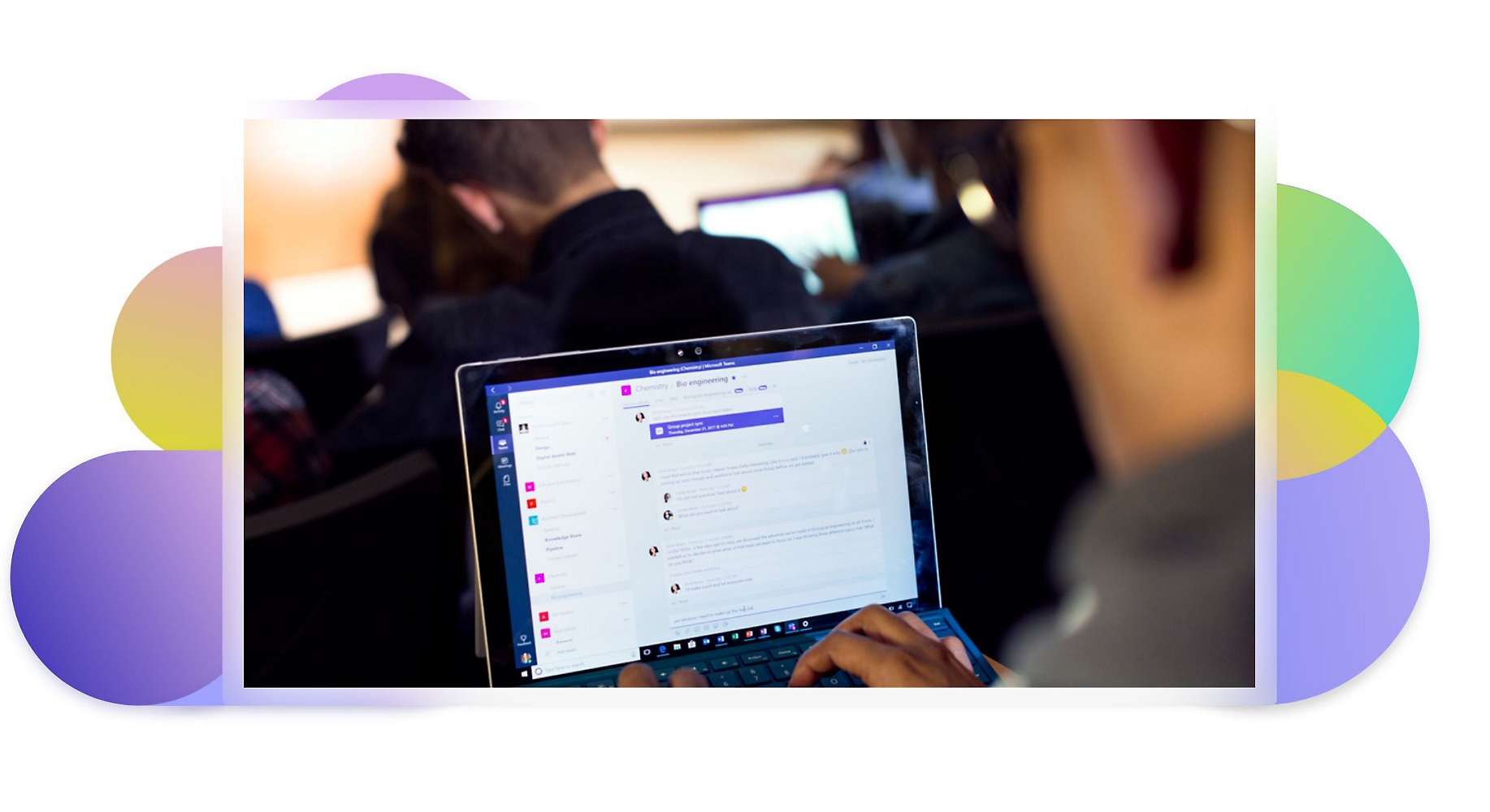
Instantly connect
Plan together, assign tasks in shared to-do lists, and schedule or share meeting invites directly in a group chat.
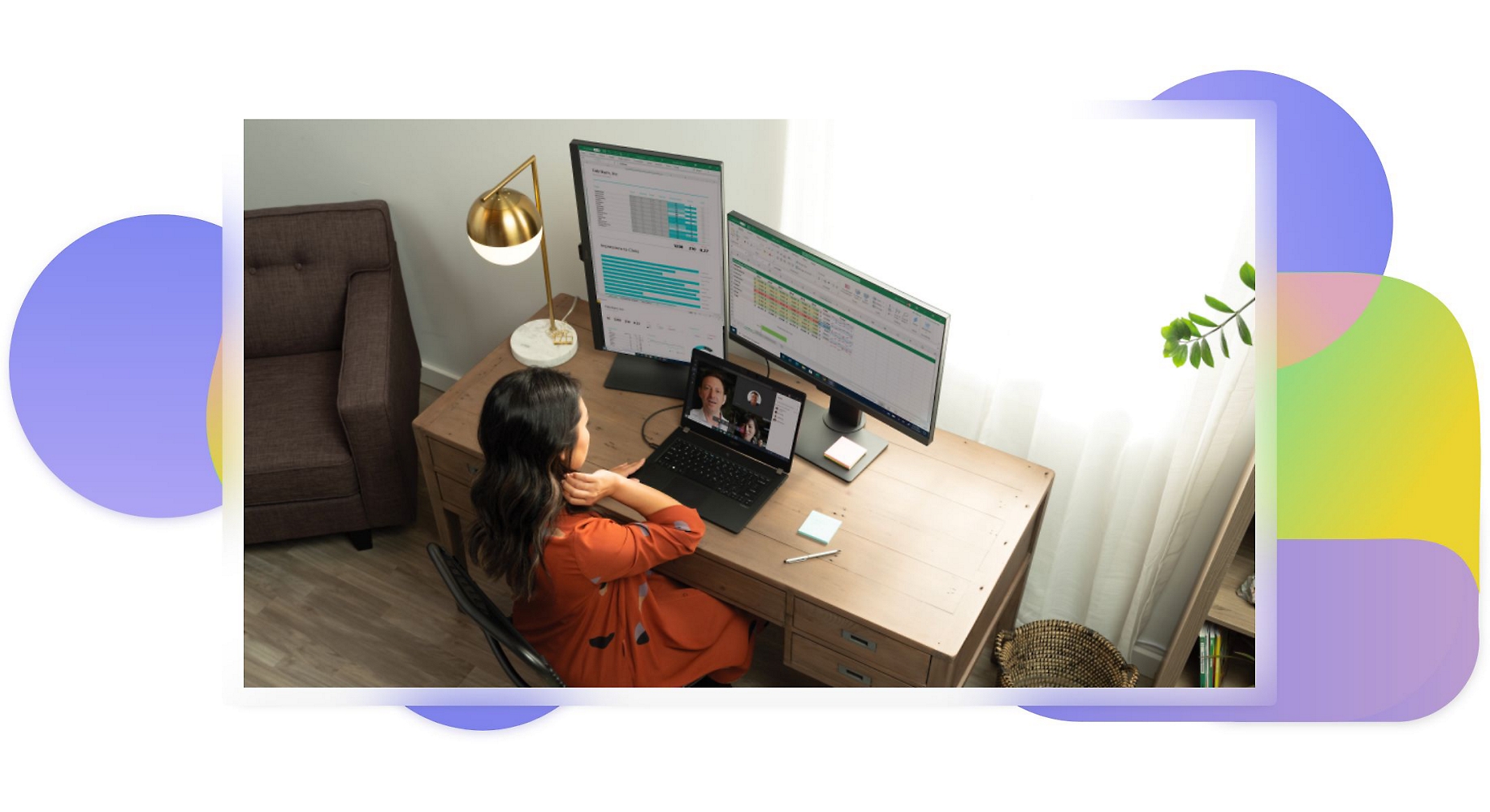
Organize your projects and plans
Select the dashboard view in any chat to quickly access all shared content, such as tasks, upcoming events, and links, in one place.

Work with peace of mind
Rest assured that your sensitive information is more protected with data encryption.
Make decisions faster
Create and post polls in any chat to get responses in real time.
How to host a free online meeting
Sign up for a free account, select 'New meeting', then share the link or meeting ID with everyone you want to invite. Guests can join from a browser without an account. The same steps work for a free conference call when participants prefer to join with audio only.
Start a meeting
Invite participants
Turn on your camera and Microphone
Share your screen
See how businesses are innovating with Teams
Learn how diverse industries use Teams to stay relevant in changing times.
Built for small businesses
Learn how Berryessa Gap Vineyards, a family-owned vineyard and winery, is transforming its customer service and business operations with communication tools in Microsoft Teams.

Collaborate from anywhere
Learn how Go Narrative used Teams to shift its in-person workshops to a virtual format—and still captured the energy of brainstorming, whiteboarding, and breakout sessions.


Find the right Microsoft Teams plan for your needs
Microsoft Teams is designed for everyone. Get started for free, get more with Teams Essentials, or get Teams as part of Microsoft 365.
Microsoft Teams (free)
Originally starting from Free now starting from Free
Free Free
(No commitment)
-
Unlimited one-to-one meetings for up to 30 hours
-
Unlimited group meetings for up to 60 minutes
-
Up to 100 participants per meeting
-
5 GB of cloud storage per user
-
Unlimited chat with coworkers and customers
-
File sharing, tasks, and polling
-
Data encryption for meetings, chats, calls, and files
Microsoft Teams Essentials
Originally starting from $4.00 now starting from $4.00
$4.00 $4.00
user/month, paid yearly
(Annual subscription—auto renews)1
-
Unlimited group meetings for up to 30 hours
-
Up to 300 participants per meeting
-
10 GB of cloud storage per user
-
Phone and web support
-
Unlimited chat with coworkers and customers
-
File sharing, tasks, and polling
-
Data encryption for meetings, chats, calls, and files
-
Live captions in meetings (English)3
-
Microsoft Whiteboard
-
Hundreds of collaborative apps
-
Collaborative annotations in Teams meetings, so participants can contribute to shared content
-
Team meetings recordings with transcripts
-
Standard security
-
Microsoft 365 Copilot, available as an add-on.4
Microsoft 365 Business Basic
Originally starting from $7.00 now starting from $7.00
$7.00 $7.00
user/month, paid yearly
(Annual subscription—auto renews)1
-
Everything offered in Microsoft Teams Essentials, plus:
-
Identity, access, and user management for up to 300 employees
-
Custom business email (you@yourbusiness.com)
-
Web and mobile versions of Word, Excel, PowerPoint, and Outlook
-
1 TB of cloud storage per employee
-
10+ additional apps for your business needs (Bookings, Planner, Microsoft Forms, and others)
-
Automatic spam and malware filtering
-
Anytime phone and web support
-
Microsoft 365 Copilot, available as an add-on.4
Microsoft 365 Business Standard
Originally starting from $14.00 now starting from $14.00
$14.00 $14.00
user/month, paid yearly
(Annual subscription—auto renews)1
-
Everything offered in Microsoft 365 Business Basic, plus:
-
Desktop versions of Word, Excel, PowerPoint, and Outlook
-
Webinars with attendee registration and reporting
-
Collaborative workspaces to co-create using Microsoft Loop
-
Video editing and design tools with Clipchamp
-
Microsoft 365 Copilot, available as an add-on.4
Microsoft 365 Business Basic (no Teams)
Originally starting from $5.40 now starting from $5.40
$5.40 $5.40
user/month, paid yearly
(Annual subscription—auto renews)1
-
Identity, access, and user management for up to 300 employees
-
Custom business email (you@yourbusiness.com)
-
Web and mobile versions of Word, Excel, PowerPoint, and Outlook
-
1 TB of cloud storage per employee
-
10+ additional apps for your business needs (Bookings, Planner, Microsoft Forms, and others)
-
Automatic spam and malware filtering
-
Anytime phone and web support
-
Microsoft 365 Copilot, available as an add-on.4
Microsoft 365 Business Standard (no Teams)
Originally starting from $10.79 now starting from $10.79
$10.79 $10.79
user/month, paid yearly
(Annual subscription—auto renews)1
-
Everything offered in Microsoft 365 Business Basic, plus:
-
Desktop versions of Word, Excel, PowerPoint, and Outlook
-
Collaborative workspaces to co-create using Microsoft Loop
-
Video editing and design tools with Microsoft Clipchamp
-
Microsoft 365 Copilot, available as an add-on.4
Add Copilot to your Microsoft plan.4
Sign in to add Copilot to your existing Microsoft 365 business plan.
If you’re not an existing customer, buy a Microsoft 365 plan to get started.

Frequently asked questions
-
After signing in to Teams from your preferred device, you have several options to easily join an online meeting: by link, from your calendar, from chat, through a channel, or by dialing in from a phone.
-
To turn your camera on before a meeting, select Camera right before you join. To turn your camera on during a meeting that has already started, select Camera from the meeting controls.
-
To blur your background or add a background image, select Background filters when you’re setting up your audio and video before a meeting. You can also change the background during a meeting by selecting More actions > Apply background effects from the meeting controls.
-
Yes. The default view, which shows video streams of up to nine other people at the same time, is called Gallery view. Other layout options include Large gallery view, where you’ll see up to 49 other people at once, and together mode, where you’ll see everyone as if they’re seated in a shared space. If you’re using Teams on the web (Edge or Chrome browser), you’ll see up to four video streams at the same time with 2x2 view.
-
Go to the Microsoft Teams help and learning page for comprehensive help.
Get started with Microsoft Teams today


- [1] Once your paid subscription begins, you have a 7-day cancellation window to receive a prorated refund, only paying for what you use. You may cancel your subscription at any time in the Microsoft 365 admin center. Learn how to cancel your Microsoft 365 subscription. When a subscription is canceled, all associated data will be deleted. Learn more about data retention, deletion, and destruction in Microsoft 365.
- [2] After your one-month free trial, you will be charged the applicable subscription fee. Credit card required. Cancel anytime to stop future charges.
- [3] Live captions are available in the English language with Microsoft account identities and over 30 additional languages with Azure AD identities. For more information, see the Live captions support article
- [4] Microsoft 365 Copilot may not be available for all markets and languages. To purchase, customers must have a qualifying plan for enterprise or business.
Follow Microsoft Teams