We all know passwords are inherently unsecure. They’re also expensive to manage. Users struggle to remember them. It’s why we’re so passionate about eliminating passwords entirely. Passwordless solutions, such as Windows Hello, FIDO2 security keys, and the Microsoft Authenticator app, provide more secure and convenient sign-in methods. But transitioning your organization to passwordless authentication takes time and careful planning. You may wonder where to start and how long it will take to realize benefits. Today, we examine:
- How biometrics improve security while safeguarding user privacy.
- The cost reductions Microsoft realized from passwordless migration.
- Steps you can take to better secure your organization and prepare for passwordless.
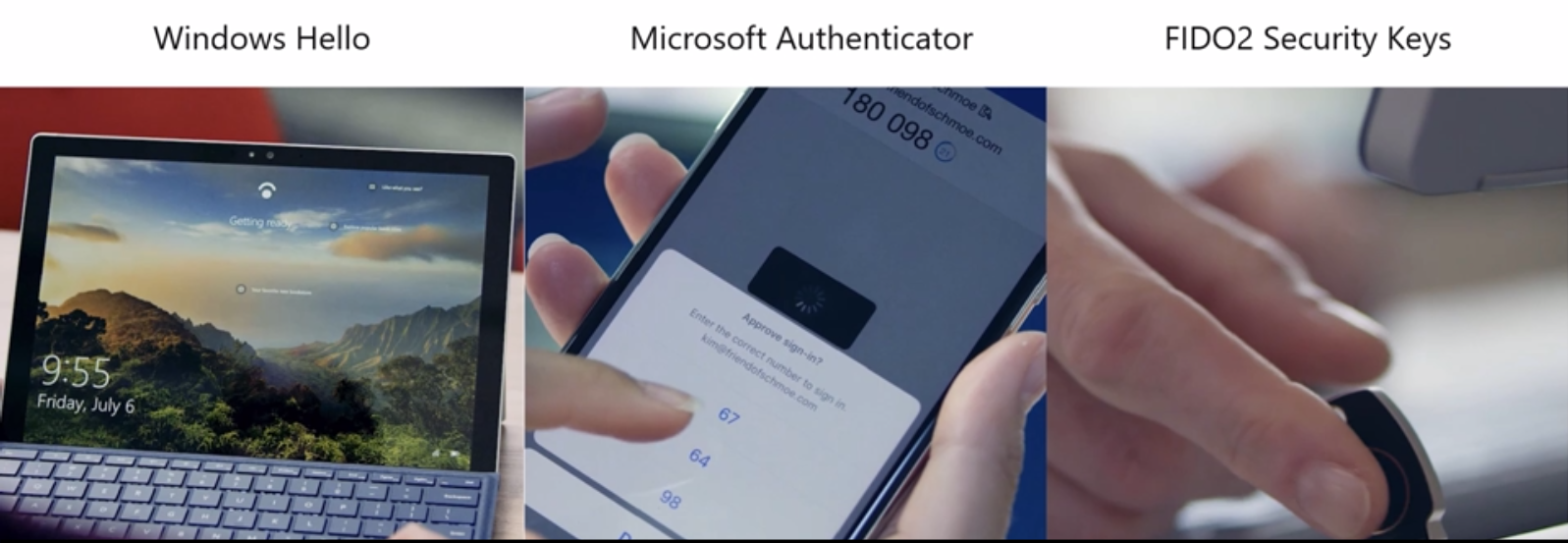
Microsoft passwordless solutions include Windows Hello, the Microsoft Authenticator app, and FIDO2 security keys.
Biometric technology improves security and safeguards user privacy
The goal of user authentication protocols, including passwords, is to verify user identity. But just because a user knows a password doesn’t mean they are the person they claim to be. In fact, 81 percent of breaches leverage stolen or compromised passwords.1 Passwords are not unique identifiers.
To improve security, we need a better way to uniquely identify users. This is where biometrics come in. Your iris, fingerprint, and face are unique to you—nobody else has the same fingerprint, for example. Passwordless solutions, like Windows Hello, rely on biometrics instead of passwords because biometrics are better at accurately identifying a user.
Biometrics, like other personal identifying information (PII), may raise privacy concerns. Some people worry that technology companies will collect PII and make it available to other entities. Or that their biometric image might get stolen. That’s why Microsoft and other security companies in the Fast IDentity Online (FIDO) Alliance developed the FIDO2 standard to raise the bar for securing credentials. Rest assured, Microsoft uses FIDO2-compliant technology that does NOT view, store, or transfer ANY biometric images.
Here’s how it works:
- When a user creates a biometric sign-in, Windows Hello uses an algorithm to create a unique identifier that is stored locally on the device, encrypted and secured, and never shared with Microsoft.
- Each time a user signs in, the biometric is compared against the unique identifier.
- If there is a match, the user is authenticated to the device.
Technologies like Windows Hello are secure, convenient, and safeguard user privacy.
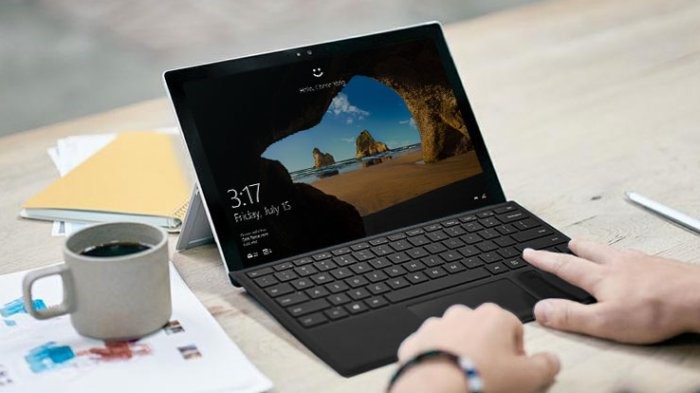
Users can sign in to Windows Hello with a fingerprint scan. The fingerprint image is turned into a unique identifier stored on the device. It does not get stored by Microsoft.
Improve security, reduce costs, and increase productivity
To help you think about the costs associated with passwords, we’ll share some numbers from Microsoft’s own experience rolling out passwordless to its users. After about a year since Microsoft began this journey, most users don’t use a password to authenticate to corporate systems, resources, and applications. The company is better protected, but it has also reduced costs.
Passwords are expensive because users frequently forget them. For every password reset Microsoft incurs, soft costs are associated with the productivity lost while a user can’t sign in. The company also incurs hard costs for every hour a Helpdesk administrator spends helping a Microsoft user reset their password.
Microsoft estimated the following costs before rolling out passwordless to its employees:
- $3 million a year in hard costs.
- $6 million a year in lost productivity.
As of today, Microsoft has achieved the following benefits from its passwordless rollout:
- Reduced hard and soft costs by 87 percent.
- As Microsoft costs go down, attackers’ costs go up, so the company is less of a target.
Going passwordless starts with Multi-Factor Authentication
Whether you’re ready to roll out a passwordless authentication strategy today or in a few years, these steps will help get your organization ready.
- Step 1: Define your passwordless and biometrics strategy—At Microsoft, we allow more than one biometric factor to choose from for authentication, which gives people options and helps us meet accessibility needs.
- Step 2: Move your identities to the cloud—Leverage Azure Active Directory (Azure AD) user behavior analytics and security intelligence to help protect your identities, uncover breach patterns, and recover if there is a breach.
- Step 3: Enable Multi-Factor Authentication (MFA)—MFA increases security by requiring more than one factor of verification, usually in addition to a password. By enabling MFA, you can reduce the odds of account compromise by 99.9 percent.2 But passwords don’t have to be a factor. With passwordless authentication, the biometric identifier is one factor of verification and the device possession is another, removing the risk of passwords from the equation.
- Step 4: Pilot passwordless—Start a pilot test with your riskiest users or groups.
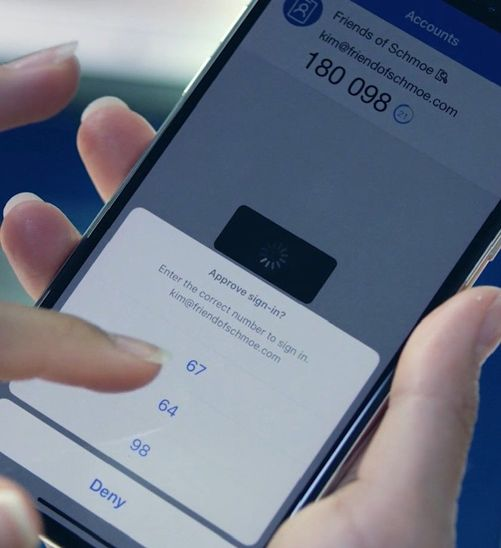
The Microsoft Authenticator app can be used to augment a password as a second factor or to replace a password with biometrics or a device PIN for authentication.
If you aren’t ready to go passwordless, enable MFA to reduce your odds of a breach. We also recommend that you ban the most easily guessable passwords. Azure AD processes 60 billion authentications in a month and uses the telemetry to automatically block commonly used, weak, or compromised passwords for all Azure AD accounts, but you can add your own custom banned passwords, too.
Learn more
Microsoft passwordless solutions include Windows Hello, the Microsoft Authenticator app, and FIDO2 security keys from select partners. Each can help you accomplish the following:
- Stronger security.
- Reduced costs over time.
- Increased attacker costs.
- More productive users.
Read more about Microsoft passwordless solutions.
Watch the CISO Spotlight Series: Passwordless: What’s it worth?
12018 Verizon Data Breach Investigations report
22018 Microsoft Security Research